H19. Bundling Targets into Application Groups
Diátaxis: How-to · Audience: administrators -- the screen is visible to every user, but creating, editing, and deleting groups need administrator permission ← Back to contents
An application group bundles the instances that are meaningful to look at together into one service unit. Bundling them well means the context selector can pick "the whole payment service" in one step, and group permissions are granted at this unit too.
For the concept of groups, instances, and agents, read E2.1 first. This document is about how to create and bundle them.
How to open it -- left menu ▸ Access Management ▸ Application Groups (/settings/applications)
This menu is visible to every user (the group list and members can be viewed). However, the editing actions -- adding, deleting, and editing groups, and bundling instances -- have their buttons appear only for accounts with administrator permission. The steps in this document assume an administrator account.
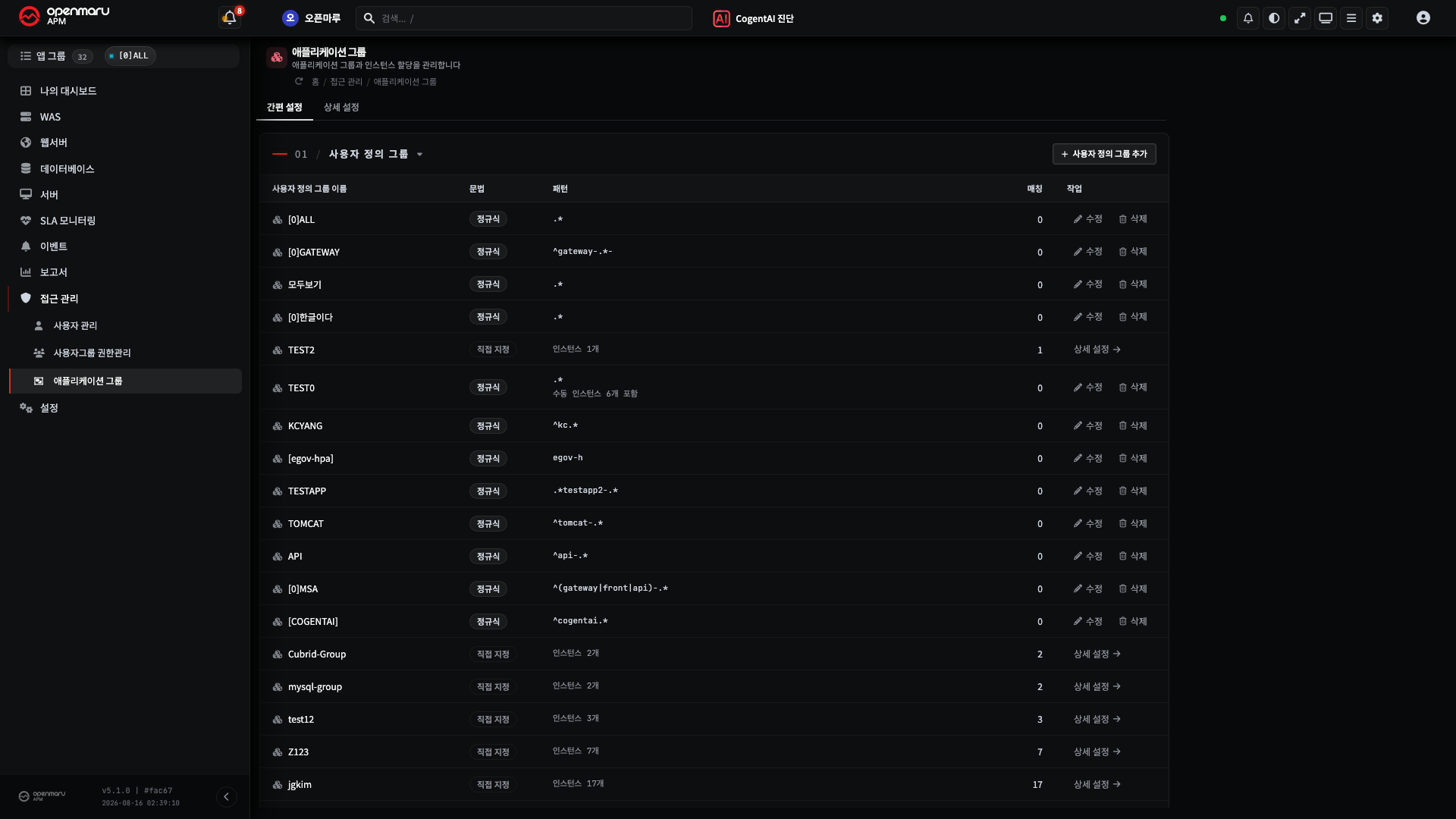
Two Tabs -- Simple Setup and Detailed Setup
There are two tabs at the top of the screen. They do different jobs, so pick the one that matches what you are after.
| Tab | What you can do | When to use it |
|---|---|---|
| Simple Setup | Define a group by a name pattern, preview what it matches, register display names (aliases) | When the instances you want follow a naming rule, or when you want business names on screen |
| Detailed Setup | Pick instances one by one, hide and restore them, reset the settings | When there is no naming rule and you have to choose by hand |
The "Creating and Editing" and "Adding and Removing Members" steps below belong to the Detailed Setup tab. For bundling by pattern, see "Simple Setup -- Defining a Group by Pattern".
Creating and Editing an Application Group
- Open the application group management screen.
- Create a new group with Add New and give it a name.
- To rename an existing group, change it with Edit (rename).
The type column in the list distinguishes the kind of group.
| Type | Meaning |
|---|---|
| Built-in | A group the system recognized and bundled automatically |
| User Defined | A group an administrator created and bundled instances into |
Caution Take care with renaming a group -- the name is what points at that group in the selector, the permissions, the alerts, and elsewhere.
Adding and Removing Members
Choose a group and decide which instances go in it.
- Select the group in the list.
- In the member editor (the instance grid), add the instances to include or remove those to exclude.
- Save.
Result -- saving is reflected immediately in the selector, the charts, and the permissions.
Note Where one service runs on several machines (several WAS instances), those instances have to be gathered into one group for the totals and averages of "the whole service" to be visible on one screen (H1 goal 1).
Creating a Group with a Regular Expression (Automatic Pattern Matching)
Instead of choosing instances one by one, they can be bundled by a name pattern (a regular
expression). This is convenient where instance names follow a rule (all the payment WAS instances
start with pay-, for example), and an instance matching the same pattern that comes up later is
included in that group automatically.
- Select the group, then press Edit group regular expression in the toolbar.
- Enter the regular expression and save.
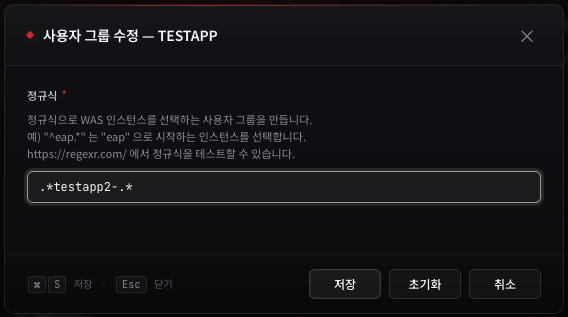
The regular expression is matched against the instance name. The common forms are as follows.
| Regular expression | The instances bundled |
|---|---|
^eap.* | Every instance whose name starts with eap |
.*testapp2-.* | Instances whose name contains testapp2- |
pay-(was|api).* | Instances starting with pay-was… or pay-api… |
^is the start,.*is "any characters, zero or more", and|is "or".- When the pattern matches, the members are filled in automatically, so there is no need to add them one at a time.
- As the dialog suggests, it is safer to try the pattern out at regexr.com before entering it.
Caution Too broad a pattern (
.*, for example) pulls in more instances than intended. Before saving, check which instances match, and narrow it by fixing the start where you can (^pay-).
Simple Setup -- Defining a Group by Pattern
The Simple Setup tab gathers the regular-expression approach above into one screen. The group list, the syntax, the pattern, and the match count sit in a single table, and you can see which instances match before you save.
- Open the Simple Setup tab.
- Press Add group and enter a group name.
- Choose the syntax -- glob or regular expression.
- Enter the pattern, and the matching instances appear right away. Check the count and the list, then save.
Glob Syntax -- No Regular Expressions Needed
| Symbol | Meaning | Example |
|---|---|---|
* | Any characters, zero or more | prod-order-* → prod-order-was-01, prod-order-api-02 |
? | Any single character | was-0? → was-01, was-09 |
{a,b} | Either one | {prod,stage}-order-* → prod-order-…, stage-order-… |
Important Glob matches the whole name; a regular expression matches any part of it.
prod-*does not bundlexx-prod-1(the entire name has to match). A regular expressionpay-, on the other hand, bundles anything withpay-anywhere in the name. The same pattern gives different results, so check which syntax you are on.
What the Table Shows
| Syntax shown | Meaning |
|---|---|
| glob / regex | You can edit it here in Simple Setup |
| Direct | The group was built by picking instances by hand. It is read-only here; go to Detailed Setup to change it |
Note When you bundle by pattern, instances that come up later with the same naming rule join automatically. The more often your instances change, the more a pattern beats picking by hand.
Display Names (Aliases) -- Showing Business Names on Screen
An operator wants to see "Order Processing", but the screen shows prod-order-was-01.
A display name (alias) changes only the name shown on screen to a business name.
It matters most where names change on every deployment, as in Kubernetes --
jdk17-springboot3-74b688d898-7wq2k has a different tail after each deployment, so registering names
one at a time breaks at the very next deployment. That is why you can register by pattern too.
How to open it -- Simple Setup tab ▸ Display Names (Aliases) section
Registering One
- Choose the type -- built-in group or instance.
- Choose the original name or enter a pattern, and set the match type.
- Enter the display name and save. (Not blank, up to 40 characters.)
| Match type | When | Example |
|---|---|---|
| Exact | A single target whose name does not change | prod-order-was-01 → Order Processing 1 |
| Glob | A target whose tail changes each deployment | jdk17-springboot3-* → Spring 3 |
| Regex | When you need a more involved rule | ^pay-(was|api)-\d+$ → Payment |
Exact always wins. Bundle many under a pattern, and when you want just one of them called something else, give that one its own exact alias.
A Pattern Alias Keeps a Distinguisher on the End
A pattern alias replaces only the unreadable front part and keeps the tail that tells you which instance this is.
jdk17-springboot3-74b688d898-7wq2k → Spring 3 7wq2k
If every one of them became "Spring 3", the screen would show the same name 34 times and you could not tell which to pick.
The distinguisher is decided from the name alone.
| Order | Rule | Example |
|---|---|---|
| 1 | If there are hyphens, the last segment | …-74b688d898-7wq2k → 7wq2k |
| 2 | Otherwise, the trailing digits | khan11 → 11 |
| 3 | Otherwise, nothing is added | shopping → (none) |
- When the distinguisher matches too and names would collide, those targets fall back to the full original name.
- An exact alias gets no distinguisher -- use it when you want full control of the name.
What You Can Alias
| Target | Allowed | Why |
|---|---|---|
| Instance | Yes | Changing an instanceId would cut the link to past data |
| Built-in group | Yes | The system sets the name; you cannot change it directly |
| User defined group | Not applicable | You can already rename it -- use the rename under "Creating and Editing" |
| Host types (System / Web Server / DBMS Hosts) | Not applicable | These are a screen device that groups hosts by kind, not groups |
Where It Shows Up
The WAS dashboard, the context selector (group and instance lists), the TV wallboard, the WAS group topology map, event lists, charts, reports, alerts, Excel downloads, and CogentAI answers.
Important An alias is display-only. Sorting, filtering, search, permission checks, and group membership all keep running on the original name. Hovering an aliased item shows the original name alongside it, so you never lose the trail when comparing against logs or search results.
Note You may give the same display name to different targets (calling several instances by one business name). Saving warns you, but does not block it.
Custom Groups (User Defined Groups)
Separately from the built-in classification, a group where an administrator picks only the instances they want is a User Defined group -- commonly a custom group.
- They can be bundled freely from an operational point of view -- by department, task, or importance ("the VIP payment path", for example).
- They are created the same way as in "creating and editing" and "adding and removing members" above, and the type shows as User Defined.
- A custom group you create appears in the group list of the selector alongside the others and can be chosen like any group.
When It Does Not Work
| Symptom | What to check |
|---|---|
| The add, delete, and edit group buttons are not visible | Check the account has administrator permission -- the menu is visible to everyone but only administrators can edit |
| The instance to add as a member is not in the list | Whether that instance's agent is connected → H20. Checking Agents |
| The group is created but a user cannot see it | Whether that group is among the user group's permission targets → H18. Managing Group Permissions |
| The group is chosen but the chart is empty | Whether the member instances are alive, and whether the period is fixed in the past |
| Editing a group in Simple Setup leaves the pattern box empty | The group's syntax is Direct -- it was built by picking instances by hand, so change it in Detailed Setup |
| A glob pattern matches nothing | Glob matches the whole name. If you entered only part of it, put * on both ends (*order*) |
| An alias was saved but does not show | Check the target type -- user defined groups and host types cannot be aliased. For a user defined group, use rename instead |
| Unfamiliar characters trail the alias | That is the distinguisher on a pattern alias (telling instances apart). To control one name completely, give it an exact alias |
| Searching or sorting by the alias finds nothing | An alias is display-only. Search, sorting, and permissions run on the original name |
Related Documents
- E2.1 Application Groups, Instances, and Agents -- the group concept
- H1. Narrowing the Monitored Target -- choosing the group you created in the selector
- H18. Managing Users, Groups, and Permissions -- access permission per group
- H20. Checking Agent Status -- the connection state of the member instances