1.1. Administrator Screen Overview
Overview
Administrators see the same screens as general users, plus admin-only menus and the overall status. This chapter covers the screens visible only to administrators, the terms used in this manual, and the order in which to get started.
Permission: Administrator
Terms Used in This Manual
| Term | Meaning |
|---|---|
| Drawer | The detail window that opens from the right side of the screen. It opens when you select a row for a person or a department. |
| Operator | The person who installs AAS and manages the server. This can be the same person as the administrator or a different one. |
| AI agent workspace | The place where an AI agent works, created one for each user. It holds settings, skills, memory, and files. |
| Profile | The set of settings for one AI agent in a workspace. Each workspace starts with one main profile (main). |
For other terms, see A.3. Glossary. Server installation and operation are outside the scope of this manual. The operator handles them.
Order for Getting Started
On a newly installed AAS, prepare in the following order. Finish each step before the next so that you do not get blocked.
- Check the SSO (Single Sign-On) connection. If "OIDC admin access is not configured, so this screen only grants screen permissions" appears at the top of the "Admin › Users & roles" screen, you cannot create accounts. Tell the server operator. On the screen, SSO is labeled "OIDC" (1.2. AAS Architecture and Permissions).
- Create departments. Add all the departments you need before you add users (2.2. Managing Departments).
- Add users. Pass the temporary password to each person (2.1. Adding and Editing Users).
- Promote administrators and assign a team manager for each department (2.3. Assigning Administrators and Team Managers).
- Check notices and role templates. Put the default personality text for new users in a role template (5.1. Role Templates), and the content you want to announce in a notice (5.2. Notices).
- Check that the dashboard opens when a new user signs in (2.5. Sign-In and Sessions, 1.3. Administrator Dashboard).
If it succeeds, the dashboard opens after the new user signs in, and that person appears as "Logged in now" in the "Users & roles" table.
Figure 1.1-1 shows the six steps above in order.
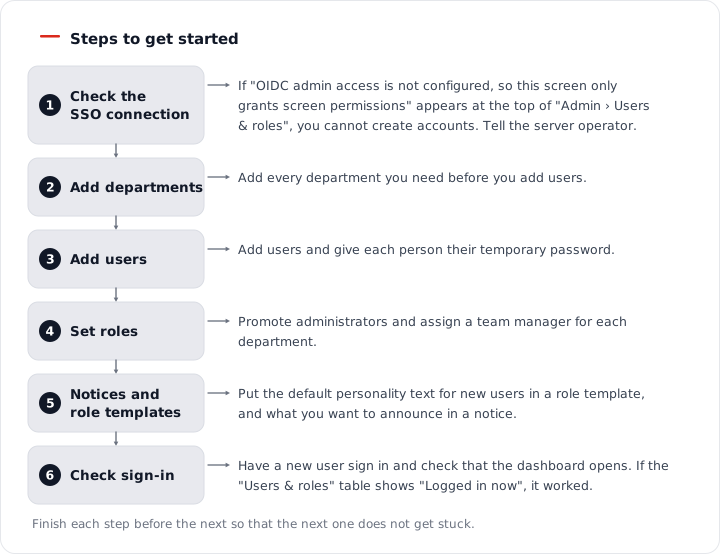
Figure 1.1-1. The order for getting started
What Only Administrators See
| Place | Content |
|---|---|
| Left menu "Admin › Users & roles" | Manage people, departments, team managers, and sign-in status. |
| Left menu "Admin › Role templates" | Manage the default personality text for new users. |
| Left menu "Admin › Notices" | Post notices that users see. |
| Dashboard | See the status of all AI agent workspaces and the items that need action on one screen (1.3. Administrator Dashboard). |
| Records › Change history | See who changed the settings of all workspaces, and when. |
| Settings › Company info | Edit the company name and the AI agent introduction sentence. General users edit only the text of their own department. |
| Inbox | Requests that users sent (for example, a model change) are collected here. |
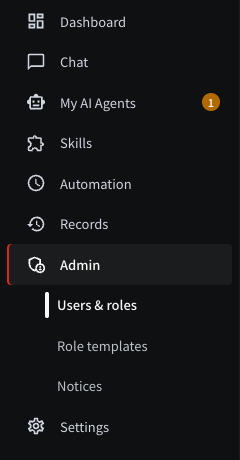
Figure 1.1-2. The left menu with the Admin group expanded
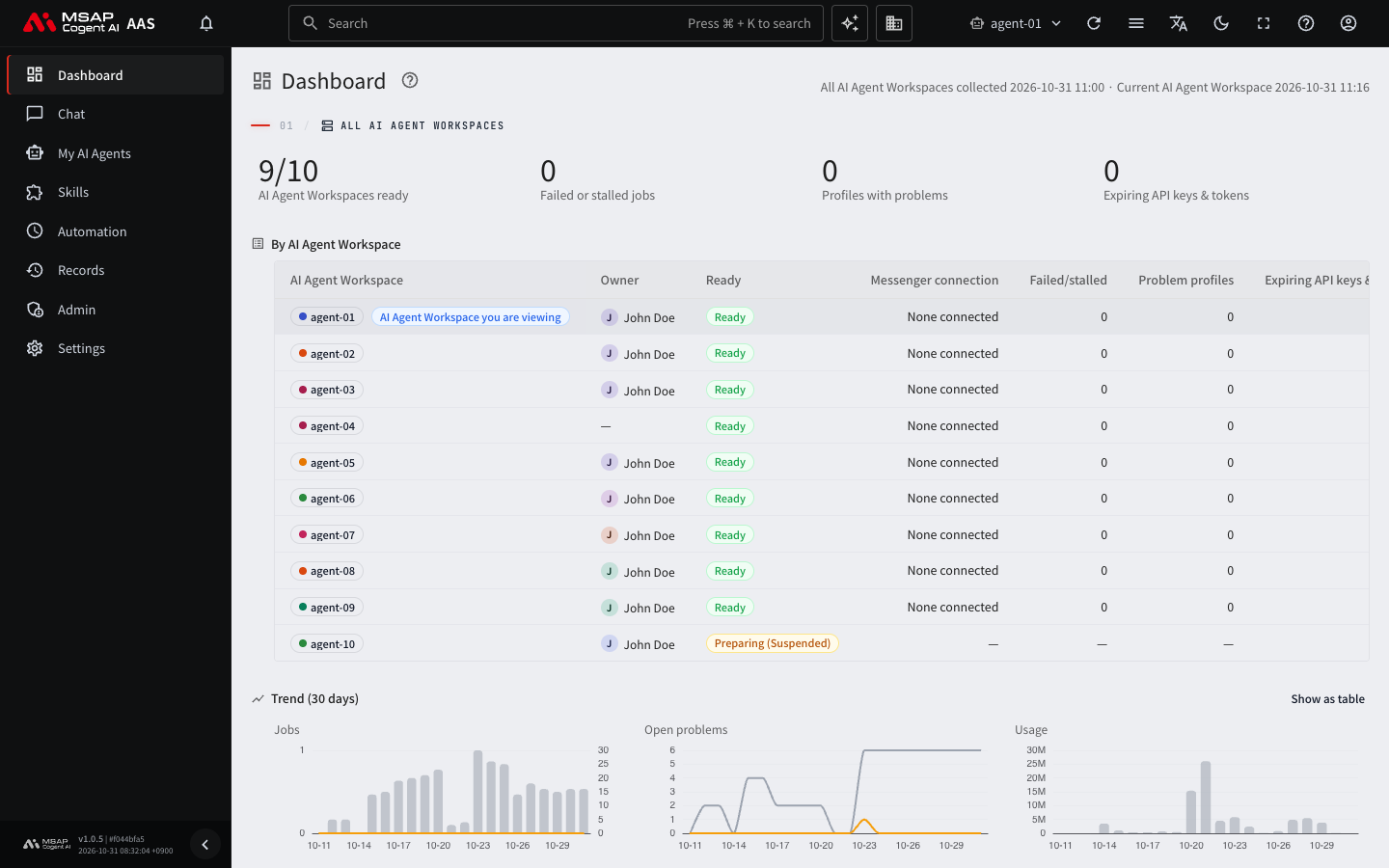
Figure 1.1-3. The administrator dashboard
Common Tasks
- Add users and departments, and decide who is an administrator (2.1. Adding and Editing Users, 2.2. Managing Departments, 2.3. Assigning Administrators and Team Managers).
- Check and handle the requests that users sent, in the inbox (5.3. Handling User Requests).
- Post a notice about maintenance or an outage, with a period and an audience (everyone or a department) (5.2. Notices).
- Manage the default personality text for new users with role templates (5.1. Role Templates).
- Check the workspace count limit and the models (3.1. Workspace List and Count Limits, 4.1. Models).
You can also see each task step by step in the "Admin guides" tab of Help. Open Help and choose that tab.