H2. Analysing a Past Point in Time — Changing the Period
Diátaxis: How-to · Audience: operators ← Back to contents
Charts show real time (now) by default. This document sets out, by goal, how to query a past interval -- "what happened at that hour yesterday", for example.
For how to narrow the target (group, instance), see H1. Narrowing the Monitored Target; for the other common tools, see R4. Common UI Elements.
Where the Time Mode and Period Picker Are
At the top of the main area, beside the target selector, are the time mode tabs and the period picker. Below is the WAS › JVM › Overview screen as an example, with the time mode tabs (real time, history) and the period picker (active in history mode) at the top right.
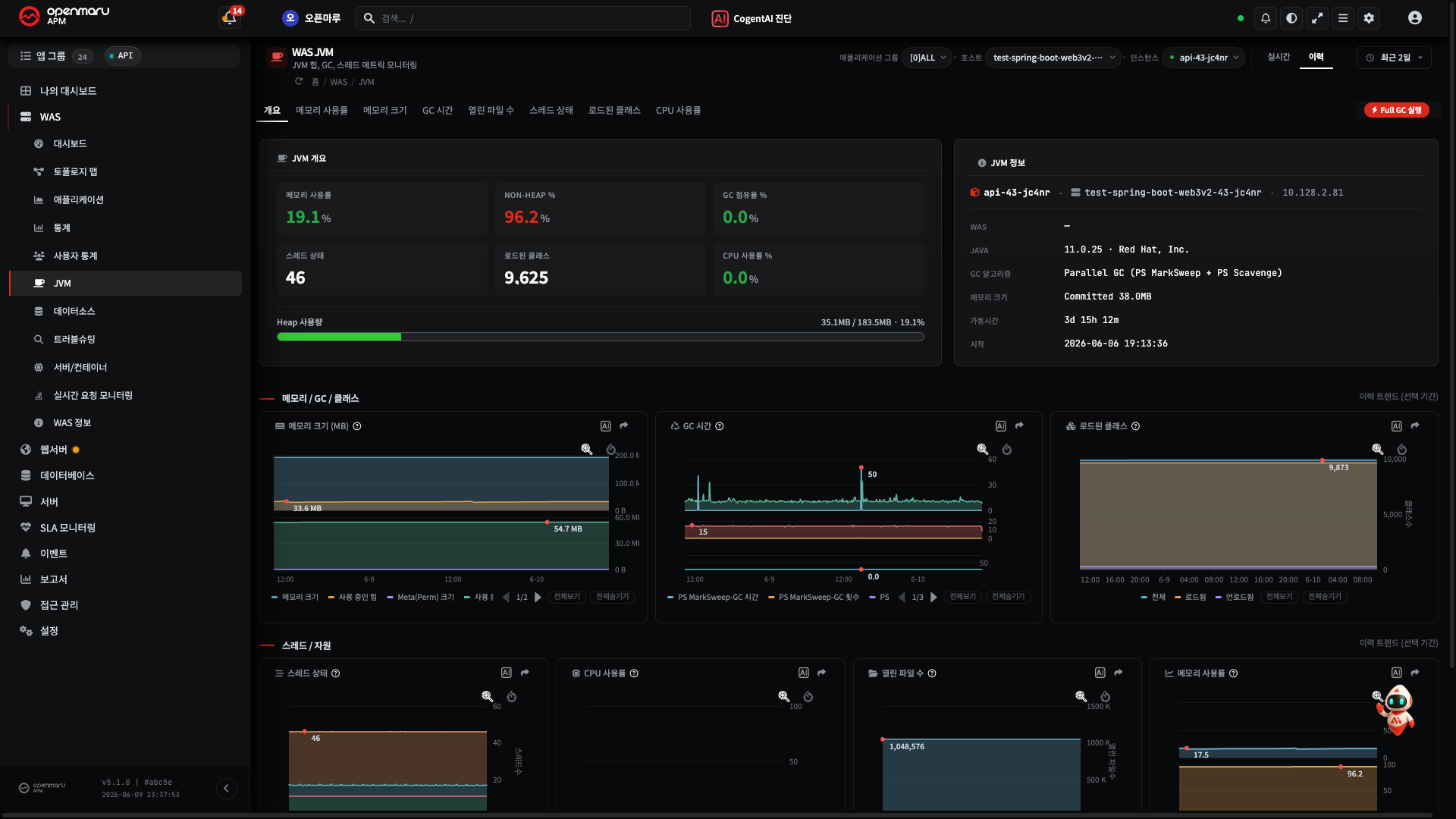
Some of the following time modes appear, depending on the screen.
| Mode | What it shows |
|---|---|
| Real time | This moment (refreshes automatically about every 5 seconds) |
| History | The past interval you specify |
| Daily | By the day |
The modes provided differ by screen (most have real time and history). A mode that is not shown is not supported on that screen. The daily mode is currently provided only on the WAS › Application › Transaction Map (T-Map) tab (see goal 4).
Goal 1 — Switching to a Past Interval
- Press the History tab in the time mode.
- The period picker beside it becomes active.

Result -- you are now seeing the data of the specified past interval rather than real time. To go back to the present, press the Real time tab.
Goal 2 — Choosing a Quick Range
Opening the period picker lets you choose a predefined range in one step.
- Last 1 hour · last 1 day · last 2 days · last 3 days
- Last 1 week · last 2 weeks · last 1 month · last 3 months
- Click the period picker.
- Choose the range you want from the list above.
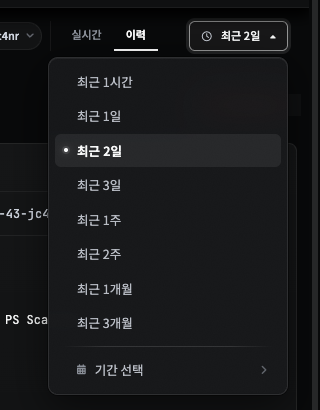
Result -- the charts are redrawn with the data of that range.
Note Hovering over an item shows the actual start and end time of that range.
Goal 3 — Specifying the Start and End Yourself (Period Selection)
Use this when you want an exact interval such as "2026-06-07 09:00 to 11:00".
- Choose Period selection (custom) in the period picker.
- Enter the start and end date and time. (Date plus time fields, to the minute.)
- Press the Search button.
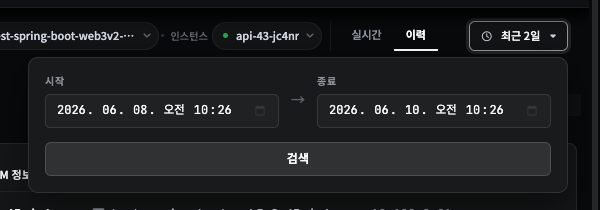
Result -- only the data of the interval you entered is shown.
Goal 4 — Seeing It by the Day (Daily)
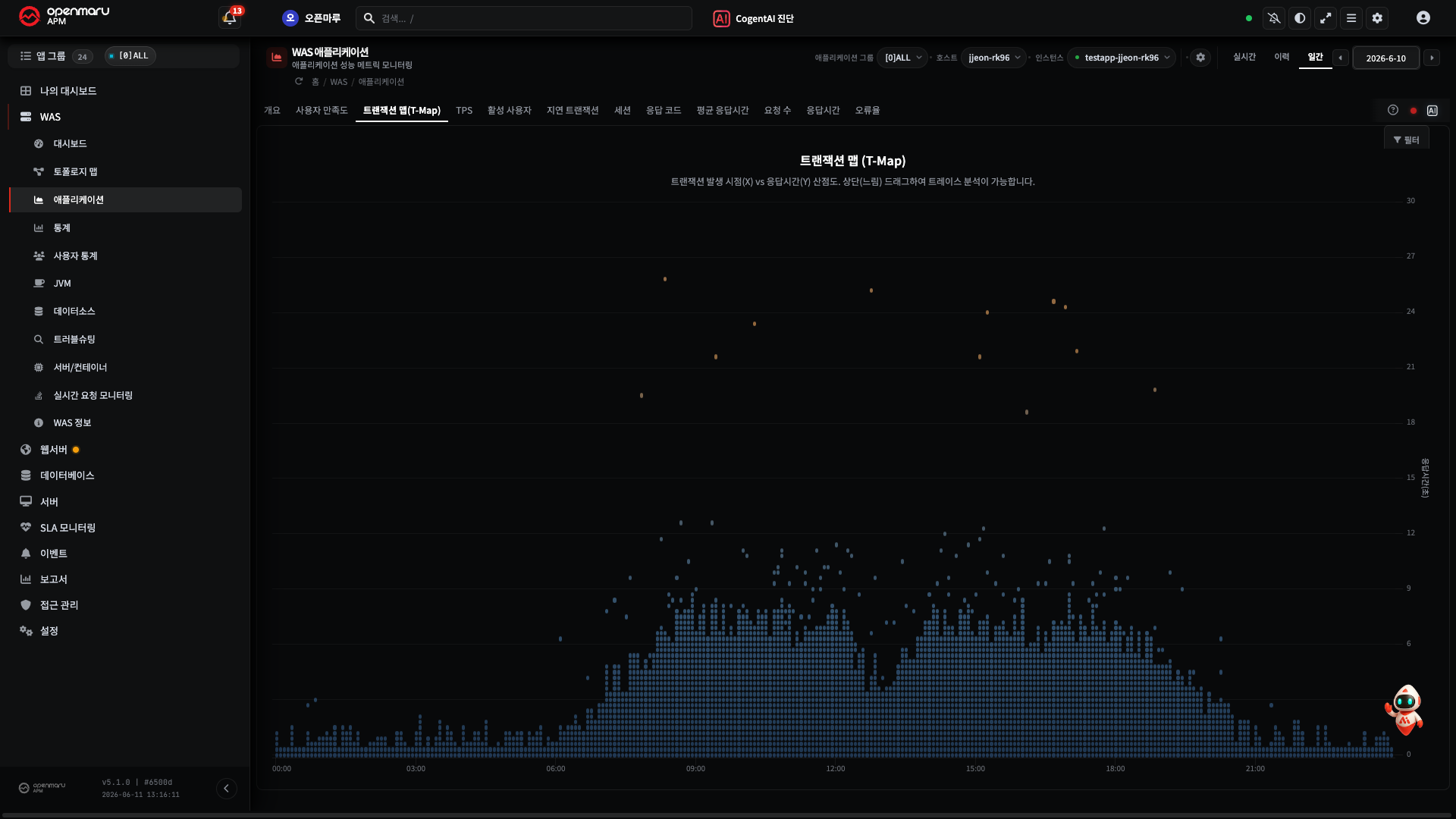
To see it against a single date, use the daily mode. The Daily tab is currently provided only on the WAS › Application › Transaction Map (T-Map) tab -- the time modes on the other screens (JVM, dashboard, and so on) are real time and history.
- Open WAS › Application and go to the Transaction Map (T-Map) tab.
- Press the Daily tab in the time mode.
- Choose a date in the date picker beside it. (The ◀ ▶ buttons also move a day at a time.)

Result -- the data for that one day is shown. Below is an example of the T-Map seen in daily mode.
What You Must Know — Dates Are Based on the Profile Time Zone Plus Server Time
The dates and times the period picker deals with are shown in the user profile's time zone, and the basis for "today/now" is the server time, not the PC clock.
- That is why the date does not go a day out even when your PC clock differs from the server.
- If you look at the screen together with an overseas office, it is worth aligning the profile time zone (user menu at the top right ▸ Profile).
This behaviour applies consistently across the statistics, the event list, and the comparison charts.
When It Does Not Work
| Symptom | What to check |
|---|---|
| Switched to history but it is empty | Whether data actually exists for that interval (it may be a period when the agent was not connected) |
| The date looks a day out | Check the profile time zone. If it still looks wrong it may be a server time setting, so ask an administrator |
| It will not go back to the present | Change the time mode to the Real time tab |
Related Documents
- H1. Narrowing the Monitored Target -- choosing what (the target); this document is when (the period)
- R4. Common UI Elements -- the list of common tools including the period picker
- How the data reaches the screen (real time vs the past) -- E2.3