H18. Managing Users, Groups, and Permissions
Diátaxis: How-to · Audience: administrators -- adding and deleting accounts and managing group permissions need administrator permission ← Back to contents
This manages who reaches the console and who can see which service's data. Permissions in OPENMARU APM are granted per user group -- you put a user in a group, and give that group access to application groups.
How to open it -- left menu ▸ Access Management
Menu Path Who sees it User Management /settings/usersVisible to every user -- but only administrators can add and delete accounts; an ordinary user edits their own details Group Permissions /settings/userGroupsVisible only to administrators -- the access permissions per user group
User Management
This creates and edits the accounts that reach the console.
- Open left menu ▸ Access Management ▸ User Management.
- Press Add New User to create an account -- specify the account details, the user group it belongs to, and the access.
- For an existing account, select the row and edit it with Edit User.
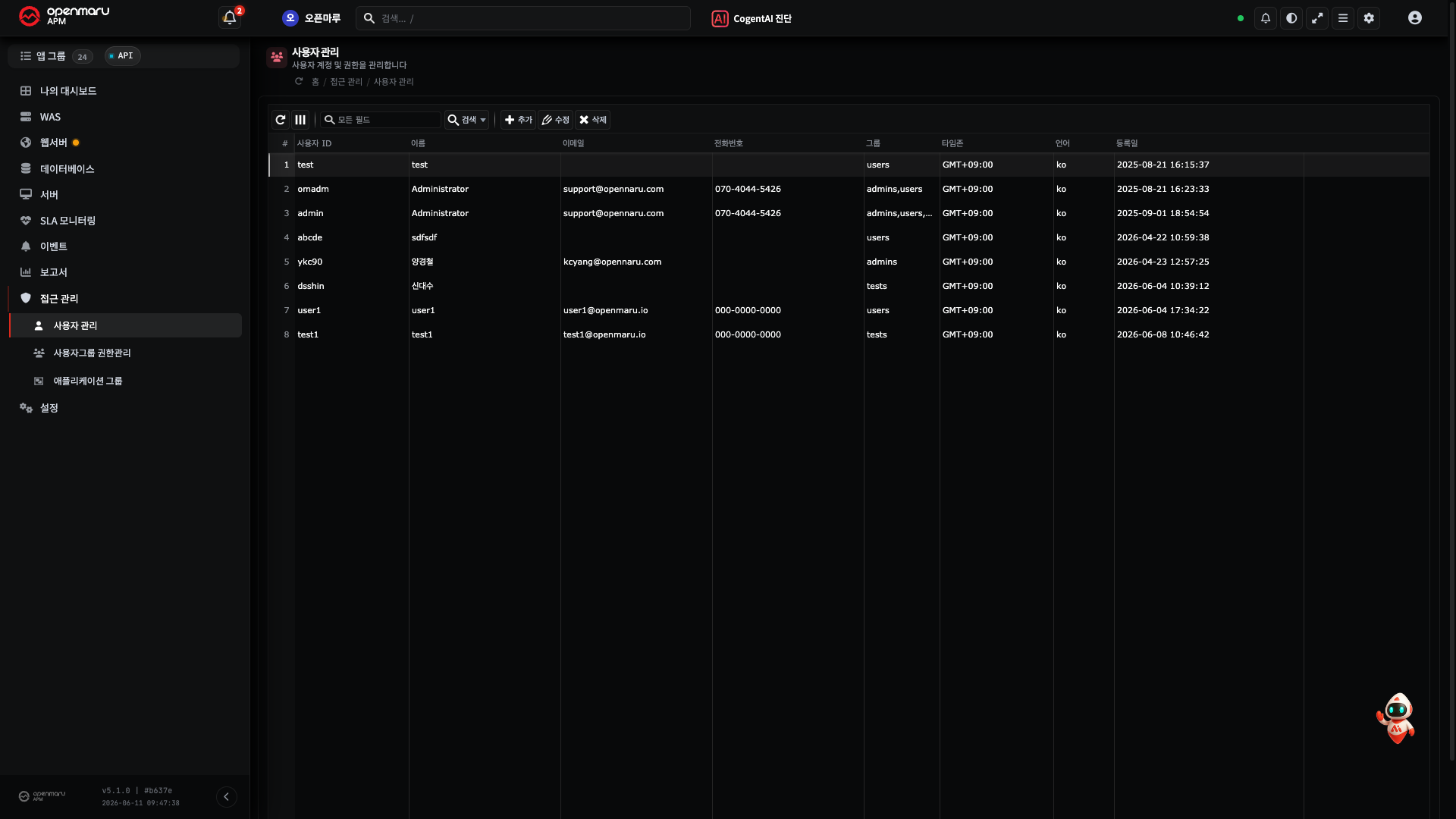
Note "Which service can be seen" is usually decided by the user group. Putting a new user in the right group makes them inherit the access granted to that group as it is.
Managing Group Permissions
This decides which application groups (services) each user group can reach. This is the core of "who sees what".
- Open left menu ▸ Access Management ▸ Group Permissions.
- Choose a user group.
- Set or clear the permission targets (application groups) that group may reach, and save.
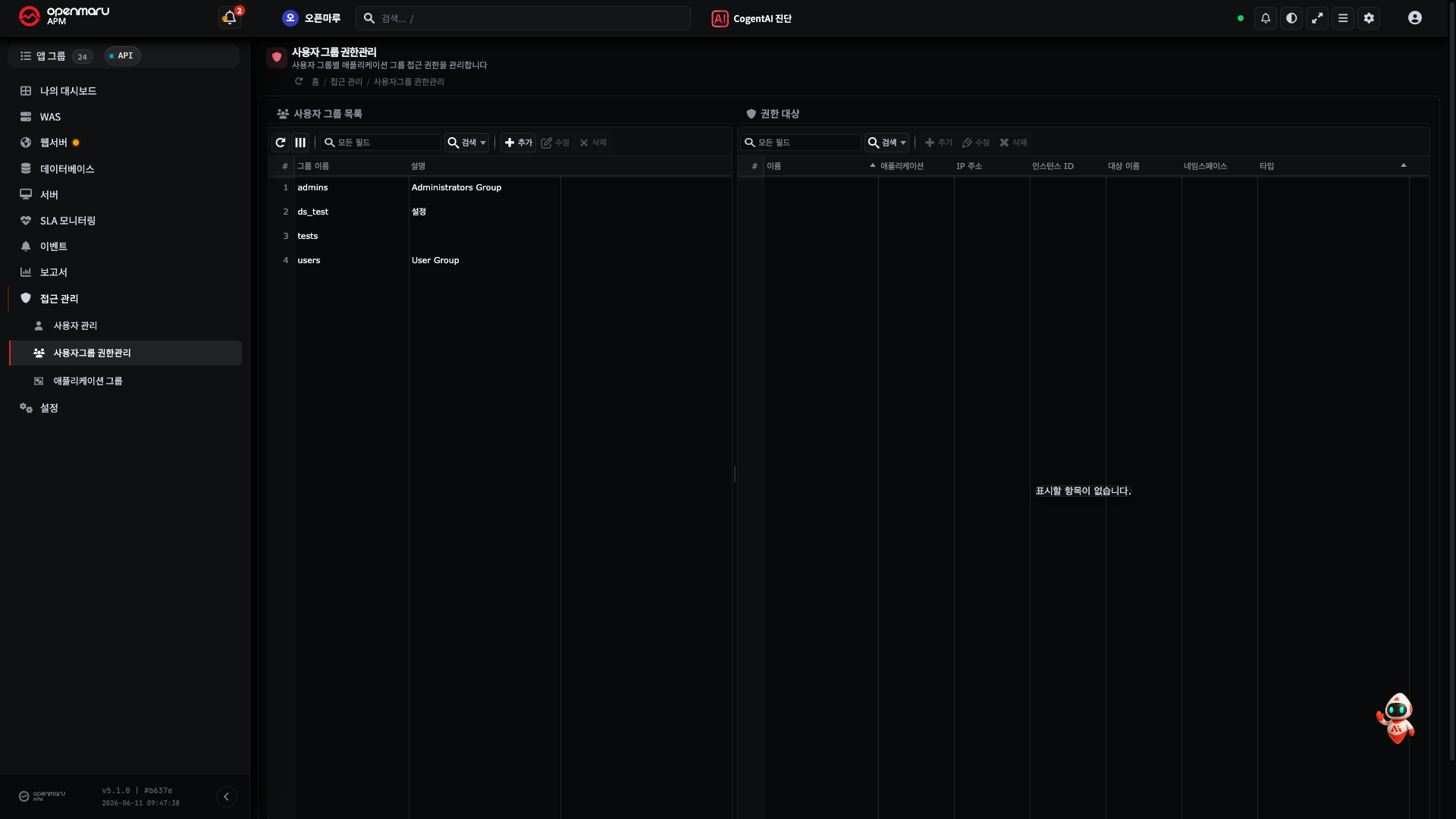
Note As the operation grows, rather than granting permissions person by person, it is easier to manage by creating user groups by role (payment team operators, DBAs, and so on), granting the permissions to the group, and putting people in the group.
Caution Changing a permission immediately changes the menus and targets that user can see. If someone suddenly cannot see a particular screen, start by checking the permission targets of the group they belong to.
When It Does Not Work
| Symptom | What to check |
|---|---|
| The Group Permissions menu is not visible | Check the account has administrator permission -- group permission management is visible only to administrators |
| The add and delete user buttons are not visible | Check the account has administrator permission -- an ordinary user can only edit their own details |
| A new user cannot see a particular service | Whether that service is among the permission targets (application groups) of the user group they belong to |
| There is no application group to bundle | The group has to be created first → H19. Application Groups |
Related Documents
- H19. Bundling Targets into Application Groups -- creating the "targets" to grant permission on
- E2.1 Application Groups, Instances, and Agents -- the group concept
- R1. Screen Map -- the whole Access Management and Settings menu