1.1. Introducing AAS and Signing In
Overview
CogentAI AAS (AAS for short) is a web service where you give work to AI agents and manage that work on one screen. This chapter explains what AAS does, how to sign in, and how to send your first question and get an answer. If you are new to AAS, follow this chapter through "Try Your First Chat."
What AAS Does
In AAS, an AI agent workspace is created for each user. The workspace is where your AI agent works. It holds settings, skills, memory, and files. A skill is a set of things the AI agent can do (for example, creating a report). Memory is what the AI agent has learned from your chats.
The settings bundle of one AI agent in a workspace is called a profile. At first there is one "Main profile," and this is your AI agent. In the list on the chat screen, AI agents appear under their profile names. For other terms, see A.1. Glossary.
- On the chat screen, you ask the AI agent questions or give it work.
- You install skills to expand what the AI agent can do.
- With scheduled jobs, you have work done at a set time.
- On the Office screen, several AI agents and people work together in one room.
Signing In
- Open the AAS address your administrator gave you in a browser.
- On the sign-in screen, sign in with the method that fits your installation.
- After you sign in, the dashboard opens.
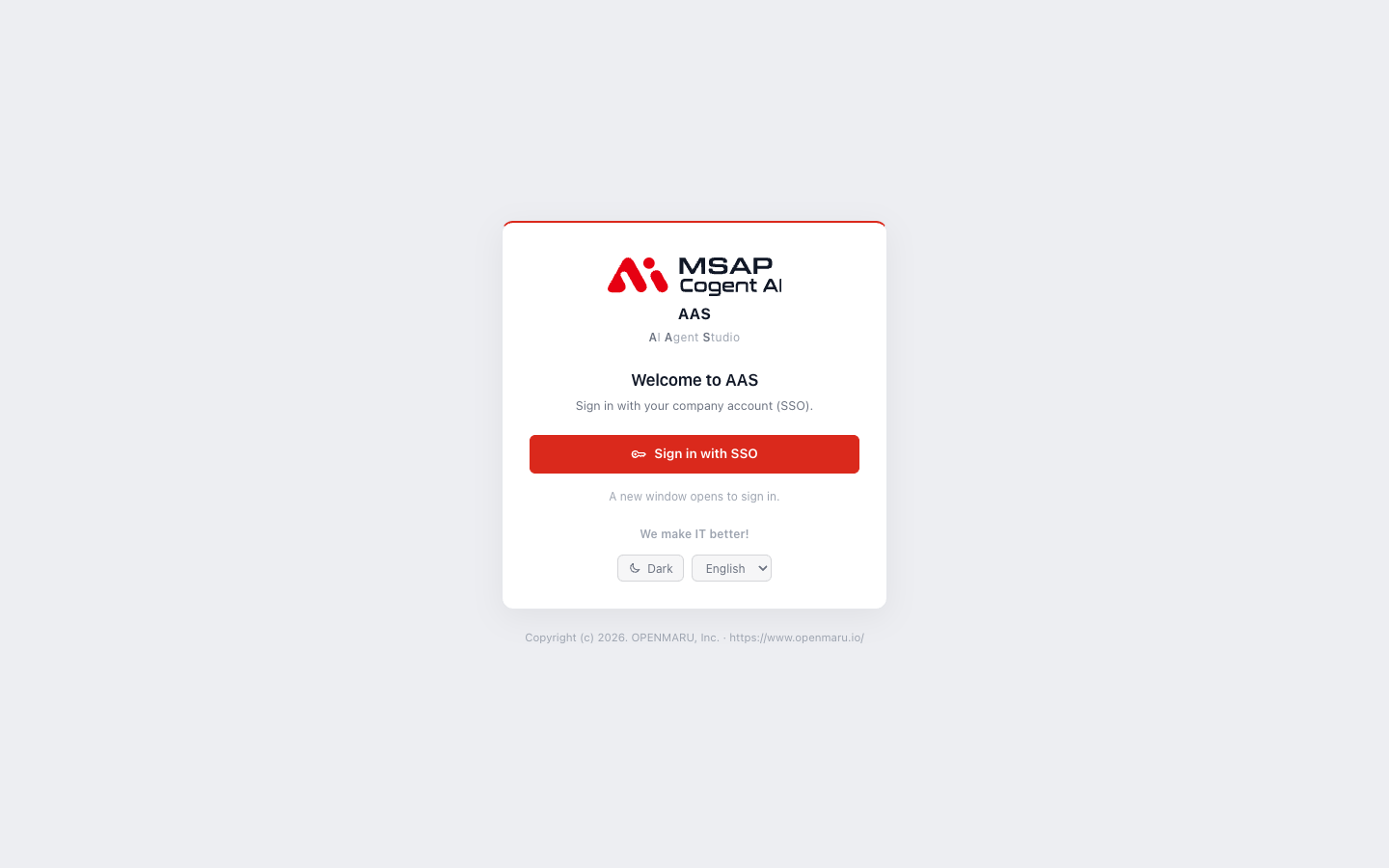
Figure 1.1-1. The AAS sign-in screen
Depending on the installation, the sign-in screen shows one of the following two methods, or both.
| Screen | Sign-in method |
|---|---|
| "Sign in with SSO" button | Select the button and a new window opens. Enter your company account ID and password. SSO (Single Sign-On) is a way to sign in to several services with one company account. |
| "Email" and "Password" fields | Enter the email and password you received from your administrator, then select "Sign in." |
If both methods are shown, use whichever is easier. If a new window does not open, you are taken to the sign-in screen in the same window.
When you select "Sign in with SSO," a pop-up window opens over the sign-in screen. Enter your company account in this window and select "Sign in." The window closes and AAS opens.
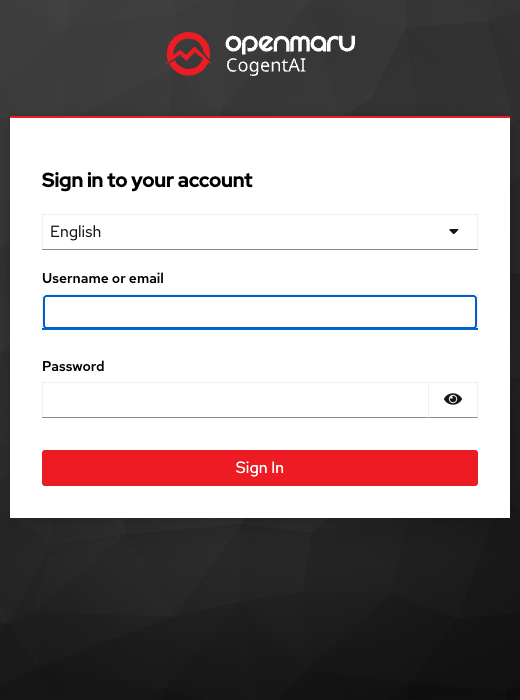
Figure 1.1-2. The company account screen that opens as a pop-up window
If You Cannot Sign In
| Message you see | What to do |
|---|---|
| "SSO sign-in is not available at this address" | The address is not a registered access address. Ask your administrator for the correct address. |
| "Wrong email or password." | Check your email and password and enter them again. If you do not know your password, tell your administrator. |
| "Too many login attempts. Try again in 5 minutes." | Wait 5 minutes and try again. |
| "Only members of the ... group are allowed" or "Only ... accounts are allowed" | This account cannot use AAS. Ask your administrator: "Please add my account so I can use AAS." |
Give your administrator the address you used, the sign-in method, and the message on the screen. This gets the problem solved faster.
The first time you sign in, the screen shows "Preparing your AI Agent Workspace" while your workspace is created. Wait until the screen opens by itself. If it does not change for a long time, see 2.7. When Replies Are Blocked or Slow. On a shared computer, select "Sign out" in the account menu on the top bar when you finish.
Try Your First Chat
Follow these steps from just after you sign in to your first question and answer. If the banner "New here? Start with 'Talk to your AI Agent for the first time'." appears at the top of the dashboard, you can select "Start" and follow the on-screen guide. For details, see 1.3. Help and Walkthrough Guides.
- In the left menu, select "Chat › Chat."
- In the list on the left of the screen, select an AI agent. At first you see only one, "Main profile."
- Write your question in the message box at the bottom of the screen. Example: "Summarize this week's meeting agenda in five lines."
- Press
Enter. - While the AI agent writes its answer, "Thinking…" appears, and soon the answer shows up in the conversation area.
If this works, your question and the AI agent's answer appear in order in the conversation area. If "Main profile" does not appear in the list, your workspace is still being prepared or is not connected. See 2.7. When Replies Are Blocked or Slow. All chat features are explained in 2.1. Chat Basics.
Screen Layout
| Area | What it does |
|---|---|
| Left menu | Where you choose a screen. At first you only need to know "Chat › Chat." The other groups are explained in 1.2. Using Common Screen Features. |
| Top bar | Has help, the inbox (bell icon), and the account menu. |
| Banner at the very top | Shows notices posted by your administrator. You can view a notice you closed again from "Current notices" in the account menu. |
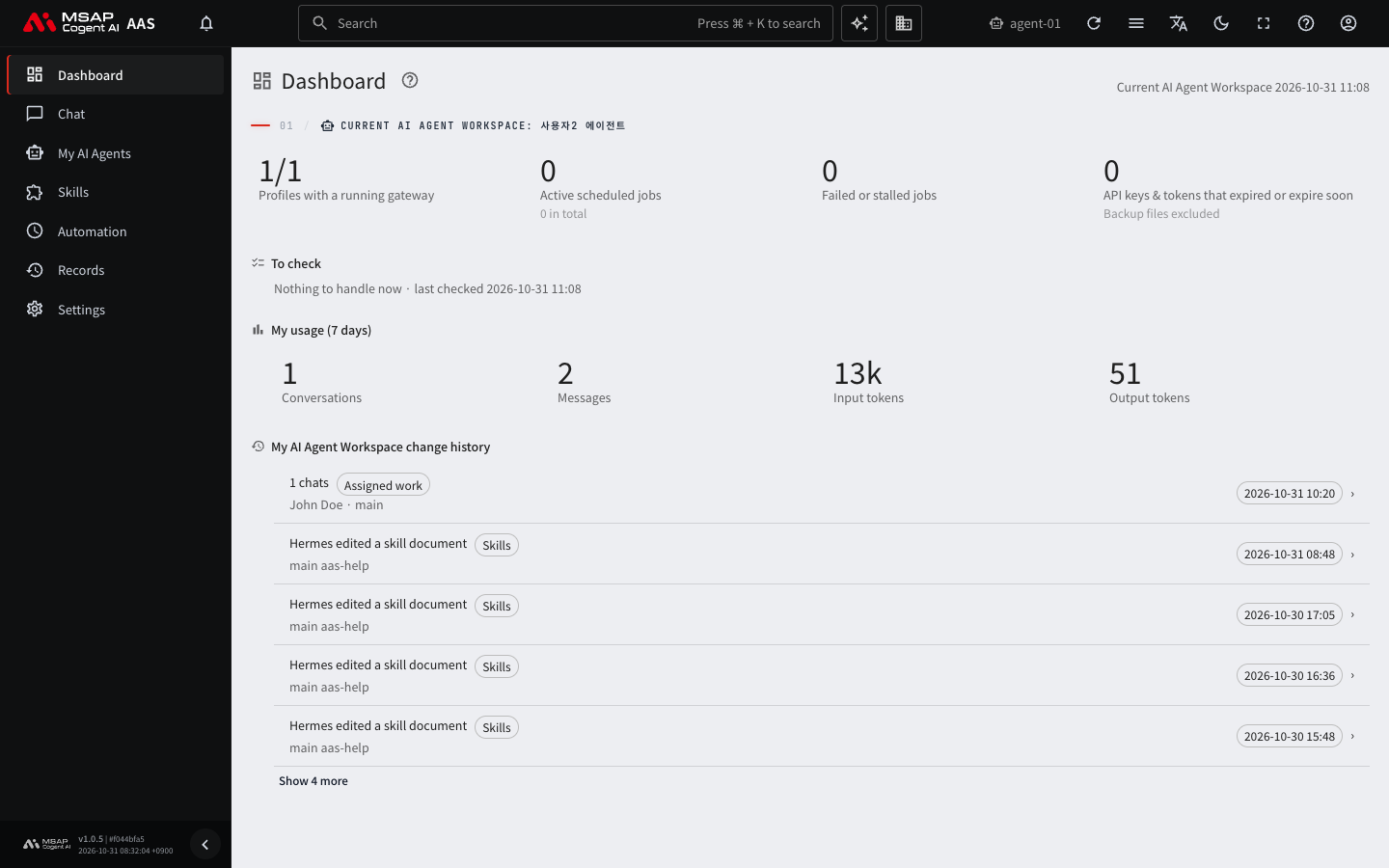
Figure 1.1-3. The dashboard right after sign-in
Help
If you get stuck, select the help button on the top bar. For how to use it, see 1.3. Help and Walkthrough Guides.