H16. Reducing an Alert Flood (Snooze and Pause)
Diátaxis: How-to · Audience: operators / administrators ← Back to contents
When the same alert arrives one after another, the genuinely important new issue gets buried. This document sets out how to choose among three tools -- Snooze, Pause Alarm, and the policy's resend prevention -- according to what to turn off and how much.
| Tool | What it turns off | Who it applies to | Who can do it |
|---|---|---|---|
| Snooze | Only alerts of the same kind | The whole team | Operators / administrators |
| Pause Alarm | Every alarm | The whole team | Administrators |
| Resend prevention | Repeated sends from the same policy | That policy | Administrators (in the policy settings) |
None of the three stops the events being recorded. What is turned off is only the push notifications (the toast at the bottom right and the bell at the top); the events still accumulate in the event list.
Even with push turned off, the events that occurred remain in the event list, so you can see what happened afterwards.
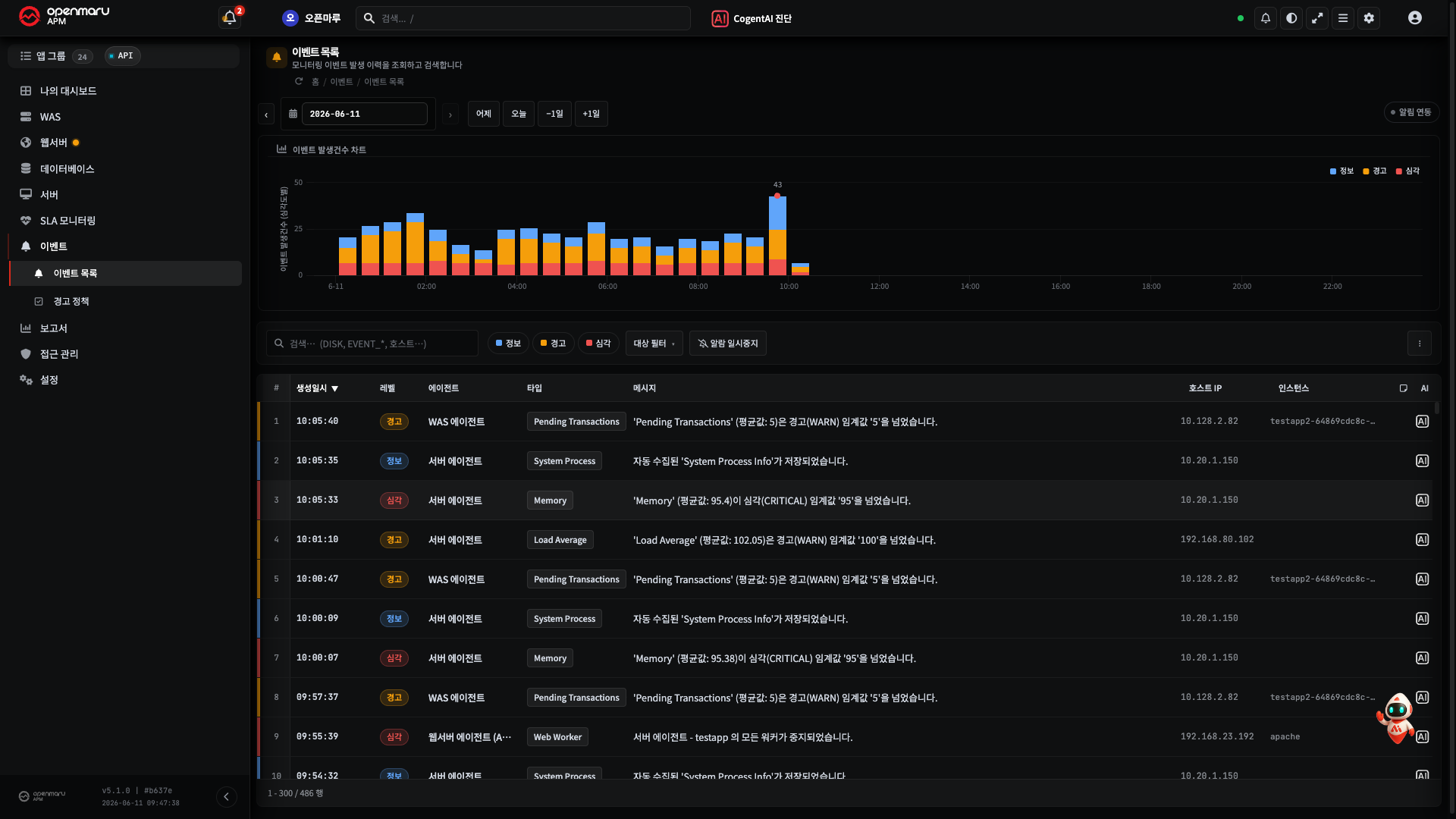
The Alert Centre — Push Notifications in One Place
The way into snoozing is the alert centre. Pressing the bell icon on the right of the top of the screen (the header) opens the alert centre drawer. (A red badge appears on the bell when there is a critical alert.)
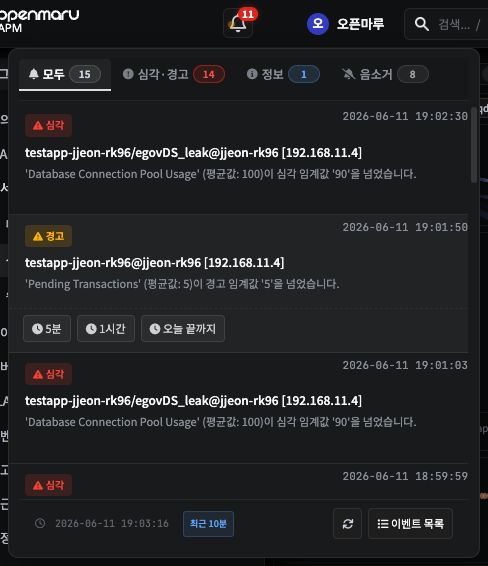
- Tabs -- split into All · Critical and Warning · Information · Snoozed. Skim the alerts that have just occurred by level, and see what is currently snoozed on the Snoozed tab.
- Snoozing per alert -- hovering over an alert item brings up the 5 minutes · 1 hour · until the end of today snooze buttons. Alerts of the same kind can be turned off on the spot (see the snooze section below).
- The Event List button at the bottom moves to the full event screen.
Snooze — Turning Off Only Alerts of the Same Kind, Briefly
When a particular alert repeats, hide only that kind for a set time. (Useful when the same warning for that host keeps arriving during quiet maintenance work.)
- Press Snooze on the push notification (the toast at the bottom right, or the alert item in the alert centre above).
- Choose the period -- 5 minutes · 1 hour · until the end of today. (Those are the buttons shown below the warning alert in the alert centre screen above.)
Result -- for that period, alerts of the same kind (the same event kind + host or instance + severity) are hidden from every user's push.
Checking and clearing -- see what is currently snoozed on the Snoozed tab of the bell icon drawer at the top. It clears automatically when the period passes, and to release it immediately press Unsnooze.
Caution A snooze applies to the whole team. Turning it off for yourself hides that alert from the other operators too. That is why only the person who started the snooze, or an administrator, can release it immediately.
Note A snooze works per kind, so it is precise. It suits wanting to turn off "only this warning on this host" while still receiving everything else.
Pause Alarm — Turning Off Every Alarm for a While
During work where alerts are obviously going to pour in, such as maintenance or a deployment, stop every alarm at once regardless of kind. Anyone can start and release it without special administrator permission, and the effect applies not just to you but to the whole team.
- Open Pause Alarm at the top of the event list.
- Set how long to pause and press Start pause.
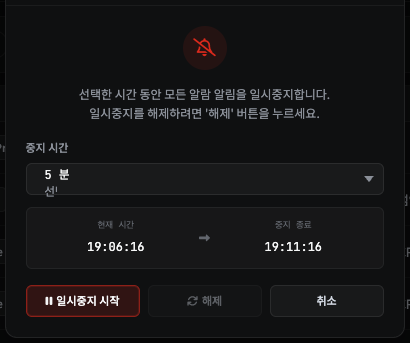
Result -- every alarm notification stops for the chosen time (for the whole team). It resumes automatically when the time passes, and to release it early press Release.
Caution It is far broader than a snooze. Every alarm stops, so a real failure occurring during the pause is not pushed either. Use it only for the work window that needs it, and release it as soon as the work is done.
Resend Prevention — Stopping the Repetition per Policy
Where the two above are "turn it off right now", resend prevention is the policy setting for getting fewer in the first place.
- Turning on Prevent Duplicated in the alert policy editor stops the same alert being sent repeatedly while the same state persists.
- By default the system alerts at the moment the state changes (normal → problem) and once more on recovery, which reduces repeated firing for the same state.
For where and how to configure it, see H15. Creating and Tuning Alert Policies.
Which One to Use
| Situation | Recommended |
|---|---|
| Turning off only the same warning on a particular host, briefly | Snooze (5 minutes / 1 hour / until the end of today) |
| A deployment or maintenance about to flood everything | Pause Alarm (for the length of the work) |
| The same alert repeating even in normal times | The policy's resend prevention plus raising the threshold (H15) |
When It Does Not Work
| Symptom | What to check |
|---|---|
| Snoozed, but someone else still receives it | A snooze applying to the whole team is normal. It can take a moment to take effect |
| Cannot unsnooze | Only the person who started it, or an administrator, can release it immediately |
| Released the pause but it is quiet | There may genuinely be no alarm condition. Check in the event list |
Related Documents
- H15. Creating and Tuning Alert Policies -- creating policies, thresholds, resend prevention, and testing the path
- R3. Event Reference -- understanding the snooze unit (the event kind)