4.1. Deployments
Overview
The Deployments page manages every Deployment held on the MCM control plane in one place. You can check and manage the status, replica count, and pod situation of Deployments spread across several clusters.
What it is for:
- Managing multi-cluster Deployments together
- Monitoring how they are deployed per cluster
- Creating, changing, and deleting Deployments
- Scaling up and down, and restarting
- Checking the PropagationPolicy and OverridePolicy
How the Screen Is Laid Out
The Deployments page shows the Deployment list as a table.
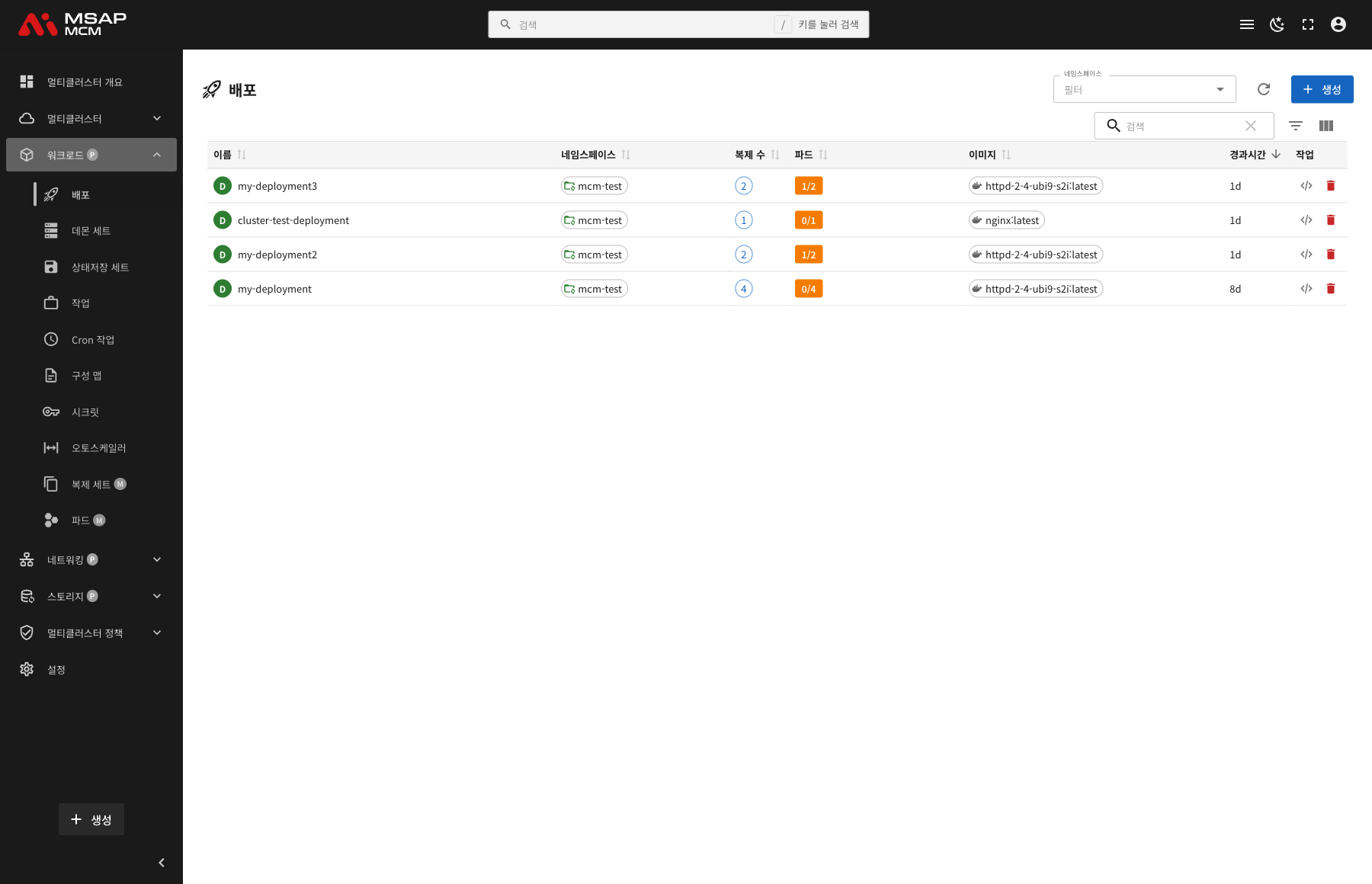
The Elements at the Top of the Page
| Element | Description |
|---|---|
| Namespace filter | Shows only the Deployments of a particular namespace |
| Refresh button | Refreshes the Deployment list |
| Create button | Opens the dialog for creating a new Deployment |
| Search box | Searches by Deployment name |
Table Columns
| Column | Description | Sortable |
|---|---|---|
| Name | The Deployment name | ✅ |
| Status | Healthy / Unhealthy | ✅ |
| Namespace | The namespace the Deployment belongs to | ✅ |
| Clusters | How it is deployed per cluster (synced / total) | ✅ |
| Pods | Ready pods / total pods | ✅ |
| Age | The time since the Deployment was created | ✅ |
| Actions | The scale, restart, edit, and delete buttons | - |
How Status Is Shown
| Status | Description | How it is shown |
|---|---|---|
| Healthy | Every replica is Ready | A green badge |
| Unhealthy | Some or all replicas are not Ready | A red badge |
How It Is Distributed Across Clusters
The Clusters column shows the Deployment's multi-cluster sync state:
- 2/2: synced normally to 2 of 2 clusters
- 1/2: synced to only 1 of 2 clusters
- Clicking a cluster badge shows the detail for that cluster
Deployment Detail
Clicking a Deployment row opens the detail panel.
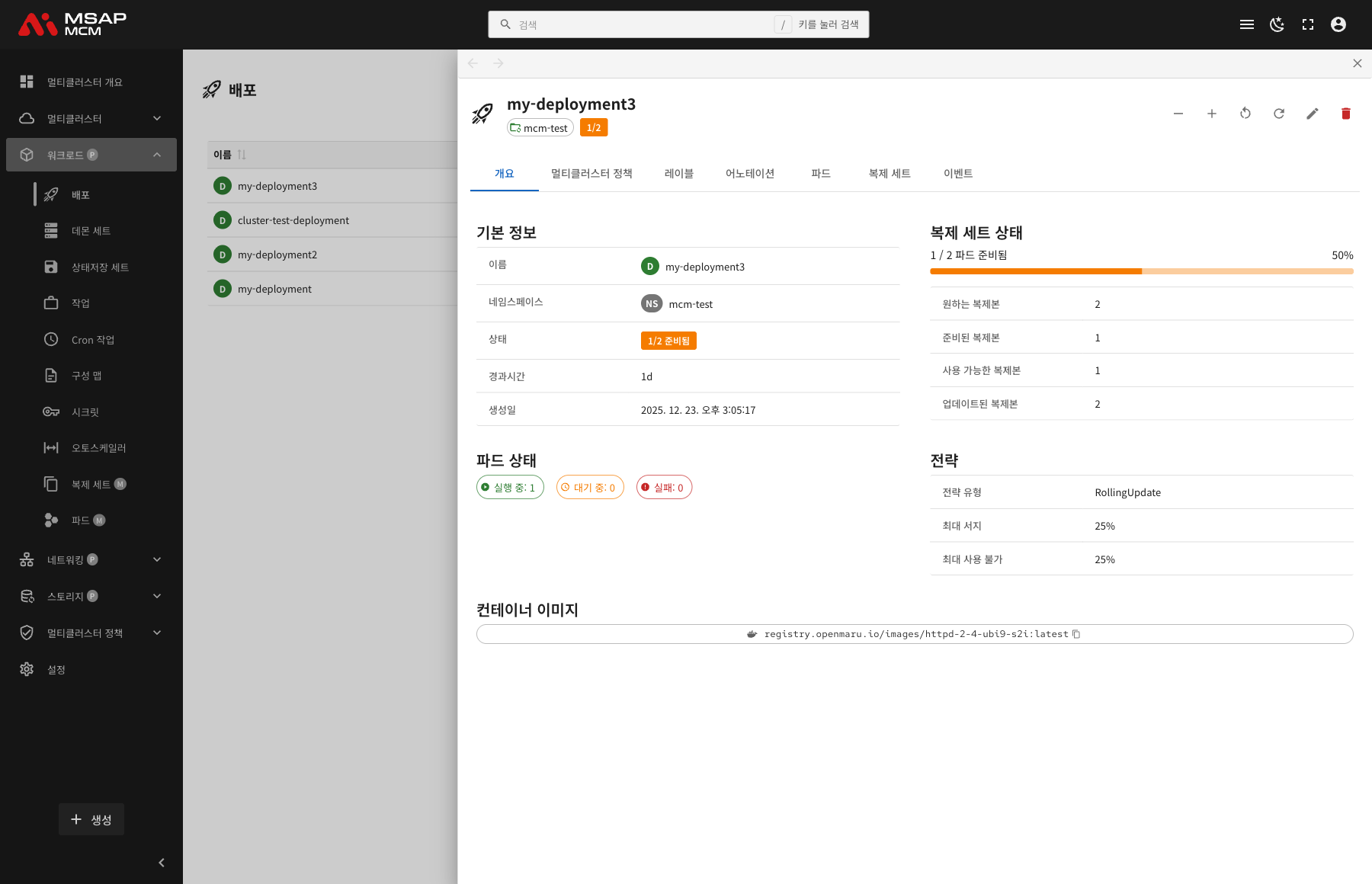
The Detail Panel Header
| Element | Description |
|---|---|
| Deployment name | The name of the chosen Deployment |
| Status badge | Healthy / Unhealthy |
| Namespace | The namespace the Deployment belongs to |
| Sync Status | The N/N cluster sync figure |
The Action Buttons
| Button | What it does |
|---|---|
| Scale | Adjusts the replica count (scale up or down) |
| Restart | Rolling-restarts the Deployment |
| Refresh | Refreshes the Deployment information |
| Edit | Opens the YAML edit mode |
| Delete | Deletes the Deployment |
The Tabs
The Overview Tab
Shows the Deployment's basic information, replica state, and strategy.
Basic information:
| Item | Description |
|---|---|
| Name | The Deployment name |
| Namespace | The namespace the Deployment belongs to |
| Clusters | The list of clusters it is deployed to |
| Status | Healthy / Unhealthy |
| Age | The time since creation |
| Created | When the Deployment was created |
Replica state:
| Item | Description |
|---|---|
| Current Replicas | The number of replicas running now |
| Desired Replicas | The replica count that is set |
| Ready Replicas | The number of replicas that are Ready |
| Available Replicas | The number of replicas that are Available |
| Updated Replicas | The number of replicas updated to the latest version |
Pod state:
The pod state section shows the Deployment's pods visually:
- Running: pods working normally
- Pending: pods waiting to be scheduled
- Succeeded: pods that have completed
- Failed: pods that failed
- Unknown: the state cannot be determined
Strategy:
| Item | Description |
|---|---|
| Strategy Type | RollingUpdate or Recreate |
| Max Surge | The number or share of pods that may be created on top during an update |
| Max Unavailable | The number or share of pods that may be down during an update |
Container images:
Shows the list of container images defined on the Deployment:
- The container name
- The image name and tag
The Multi-Cluster Policies Tab
Shows the multi-cluster policies that apply to the Deployment.
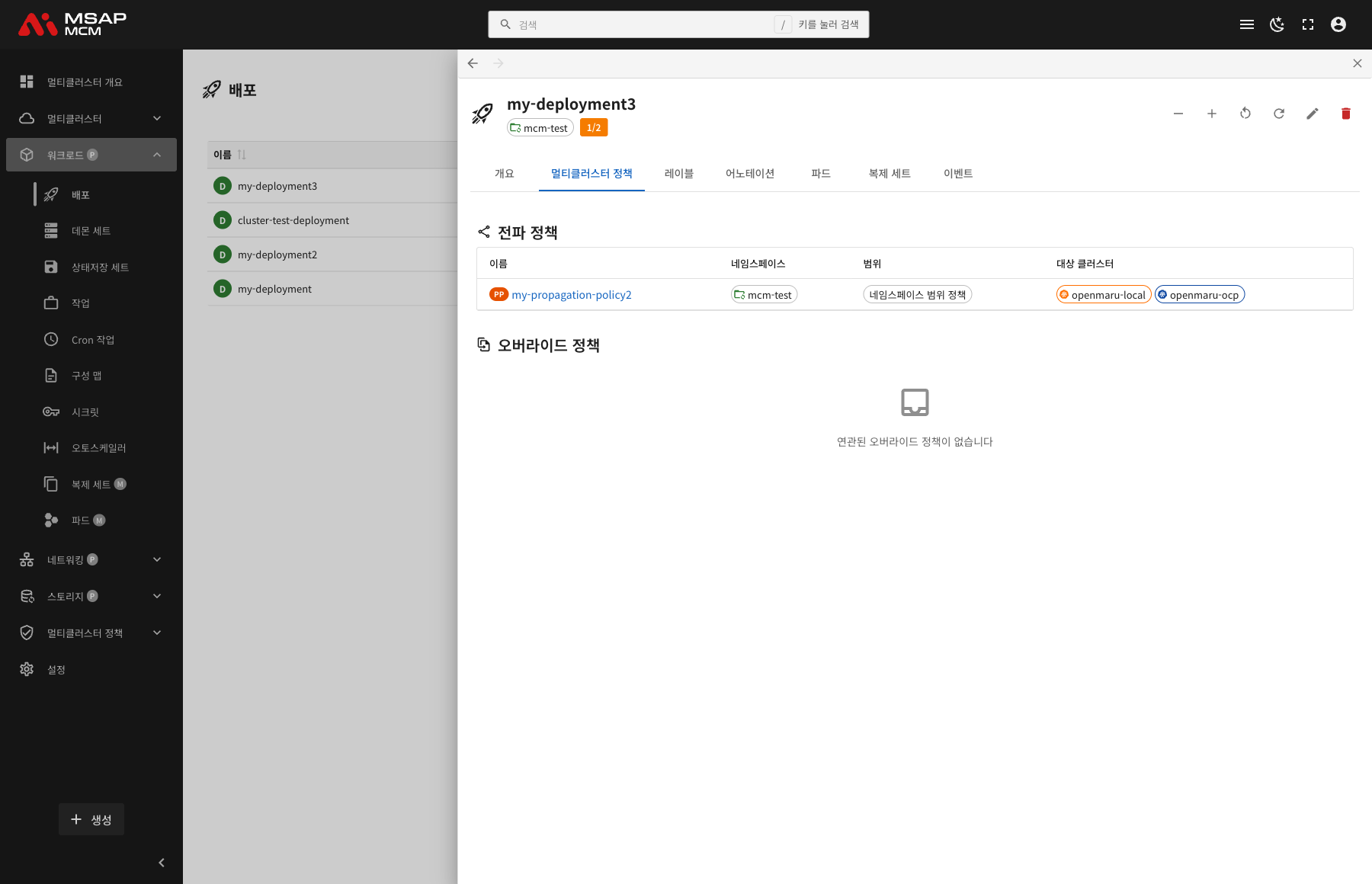
PropagationPolicy:
| Item | Description |
|---|---|
| Policy Name | The name of the PropagationPolicy applied |
| Scheduler name | The scheduler in use |
| Cluster affinity | The list of target clusters |
| Replica scheduling | How replicas are shared out per cluster |
OverridePolicy:
| Item | Description |
|---|---|
| Policy Name | The name of the OverridePolicy applied |
| Override Rules | The per-cluster custom settings |
The Labels Tab
Shows the list of Kubernetes labels applied to the Deployment.
The Annotations Tab
Shows the list of annotations applied to the Deployment.
The Pods Tab
Shows the list of pods running for that Deployment.
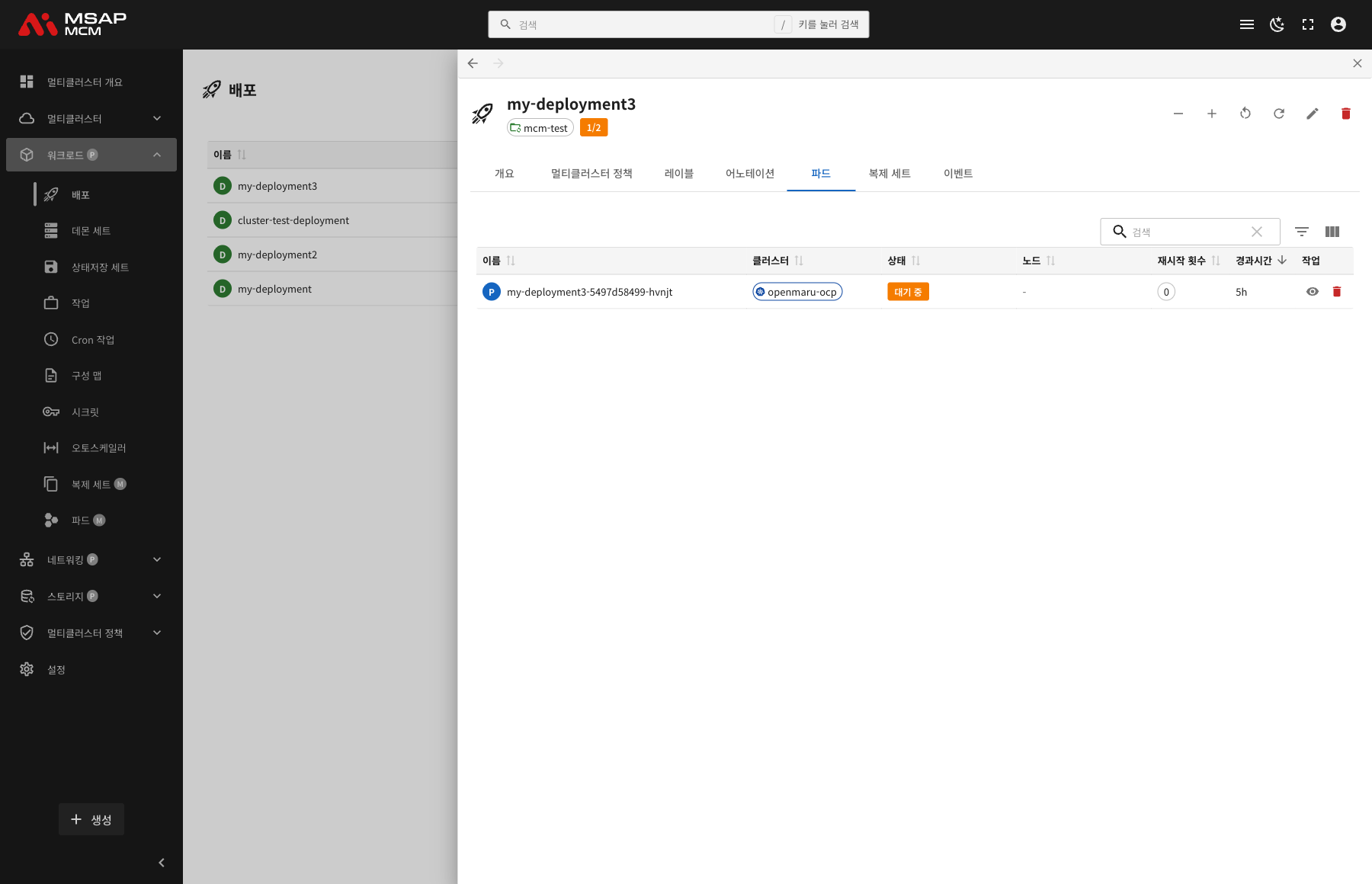
| Column | Description |
|---|---|
| Name | The pod name |
| Cluster | The cluster the pod is running on |
| Status | The pod state (Running / Pending / Failed and so on) |
| Node | The node the pod is scheduled on |
| Restarts | The pod restart count |
| Age | The time since the pod was created |
| Actions | View detail, delete, and so on |
The ReplicaSets Tab
Shows the list of ReplicaSets the Deployment manages:
- The ReplicaSet name
- The replica count
- The image version
- When it was created
The Events Tab
Shows the Kubernetes events related to the Deployment.
Creating a Deployment
Creates a new Deployment on the MCM control plane.
Fields
| Field | Required | Description |
|---|---|---|
| Name | ✅ | The Deployment name |
| Namespace | ✅ | The namespace to deploy into |
| Replicas | ✅ | The initial replica count (default: 1) |
| Container image | ✅ | The container image URL |
| Ports | - | The container port settings |
| Environment variables | - | The container environment variables |
| Resource limits | - | The CPU and memory limits and requests |
Editing the YAML
The "Edit YAML" tab lets you write the Deployment definition directly.
Deployment Operations
Scaling Up and Down
Adjusts the Deployment's replica count.
- Choose the Deployment in the list
- Press "Scale" in the actions, or the "Scale" button in the detail panel
- Enter the replica count you want
- Press the "Confirm" button
Note: the scale change is made on the MCM control plane and shared out to the member clusters according to the PropagationPolicy.
Rolling Restart
Restarts every pod of the Deployment in turn.
- Choose the Deployment
- Press the "Restart" button in the detail panel
- Press the "Restart" button in the confirmation dialog
On restart the pods are recreated in turn according to the RollingUpdate strategy.
Editing a Deployment
- Choose the Deployment
- Press the "Edit" button in the detail panel
- Change the Deployment definition in the YAML editor
- Press the "Save" button
Deleting a Deployment
⚠️ Caution: deleting a Deployment deletes every ReplicaSet and pod that belongs to it. Resources deployed to member clusters are handled according to the deletion policy.
- Choose the Deployment to delete
- Press the "Delete" button in the detail panel
- Type the Deployment name in the confirmation dialog
- Press the "Delete" button
Worked Examples
Scenario 1: Creating a Multi-Cluster Deployment
- Press the "Create" button
- Enter the Deployment details:
- Name:
my-app - Namespace:
production - Replicas:
3 - Container image:
my-registry/my-app:v1.0
- Name:
- Press the "Create" button
- Create a PropagationPolicy naming the target clusters
- Check how it is deployed per cluster
Scenario 2: Checking Deployment Status
- Click the Deployment you want to check in the list
- Check the replica state on the Overview tab
- Check individual pod state and cluster distribution on the Pods tab
- Check the recent events on the Events tab
- Where there is a problem, check the pod logs
Scenario 3: Scaling Out
- Choose the Deployment to scale out
- Press the "Scale" button
- Raise the replica count to what you want (3 → 5, for example)
- Press "Confirm"
- Watch the new pods being created on the Pods tab
- Check how the pods are distributed per cluster
Scenario 4: A Rolling Update
- Choose the Deployment and press "Edit"
- Change the container image version (
v1.0→v1.1, for example) - Press "Save"
- Watch the update progress on the Overview tab
- See the new ReplicaSet appear on the ReplicaSets tab
- Watch the pods being replaced in turn on the Pods tab
Scenario 5: Checking the Multi-Cluster Policies
- Choose the Deployment
- Click the "Multi-Cluster Policies" tab
- Check the PropagationPolicy:
- The list of target clusters
- How replicas are shared out
- Check the OverridePolicy (where there is one):
- The per-cluster custom settings
- Go to the Policies menu to change a policy if needed
Related Concepts
The RollingUpdate Strategy
The Deployment's default update strategy, which replaces pods in turn with no downtime:
- maxSurge: how many pods may be created on top during an update (default: 25%)
- maxUnavailable: how many pods may be unavailable during an update (default: 25%)
PropagationPolicy
The policy by which MCM shares a workload out to member clusters:
- Choosing the target clusters (by cluster name, by label, and so on)
- How replicas are shared out (Duplicated, Divided)
- The scheduling priority
OverridePolicy
The policy that customises workload settings per cluster:
- Image overrides (a different registry per cluster)
- Resource limit overrides
- Environment variable overrides
ReplicaSet
The controller a Deployment manages internally, responsible for creating and scaling the actual pods:
- A ReplicaSet is created per Deployment version
- A rollback activates the previous ReplicaSet
- History is kept
Next Steps
- DaemonSets -- managing multi-cluster DaemonSets
- StatefulSets -- managing multi-cluster StatefulSets
- Propagation Policies -- configuring a PropagationPolicy