4.5. CronJobs
Overview
The CronJobs page manages every CronJob held on the MCM control plane in one place. A CronJob is the workload that creates and runs a Job periodically according to a cron schedule.
What it is for:
- Managing multi-cluster CronJobs together
- Running work automatically on a schedule
- Tracking the Job creation history and status
- Checking the PropagationPolicy and OverridePolicy
Where CronJobs are used:
- Regular backups (a database backup every midnight)
- Periodic report generation (a report every Monday)
- Cache cleanup (deleting old cache entries hourly)
- System health checks (a health check every 5 minutes)
- Log rotation and cleanup
How the Screen Is Laid Out
The CronJobs page shows the CronJob list as a table.
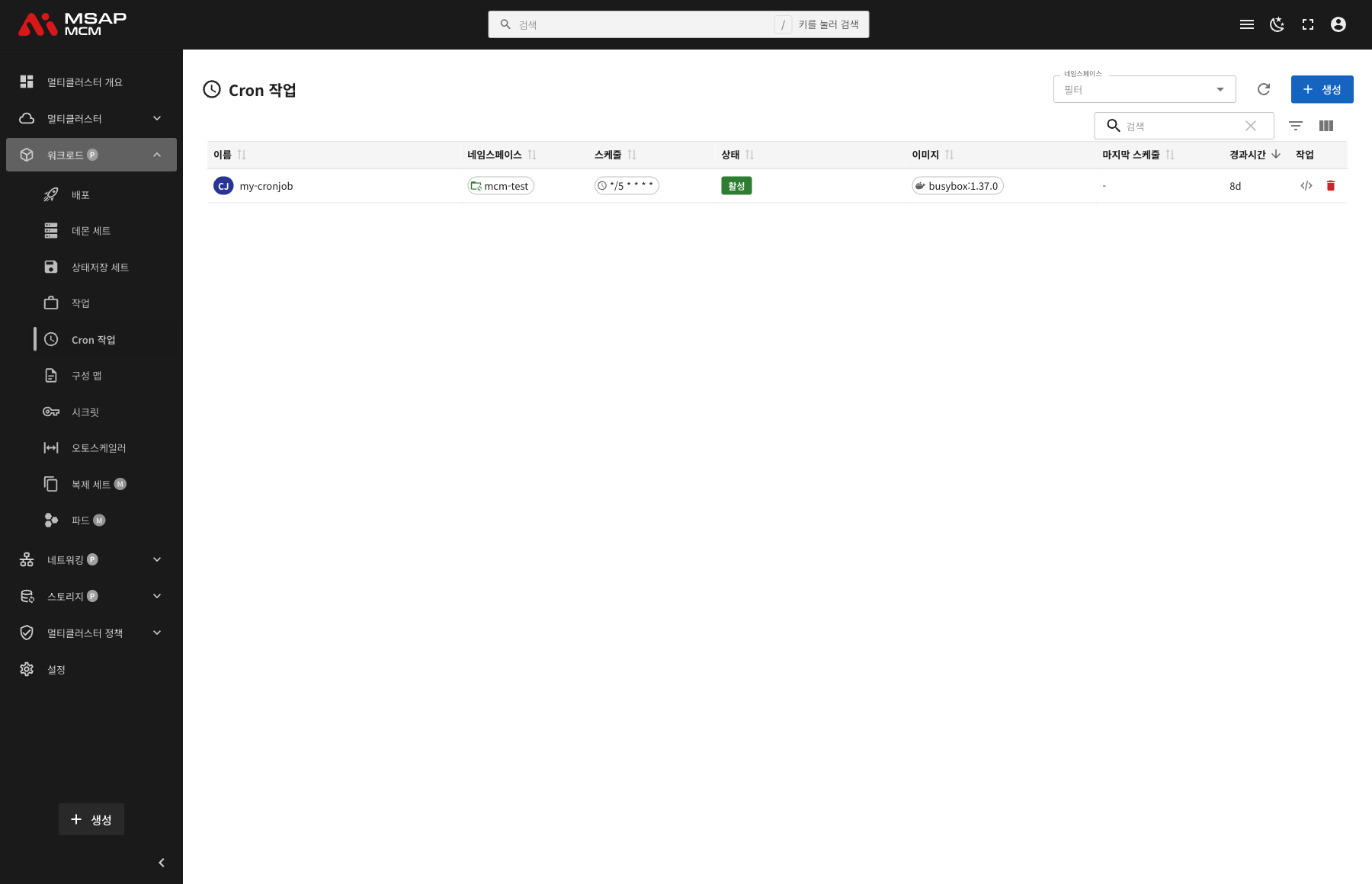
The Elements at the Top of the Page
| Element | Description |
|---|---|
| Namespace filter | Shows only the CronJobs of a particular namespace |
| Refresh button | Refreshes the CronJob list |
| Create button | Opens the dialog for creating a new CronJob |
| Search box | Searches by CronJob name |
Table Columns
| Column | Description | Sortable |
|---|---|---|
| Name | The CronJob name | ✅ |
| Namespace | The namespace the CronJob belongs to | ✅ |
| Schedule | The cron expression and its description ("*/5 * * * *" -- every 5 minutes, for example) | ✅ |
| Status | Active / Suspended | ✅ |
| Image | The container image name | ✅ |
| Last Schedule | When a Job last ran | ✅ |
| Age | The time since the CronJob was created | ✅ |
| Actions | The edit and delete buttons | - |
How Status Is Shown
| Status | Description | How it is shown |
|---|---|---|
| Active | The CronJob is running normally on its schedule | A green badge |
| Suspended | The CronJob's runs are suspended | A yellow badge |
How the Schedule Is Shown
The Schedule column shows the cron expression together with a human-readable description:
*/5 * * * *→ "every 5 minutes"0 0 * * *→ "every day at midnight"0 0 * * 0→ "every Sunday at midnight"
CronJob Detail
Clicking a CronJob row opens the detail panel.
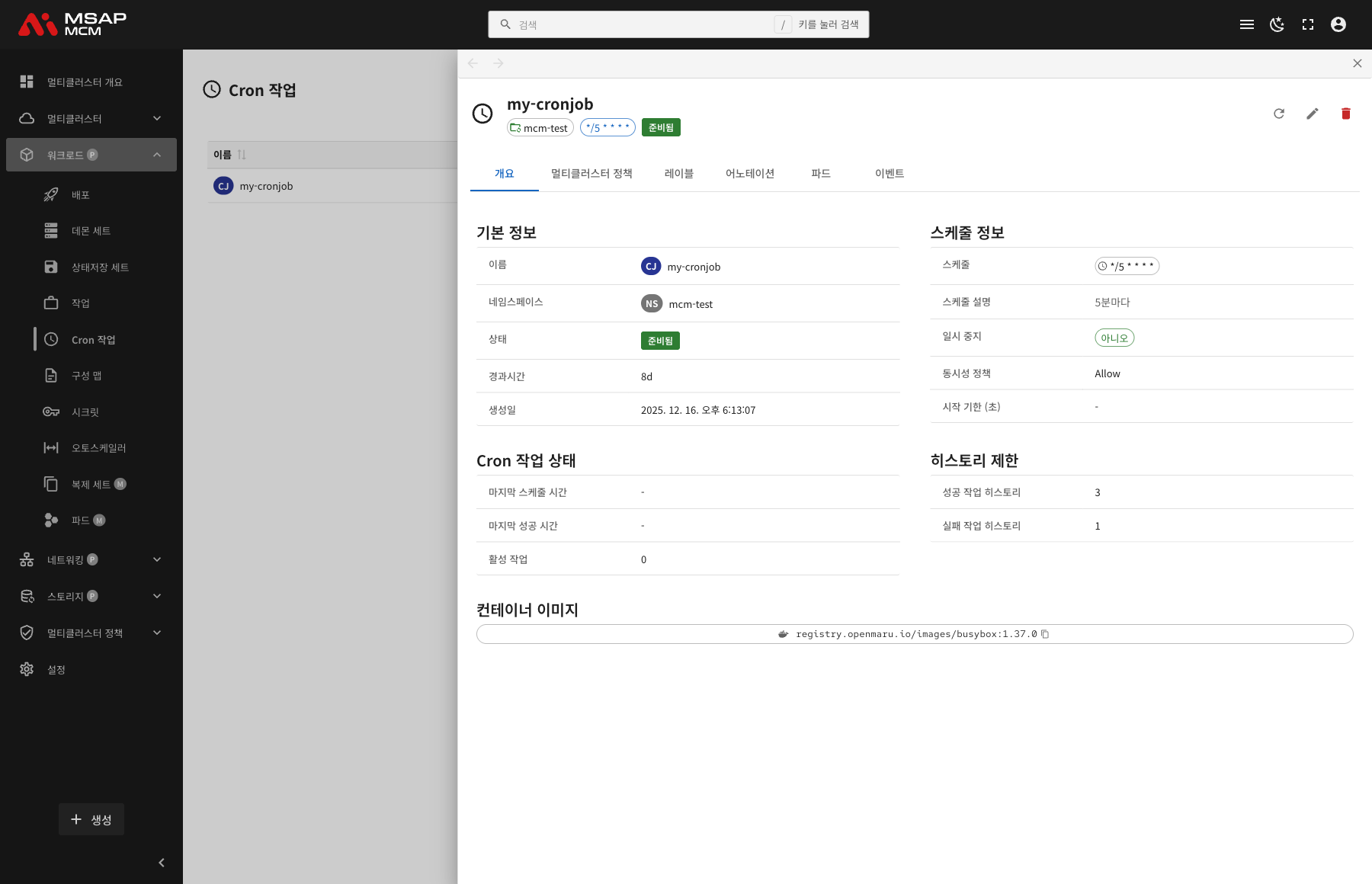
The Detail Panel Header
| Element | Description |
|---|---|
| CronJob name | The name of the chosen CronJob |
| Namespace | The namespace the CronJob belongs to |
| Schedule | The cron expression (*/5 * * * *, for example) |
| Status | Ready / Suspended |
The Action Buttons
| Button | What it does |
|---|---|
| Refresh | Refreshes the CronJob information |
| Edit | Opens the YAML edit mode |
| Delete | Deletes the CronJob |
The Tabs
The Overview Tab
Shows the CronJob's basic information, schedule, and status.
Basic information:
| Item | Description |
|---|---|
| Name | The CronJob name |
| Namespace | The namespace the CronJob belongs to |
| Status | Ready / Suspended |
| Age | The time since creation |
| Created | When the CronJob was created |
Schedule Info:
| Item | Description |
|---|---|
| Schedule | The cron expression (*/5 * * * *, for example) |
| Schedule Description | The human-readable description of the schedule (every 5 minutes, for example) |
| Suspended | Yes / No |
| Concurrency Policy | Allow / Forbid / Replace |
| Starting Deadline (s) | How long a Job creation may be delayed |
CronJob Status:
| Item | Description |
|---|---|
| Last Schedule Time | When a Job was last scheduled |
| Last Successful Time | When a Job last succeeded |
| Active Jobs | The number of Jobs running now |
History Limits:
| Item | Description |
|---|---|
| Successful Jobs History | How many successful Jobs to keep (default: 3) |
| Failed Jobs History | How many failed Jobs to keep (default: 1) |
Container images:
Shows the container images defined on the CronJob.
The Multi-Cluster Policies Tab
Shows the multi-cluster policies that apply to the CronJob.
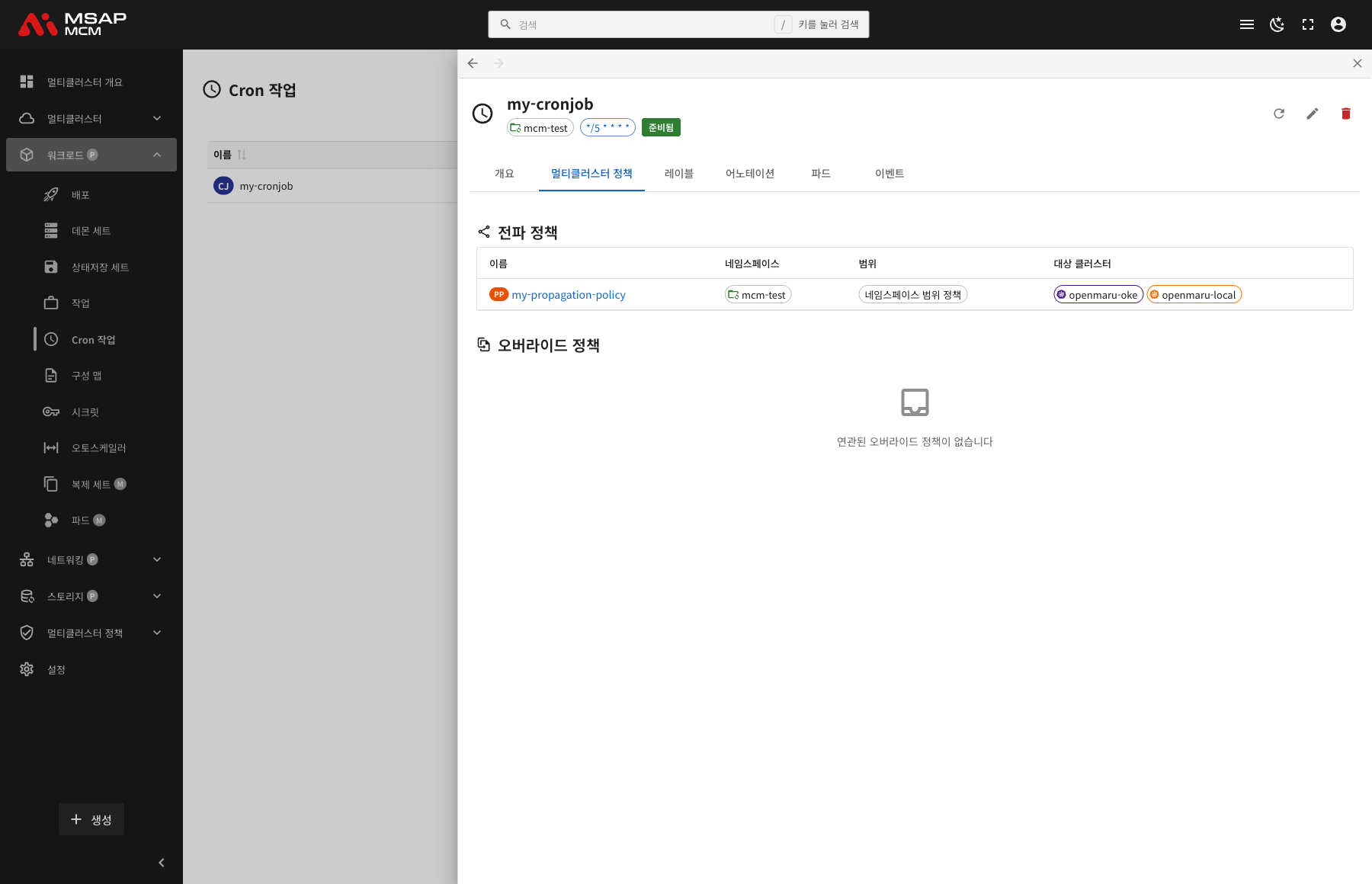
PropagationPolicy:
| Column | Description |
|---|---|
| Name | The PropagationPolicy name |
| Namespace | The namespace the policy belongs to |
| Scope | Namespace-scoped policies / cluster-scoped policies |
| Target Clusters | The list of target clusters |
OverridePolicy:
Shown where there are per-cluster custom settings.
The Labels Tab
Shows the list of Kubernetes labels applied to the CronJob.
The Annotations Tab
Shows the list of annotations applied to the CronJob.
The Pods Tab
Shows the pods of the Jobs created by that CronJob.
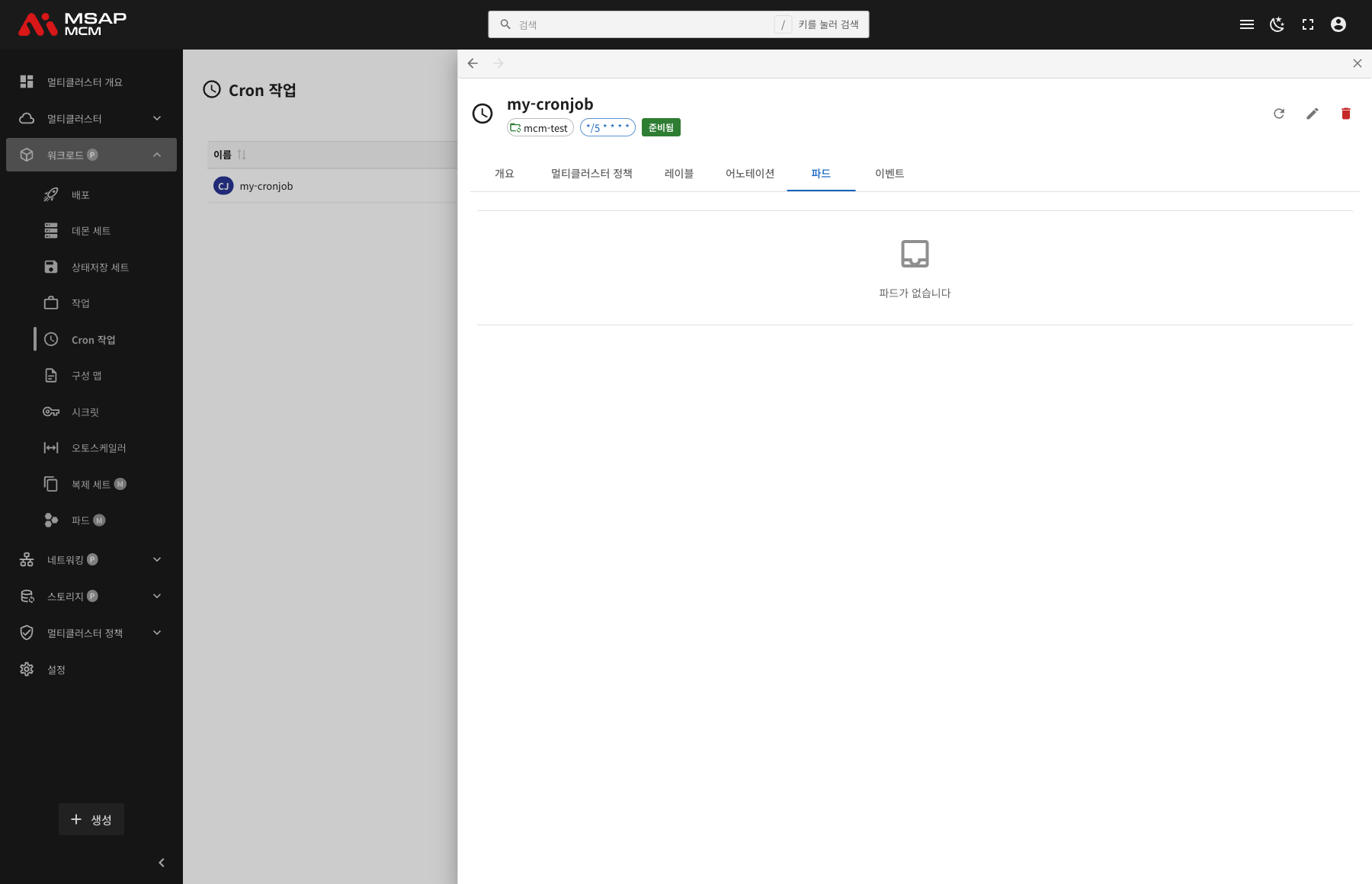
Note: a CronJob creates a Job on schedule, and the Job creates the pods. When no Job is running now, no pods are shown.
| Column | Description |
|---|---|
| Name | The pod name |
| Cluster | The cluster the pod is running on |
| Status | The pod state (Running / Pending / Succeeded / Failed) |
| Node | The node the pod is scheduled on |
| Restarts | The pod restart count |
| Age | The time since the pod was created |
| Actions | The view and delete buttons |
The Events Tab
Shows the Kubernetes events related to the CronJob.
Creating a CronJob
Creates a new CronJob on the MCM control plane.
Fields
| Field | Required | Description |
|---|---|---|
| Name | ✅ | The CronJob name |
| Namespace | ✅ | The namespace to deploy into |
| Container image | ✅ | The container image URL |
| Schedule | ✅ | The cron expression (*/5 * * * *, for example) |
| Command | - | The container command |
| Concurrency Policy | - | Allow / Forbid / Replace (default: Allow) |
| Starting Deadline | - | How long a Job creation may be delayed, in seconds |
| Successful Jobs History | - | How many successful Jobs to keep (default: 3) |
| Failed Jobs History | - | How many failed Jobs to keep (default: 1) |
Editing the YAML
The "Edit YAML" tab lets you write the CronJob definition directly.
CronJob Operations
Editing a CronJob
- Choose the CronJob
- Press the "Edit" button in the detail panel
- Change the CronJob definition in the YAML editor
- Press the "Save" button
Suspending and Resuming a CronJob
A CronJob's runs can be suspended for a while and started again.
- Choose the CronJob and press "Edit"
- Change
spec.suspendin the YAML:true: suspendedfalse: resumed
- Press the "Save" button
Deleting a CronJob
⚠️ Caution: deleting a CronJob deletes every Job and pod that belongs to it.
- Choose the CronJob to delete
- Press the "Delete" button in the detail panel
- Type the CronJob name in the confirmation dialog
- Press the "Delete" button
Worked Examples
Scenario 1: Creating a Regular Backup CronJob
- Press the "Create" button
- Enter the CronJob details:
- Name:
daily-backup - Namespace:
production - Container image:
my-registry/backup:v1.0 - Schedule:
0 2 * * *(2 am every day) - Command:
["/backup.sh", "--full"]
- Name:
- Press the "Create" button
- Name the target clusters with a PropagationPolicy
- Confirm the Job is created on the Events tab
Scenario 2: Checking a CronJob's Schedule
- Click the CronJob you want to check in the list
- Check the schedule on the Overview tab:
- The schedule expression
- The schedule description (in human-readable form)
- When it is next due to run
- Check the last run in CronJob Status
Scenario 3: Checking the History of Failed Jobs
- Choose the CronJob and open the Overview tab
- Check the History Limits section:
- Successful Jobs History: how many successful Jobs are kept
- Failed Jobs History: how many failed Jobs are kept
- Check the failure events on the Events tab
- Check the failed pod's logs on the Pods tab
Scenario 4: Suspending a CronJob
- Choose the CronJob to suspend
- Press the "Edit" button
- Set
spec.suspend: truein the YAML - Press "Save"
- Confirm the status changes to "Suspended"
- Confirm no new Job is created
Scenario 5: Running a CronJob Across Clusters
- Create the CronJob and apply a PropagationPolicy
- Check the "Multi-Cluster Policies" tab in the detail panel
- Confirm the CronJob has been shared out to the target clusters
- Monitor the Jobs being created on schedule on each cluster
- Check how the pods are running per cluster on the Pods tab
Related Concepts
CronJob against Job
| Trait | CronJob | Job |
|---|---|---|
| How it runs | On a periodic schedule | Once |
| Trigger | Automatically, on the cron schedule | Runs as soon as it is created |
| Job creation | Creates a new Job each schedule | A single Job created directly |
| Where it is used | Regular backups, reports | Migrations, batch processing |
| Management | Creates and deletes Jobs automatically | Created and deleted by hand |
The Cron Expression
A cron expression is made up of five fields:
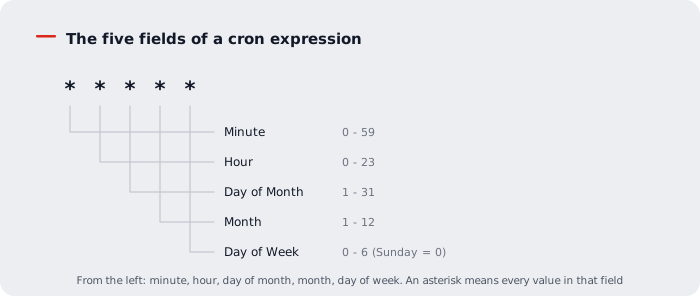
Common examples:
| Expression | Description |
|---|---|
*/5 * * * * | Every 5 minutes |
0 * * * * | On the hour, every hour |
0 0 * * * | Every day at midnight |
0 2 * * * | Every day at 2 am |
0 0 * * 0 | Every Sunday at midnight |
0 0 1 * * | The 1st of every month, at midnight |
0 0 1 1 * | 1 January every year, at midnight |
The Concurrency Policy
| Policy | Description |
|---|---|
| Allow | Allows a new Job even if the previous one has not finished (the default) |
| Forbid | Skips creating a new Job while the previous one is running |
| Replace | Cancels the previous Job and replaces it with the new one |
The Starting Deadline
- How late a Job may start after its scheduled time
- Past that, the Job creation is skipped
- It affects how a backlog of Jobs is handled after cluster downtime
For example startingDeadlineSeconds: 200
- A Job may be created only within 200 seconds of the scheduled time
- After 200 seconds that scheduled run is skipped
History Limits
- successfulJobsHistoryLimit: how many successful Jobs to keep (default: 3)
- failedJobsHistoryLimit: how many failed Jobs to keep (default: 1)
Beyond these limits, the oldest Jobs are deleted automatically.
Next Steps
- ConfigMaps -- managing multi-cluster ConfigMaps
- Jobs -- managing multi-cluster Jobs
- Propagation Policies -- configuring a PropagationPolicy