6.1. PersistentVolumeClaims
Overview
The PersistentVolumeClaims page manages every PVC held on the MCM control plane in one place. A PVC (PersistentVolumeClaim) is the Kubernetes resource by which a user requests storage; it binds to a PersistentVolume and gives a pod persistent storage.
What it is for:
- Managing multi-cluster PVCs together
- Monitoring storage requests and their binding state
- Managing storage classes and access modes
- Distributing PVCs through a PropagationPolicy
Where PVCs are used:
- Providing persistent storage for a database
- Storage for file uploads
- Storage for logs and backups
- Keeping application state
- A shared file system
How the Screen Is Laid Out
The PersistentVolumeClaims page shows the PVC list as a table.
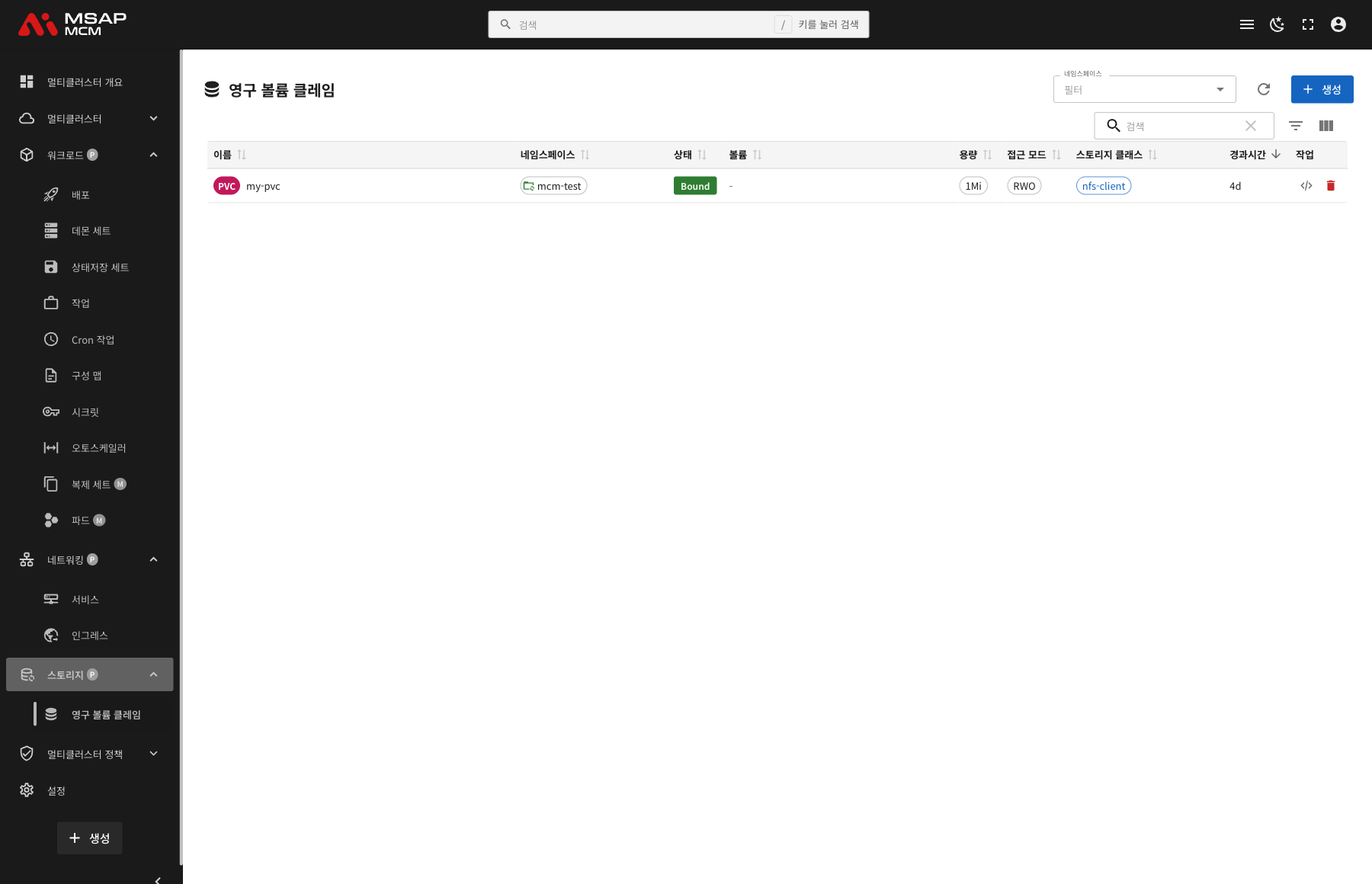
The Elements at the Top of the Page
| Element | Description |
|---|---|
| Namespace filter | Shows only the PVCs of a particular namespace |
| Include system namespaces | Toggles showing the PVCs of system namespaces (kube-system and so on) |
| Refresh button | Refreshes the PVC list |
| Create button | Opens the dialog for creating a new PVC |
| Search box | Searches by PVC name |
Table Columns
| Column | Description | Sortable |
|---|---|---|
| Name | The PVC name | ✅ |
| Namespace | The namespace the PVC belongs to | ✅ |
| Status | The PVC binding state (Bound/Pending/Lost) | ✅ |
| Volume | The name of the PersistentVolume it is bound to | ✅ |
| Capacity | The storage capacity allocated | ✅ |
| Access Modes | The volume access mode (RWO/RWX/ROX) | ✅ |
| Storage Class | The storage class used | ✅ |
| Age | The time since the PVC was created | ✅ |
| Actions | The edit and delete buttons | - |
How Status Is Shown
The Status column shows the PVC's binding state:
| Status | Description | How it is shown |
|---|---|---|
| Bound | Bound to a PersistentVolume | Green |
| Pending | Waiting for a suitable PV | Yellow |
| Lost | The PV it was bound to has been deleted | Red |
Access Modes
| Access mode | Description |
|---|---|
| RWO | ReadWriteOnce -- read and write from a single node |
| RWX | ReadWriteMany -- read and write from several nodes |
| ROX | ReadOnlyMany -- read-only from several nodes |
PVC Detail
Clicking a PVC row opens the detail panel.
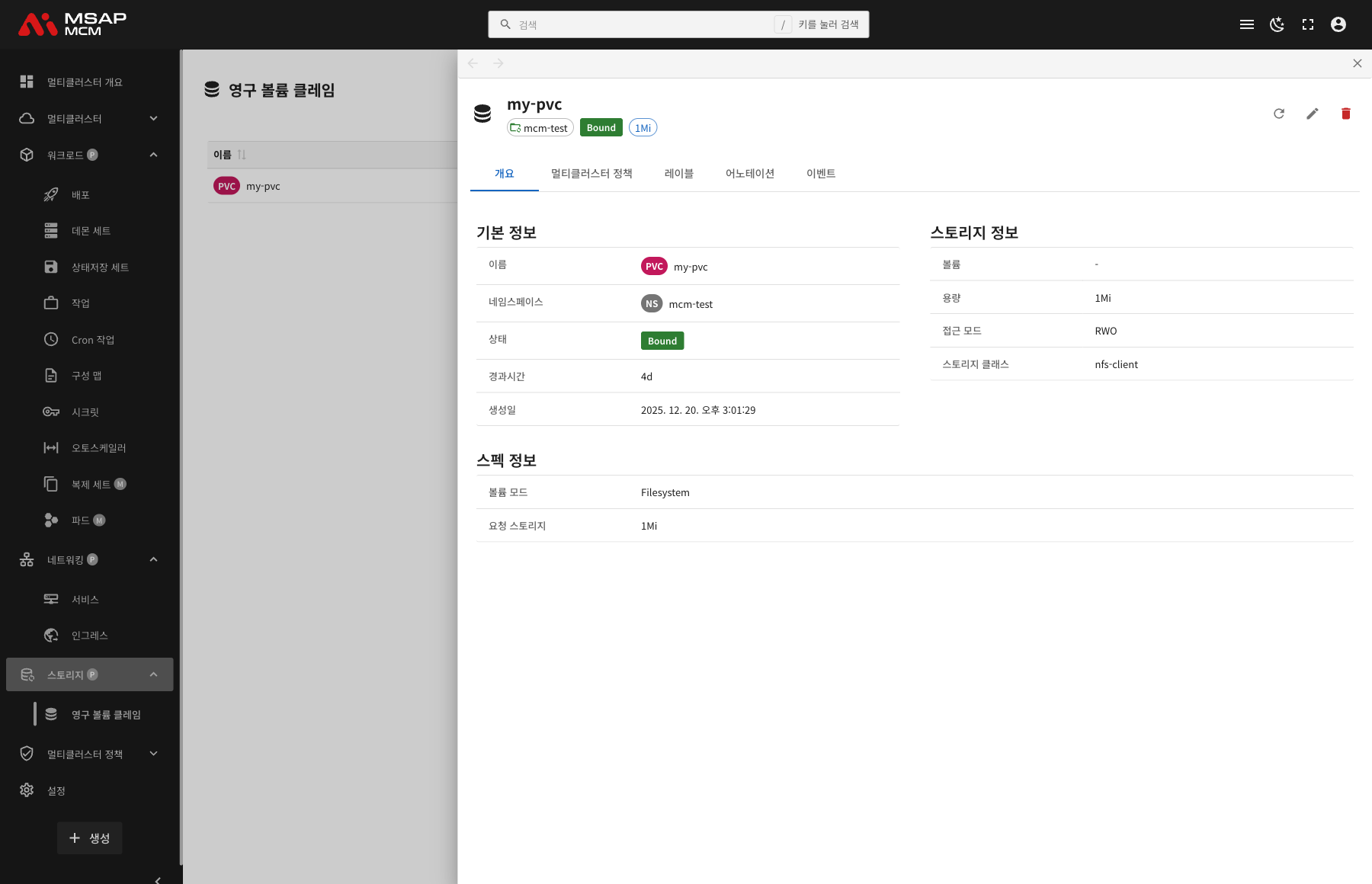
The Detail Panel Header
| Element | Description |
|---|---|
| PVC name | The name of the chosen PVC |
| Namespace | The namespace the PVC belongs to |
| Status | The PVC binding state (Bound, for example) |
The Action Buttons
| Button | What it does |
|---|---|
| Refresh | Refreshes the PVC information |
| Edit | Opens the YAML edit mode |
| Delete | Deletes the PVC |
The Tabs
The Overview Tab
Shows the PVC's basic information, storage information, and specification.
Basic information:
| Item | Description |
|---|---|
| Name | The PVC name |
| Namespace | The namespace the PVC belongs to |
| Status | The PVC binding state |
| Age | The time since creation |
| Created | When the PVC was created |
Storage Information:
| Item | Description |
|---|---|
| Volume | The name of the PersistentVolume it is bound to |
| Capacity | The storage capacity actually allocated |
| Access Modes | The volume access mode (RWO/RWX/ROX) |
| Storage Class | The storage class used |
Spec Information:
| Item | Description |
|---|---|
| Volume Mode | Filesystem or Block |
| Requested Storage | The storage capacity requested |
The Multi-Cluster Policies Tab
Shows the multi-cluster policies that apply to the PVC.
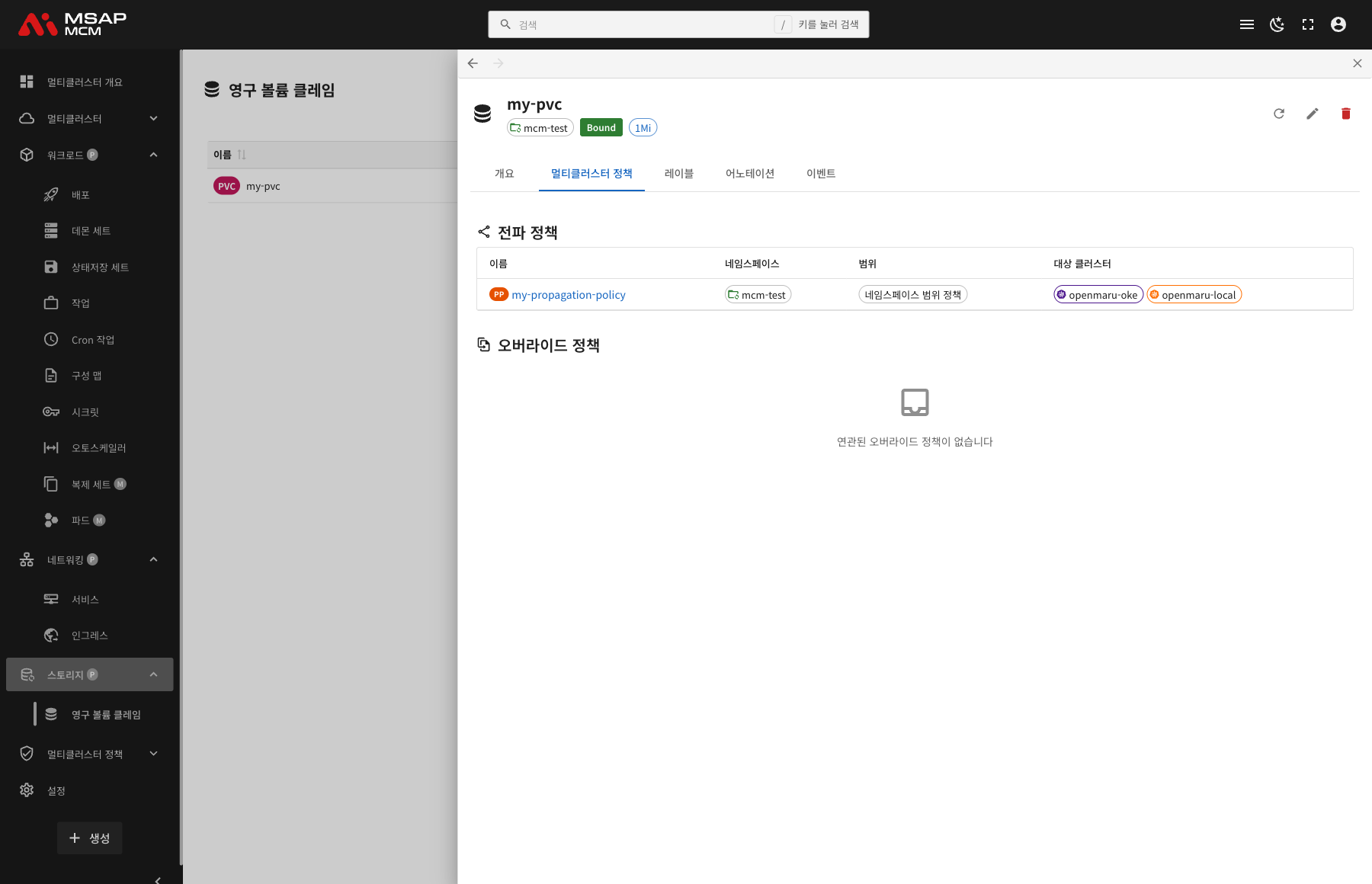
PropagationPolicy:
| Column | Description |
|---|---|
| Name | The PropagationPolicy name |
| Namespace | The namespace the policy belongs to |
| Scope | Namespace-scoped policies / cluster-scoped policies |
| Target Clusters | The list of target clusters |
OverridePolicy:
Shown where there are per-cluster custom settings.
The Labels Tab
Shows the list of Kubernetes labels applied to the PVC.
The Annotations Tab
Shows the list of annotations applied to the PVC.
The Events Tab
Shows the Kubernetes events related to the PVC.
Creating a PVC
Creates a new PVC on the MCM control plane.
Fields
| Field | Required | Description |
|---|---|---|
| Name | ✅ | The PVC name |
| Namespace | ✅ | The namespace to deploy into |
| Storage Class | - | The storage class to use |
| Access Modes | ✅ | Choose the volume access mode |
| Capacity | ✅ | The storage capacity to request |
Example PVC Definitions
A basic PVC:
apiVersion: v1
kind: PersistentVolumeClaim
metadata:
  name: my-pvc
  namespace: default
spec:
  accessModes:
    - ReadWriteOnce
  resources:
    requests:
      storage: 1Gi
  storageClassName: standard
A shared storage PVC:
apiVersion: v1
kind: PersistentVolumeClaim
metadata:
  name: shared-pvc
  namespace: default
spec:
  accessModes:
    - ReadWriteMany
  resources:
    requests:
      storage: 10Gi
  storageClassName: nfs-client
A block volume PVC:
apiVersion: v1
kind: PersistentVolumeClaim
metadata:
  name: block-pvc
  namespace: default
spec:
  accessModes:
    - ReadWriteOnce
  volumeMode: Block
  resources:
    requests:
      storage: 5Gi
  storageClassName: block-storage
Editing the YAML
The "Edit YAML" tab lets you write the PVC definition directly.
PVC Operations
Editing a PVC
- Choose the PVC
- Press the "Edit" button in the detail panel
- Change the PVC definition in the YAML editor
- Press the "Save" button
Caution: some PVC fields (the access mode, the storage class and so on) cannot be changed after creation.
Deleting a PVC
⚠️ Caution: deleting a PVC can lose data permanently. Whether the data is kept or deleted depends on the PV's reclaim policy.
- Choose the PVC to delete
- Press the "Delete" button in the detail panel
- Type the PVC name in the confirmation dialog
- Press the "Delete" button
Worked Examples
Scenario 1: Creating a PVC for a Database
- Press the "Create" button
- Enter the PVC details:
- Name:
postgres-data - Namespace:
database - Storage Class:
ssd-storage - Access Modes:
ReadWriteOnce - Capacity:
20Gi
- Name:
- Press the "Create" button
- Name the target clusters with a PropagationPolicy
- Mount the PVC in the database pod
Scenario 2: Creating a Shared File Storage PVC
- Press the "Create" button and choose the Edit YAML tab
- Write this YAML:
apiVersion: v1kind: PersistentVolumeClaimmetadata:name: shared-filesnamespace: appspec:accessModes:- ReadWriteManyresources:requests:storage: 50GistorageClassName: nfs-client
- Press the "Create" button
- Mount the same PVC in several pods
Scenario 3: Checking a PVC's Binding State
- Check the Status column in the PVC list
- Click a PVC in the "Pending" state
- Find why the binding failed on the Events tab:
- No suitable PV
- A problem with the storage class
- Not enough capacity
- Take the action needed
Scenario 4: Deploying a PVC Across Clusters
- Create the PVC
- Create a PropagationPolicy:
- Resource selector: name the PVC
- Target clusters: choose the clusters to deploy to
- Check the "Multi-Cluster Policies" tab in the detail panel
- Check the PVC state on each cluster
Scenario 5: Monitoring Storage Capacity
- Check the Capacity column in the PVC list
- Check the storage information in the detail panel:
- The requested capacity
- The capacity actually allocated
- The access mode
- Create a new PVC to grow it if needed
Related Concepts
PVC against PV
| Trait | PVC (PersistentVolumeClaim) | PV (PersistentVolume) |
|---|---|---|
| Role | Requests storage | The storage resource |
| Who creates it | The developer or user | An administrator or a dynamic provisioner |
| Scope | Namespace-scoped | Cluster-scoped |
| Lifecycle | Independent of the pod | Managed by its binding to a PVC |
| Purpose | Requesting application storage | Providing the actual storage |
Storage Classes
A storage class defines a kind of storage for dynamic provisioning:
| Kind | Description | Where it is used |
|---|---|---|
| standard | The default storage | General purpose |
| ssd | SSD-backed storage | High-performance databases |
| nfs | A network file system | Shared file storage |
| block | Block storage | High-performance I/O |
| archive | Archive storage | Backups, log storage |
Volume Modes
| Mode | Description | Where it is used |
|---|---|---|
| Filesystem | Mounted as a file system (the default) | Ordinary file storage |
| Block | Mounted as a block device | Databases, high-performance workloads |
The PV Reclaim Policy
Defines what happens to the PV when the PVC is deleted:
| Policy | Description |
|---|---|
| Retain | Keeps the PV and its data (cleaning up is manual) |
| Delete | Deletes the PV and the storage automatically |
| Recycle | Deletes the data and reuses the PV (deprecated) |
Dynamic Provisioning
With a storage class, a PV is provisioned automatically when the PVC is created:
- The user creates a PVC (naming a storage class)
- The storage class's provisioner creates a PV
- The PVC and the PV bind automatically
- The pod can use the PVC
Managing Storage Across Clusters
When deploying a PVC to several clusters through MCM:
PropagationPolicy:
- Copies the same PVC definition to several clusters
- Each cluster binds its PV independently
- Supports a different storage class per cluster
OverridePolicy:
- Applies a different storage class per cluster
- Adjusts the capacity per cluster
- For example, SSD on cluster A and HDD on cluster B
Points to watch:
- Check the storage classes available on each cluster
- A PV is a cluster-local resource, so it cannot be shared between clusters
- Data replication has to be handled at the application level
Resolving Problems
When a PVC stays Pending:
- Check the storage class exists
- Check the provisioner is working
- Check the requested access mode is supported
- Check there is enough storage capacity
When a PVC is Lost:
- Check whether the PV it was bound to has been deleted
- Check the state of the storage backend
- Judge whether the data needs recovering
- Consider creating a new PVC
When a pod fails to mount a PVC:
- Check the PVC is Bound
- Check the access mode matches what the pod needs
- Check the storage is reachable from the node
- Check the volume mode is right
Next Steps
- Propagation Policies -- configuring a PropagationPolicy
- Override Policies -- configuring an OverridePolicy
- Secrets -- managing multi-cluster Secrets