4.7. Secrets
Overview
The Secrets page manages every Secret held on the MCM control plane in one place. A Secret is the Kubernetes resource that stores sensitive data -- passwords, OAuth tokens, SSH keys, TLS certificates and the like.
What it is for:
- Managing multi-cluster Secrets together
- Storing and distributing sensitive data safely
- Managing Secrets by type (Opaque, TLS, Docker Registry and so on)
- Distributing Secrets through a PropagationPolicy
Where Secrets are used:
- Storing database passwords
- Managing API keys and tokens
- Storing TLS/SSL certificates
- Docker registry credentials
- Managing SSH keys
- Service account tokens
How the Screen Is Laid Out
The Secrets page shows the Secret list as a table.
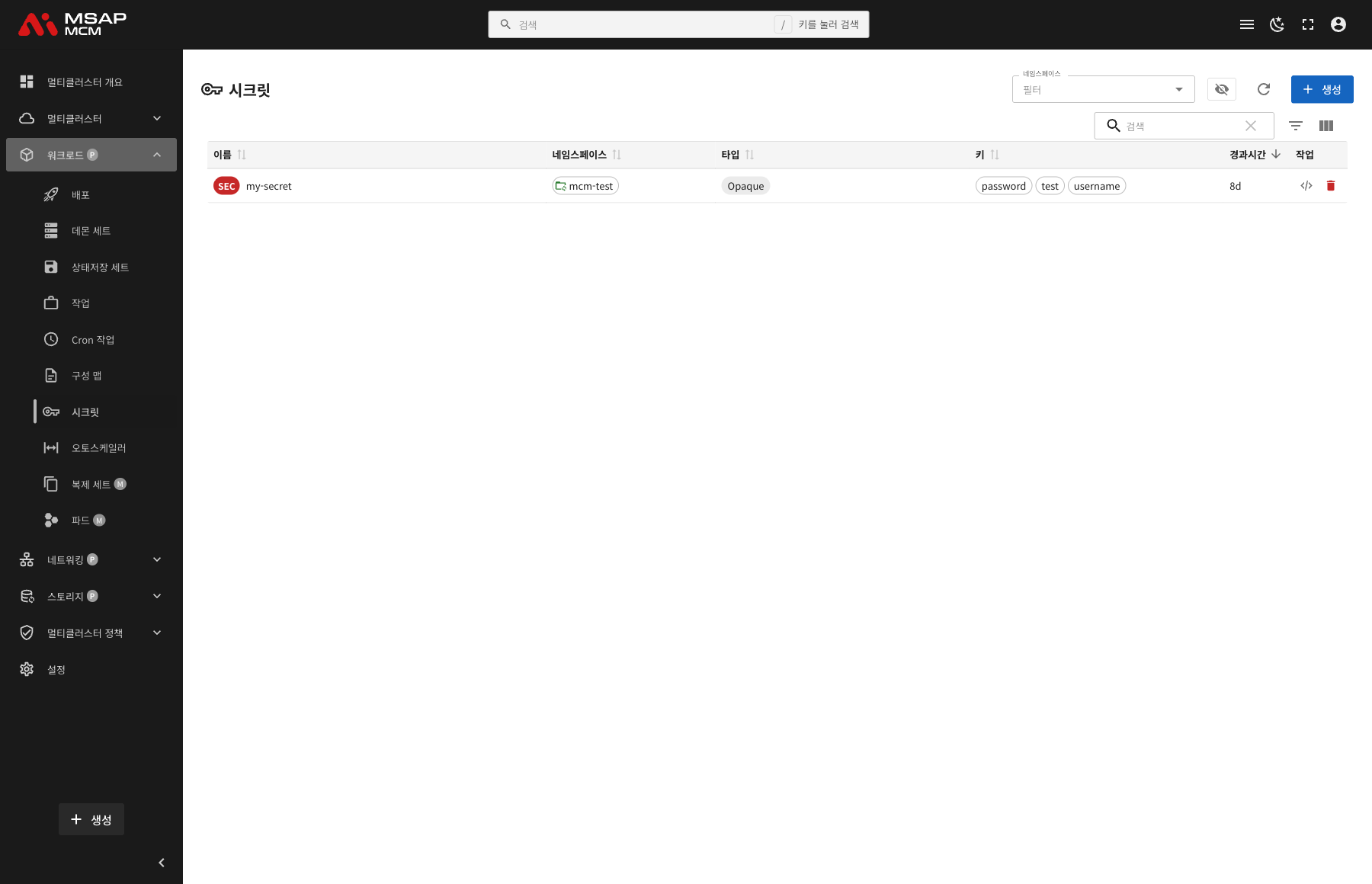
The Elements at the Top of the Page
| Element | Description |
|---|---|
| Namespace filter | Shows only the Secrets of a particular namespace |
| Include system namespaces | Toggles showing the Secrets of system namespaces (kube-system and so on) |
| Refresh button | Refreshes the Secret list |
| Create button | Opens the dialog for creating a new Secret |
| Search box | Searches by Secret name |
Table Columns
| Column | Description | Sortable |
|---|---|---|
| Name | The Secret name | ✅ |
| Namespace | The namespace the Secret belongs to | ✅ |
| Type | The Secret type (Opaque, kubernetes.io/tls and so on) | ✅ |
| Keys | The list of data keys stored | ✅ |
| Age | The time since the Secret was created | ✅ |
| Actions | The edit and delete buttons | - |
Secret Types
| Type | Description |
|---|---|
| Opaque | Ordinary secret data (the default) |
| kubernetes.io/tls | A TLS certificate and key |
| kubernetes.io/dockerconfigjson | Docker registry credentials |
| kubernetes.io/basic-auth | Basic authentication credentials (username/password) |
| kubernetes.io/ssh-auth | SSH credentials |
| kubernetes.io/service-account-token | A service account token |
Secret Detail
Clicking a Secret row opens the detail panel.
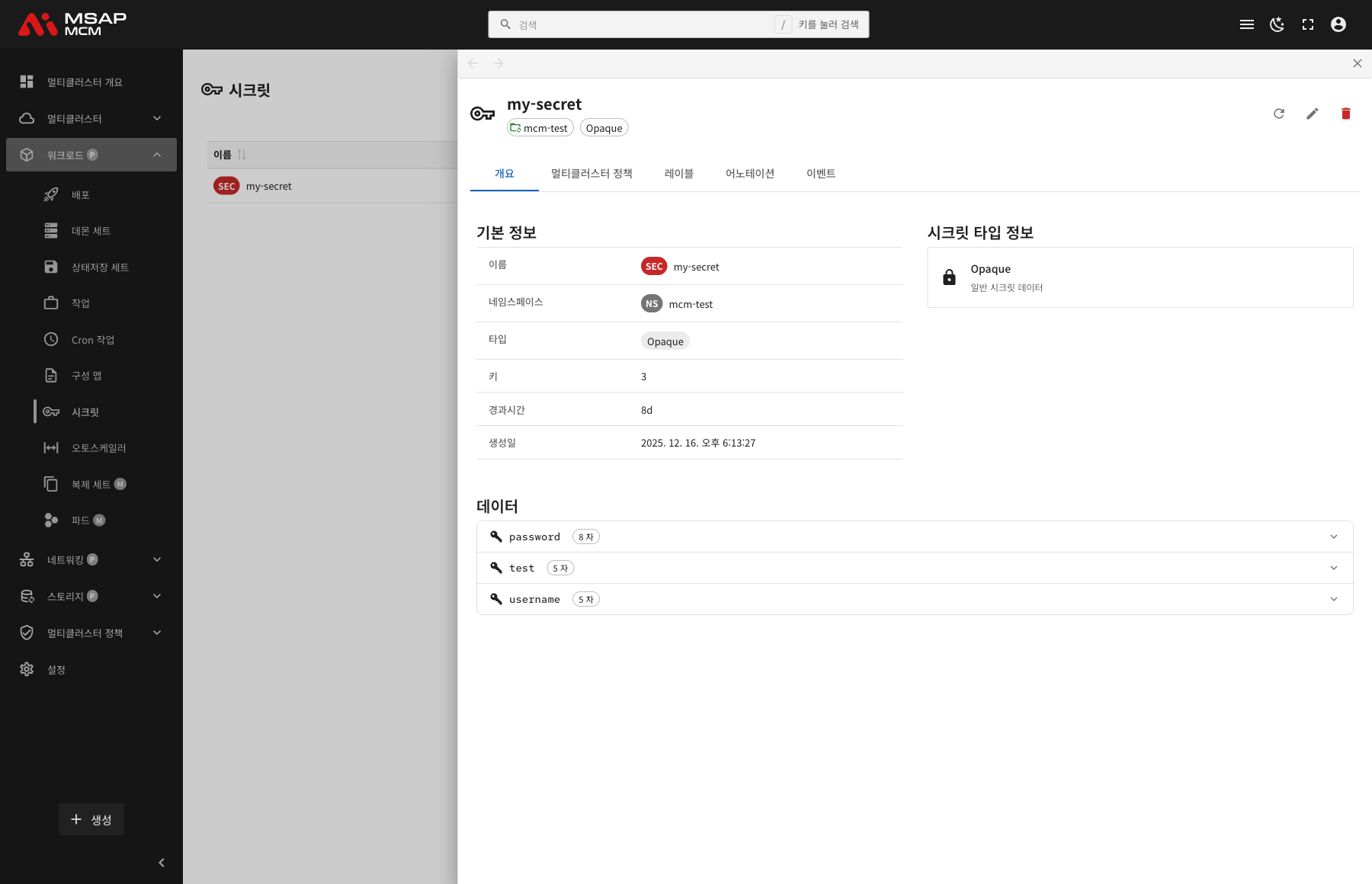
The Detail Panel Header
| Element | Description |
|---|---|
| Secret name | The name of the chosen Secret |
| Namespace | The namespace the Secret belongs to |
| Type | The Secret type (Opaque, for example) |
The Action Buttons
| Button | What it does |
|---|---|
| Refresh | Refreshes the Secret information |
| Edit | Opens the YAML edit mode |
| Delete | Deletes the Secret |
The Tabs
The Overview Tab
Shows the Secret's basic information, its type, and its data.
Basic information:
| Item | Description |
|---|---|
| Name | The Secret name |
| Namespace | The namespace the Secret belongs to |
| Type | The Secret type |
| Keys | The number of data keys stored |
| Age | The time since creation |
| Created | When the Secret was created |
Secret Type Information:
Shows a description of the chosen Secret's type:
- Opaque: ordinary secret data
- kubernetes.io/tls: a TLS certificate and private key
- kubernetes.io/dockerconfigjson: Docker registry credentials
Data:
Each data key is shown as an accordion:
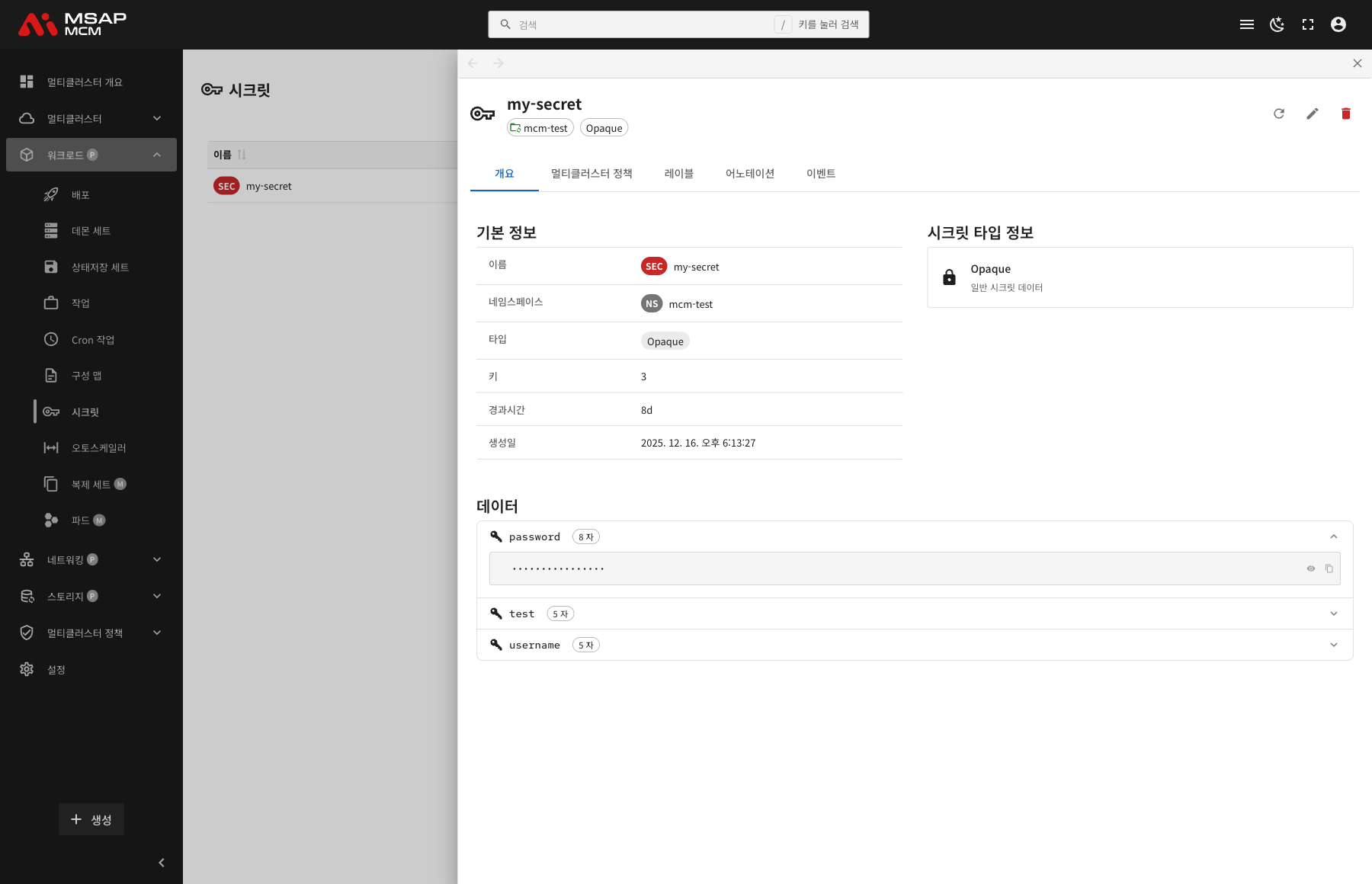
| Element | Description |
|---|---|
| Key name | The data key name (password, for example) |
| Data size | The number of characters in the value (8 chars, for example) |
| Expand/collapse | Click to show or hide the data |
| Masking | The data is masked by default (••••••••) |
| Show button | Click to reveal the actual value |
| Copy button | Copies the data to the clipboard |
Security note: Secret data is masked by default. The "Show" button has to be pressed to see the actual value.
The Multi-Cluster Policies Tab
Shows the multi-cluster policies that apply to the Secret.
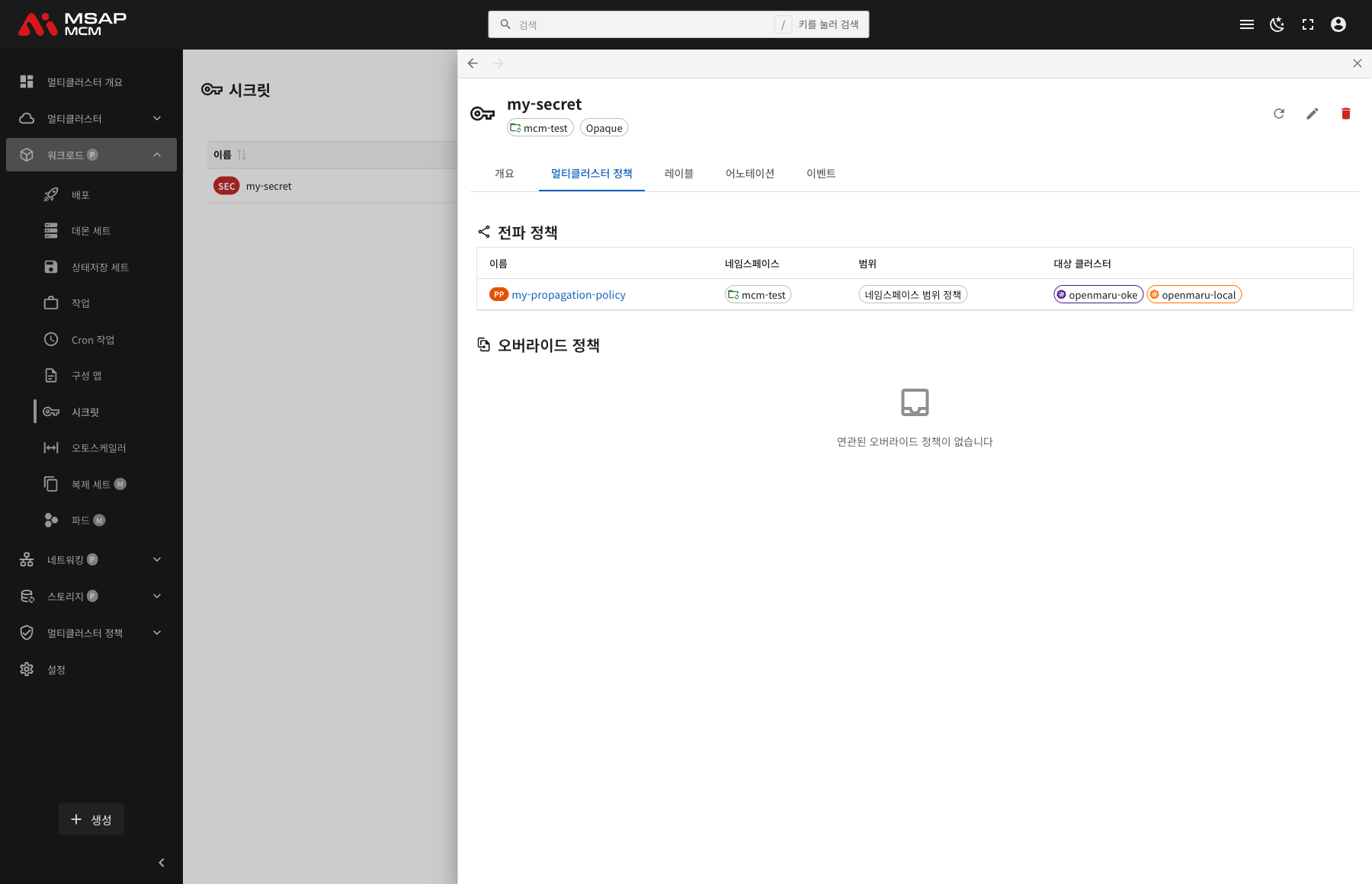
PropagationPolicy:
| Column | Description |
|---|---|
| Name | The PropagationPolicy name |
| Namespace | The namespace the policy belongs to |
| Scope | Namespace-scoped policies / cluster-scoped policies |
| Target Clusters | The list of target clusters |
OverridePolicy:
Shown where there are per-cluster custom settings.
The Labels Tab
Shows the list of Kubernetes labels applied to the Secret.
The Annotations Tab
Shows the list of annotations applied to the Secret.
The Events Tab
Shows the Kubernetes events related to the Secret.
Creating a Secret
Creates a new Secret on the MCM control plane.
Fields
| Field | Required | Description |
|---|---|---|
| Name | ✅ | The Secret name |
| Namespace | ✅ | The namespace to deploy into |
| Type | ✅ | Choose the Secret type |
| Data | ✅ | The key-value pair data |
Creating by Secret Type
Opaque (an ordinary secret):
apiVersion: v1
kind: Secret
metadata:
  name: my-secret
  namespace: default
type: Opaque
data:
  username: YWRtaW4=      # the Base64-encoded value
  password: cGFzc3dvcmQ=
A TLS certificate:
apiVersion: v1
kind: Secret
metadata:
  name: tls-secret
  namespace: default
type: kubernetes.io/tls
data:
  tls.crt: <base64-encoded-cert>
  tls.key: <base64-encoded-key>
A Docker registry:
apiVersion: v1
kind: Secret
metadata:
  name: docker-registry-secret
  namespace: default
type: kubernetes.io/dockerconfigjson
data:
  .dockerconfigjson: <base64-encoded-docker-config>
Editing the YAML
The "Edit YAML" tab lets you write the Secret definition directly.
Note: Secret data has to be Base64-encoded.
Secret Operations
Editing a Secret
- Choose the Secret
- Press the "Edit" button in the detail panel
- Change the Secret definition in the YAML editor
- Press the "Save" button
Caution: changing a Secret does not reach pods that are already running straight away. The pods have to be restarted for the change to take effect.
Deleting a Secret
⚠️ Caution: deleting a Secret can cause errors in the pods that reference it. Check what references it before deleting.
- Choose the Secret to delete
- Press the "Delete" button in the detail panel
- Type the Secret name in the confirmation dialog
- Press the "Delete" button
Worked Examples
Scenario 1: Creating a Database Credentials Secret
- Press the "Create" button
- Enter the Secret details:
- Name:
db-credentials - Namespace:
production - Type:
Opaque - Data:
username:admin(Base64: YWRtaW4=)password:secret123(Base64: c2VjcmV0MTIz)
- Name:
- Press the "Create" button
- Name the target clusters with a PropagationPolicy
Scenario 2: Creating a TLS Certificate Secret
- Press the "Create" button and choose the Edit YAML tab
- Write this YAML:
apiVersion: v1kind: Secretmetadata:name: tls-certnamespace: webtype: kubernetes.io/tlsdata:tls.crt: <base64-encoded-certificate>tls.key: <base64-encoded-private-key>
- Press the "Create" button
- Reference the TLS Secret from the Ingress
Scenario 3: Checking Secret Data
- Click the Secret you want to check in the list
- Look at the Data section on the Overview tab
- Click the key you want to expand it
- Press the "Show" button to unmask it
- Read the actual data value
- Copy it to the clipboard with the "Copy" button if needed
Scenario 4: Creating a Docker Registry Secret
- Create the Secret from the command line:
kubectl create secret docker-registry my-registry \--docker-server=registry.example.com \--docker-username=user \--docker-password=password \--docker-email=user@example.com \-n production
- Check the Secret in OPENMARU MCM
- Apply a PropagationPolicy to deploy it across clusters
Scenario 5: Deploying a Secret Across Clusters
- Create the Secret
- Create a PropagationPolicy:
- Resource selector: name the Secret
- Target clusters: choose the clusters to deploy to
- Check the "Multi-Cluster Policies" tab in the detail panel
- Confirm the Secret has been deployed to the target clusters
Related Concepts
Secret against ConfigMap
| Trait | Secret | ConfigMap |
|---|---|---|
| Purpose | Sensitive data | Ordinary configuration data |
| How it is stored | Base64-encoded | Stored as plain text |
| Security | Restricted access, RBAC applied | Ordinary access |
| In memory | Mounted on tmpfs (never written to disk) | The ordinary file system |
| Size limit | 1MB | 1MB |
| Examples | Passwords, tokens, certificates | Configuration files, environment variables |
How to Use a Secret
1. Injected as an environment variable:
env:
  - name: DB_PASSWORD
    valueFrom:
      secretKeyRef:
        name: db-credentials
        key: password
2. The whole Secret as environment variables:
envFrom:
  - secretRef:
      name: db-credentials
3. Mounted as a volume:
volumes:
  - name: secret-volume
    secret:
      secretName: db-credentials
volumeMounts:
  - name: secret-volume
    mountPath: /etc/secrets
    readOnly: true
Base64 Encoding
Secret data has to be Base64-encoded:
# encode
echo -n 'mypassword' | base64
# output: bXlwYXNzd29yZA==

# decode
echo 'bXlwYXNzd29yZA==' | base64 -d
# output: mypassword
Note: Base64 is not encryption. It is only an encoding, for data integrity in transit.
Good Practice for Secret Security
- Apply RBAC: keep access to Secrets to a minimum
- Enable encryption: protect them at rest with etcd encryption
- Use an external secret manager: HashiCorp Vault, AWS Secrets Manager and the like
- Rotate regularly: change passwords and keys periodically
- Audit logging: monitor the record of Secret access
Managing Secrets Across Clusters
When deploying a Secret to several clusters through MCM:
PropagationPolicy:
- Copies the same Secret to several clusters
- Chooses the clusters and sets the deployment strategy
OverridePolicy:
- Applies a different Secret value per cluster
- For example, a different database password per cluster
Security considerations:
- The Secret is spread across several clusters
- Each cluster's security policy has to be checked
- Confirm the transfer over the network is encrypted
Next Steps
- HPA (Horizontal Pod Autoscaler) -- managing multi-cluster HPAs
- ConfigMaps -- managing multi-cluster ConfigMaps
- Propagation Policies -- configuring a PropagationPolicy