7.1. Propagation Policies
Overview
The Propagation Policies page manages every propagation policy held on the MCM control plane in one place. A propagation policy (PropagationPolicy) is the core Karmada resource that defines the rules for deploying a Kubernetes resource to several member clusters.
What it is for:
- Defining the strategy for deploying resources across clusters
- Choosing the target clusters and setting the deployment rules
- Monitoring the propagation state of resources
- Checking the binding and scheduling state
Where propagation policies are used:
- Deploying an application to particular clusters
- Copying the same workload to several clusters
- Dynamic deployment by cluster label
- Defining deployment rules per namespace
Policy Scope
Propagation policies come in two scopes:
| Scope | Resource | Description |
|---|---|---|
| Namespace-scoped | PropagationPolicy | Applies to resources within a particular namespace |
| Cluster-scoped | ClusterPropagationPolicy | Applies to cluster-wide or namespaced resources |
How the Screen Is Laid Out
The Propagation Policies page shows the policy list as a table.
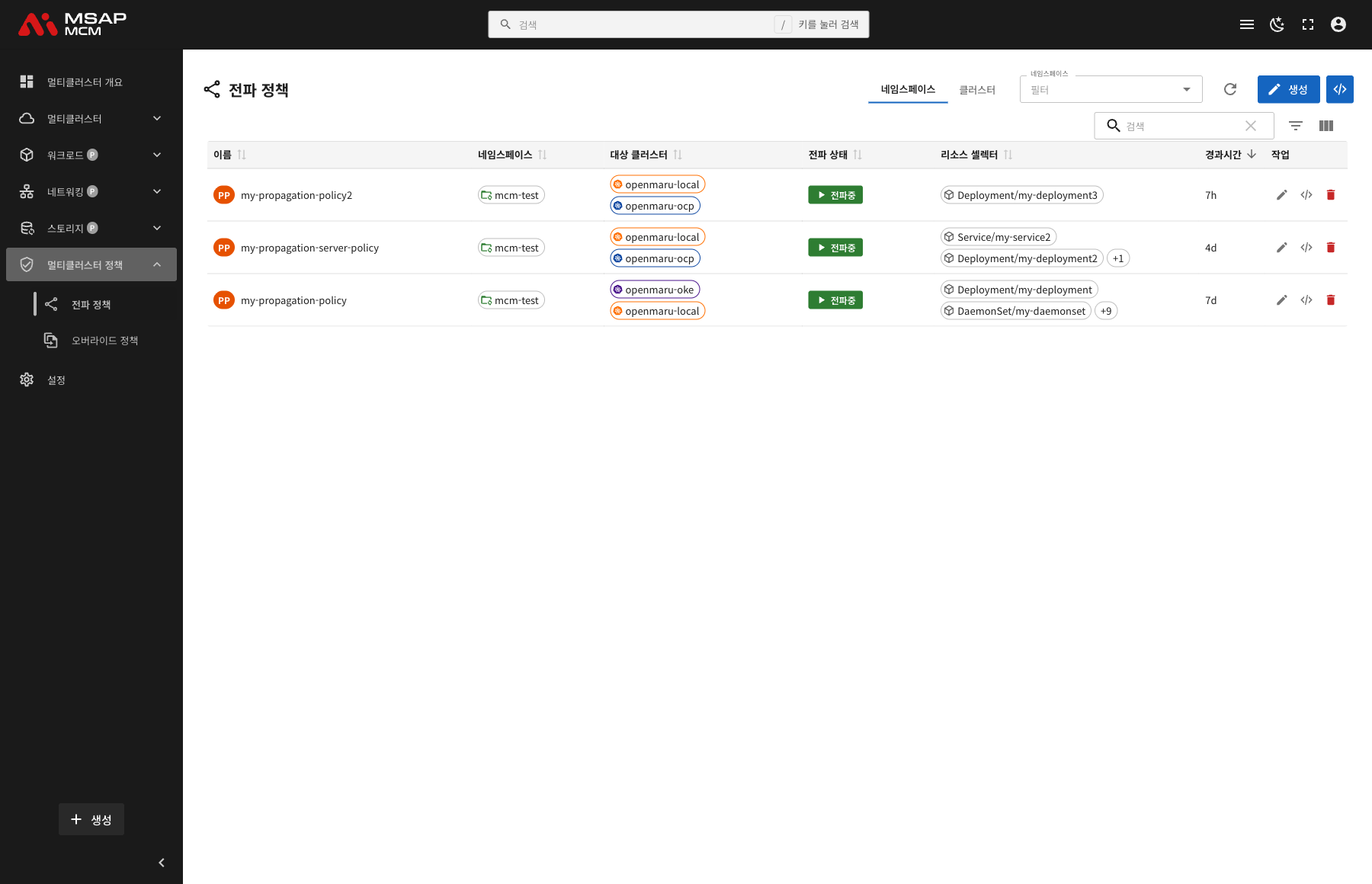
The Elements at the Top of the Page
| Element | Description |
|---|---|
| Scope selector | Chooses namespace-scoped or cluster-scoped policies |
| Namespace filter | Shows only the policies of a particular namespace (namespace scope) |
| Cluster filter | Shows only the policies of a particular cluster (cluster scope) |
| Refresh button | Refreshes the policy list |
| Create button | Creates a new propagation policy |
| Search box | Searches by policy name |
Table Columns (Namespace Scope)
| Column | Description | Sortable |
|---|---|---|
| Name | The policy name (with a PP badge) | ✅ |
| Namespace | The namespace the policy belongs to | ✅ |
| Target Clusters | The clusters the resource is deployed to | ✅ |
| Propagation Status | How far the propagation has got | ✅ |
| Resource Selectors | The target resources (kind/name) | ✅ |
| Age | The time since the policy was created | ✅ |
| Actions | The edit propagation policy, edit, and delete buttons | - |
Table Columns (Cluster Scope)
| Column | Description | Sortable |
|---|---|---|
| Name | The policy name (with a CPP badge) | ✅ |
| Target Clusters | The clusters the resource is deployed to | ✅ |
| Propagation Status | How far the propagation has got | ✅ |
| Resource Selectors | The target resources (kind/name) | ✅ |
| Age | The time since the policy was created | ✅ |
| Actions | The edit and delete buttons | - |
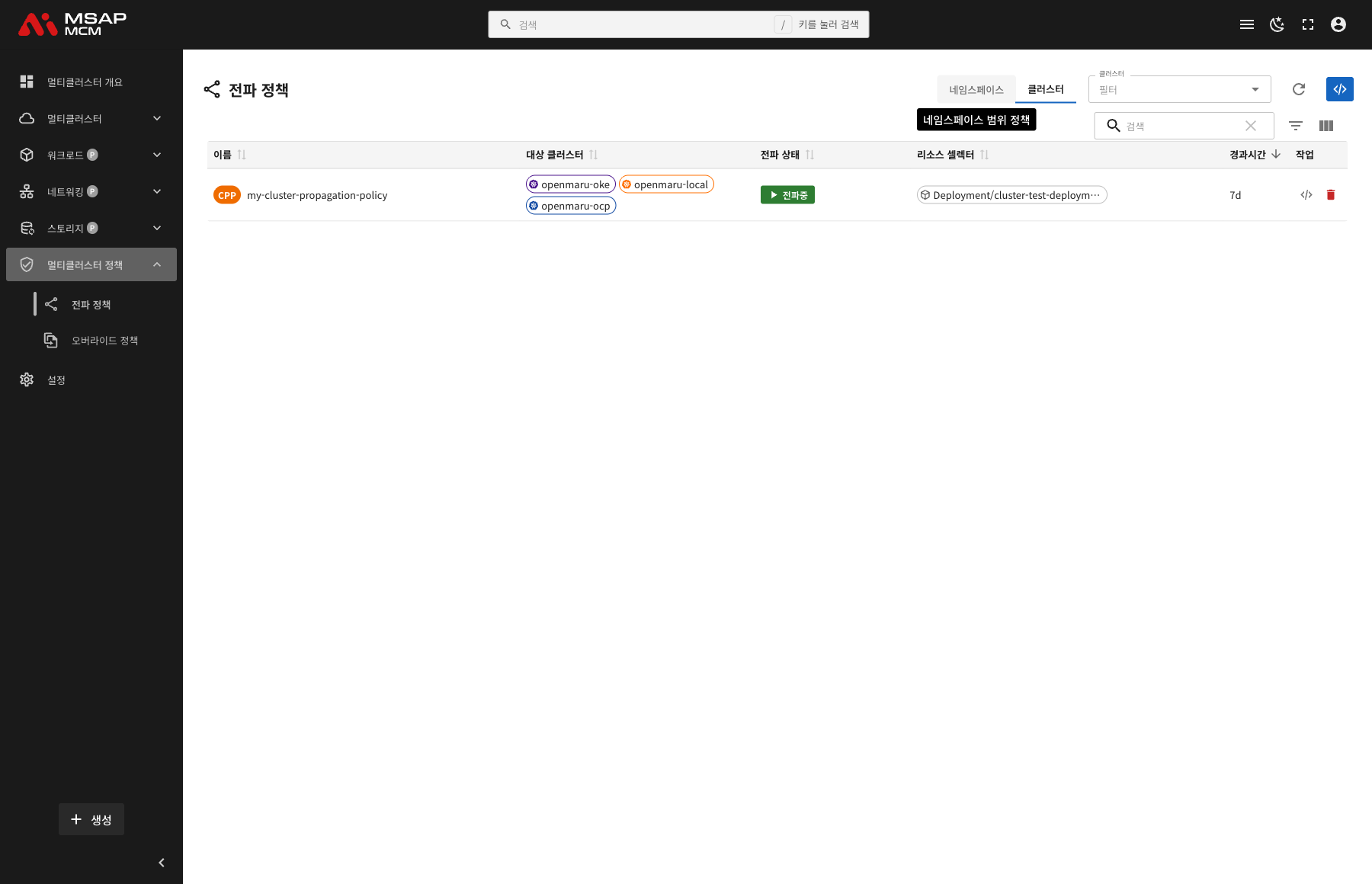
How the Propagation Status Is Shown
| Status | Description | How it is shown |
|---|---|---|
| Propagating | The resource is being propagated to the target clusters | Blue |
| Completed | Propagated to every cluster | Green |
| Failed | The propagation failed | Red |
| Suspended | The propagation is suspended | Grey |
Propagation Policy Detail
Clicking a policy row opens the detail panel.
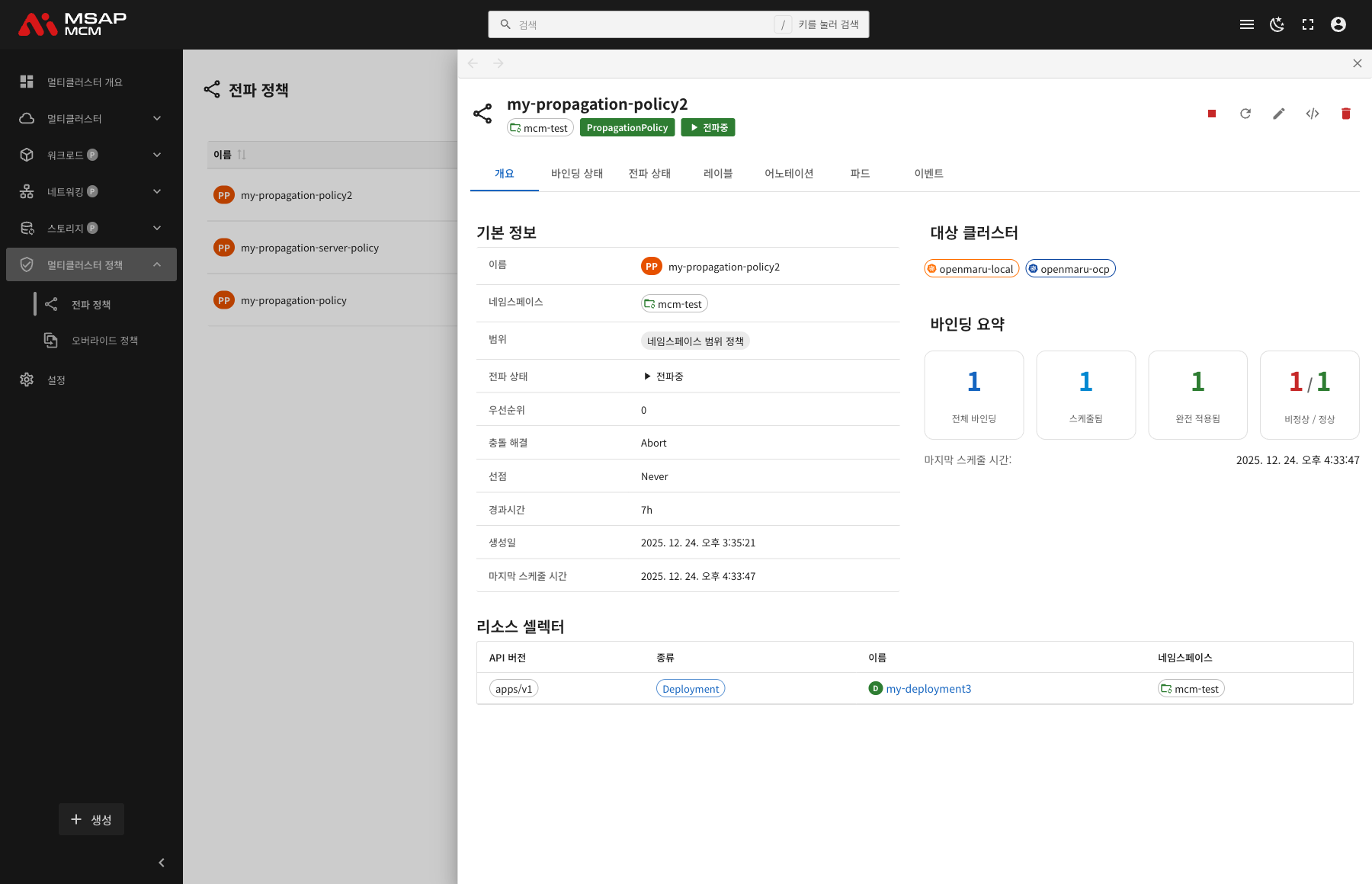
The Detail Panel Header
| Element | Description |
|---|---|
| Policy Name | The name of the chosen policy |
| Namespace | The namespace the policy belongs to |
| Policy type | PropagationPolicy / ClusterPropagationPolicy |
| Propagation Status | The current propagation state |
The Action Buttons
| Button | What it does |
|---|---|
| Suspend | Suspends the resource propagation |
| Refresh | Refreshes the policy information |
| Edit propagation policy | Edits the policy through the wizard |
| Edit | Opens the YAML edit mode |
| Delete | Deletes the policy |
The Tabs
The Overview Tab
Shows the policy's basic information, target clusters, binding summary, and resource selectors.
Basic information:
| Item | Description |
|---|---|
| Name | The policy name |
| Namespace | The namespace the policy belongs to |
| Scope | Namespace-scoped policies / cluster-scoped policies |
| Propagation Status | The current propagation state |
| Priority | The policy priority (a higher number wins) |
| Conflict Resolution | What to do on a conflict (Abort/Overwrite) |
| Preemption | Whether preemption is allowed (Never/Always) |
| Age | The time since creation |
| Created | When the policy was created |
| Last Scheduled | When it was last scheduled |
Target Clusters:
Shows the list of clusters the resource is deployed to.
Binding Summary:
| Item | Description |
|---|---|
| Total Bindings | The number of ResourceBindings created |
| Scheduled | The number of bindings that have been scheduled |
| Fully Applied | The number of bindings applied to every cluster |
| Unhealthy / Healthy | The unhealthy and healthy binding counts |
Resource Selectors:
Shows the resources the policy applies to, as a table:
| Column | Description |
|---|---|
| API version | The resource API version (apps/v1, for example) |
| Kind | The resource kind (Deployment, for example) |
| Name | The resource name |
| Namespace | The resource namespace |
The Binding Status Tab
Shows the resource bindings in detail.
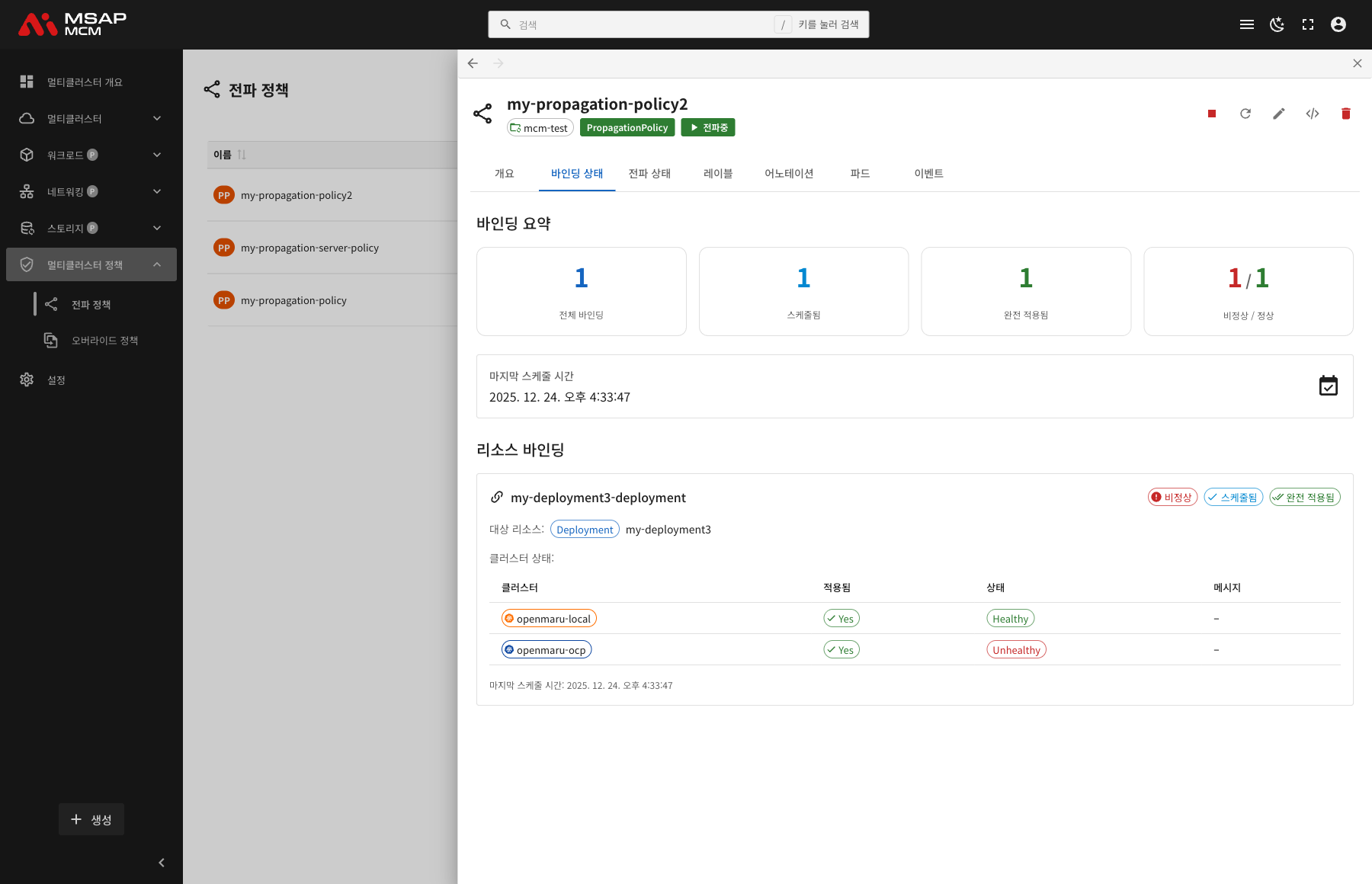
Binding Summary:
Summarises the overall binding situation.
Resource Bindings:
For each resource binding it shows:
| Item | Description |
|---|---|
| Binding name | The ResourceBinding name |
| Status badges | Shows unhealthy / scheduled / fully applied |
| Target Resource | The kind and name of the bound resource |
| Cluster Status | A table of how it applied per cluster |
| Last Scheduled | When it was last scheduled |
The cluster status table:
| Column | Description |
|---|---|
| Cluster | The target cluster name |
| Applied | Whether the resource applied (Yes/No) |
| Status | The cluster state (Healthy/Unhealthy) |
| Message | The detailed message |
The Propagation Status Tab
Shows the propagation conditions in detail.
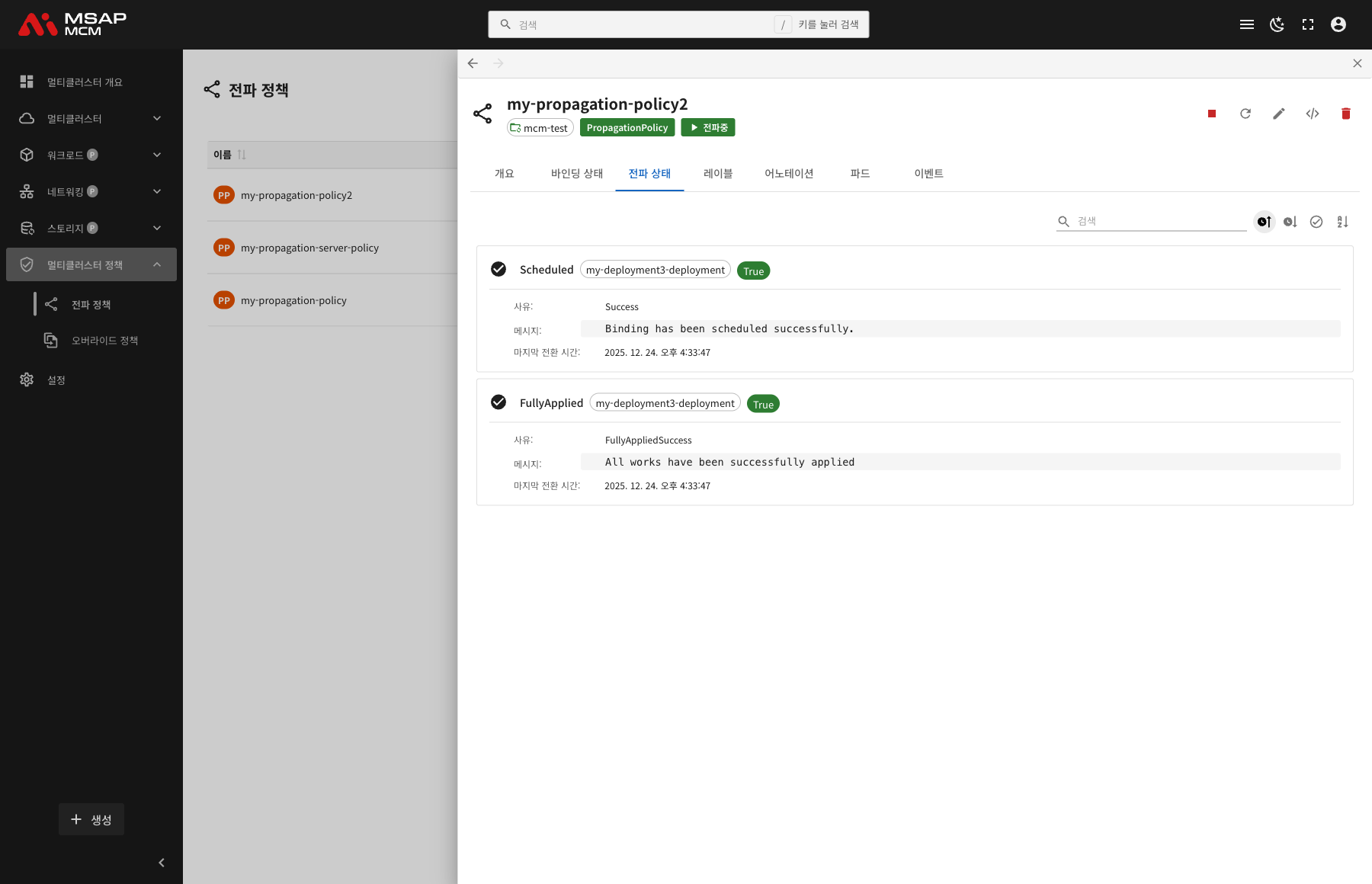
Sort options:
- Newest: by last transition time, newest first
- Oldest: by last transition time, oldest first
- By status (success first): sorts successful states first
- By type: alphabetically by condition type
The condition cards:
Each condition shows:
| Item | Description |
|---|---|
| Condition type | Scheduled, FullyApplied and so on |
| Binding name | The related ResourceBinding name |
| Status | True/False/Unknown |
| Reason | The reason for the state (Success, for example) |
| Message | The detailed message |
| Last transition | When the state changed |
The main condition types:
| Condition | Description |
|---|---|
| Scheduled | The binding has been scheduled |
| FullyApplied | Applied to every cluster |
The Labels Tab
Shows the list of Kubernetes labels applied to the policy.
The Annotations Tab
Shows the list of annotations applied to the policy.
The Pods Tab
Shows the pods deployed by the policy.
The Events Tab
Shows the Kubernetes events related to the policy.
Creating a Propagation Policy
Creates a new propagation policy. Pressing the "Create" button opens the propagation policy creation dialog.
Creating a Propagation Policy Through the Dialog
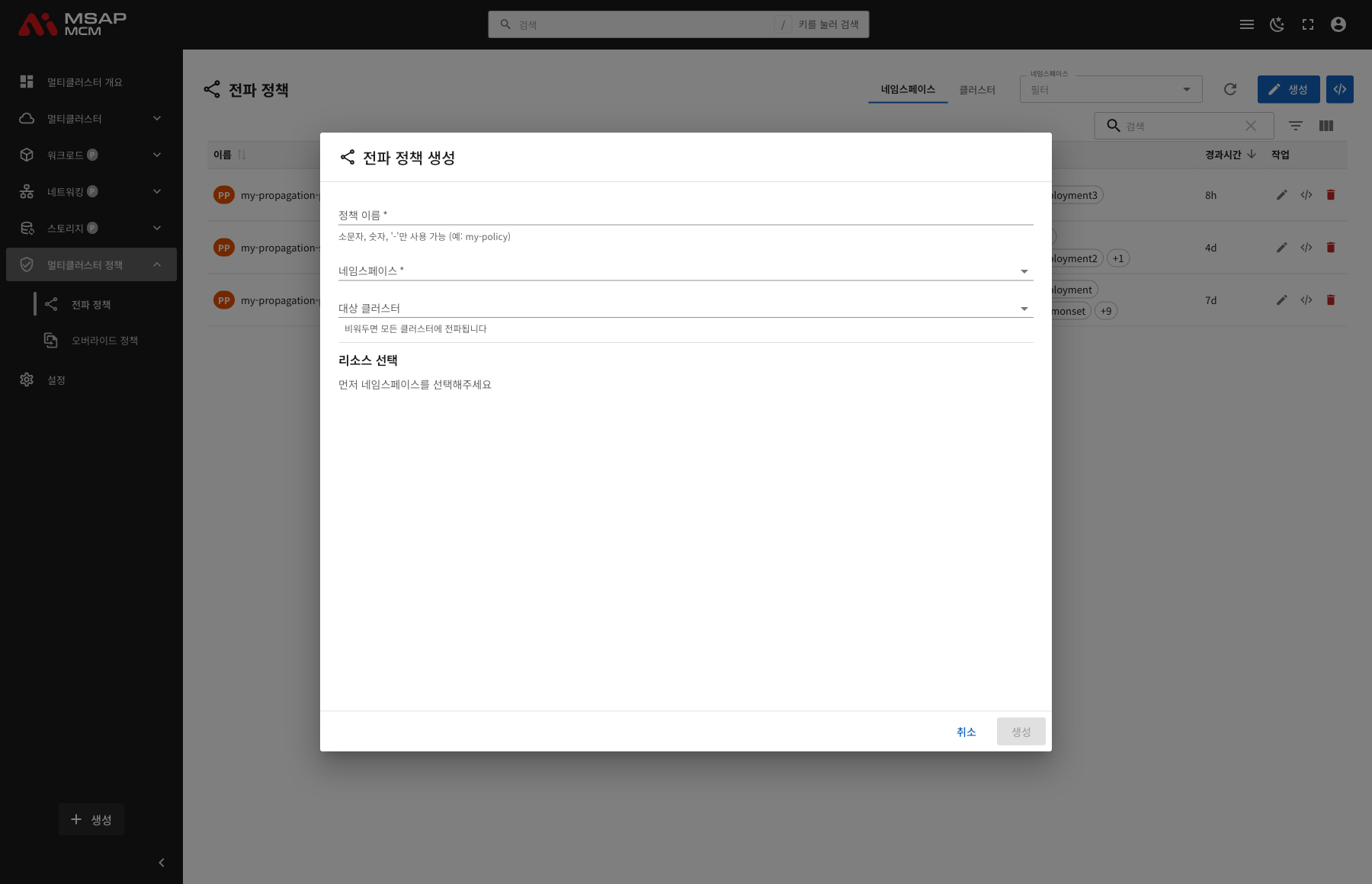
The creation dialog makes it easy to build a propagation policy through a straightforward interface.
The Parts of the Dialog
| Element | Required | Description |
|---|---|---|
| Policy Name | ✅ | The policy name (lowercase letters, numbers, and '-' only) |
| Namespace | ✅ | Choose the namespace the policy belongs to |
| Target Clusters | - | Choose the clusters to deploy to (left empty, it propagates to every cluster) |
| Resource selection | ✅ | Choose the resources to propagate |
The Resource Selection Panel
Choosing a namespace lists the resources available in it, grouped by category.
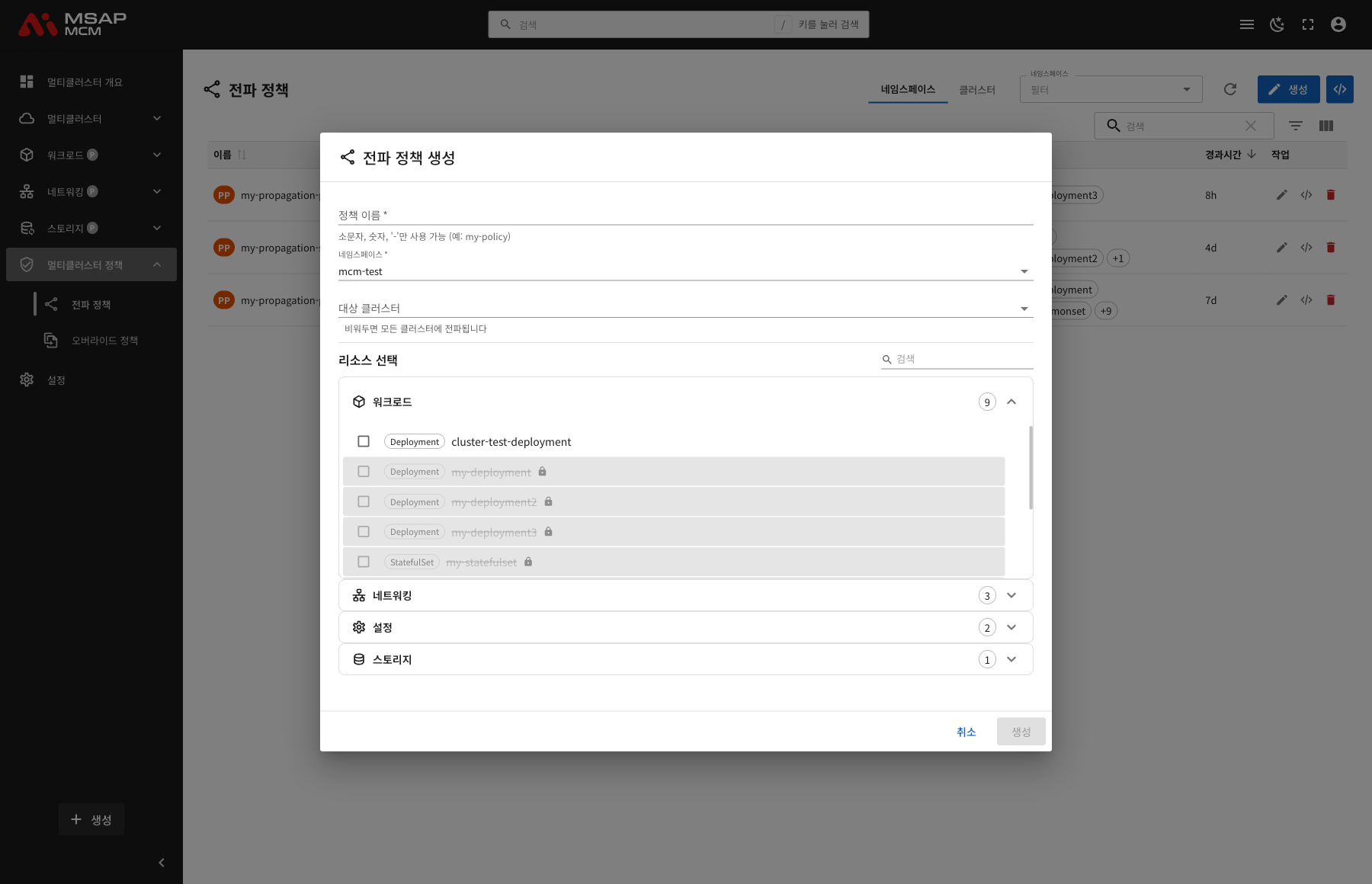
The categories:
- Workloads: Deployment, StatefulSet, DaemonSet, Job, CronJob
- Networking: Service, Ingress
- Configs: ConfigMap, Secret
- Storage: PersistentVolumeClaim
The state of a resource:
- ✅ Selectable: can be chosen with the checkbox
- 🔒 Already in use: a resource used by another policy is disabled, and the name of the policy using it is shown
Finishing the Creation
Once every required field is filled in, the "Create" button becomes active.
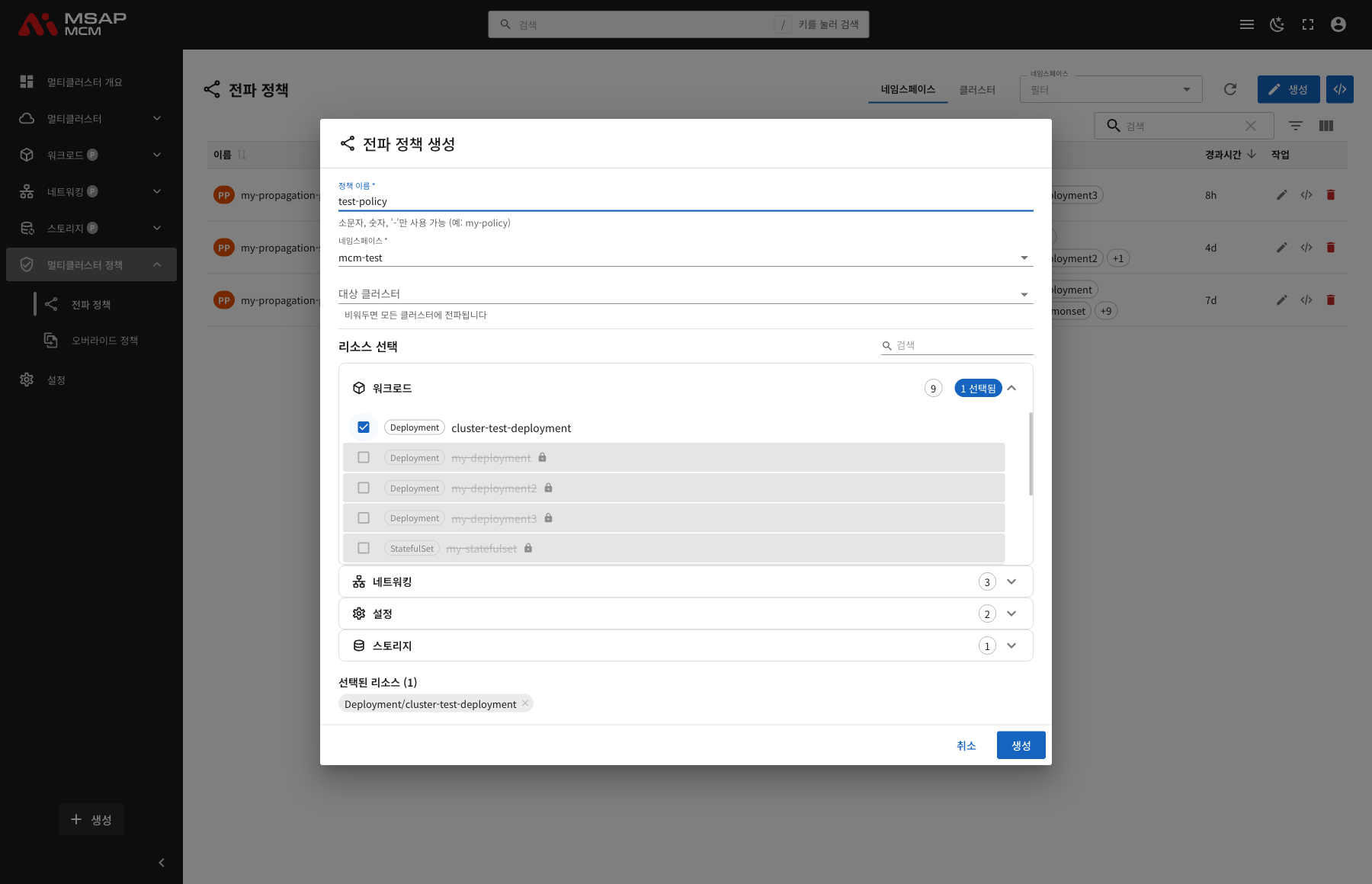
The panel at the bottom of the dialog:
- Selected Resources: the resources chosen so far, each removable with its X button
- Cancel: closes the dialog and cancels the creation
- Create: creates the propagation policy (active once every required field is filled in)
💡 Tip: the keyboard shortcut
Ctrl+S(Cmd+Son macOS) saves quickly.
The Fields at a Glance
| Field | Required | Description |
|---|---|---|
| Name | ✅ | The policy name |
| Namespace | ✅ | The policy's namespace (namespace scope) |
| Resource Selectors | ✅ | Choose the target resources |
| Cluster selection | - | The clusters to deploy to (empty means all) |
| Priority | - | The policy priority |
| Conflict Resolution | - | What to do on a conflict |
PropagationPolicy Examples
A basic propagation policy:
apiVersion: policy.karmada.io/v1alpha1
kind: PropagationPolicy
metadata:
  name: my-propagation-policy
  namespace: default
spec:
  resourceSelectors:
    - apiVersion: apps/v1
      kind: Deployment
      name: my-deployment
  placement:
    clusterAffinity:
      clusterNames:
        - cluster1
        - cluster2
Choosing clusters by label:
apiVersion: policy.karmada.io/v1alpha1
kind: PropagationPolicy
metadata:
  name: label-based-policy
  namespace: default
spec:
  resourceSelectors:
    - apiVersion: apps/v1
      kind: Deployment
      name: my-deployment
  placement:
    clusterAffinity:
      labelSelector:
        matchLabels:
          environment: production
Sharing replicas out:
apiVersion: policy.karmada.io/v1alpha1
kind: PropagationPolicy
metadata:
  name: replica-scheduling-policy
  namespace: default
spec:
  resourceSelectors:
    - apiVersion: apps/v1
      kind: Deployment
      name: my-deployment
  placement:
    clusterAffinity:
      clusterNames:
        - cluster1
        - cluster2
    replicaScheduling:
      replicaDivisionPreference: Weighted
      replicaSchedulingType: Divided
      weightPreference:
        staticWeightList:
          - targetCluster:
              clusterNames:
                - cluster1
            weight: 2
          - targetCluster:
              clusterNames:
                - cluster2
            weight: 1
ClusterPropagationPolicy Example
A cluster-scoped propagation policy:
apiVersion: policy.karmada.io/v1alpha1
kind: ClusterPropagationPolicy
metadata:
  name: my-cluster-propagation-policy
spec:
  resourceSelectors:
    - apiVersion: apps/v1
      kind: Deployment
      name: cluster-wide-deployment
  placement:
    clusterAffinity:
      clusterNames:
        - cluster1
        - cluster2
        - cluster3
Propagation Policy Operations
Editing a Propagation Policy
- Choose the policy
- Press "Edit propagation policy" or "Edit" in the detail panel
- Change the policy in the wizard or the YAML editor
- Press the "Save" button
Suspending and Resuming Propagation
- Choose the policy
- Press the "Suspend" button in the detail panel
- Confirm in the confirmation dialog
- To resume, press the "Resume" button again
Deleting a Propagation Policy
⚠️ Caution: deleting a propagation policy leaves the resources on the member clusters in place. To remove the resources as well, delete them first and then the policy.
- Choose the policy to delete
- Press the "Delete" button in the detail panel
- Type the policy name in the confirmation dialog
- Press the "Delete" button
Worked Examples
Scenario 1: Deploying a Deployment to Particular Clusters
- Press the "Create" button
- Enter the policy details:
- Name:
my-app-propagation - Namespace:
production - Resource selection: Deployment/my-app
- Target clusters: choose cluster1 and cluster2
- Name:
- Press the "Create" button
- Check the propagation state on the Binding Status tab
Scenario 2: Checking the Binding Status
- Click the propagation policy you want to check
- Choose the Binding Status tab
- Check the state of each resource binding:
- Whether it is scheduled
- How it applied per cluster
- Which clusters are unhealthy
- Where there is a problem, read the detail in the cluster status table
Scenario 3: Resolving a Failed Propagation
- Click the policy whose propagation status is "Failed"
- Choose the Propagation Status tab
- Find the cause on the condition cards:
- The error message in the Reason field
- The last transition time
- Read the detailed error on the Events tab
- Refresh and check the state after fixing the problem
Scenario 4: Creating a Cluster-Scoped Policy
- Choose the "cluster-scoped policies" tab
- Press the "Create" button
- Define the ClusterPropagationPolicy:
- Name:
global-config-policy - Resource: ConfigMap/global-config
- Target clusters: every cluster
- Name:
- Press the "Create" button
Scenario 5: Choosing Clusters Dynamically by Label
- Create a new propagation policy
- Use the "label selector" in the cluster selection
- Enter the label condition:
- For example
environment=production
- For example
- It deploys automatically to the clusters carrying that label
Related Concepts
PropagationPolicy against ClusterPropagationPolicy
| Trait | PropagationPolicy | ClusterPropagationPolicy |
|---|---|---|
| Scope | A namespace | The whole cluster |
| What it applies to | Namespaced resources | Cluster and namespaced resources |
| Priority | Lower | Higher |
| Badge | PP | CPP |
The Resource Selector
Chooses the resources the policy applies to:
resourceSelectors:
  - apiVersion: apps/v1
    kind: Deployment
    name: my-deployment
    namespace: default
  - apiVersion: v1
    kind: Service
    labelSelector:
      matchLabels:
        app: my-app
| Field | Description |
|---|---|
| apiVersion | The resource API version |
| kind | The resource kind |
| name | The resource name (optional) |
| namespace | The resource namespace (optional) |
| labelSelector | Selection by label (optional) |
Ways to Choose Clusters
1. Naming the clusters directly:
placement:
  clusterAffinity:
    clusterNames:
      - cluster1
      - cluster2
2. Using a label selector:
placement:
  clusterAffinity:
    labelSelector:
      matchLabels:
        region: asia
        environment: production
3. Using a field selector:
placement:
  clusterAffinity:
    fieldSelector:
      matchExpressions:
        - key: provider
          operator: In
          values:
            - AWS
            - GCP
Replica Scheduling
How workload replicas are shared out between clusters:
| Type | Description |
|---|---|
| Duplicated | Deploys the full replica count to each cluster |
| Divided | Splits the replicas between the clusters |
Splitting by weight:
replicaScheduling:
  replicaDivisionPreference: Weighted
  replicaSchedulingType: Divided
  weightPreference:
    staticWeightList:
      - targetCluster:
          clusterNames:
            - cluster1
        weight: 2
      - targetCluster:
          clusterNames:
            - cluster2
        weight: 1
Conflict Resolution
What happens when several policies apply to the same resource:
| Option | Description |
|---|---|
| Abort | Stops the propagation on a conflict (the default) |
| Overwrite | Overwrites the existing policy |
Priority
The policy priority (a higher number wins):
- Default: 0
- Range: an integer
ResourceBinding
When a propagation policy applies, MCM creates a ResourceBinding automatically:
| Field | Description |
|---|---|
| Name | In the form {resource-name}-{resource-kind} |
| Status | Scheduled, FullyApplied and so on |
| Clusters | The target clusters and how they applied |
Resolving Problems
When the propagation does not start:
- Check the resource selector is right
- Check the target resource exists
- Check the namespace is right
When it does not propagate to a particular cluster:
- Check the cluster is Ready
- Check the cluster connection
- Read the per-cluster error message on the Binding Status tab
When the propagation status is "unhealthy":
- Check the conditions on the Propagation Status tab
- Read the error message on the Events tab
- Check the resource state on the target cluster directly
Next Steps
- Override Policies -- configuring an OverridePolicy
- Deployments -- managing multi-cluster Deployments
- Services -- managing multi-cluster Services