8.1. Settings (User Settings)
Overview
The Settings page lets a user personalise the console's appearance, how it behaves, the topology display options, and more. Settings are kept in the browser's local storage, so they survive to the next visit.
What it is for:
- Personalising the user interface
- Setting the theme and the language
- Setting how resource detail is shown
- Adjusting the topology display options
- Checking the product information
How the Screen Is Laid Out
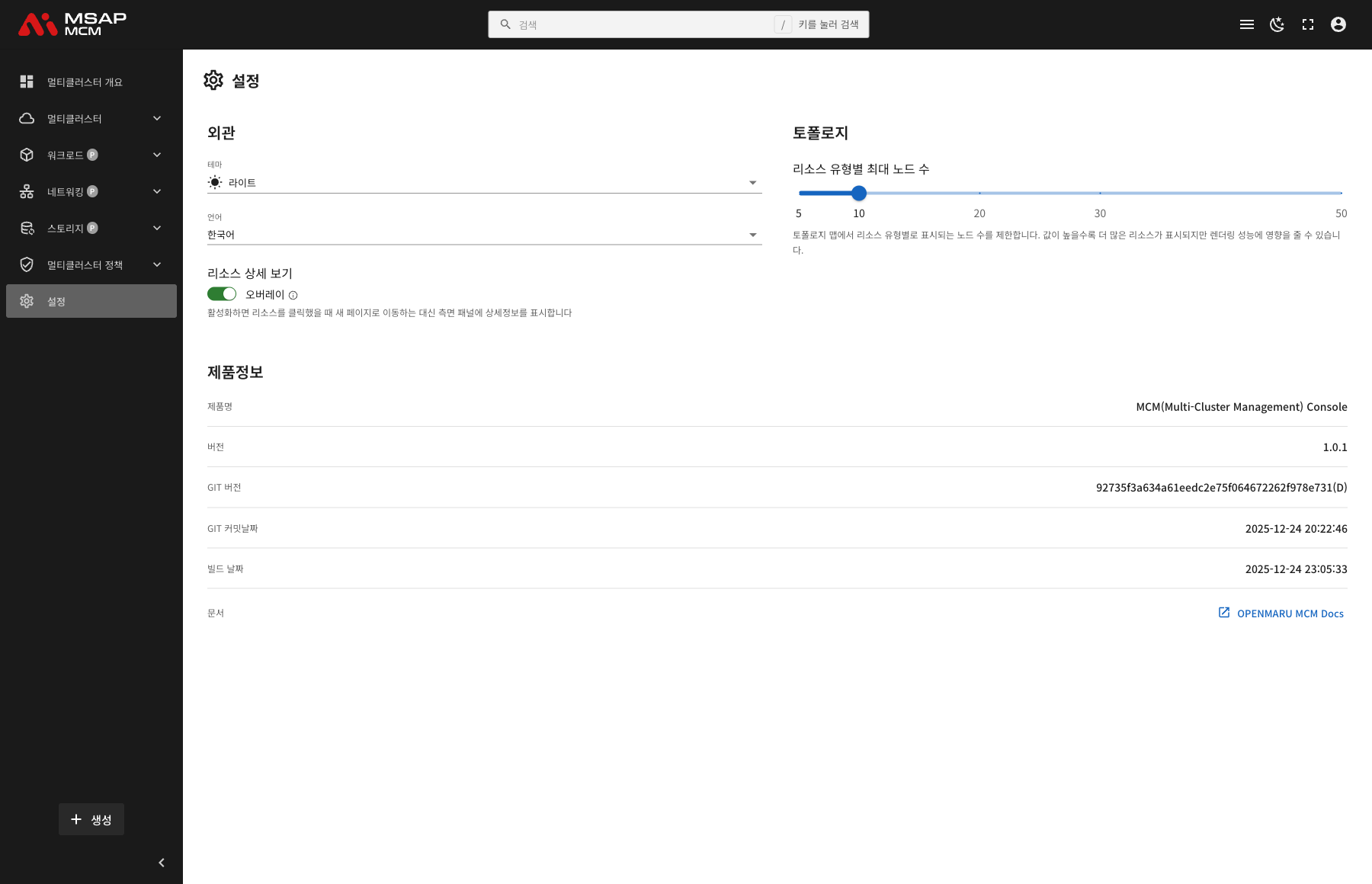
The Settings page is made up of three sections:
| Section | Description |
|---|---|
| Appearance | The theme, the language, and how resource detail is shown |
| Topology | The topology map display options |
| About Product | The MCM Console version and build information |
Appearance Settings
Theme
Chooses the console's colour theme.
| Theme | Description |
|---|---|
| Light | The default theme, with a light background |
| Dark | A theme with a dark background (easier on the eyes) |
| System | Switches automatically with the operating system setting |
💡 Tip: clicking the moon/sun icon on the top navigation bar switches the theme quickly.
Language
Chooses the console interface language.
| Language | Description |
|---|---|
| English | English |
| 한국어 | Korean (the default) |
A language change takes effect at once, with no page refresh.
Resource Details View
Sets how the detail is shown when a resource is clicked.
| Mode | Description |
|---|---|
| Overlay mode (enabled) | Shows the detail in a side panel (a drawer) |
| Page mode (disabled) | Goes to a new page to show the detail |
What overlay mode is good for:
- Seeing the list and the detail at the same time
- Moving quickly through several resources
- Moving between resources with the previous and next buttons
What page mode is good for:
- Reading the detail on a wider screen
- Bookmarking and sharing the URL
- Going back with the browser's back button
Topology Settings
Maximum Nodes per Resource Type
Sets the maximum number of nodes shown per resource type on the topology map.
| Value | Description |
|---|---|
| 5 | The least (fast rendering) |
| 10 | The default (balanced) |
| 20 | Medium |
| 30 | Many |
| 50 | The most (fullest detail) |
Points to weigh:
- The higher the value, the more resources are shown
- A high value can affect rendering performance
- Choose a value to suit a cluster with many resources
⚠️ Caution: many nodes can slow the browser down. A low value is recommended in an environment with many resources.
About Product
Shows the MCM Console's version and build information.
| Item | Description |
|---|---|
| Product Name | MCM (Multi-Cluster Management) Console |
| Version | The product version number |
| Git Version | The Git commit hash |
| Git Commit Date | When the last commit was made |
| Build Date | When the product was built |
| Documentation | A link to the official documentation site |
The Documentation Link
Pressing the "OPENMARU MCM Docs" button opens the official documentation site in a new tab.
How Settings Are Saved
Every setting is saved automatically as soon as it changes:
- Where it is saved: the browser's local storage
- When it applies: at once
- How long it lasts: indefinitely, unless the browser data is cleared
💡 Tip: the settings have to be made again on another browser or device.
Worked Examples
Scenario 1: Switching to Dark Mode
- Go to the Settings page
- Click the theme dropdown in the Appearance section
- Choose "Dark"
- The screen switches to dark mode at once
Scenario 2: Changing the Language to English
- Go to the Settings page
- Click the language dropdown in the Appearance section
- Choose "English"
- Every menu and text changes to English
Scenario 3: Optimising Topology Performance
When the topology map is slow in a large cluster environment:
- Go to the Settings page
- Move the slider in the Topology section to 5 or 10
- Confirm the rendering is faster on the Topology page
Scenario 4: Turning On Overlay Mode for Quick Browsing
- Go to the Settings page
- Turn on the "Resource Details View" switch in the Appearance section
- Click a resource on a resource list page
- Read the detail in the side panel
- Move to other resources with the previous and next buttons
Keyboard Shortcuts
The keyboard shortcuts that relate to the Settings page:
| Shortcut | What it does |
|---|---|
/ | Focus the search box |
Esc | Close the search box or a modal |
💡 Tip: for the full list of shortcuts and tips, see Shortcuts and Tips.
Resolving Problems
When the Settings Are Not Saved
- Check the browser's cookies and local storage are enabled
- Settings may not be saved in an incognito or private window
- Check whether a browser extension is blocking local storage
When the Theme Does Not Apply
- Refresh the page and try again
- Clear the browser cache and reconnect
- Test in another browser
When the Topology Is Slow
- Lower the maximum nodes per resource type
- Check the browser's hardware acceleration is on
- Close other tabs and programs to free up system resources
Next Steps
- Glossary -- the MCM terms defined
- Shortcuts and Tips -- keyboard shortcuts and tips
- Troubleshooting -- a guide to common problems