4.9. ReplicaSets
Overview
The ReplicaSets page shows every ReplicaSet in the multi-cluster environment in one place. A ReplicaSet is the Kubernetes resource that guarantees a given number of pod replicas is always maintained.
What it is for:
- Viewing multi-cluster ReplicaSets together
- Monitoring ReplicaSet state per cluster
- Adjusting the replica count dynamically (scaling up and down)
- Checking the pods of a ReplicaSet
What a ReplicaSet is like:
- Created and managed automatically by a Deployment
- Maintains the given replica count
- Creates pods from the pod template
- Manages pods through a selector
Note: a ReplicaSet is normally managed automatically by a Deployment. Using a Deployment is recommended over creating a ReplicaSet directly.
How the Screen Is Laid Out
The ReplicaSets page shows the ReplicaSet list as a table. This resource is of the Managed type, so it shows the resources that exist on the member clusters.
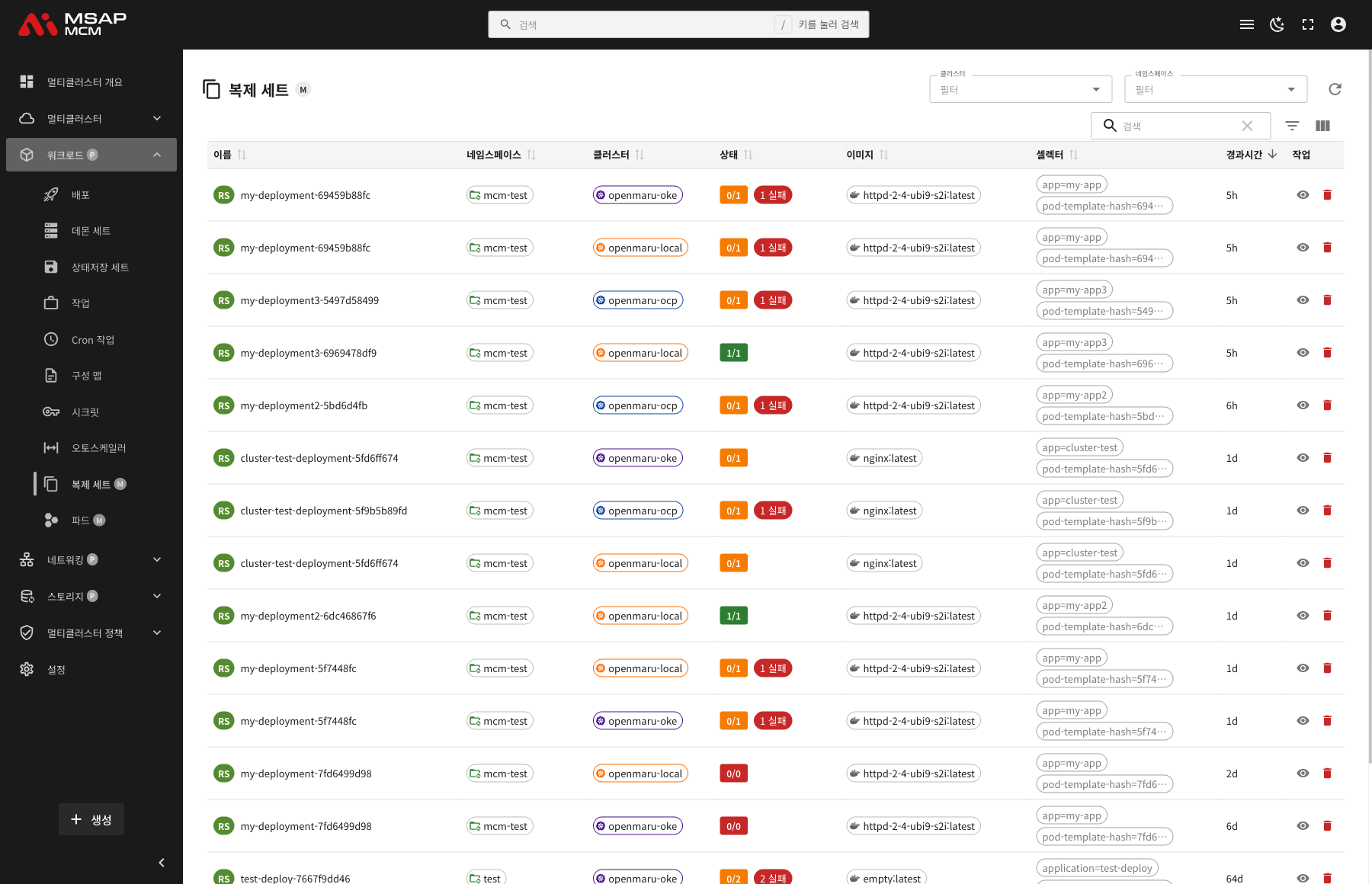
The Elements at the Top of the Page
| Element | Description |
|---|---|
| Cluster filter | Shows only the ReplicaSets of a particular cluster |
| Namespace filter | Shows only the ReplicaSets of a particular namespace |
| Refresh button | Refreshes the ReplicaSet list |
| Search box | Searches by ReplicaSet name |
Table Columns
| Column | Description | Sortable |
|---|---|---|
| Name | The ReplicaSet name | ✅ |
| Namespace | The namespace the ReplicaSet belongs to | ✅ |
| Cluster | The cluster the ReplicaSet exists on | ✅ |
| Status | The replica state (ready / desired) and the failed count | ✅ |
| Image | The container image | ✅ |
| Selector | The pod selector labels | ✅ |
| Age | The time since the ReplicaSet was created | ✅ |
| Actions | The view and delete buttons | - |
How Status Is Shown
The Status column shows the ReplicaSet's replicas:
| Status | Description | How it is shown |
|---|---|---|
| Healthy | Every replica is ready | Green (1/1, for example) |
| In progress | Some replicas are still getting ready | Yellow (0/1, for example) |
| Failed | Pod creation failed | A red badge (1 failed, for example) |
| Inactive | No replicas | Grey (0/0, for example) |
For example 0/1 1 failed -- 0 of 1 desired replicas ready, 1 failed.
ReplicaSet Detail
Clicking a ReplicaSet row opens the detail panel.
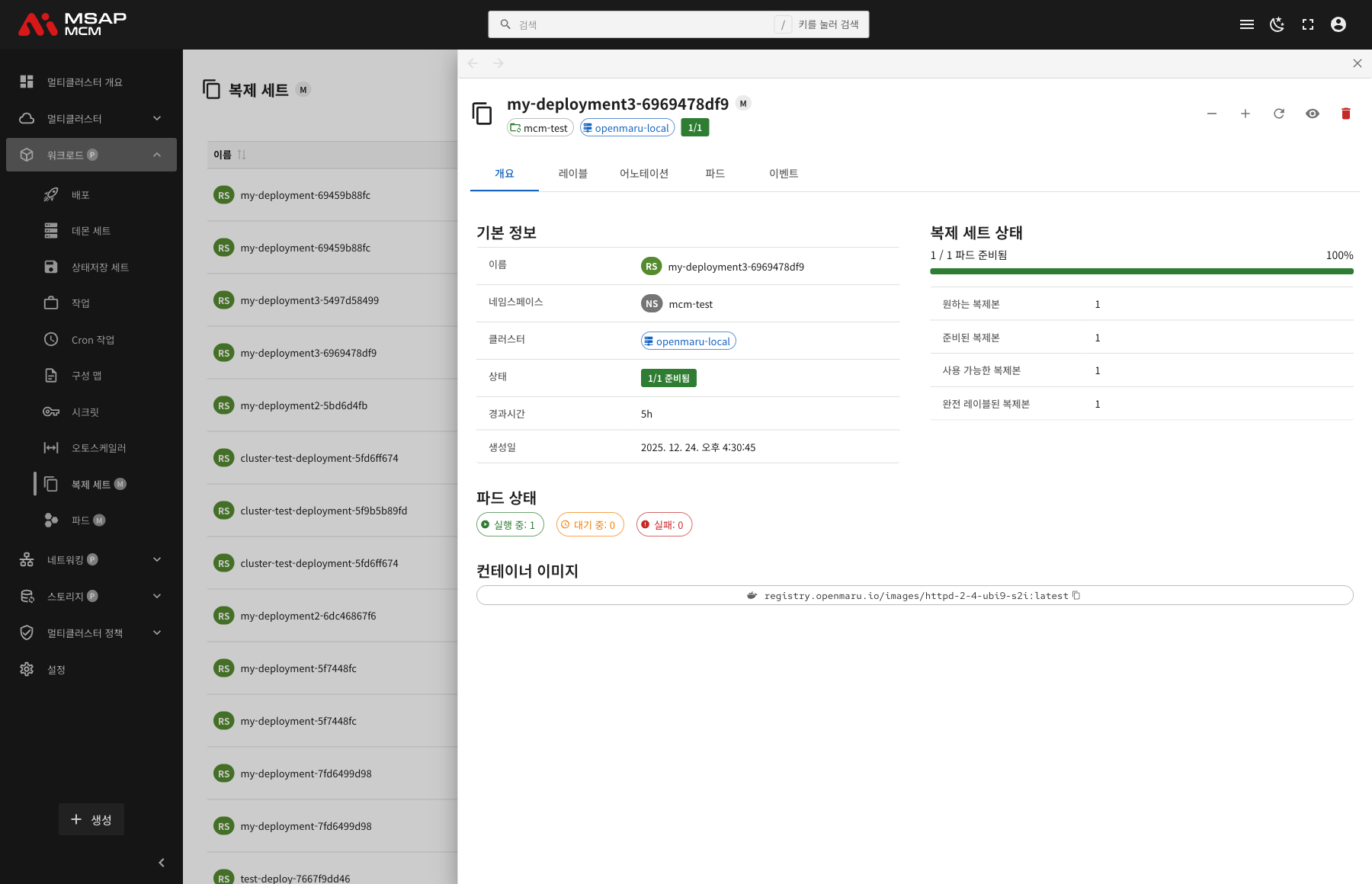
The Detail Panel Header
| Element | Description |
|---|---|
| ReplicaSet name | The name of the chosen ReplicaSet |
| Managed badge | Marks it as a member cluster resource |
| Namespace | The namespace the ReplicaSet belongs to |
| Cluster | The cluster the ReplicaSet exists on |
| Replica state | Ready replicas / desired replicas (1/1, for example) |
The Action Buttons
| Button | What it does |
|---|---|
| Scale Down | Lowers the replica count |
| Scale Up | Raises the replica count |
| Refresh | Refreshes the ReplicaSet information |
| View | Opens the YAML view mode |
| Delete | Deletes the ReplicaSet |
The Tabs
The Overview Tab
Shows the ReplicaSet's basic information, replica state, pod state, and container images.
Basic information:
| Item | Description |
|---|---|
| Name | The ReplicaSet name |
| Namespace | The namespace the ReplicaSet belongs to |
| Cluster | The cluster the ReplicaSet exists on |
| Status | The replica state (1/1 ready, for example) |
| Age | The time since creation |
| Created | When the ReplicaSet was created |
Replica state:
Shows the replica state visually, with a progress bar:
| Item | Description |
|---|---|
| Desired Replicas | The target replica count |
| Ready Replicas | The number of replicas that are ready |
| Available Replicas | The number of replicas that are available |
| Fully Labeled Replicas | The number of replicas carrying every label |
Pod state:
Shows the current pods by state:
- Running: the number of pods running normally
- Pending: the number of pods waiting to be scheduled
- Failed: the number of pods that failed
Container images:
Shows the container images defined on the ReplicaSet. The copy button copies the image URL to the clipboard.
The Labels Tab
Shows the list of Kubernetes labels applied to the ReplicaSet.
The Annotations Tab
Shows the list of annotations applied to the ReplicaSet.
The Pods Tab
Shows the list of pods that ReplicaSet manages.
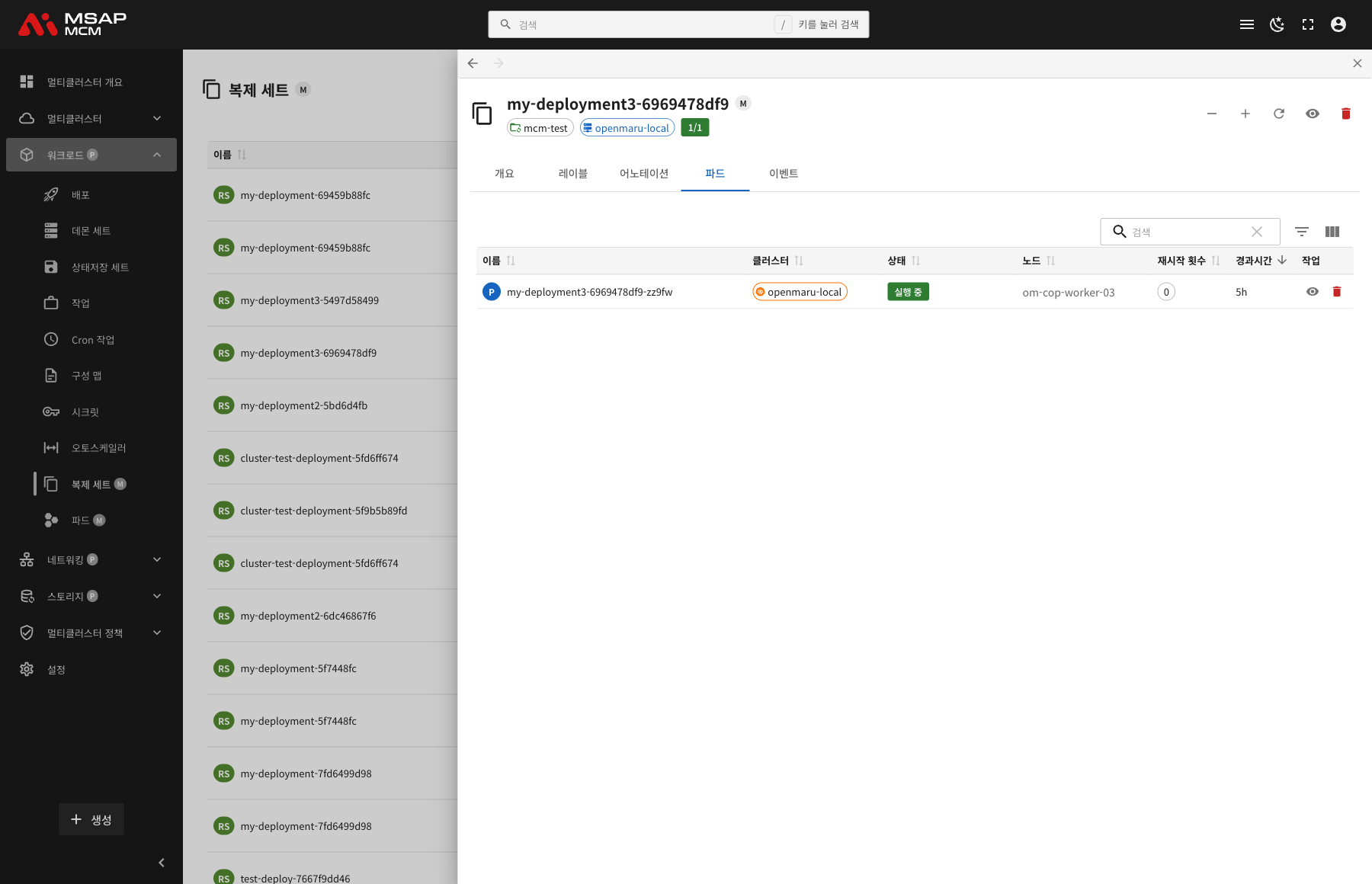
| Column | Description |
|---|---|
| Name | The pod name |
| Cluster | The cluster the pod is running on |
| Status | The pod state (Running / Pending / Failed) |
| Node | The node the pod is scheduled on |
| Restarts | The pod restart count |
| Age | The time since the pod was created |
| Actions | The view and delete buttons |
The Events Tab
Shows the Kubernetes events related to the ReplicaSet.
ReplicaSet Operations
Scaling Up and Down
- Choose the ReplicaSet
- Press the scale up (+) or scale down (-) button in the detail panel
- Confirm the replica count has changed
Caution: changing the replica count of a ReplicaSet managed by a Deployment directly may see the Deployment put it back. Changing the Deployment's replica count is recommended.
Viewing the ReplicaSet YAML
- Choose the ReplicaSet
- Press the "View" button in the detail panel
- Read the ReplicaSet definition in the YAML viewer
Deleting a ReplicaSet
⚠️ Caution: deleting a ReplicaSet deletes every pod that belongs to it. A ReplicaSet managed by a Deployment is recreated automatically.
- Choose the ReplicaSet to delete
- Press the "Delete" button in the detail panel
- Type the ReplicaSet name in the confirmation dialog
- Press the "Delete" button
Worked Examples
Scenario 1: Checking ReplicaSet Status
- Click the ReplicaSet you want to check on the ReplicaSets page
- Check the replica state on the Overview tab:
- Take in the overall state from the progress bar
- Compare desired replicas against ready replicas
- Check the detail in the pod state section
- Where there is a problem, find the cause on the Events tab
Scenario 2: Viewing ReplicaSets per Cluster
- Click the cluster filter dropdown
- Choose the cluster to check
- Only that cluster's ReplicaSets are shown
- Add the namespace filter as well if needed
Scenario 3: Resolving a Failed ReplicaSet
- Click the ReplicaSet showing "failed" in the Status column
- Check the pod state on the Overview tab:
- Check the failed pod count
- Identify the failed pod on the Pods tab
- Click the pod for its detail
- Find the cause of failure on the Events tab
- Change the Deployment or the image settings if needed
Scenario 4: Checking a ReplicaSet's Pods
- Click the ReplicaSet whose pods you want to check
- Choose the Pods tab
- Check the status, node, and restart count in the pod list
- Click an individual pod for its detail
- Check the pod logs if needed
Scenario 5: Adjusting the Replica Count
- Choose the ReplicaSet to adjust
- Press the scale up or scale down button in the detail panel
- Check the change in the replica state
- Watch the new pods being created or deleted on the Pods tab
Related Concepts
ReplicaSet against Deployment
| Trait | ReplicaSet | Deployment |
|---|---|---|
| Role | Maintains the replica count | Manages ReplicaSets and rollouts |
| Updates | Updated by hand | Supports rolling updates |
| Rollback | Not supported | Supports automatic rollback |
| Recommended use | Using it directly is not recommended | The standard way to deploy |
| History | None | Keeps a revision history |
How a ReplicaSet Works
- Selector matching: the ReplicaSet manages the pods that match its selector
- Maintaining replicas: it compares the desired replica count against the actual pod count
- Creating and deleting pods: where they differ, it creates or deletes pods
- Continuous watching: it keeps monitoring the pod state
The Pod Template Hash
The hash in a ReplicaSet name (my-deployment-69459b88fc, for example):
- Generated by the Deployment from the contents of the pod template
- A change to the template creates a new ReplicaSet with a new hash
- The previous ReplicaSet is kept at 0 replicas (for rollback)
The Selector
The labels by which a ReplicaSet identifies the pods it manages:
selector:
  matchLabels:
    app: my-app
    pod-template-hash: 69459b88fc
app: the label identifying the applicationpod-template-hash: the hash the Deployment generates
The Replica State Fields
| Field | Description |
|---|---|
| replicas | The current pod count |
| readyReplicas | The number of pods that are Ready |
| availableReplicas | The number of pods that are available |
| fullyLabeledReplicas | The number of pods carrying every label |
Managed Resources
A ReplicaSet is a Managed resource:
- A resource that exists directly on a member cluster
- It can only be viewed from the MCM control plane
- The cluster filter shows a particular cluster's resources
- It is managed per cluster directly, not through a PropagationPolicy
Resolving Problems
When no pod is created:
- Check whether the image pull failed (the image name, registry authentication)
- Check whether resources are short (the CPU and memory limits)
- Check the node selector or affinity settings
When the replica count differs from what you want:
- Check the scheduler has a node to place the pod on
- Check the PersistentVolumeClaim binding state
- Check the resource quota limits
Next Steps
- Pods -- managing multi-cluster pods
- Deployments -- Deployment management
- HPA (Horizontal Pod Autoscaler) -- configuring autoscaling