2.1. Chat Basics
Overview
On the chat screen, you choose an AI agent and ask it questions or give it work. While writing its answer, the AI agent uses the skills and tools it needs to look up information or create files. This chapter explains choosing an AI agent, sending messages, using skills and commands from the "/" menu, and stopping a reply. If you are new, first follow "Try Your First Chat" in 1.1. Introducing AAS and Signing In. To continue a past chat, see 2.2. Past Chats and New Chats.
Opening the Chat Screen
In the left menu, select "Chat › Chat." The shortcut is g then c (it does not work while you are typing in the message box; see A.2. Keyboard Shortcuts). The screen is split into the AI agent list on the left and the conversation area on the right. On a narrow screen, the list and the conversation open separately, and you return to the list with the "Back to the AI Agent list" arrow button above the conversation.
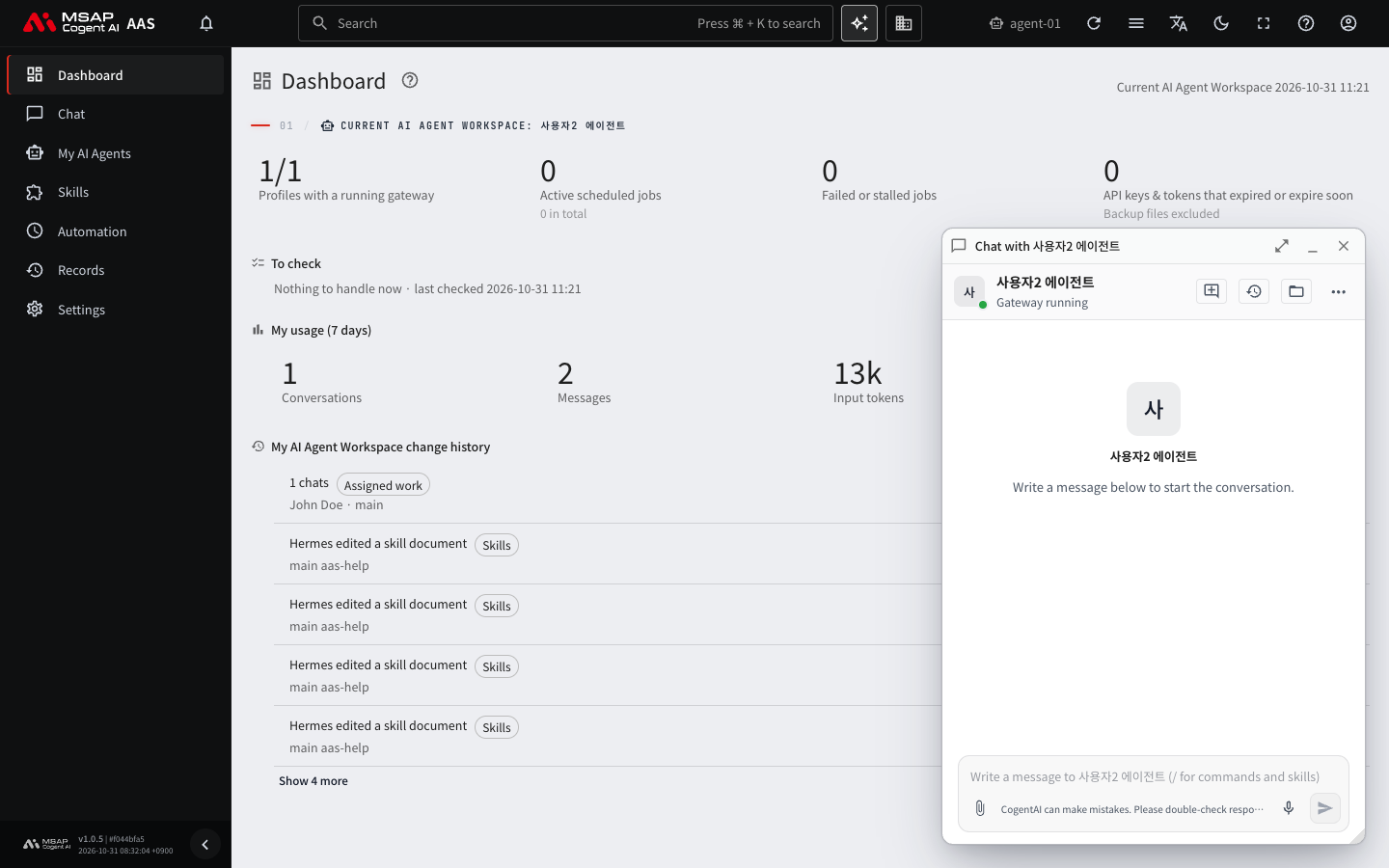
Figure 2.1-1. The small chat window
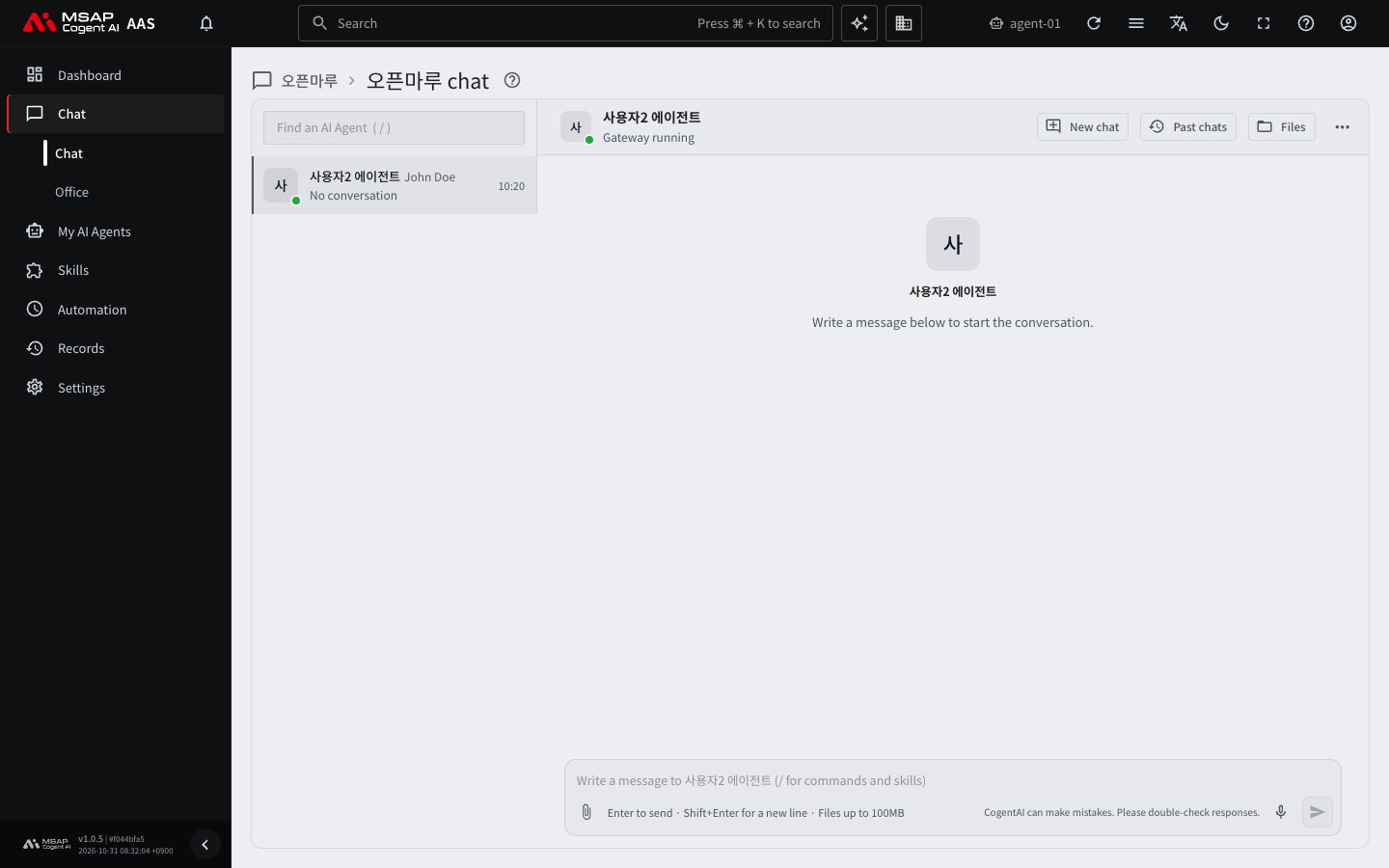
Figure 2.1-2. The chat screen
On any screen, select the "Chat with my AI Agent" button on the top bar, or the character button at the bottom right of the screen, to open a small chat window. This window uses the same conversation as the chat screen. For details, see "Top Bar" in 1.2. Using Common Screen Features.
Choosing an AI Agent
- In the list on the left, select the AI agent you want to chat with.
- The conversation with that AI agent opens on the right.
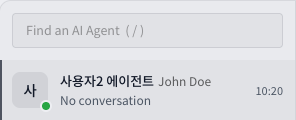
Figure 2.1-3. The AI agent list
If there is a past chat you had on the AAS screen, the most recent chat opens so you can continue it. A continued chat shows the "Previous conversation ends here" divider, and you can continue writing below it. If there is no past chat, a new chat starts.
In the list, AI agents appear under their profile names (a profile is the settings bundle of an AI agent). At first there is one "Main profile," and this is your AI agent. If you create more profiles, they are added to the list. Profiles are covered in 4.2. Profile Overview and Model. If you type a name in the "Find an AI Agent" field at the top of the list, the list is filtered. Press the / key to jump straight to this field.
Each row in the list shows the AI agent name, one line of its last message, and the time. The following indicators may appear on the right of a row.
| Indicator | Meaning |
|---|---|
| A number | The number of new messages you have not read yet. |
| Reply needed | The AI agent continues its work only after you answer an approval or a question. See 2.6. Answering Approvals and Questions. |
| Failed {number} | The number of failed jobs among that AI agent's scheduled jobs. |
| Off | That AI agent's gateway (the channel that receives messenger messages and scheduled jobs) is stopped. Check this when messengers or scheduled jobs do not work. Ask your administrator to turn it on. See 6.2. Messenger Connections. |
| Replying… | That AI agent is writing an answer now. |
When there are several AI agent workspaces, the list is grouped by workspace. A workspace marked "My team" belongs to a team member. When a team manager sends a message to a team member's AI agent, the notice "Sending to {name}'s AI Agent" appears above the message box.
If one of the following states appears below a workspace group, you cannot start a chat.
| Indicator | Meaning and what to do |
|---|---|
| Offline | Could not connect to the workspace. Select "Retry." |
| Suspended | The workspace is stopped. Select the "Restart it on the AI Agent Workspaces screen" link to start it. |
| Preparing the AI Agent Workspace. It will appear automatically in a moment. | It is being created. It appears by itself in a moment. |
If you still cannot start a chat, see 2.7. When Replies Are Blocked or Slow.
Sending a Message
- Select the message box at the bottom of the conversation area.
- Write your question or the work you want to give.
- Press
Enter.
For example, write "Summarize this week's meeting agenda in five lines" and send it. After you send it, the AI agent shows "Thinking…" and then writes its answer.
Press Shift + Enter to start a new line. Below the message box you see the hint "Enter to send · Shift+Enter for a new line." You can also send by selecting the "Send" button on the right of the message box.
Next to the message box there are also "Attach files" and "Voice input" buttons. For files, see 2.3. Uploading and Downloading Files. For voice input, see 2.5. Voice Input and Read Aloud.
Before you send the first message, you see the hint "Write a message below to start the conversation." If sending fails, a "Could not send" message and a "Send again" button appear.
If the AI agent shows an "Approval needed" or "The AI Agent asks" card instead of an answer, see 2.6. Answering Approvals and Questions.
Reading the Answer
While the AI agent writes an answer, it shows "Thinking…" or the name of the task in progress. After the answer is finished, a collapsed "{number} steps" line remains above it. Select this line to see the tools the AI agent used and how long they took. If any step failed, "includes failures" is also shown.
Below the answer there are the following buttons.
- "Copy reply": Copies the answer.
- "Read aloud": Reads the answer out loud. This button appears only on installations where read aloud is turned on.
While you are scrolled up reading the conversation, a "Jump to bottom" button appears. When a new answer arrives, this button changes to "New messages." Select the button to move to the bottom.
Caution: Below the message box, "CogentAI can make mistakes. Please double-check responses." is always shown. Check important content yourself. Follow your company policy on whether you may put confidential company material in a chat. If you are not sure, ask your administrator.
The "/" Menu: Skills and Commands
Type / at the very start of the message box, and a list you can choose from opens above the message box. The list has two groups, "Commands" and "Skills." On a touch screen, the message box has a separate "/" button.
- Type
/at the very start of the message box. - Type part of a name, and the list is filtered.
- Choose an item with the arrow keys and press
Enter. - If needed, add what you want to say after the name and send it with
Enter.
Press Esc to close the list. If no item matches, "No matching command or skill" is shown.
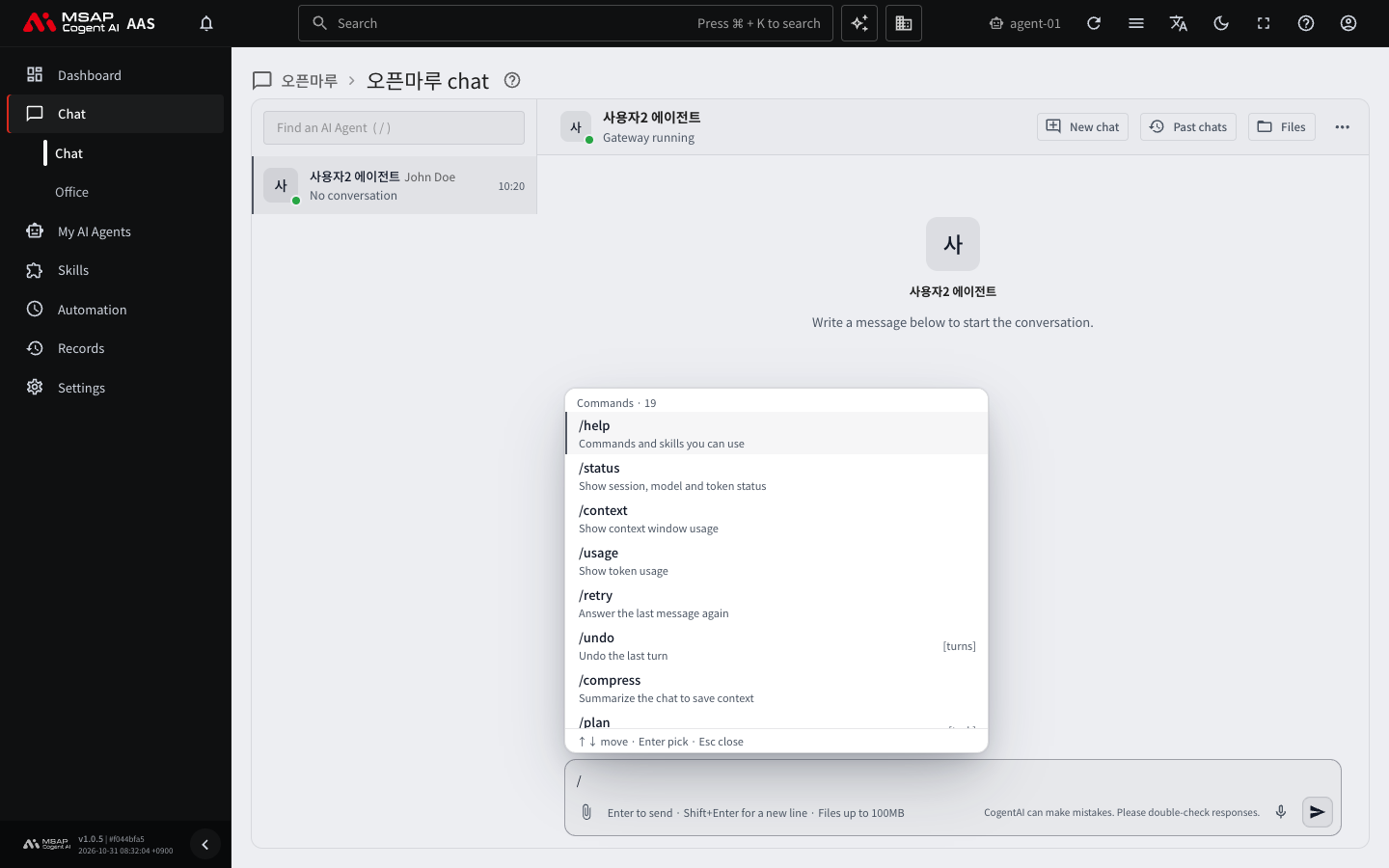
Figure 2.1-4. The "/" menu
Using a Skill
When you choose a skill and send, the AI agent works by following that skill's instructions. Below the message box you see "Sends with skill {name}." If the skill cannot be attached, only the text is sent and the reason is shown. The reason is one of "not on this AI Agent," "same name as another command," "timed out," or "error." To install and manage skills, see 5.1. Skill List.
Using a Command
Commands are features for handling the chat. At first, you only need to know the following four. The result appears in a result card in the chat, and you can use the card's "Expand," "Collapse," and "Copy result" buttons.
| Command | What it does |
|---|---|
/help | Shows help as text. You can use it even while the AI agent is replying. |
/retry | Has the AI agent answer your last question again. |
/undo | Undoes the last pair of question and answer. |
/plan what to say | Makes a plan and leaves it as a plan file in the work folder. Open the file with "Open the plan file" below the answer. |
For other commands, see "Advanced Commands" at the end of this chapter.
Note: Choosing the receiving AI agent with "@" is used in the meeting room message box, not in a 1:1 chat. See 3.2. Meeting Rooms and TFT Rooms.
Stopping a Reply
If the AI agent goes in the wrong direction and writes a long answer, you can stop it partway.
- While it is replying, select the "Stop reply" button in the message box.
- When the reply stops, send a new request to change direction.
You can continue writing in a stopped chat as it is. While the connection is being restored, the stop button is blocked. For this case, see 2.7. When Replies Are Blocked or Slow.
Advanced Commands
Read this section after you are used to chatting. The terms are as follows. "Context" is the content of the chat that the AI agent remembers now, and a "pair of question and answer" is one time you ask and one time the AI agent answers.
| Command | What it does |
|---|---|
/status, /context, /usage | Show status, context, and usage information as text. You can use them even while the AI agent is replying. |
/compress | Shortens a long chat. While it shortens, input is blocked and the elapsed time is shown. |
/queue what to say | Schedules your next message while the AI agent is replying. When the answer finishes, the queued messages are sent in order. |
/steer what to say | Tells the AI agent that is replying which direction to take. It takes effect after the next tool run. |
/btw what to say | Asks a side question without interrupting the chat. |
/learn, /memory, /review, /refine | Have the AI agent save what it learned as a skill, manage memory, review, and refine memory and skills. /review and /refine run in the background, and the result is added to the chat when they finish. Only the owner of the AI agent workspace and administrators can use /memory to change memory. |
/goal, /loop, /subgoal, /title | Continue toward a goal, repeat work, add a condition to a goal, and set the chat title. Only the workspace owner and administrators can use them. |
Commands that need something to say after them, such as /queue, /steer, and /btw, are not sent if there is nothing to say. While the AI agent is replying, you see the hint "Answering · /steer to redirect · /queue to send next" below the message box.
If you are not the owner or an administrator, /goal, /loop, /subgoal, and /title do not appear in the "/" list. If you type one and send it, you see "Only the AI Agent's owner or an admin can use this command" and it is not sent.
If you use /goal or /loop, a "Goal in progress" or "Loop" line appears above the message box. Use the "Pause," "Resume," and "Stop" buttons on this line to control progress.
Chat Menu
At the top of the conversation area there are the "New chat," "Past chats," and "Files" buttons and the "Chat menu" (three dots) button. The chat menu takes you straight to that AI agent's profile settings, scheduled jobs, skills, messenger connections, and API keys and tokens screens. Each screen is explained in its own chapter.

Figure 2.1-5. The button row at the top of the conversation area
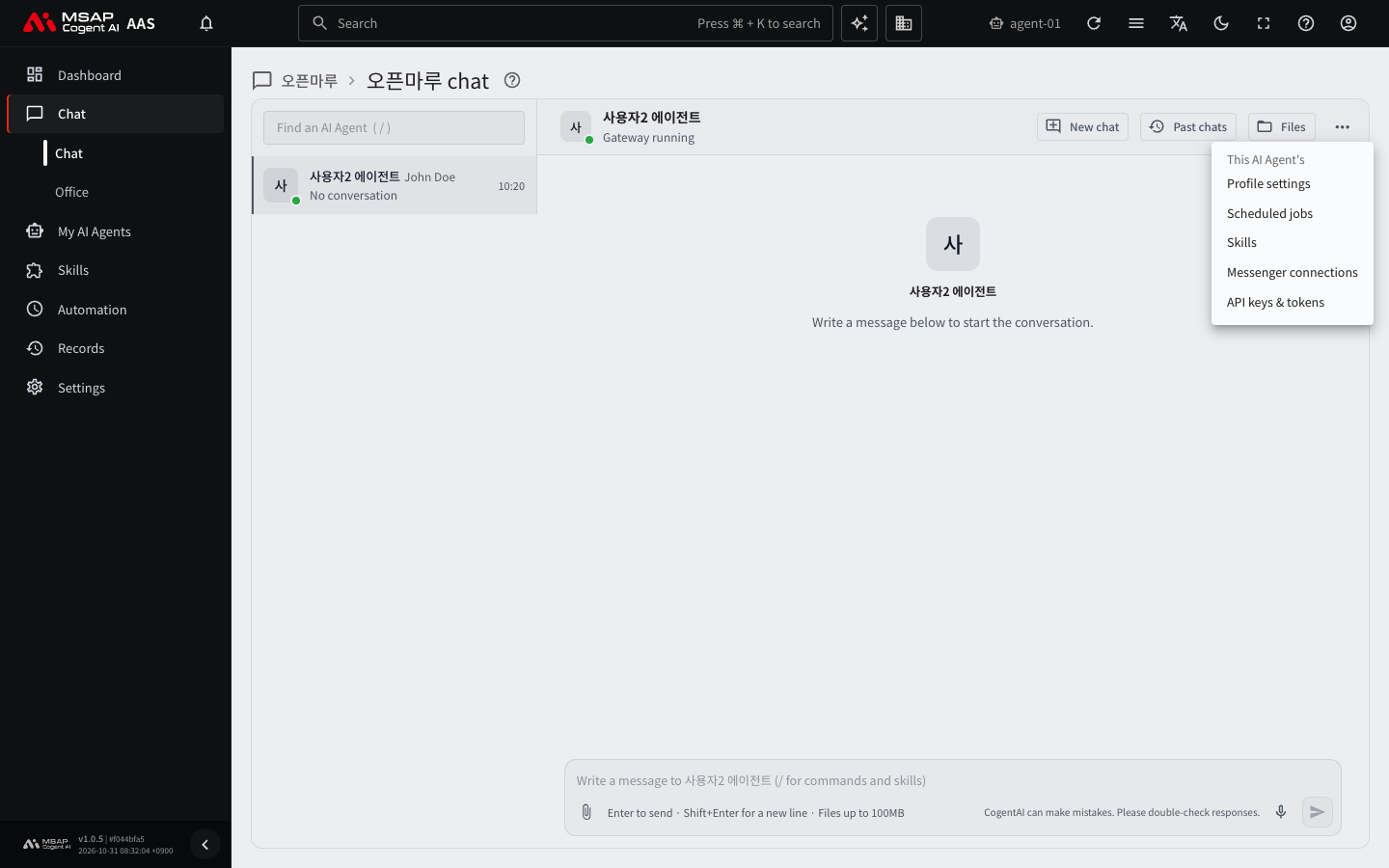
Figure 2.1-6. The chat menu