2.4. Document Viewer
Overview
The document viewer is a window that opens a file from a chat on the screen, without saving it to your computer. It shows PDF, Word, Excel, PowerPoint, and HWP (Hangul) documents in a form close to the page layout, and it also opens images and text files. This chapter explains how to open the viewer, how each format is shown, finding text in a document, asking an AI agent from the viewer, and what to do when a file does not open. It is useful for checking a report the AI agent made before you download it. To upload, download, and delete files, see 2.3. Uploading and Downloading Files.
Permission: General users. Only files in AI agent workspaces you can view will open.
Opening the Viewer
Select a file name in any of the following places to open the viewer.
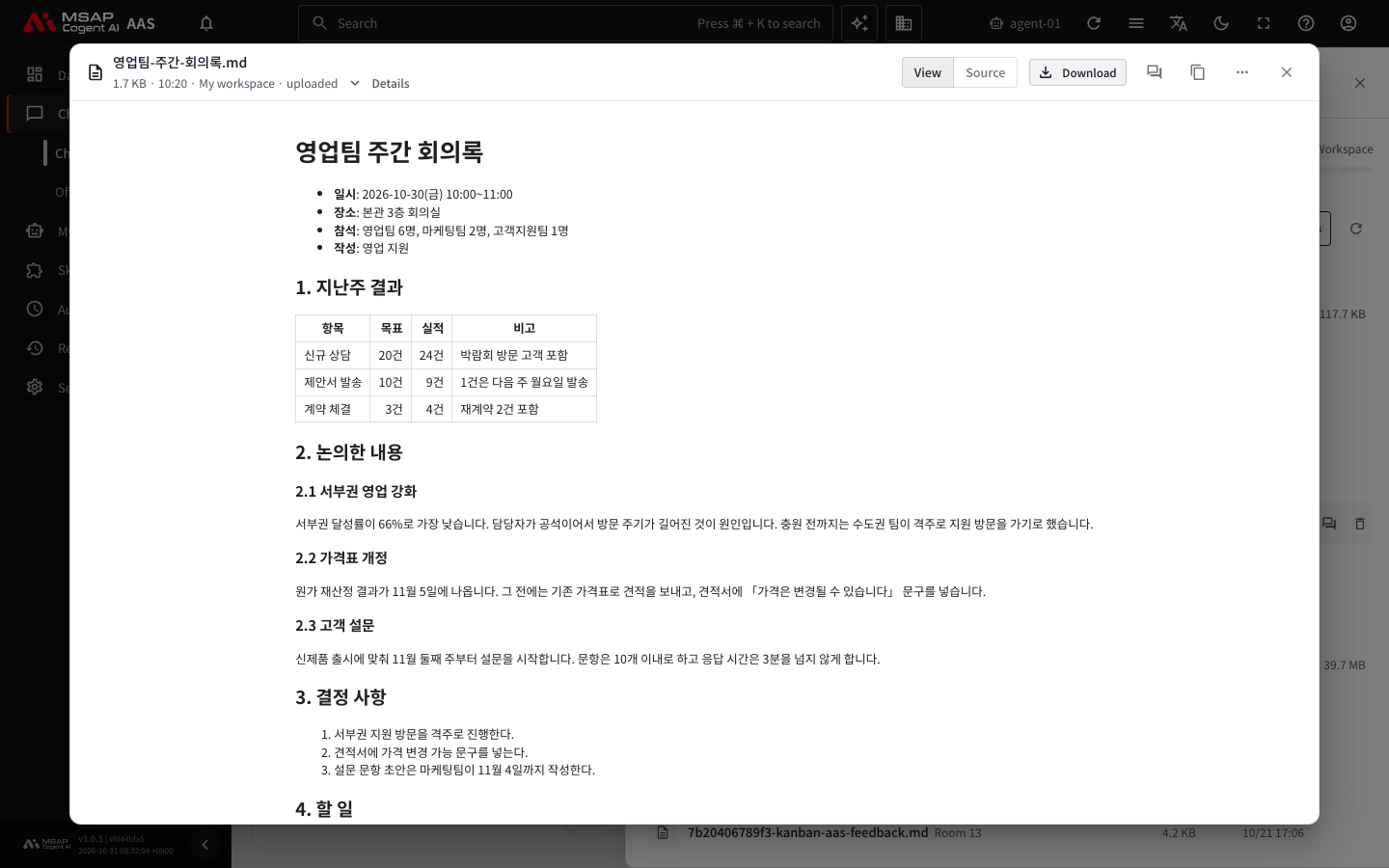
Figure 2.4-1. The document viewer (Markdown document)
- A file name shown below an AI agent's answer (file names in a meeting chat work the same way)
- A file row in the drawer list of the "Files" button at the top of the chat screen
At the top of the viewer you see the file name, size, modified time, and where it was uploaded. Where it was uploaded is one of the following. Meetings and Kanban are covered in Part 3 (3.2. Meeting Rooms and TFT Rooms, 3.3. Handing Off Work with Kanban).
| Indicator | Meaning |
|---|---|
| My workspace · uploaded | A file I uploaded to a chat |
| My workspace · made by the AI Agent | A file the AI agent made in the work folder |
| Meeting {room} · uploaded | A file uploaded in a meeting |
| Meeting {room} · AI Agent result | A result the AI agent shared with the meeting |
| Kanban {board} · AI Agent result | A result file on a Kanban card |
To close the viewer, select "Close" or press Esc.
The preview gets the file from the AAS server and draws it inside your browser. Document content is not sent to any service outside AAS. For HWP (Hangul) documents, the viewing program is downloaded from the AAS server the first time you open one, so "Preparing the HWP viewer" may appear for a moment.
Formats You Can Open
| Format | How it is shown |
|---|---|
| Shown in the same page layout. Finding words works only in PDF. | |
| Word (docx) | Shown close to the page layout. |
| Excel (xlsx) | Shown as a table, and you switch sheets with the sheet tabs. Only the first 1,000 rows and 100 columns are shown, with "Showing the first 1,000 rows and 100 columns." |
| PowerPoint (pptx) | Slides are stacked vertically. |
| HWP (hwp, hwpx) | Shown close to the page layout. |
| Images (png, jpg, gif, webp, bmp, svg) | Shown as images. |
| Other files | Tables (csv, tsv), Markdown (md), text files (txt, json, and so on), audio (mp3, wav, ogg), video (mp4, webm), and HTML also open right on the screen. If a table or text file is large, only the first part is shown, with "Only the first {number} rows are shown" or "Only part is shown (first {size})." |
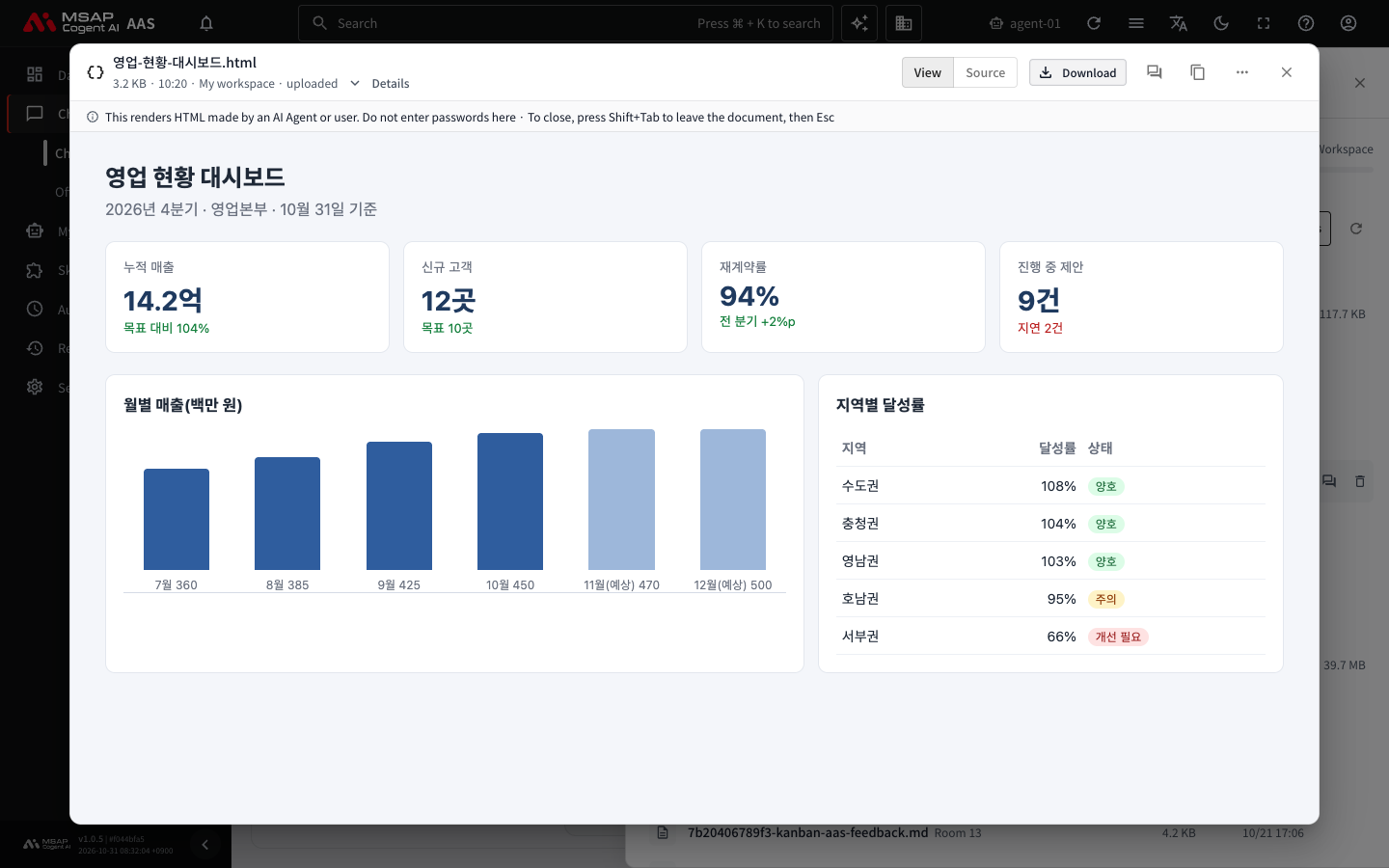
Figure 2.4-2. The document viewer (HTML document)
For a format not in the table above, "This format cannot be previewed" is shown. In that case, save it with "Download" and open it in a program on your computer.
The following figures show how each format looks in the viewer. Below the file name row you see the size, modified time, and where it was uploaded.
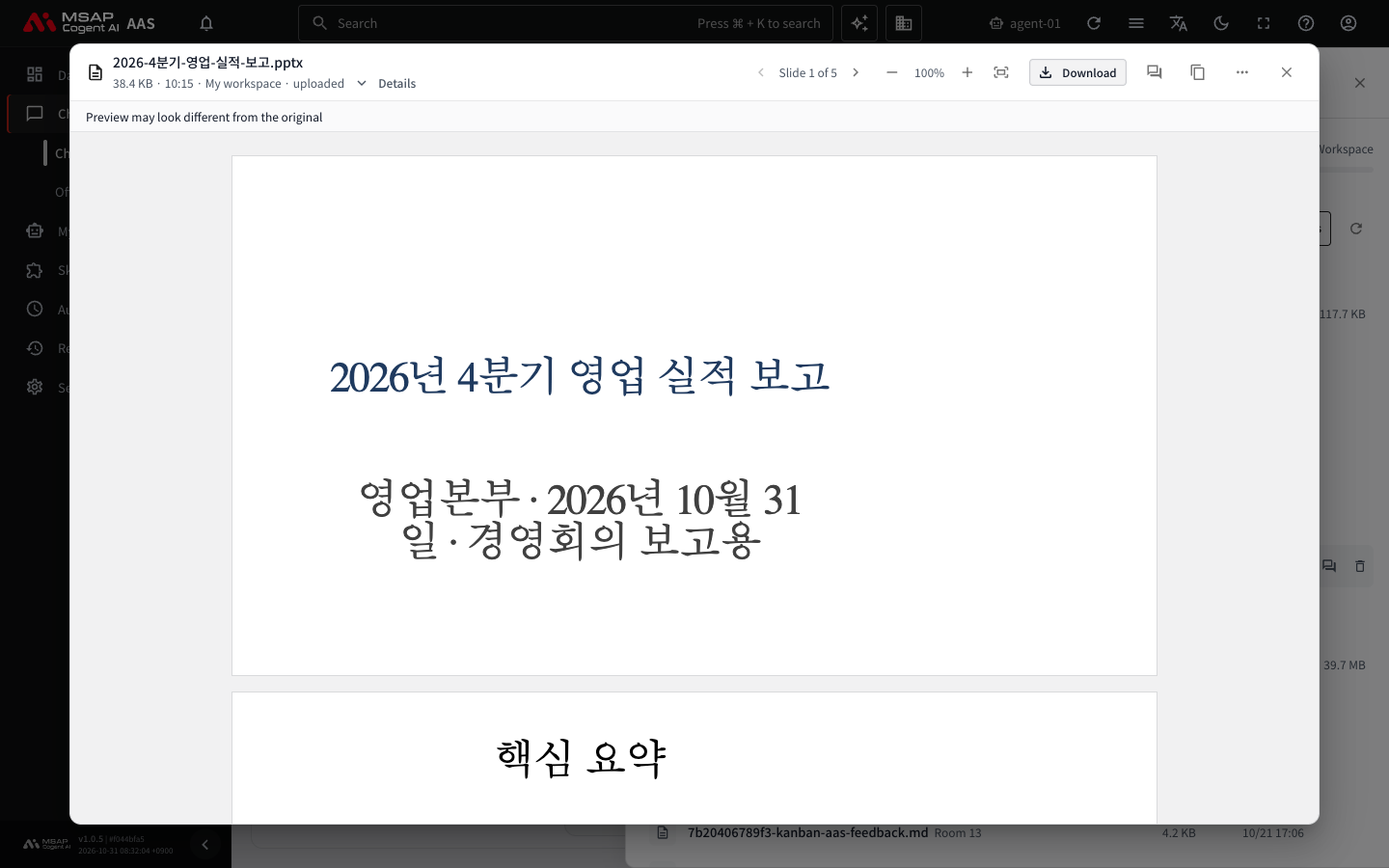
Figure 2.4-3. The document viewer (PowerPoint document)
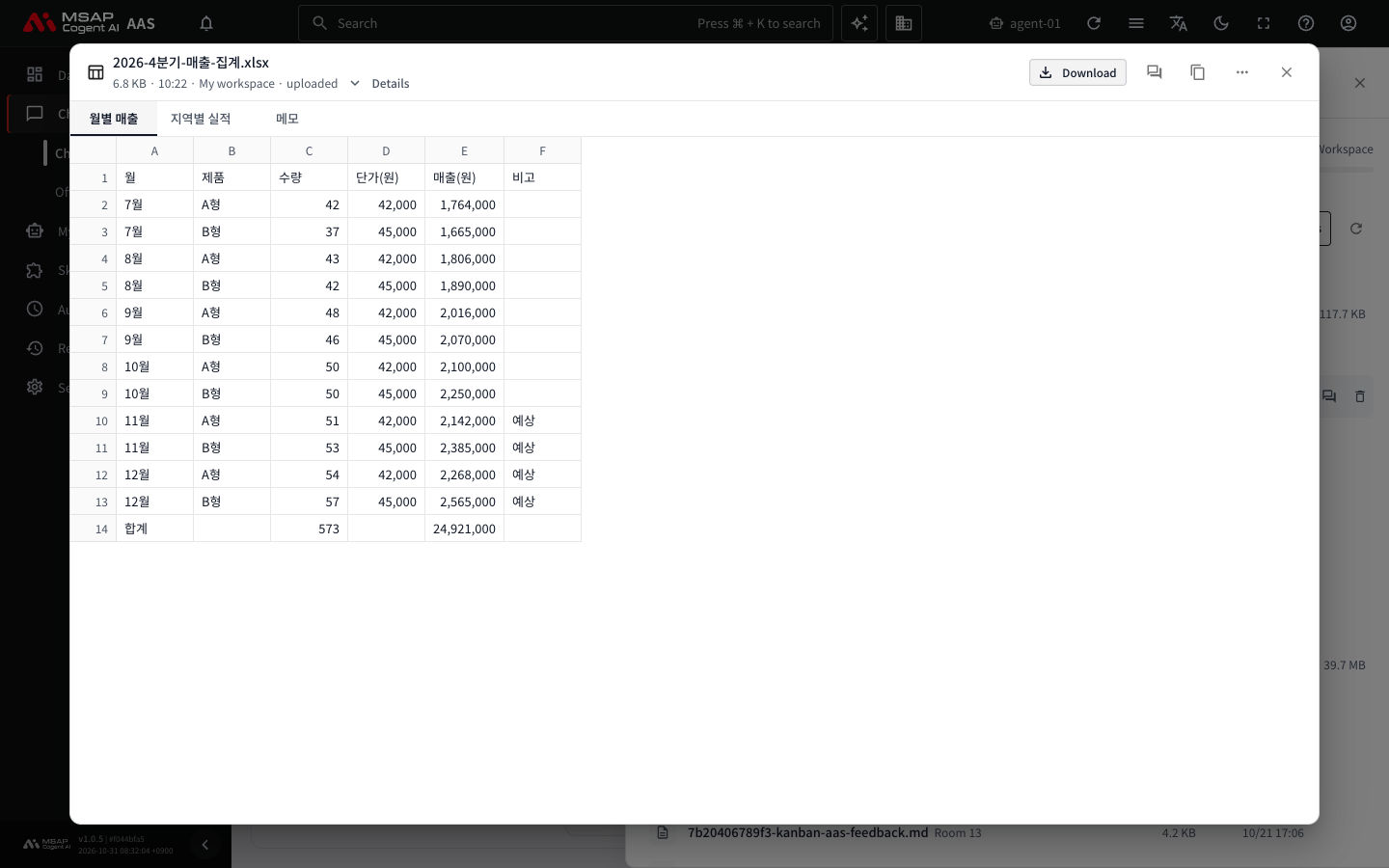
Figure 2.4-4. The document viewer (Excel document)
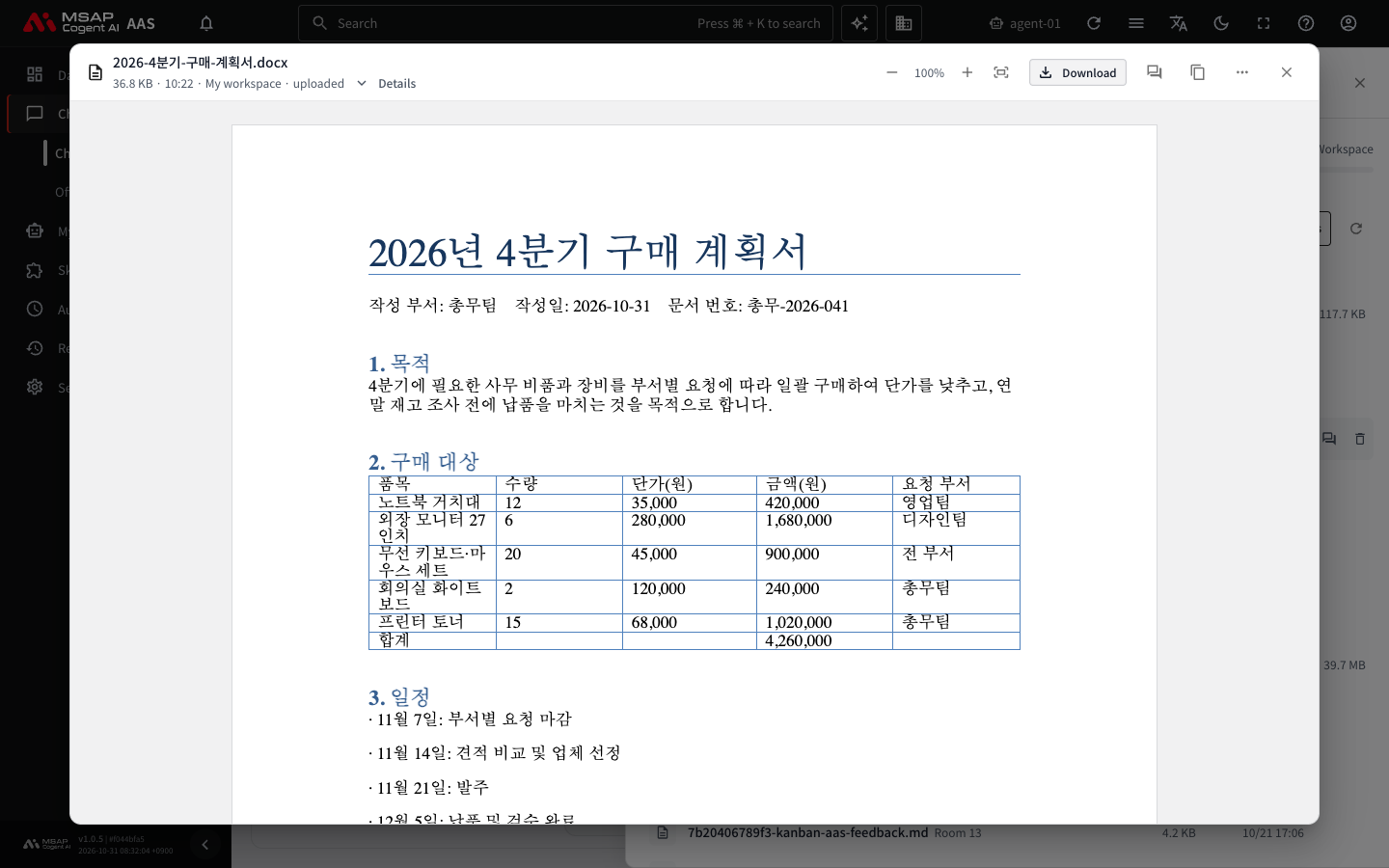
Figure 2.4-5. The document viewer (Word document)
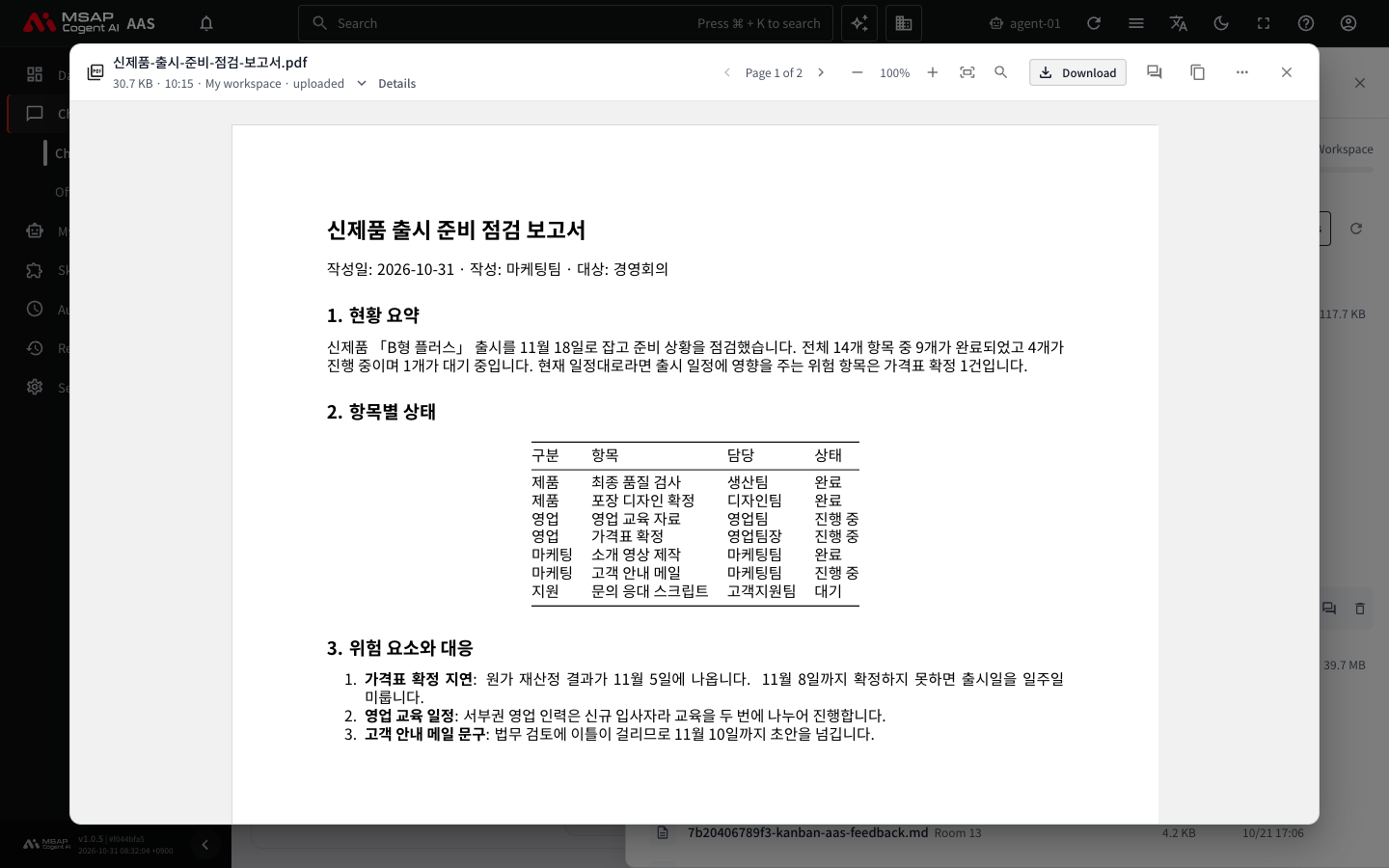
Figure 2.4-6. The document viewer (PDF document)
Reading a Document
Turning Pages and Changing the Size
For PDF, Word, PowerPoint, and HWP (Hangul) documents, you can use the following in the tools at the top.
| Tool | What it does |
|---|---|
| Previous page, Next page | Turn pages or slides. The current position is shown as "Page 3 of 20" or "Slide 3 of 12." |
| Zoom in, Zoom out | Change the size, between 50% and 300%. |
| Fit, Original size | One button switches between the two states. |
For Excel, you switch sheets with the "Sheets" tabs below. For Markdown files, the "View" and "Source" buttons switch between the formatted view and the original text. For text files, the "Wrap lines" button decides whether long lines wrap. For images, you switch between "Fit" and "Original size."
Finding Text in a Document
Finding words works only in PDF documents. It cannot be used in Word or HWP (Hangul) documents.
- Select the "Find in document" button in the tools at the top, or press
Ctrl + F(Command + Fon a Mac). - Type a word in the "Find in document" field that appears.
- Press
Enterto go to the next result, orShift + Enterto go to the previous result. - Press
Escto close only the find row.
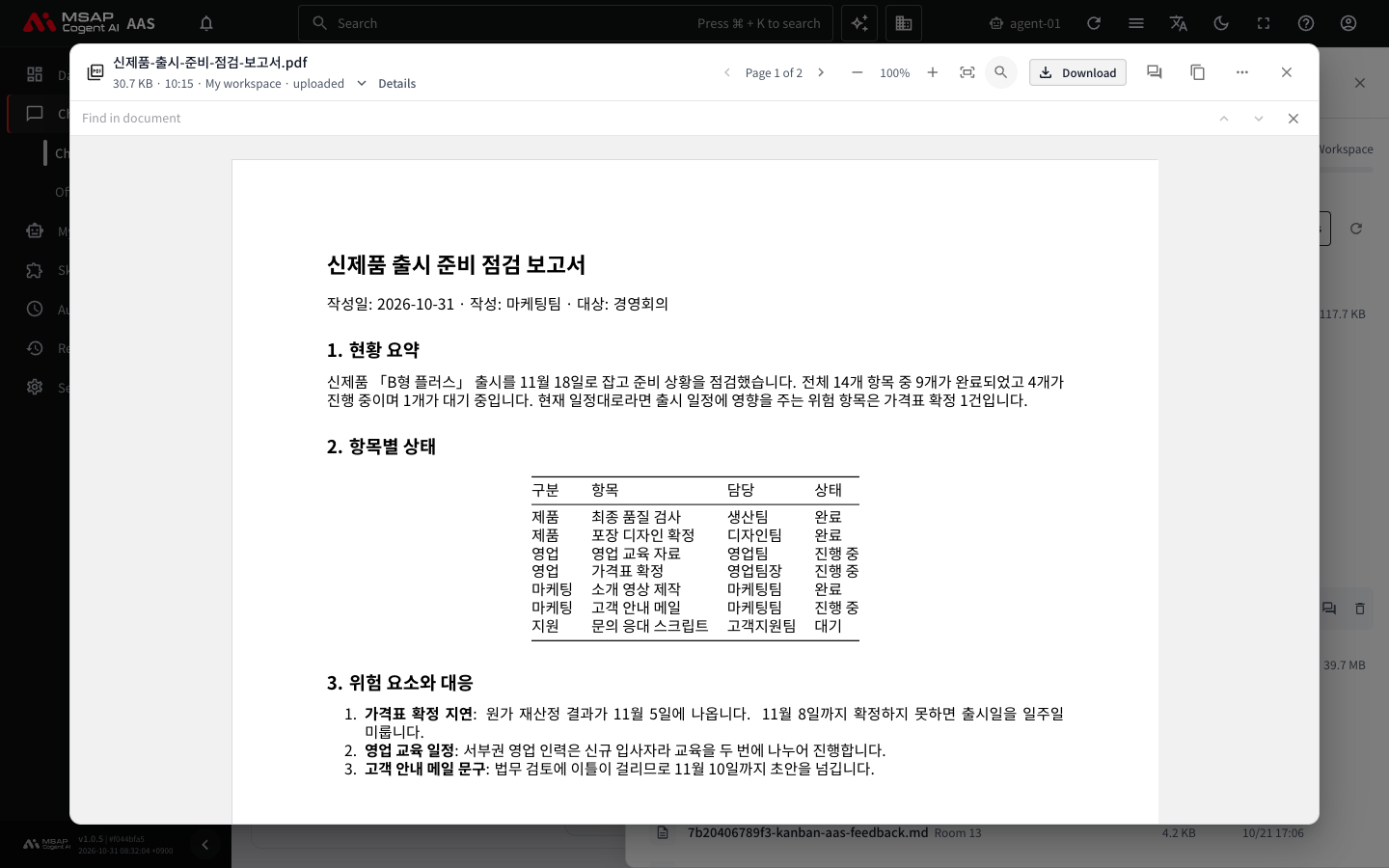
Figure 2.4-7. The find row
Results are shown as the current position and the total, like "3 of 17." If there are many pages, "Searching · page 12 of 200" is shown. If nothing matches, "No matches" is shown.
What You Can Do in the Viewer
Among the buttons at the top of the viewer, "Download," "Ask AI," "Copy path," and "Delete" are the same as the buttons on a file row in the "Files" drawer. For what they do and the fact that deleting cannot be undone, see "Downloading Files" and "Deleting Files" in 2.3. Uploading and Downloading Files. The buttons only the viewer has are as follows.
| Button | What it does |
|---|---|
| Share to room | Appears from meeting materials. Uploads the file so the people in the room can view it together. |
| More | Contains "Delete." |
| Details | Shows the folder where the file is and the "Path the AI Agent sees." |
| Close | Closes the viewer. |
On a narrow screen, some tools are inside the "More" menu.
When a File Does Not Open
| Symptom | Meaning and what to do |
|---|---|
| This PDF is password-protected | Type the password in the "Password" field and select "Open." If it is wrong, "Incorrect password" is shown. |
| Password-protected or legacy (doc, xls, ppt) files can't be previewed | Save it with "Download" and open it on your computer. |
| Too large to preview | Save it with "Download." |
| This file is damaged and can't be previewed | Check the original file again. |
| Too large when uncompressed to preview | Save it with "Download." |
| Too many slides to preview | Save it with "Download." |
| The document took too long to open | Select "Retry" or save it with "Download." |
| Preparing the HWP viewer | The HWP (Hangul) document viewer is getting ready. Wait a moment. |
| The connection dropped while downloading, Could not read the file | Select "Retry." |
| A new version is available. Refresh the page | AAS has changed to a new version. Select "Refresh." |
| Couldn't draw this page | Select "Retry" on that page. |
The preview may look a little different from the original. If formatting matters, check the file you saved with "Download."
Caution: Do not enter passwords on an HTML file screen.