7.1. Usage
Overview
The "Usage" screen shows how much your AI agents have worked recently. You can see the number of chat sessions, messages, tool calls, and token usage. Use it to check whether usage suddenly increased, or to find out which models or which kinds of chats are used the most.
The terms are as follows. The full list is in A.1. Glossary.
| Term | Meaning |
|---|---|
| Session | One chat. Chats, scheduled jobs, and messenger conversations each create sessions. |
| Token (AI) | A unit that counts how much text the AI read and wrote. The amount it read is "Input tokens", and the amount it wrote is "Output tokens". They are different from the tokens used for access (7.4. API Keys and Tokens). |
| Profile | The set of settings for one AI agent in a workspace (4.2. Profile Overview and Model). It appears as the profile name in the chat list. |
| Tool call | The number of times an AI agent used a tool, such as reading a file or running a command. |
Opening the Usage Screen
Open "Records › Usage" in the left menu. The screen shows the values for the AI agent workspace you have selected (the place where AI agents work, created for each user; see 4.1. AI Agent Workspaces). If you have several workspaces, switch workspaces in the account menu on the top bar.
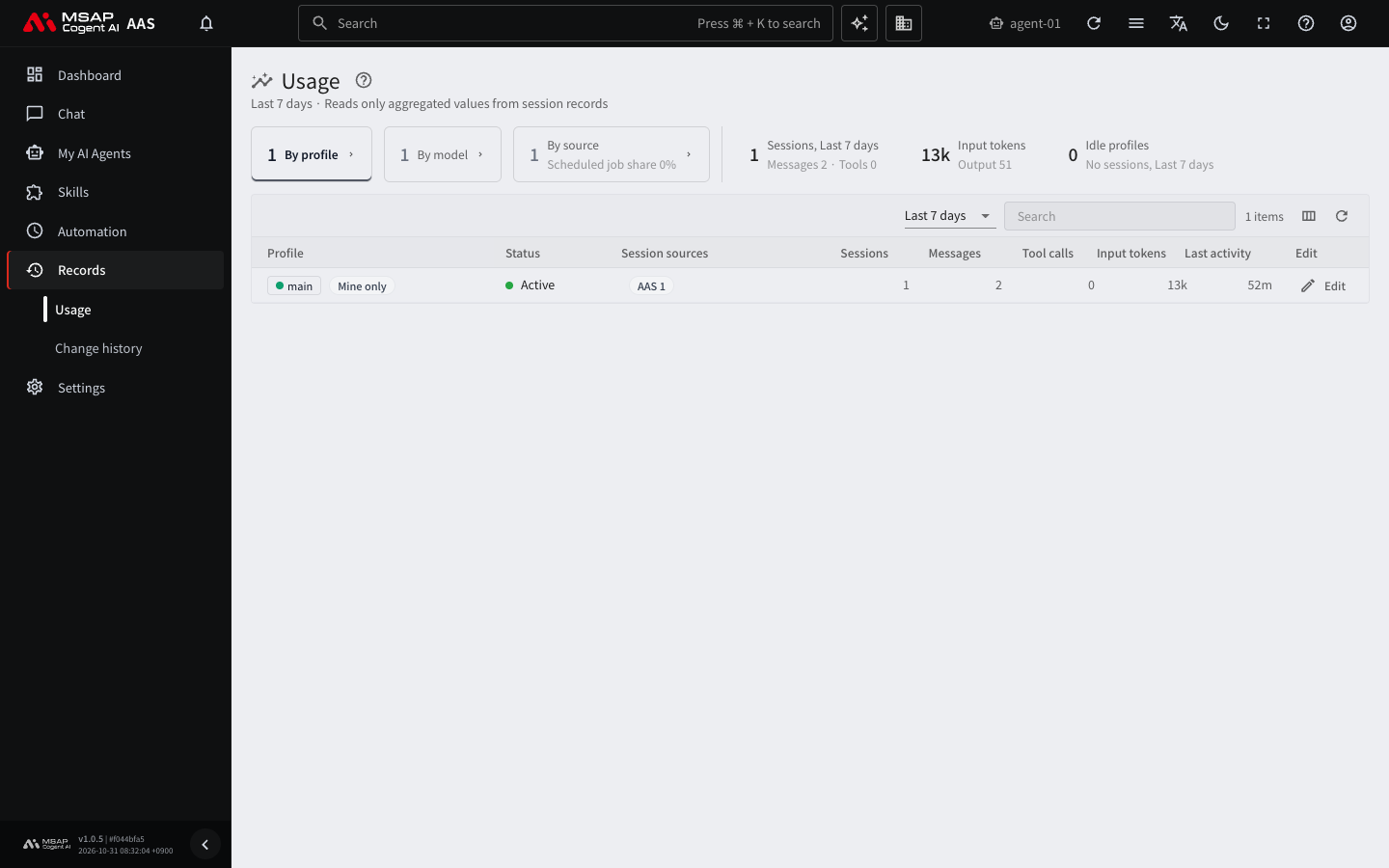
Figure 7.1-1. Usage screen
This screen is read-only. It reads only the values totaled from session records. A chat you just had may not appear right away. Open the screen again after a moment to see it.
Choosing the Period
In the "Period" selector at the top of the screen, choose "Last 7 days" or "Last 30 days". The screen first shows the last 7 days. The period you are viewing, such as "Last 7 days", appears below the screen title.
Reading the Cards
The cards at the top of the screen are the totals for the selected period.
| Card | Value shown |
|---|---|
| Sessions, last 7 days (if you choose 30 days, "Sessions, last 30 days") | The number of sessions. Below it, the number of messages and tool calls. |
| Input tokens | The number of tokens read. Below it, the number of output tokens. |
| Idle profiles | The number of profiles with no sessions in the selected period |
Large numbers are shortened, such as 12k.
Viewing Details in a Table
Click the "By profile", "By model", and "By source" cards to switch among three views.
By Profile
For each profile, the screen shows sessions, messages, tool calls, input tokens, and the time of the last activity. The "Session sources" column shows where the sessions came from. The status column shows "Active", "No activity", or "No record".
Click a row to open the detail drawer. In the drawer you see output tokens and the number of sessions by source, and you can go directly to that profile's scheduled jobs, messenger connections, and chat.
By Model
For each AI model, the screen shows the number of sessions and the input and output tokens. Sessions with no recorded model name are grouped as "(no model recorded)". In the drawer of a row, click "View settings of this model" to go to the models screen.
By Source
This view divides sessions by where they started. The sources are AAS, scheduled jobs, Telegram, Slack, Mattermost, Buzz, CLI, API, and dashboard. If you see a source you do not recognize, ask an administrator. The "By source" card shows the "Scheduled job share" of all sessions.
Order of Checks When Usage Goes Up
- In the "By source" view, see which source's sessions increased. If the scheduled job share is high, scheduled jobs are calling a model at every run.
- In the "By profile" view, see which profile used the most.
- In the "By model" view, find the model with the most tokens.
- If scheduled jobs are the cause, lengthen the interval or turn off the job in 6.1. Scheduled Jobs.
- If a settings change is the cause, find the recently changed settings in 7.2. Change Log.
Note: This screen shows only token counts. It has no cost amounts.