1.3. Help and Walkthrough Guides
Overview
CogentAI AAS (AAS for short) has built-in help you use right on the screen. You can find and read guides organized by what you want to do. When you select "Start walkthrough," the right screen opens for each step and the place you need to select is highlighted. This chapter explains how to open help, how to use the walkthrough card, and how to ask an AI agent when the guides do not solve your problem. Use it when you are new to AAS or do not know where to do something.
If You Are New
If the banner "New here? Start with 'Talk to your AI Agent for the first time'." appears at the top of the dashboard, select "Start." Follow the on-screen guide and your first chat is done. Select "Don't show again" and the banner goes away. It also goes away once you finish all the guides in the Getting started group. Even without the banner, you can start the same guide with the methods under "Opening Help" below. To try it on your own without a guide, follow "Try Your First Chat" in 1.1. Introducing AAS and Signing In.

Figure 1.3-1. The banner shown on first sign-in
Opening Help
Open help from any of the following places.
| Place | What happens |
|---|---|
| The help button on the top bar | The help drawer opens, with the list of guides. |
| "Help" in the account menu | The same drawer opens. |
| The "Help for this screen" icon next to a screen title | A drawer opens with the guides related to the current screen at the top. Screens with no related guide have no icon. |
| The "Walk through: {guide name}" icon next to a setting field | Starts the guide right there. |
The "Guides" group in "Search and go to" (Ctrl + K) | Find a guide name and start it right away. |
The Help Drawer
The help drawer has tabs at the top.
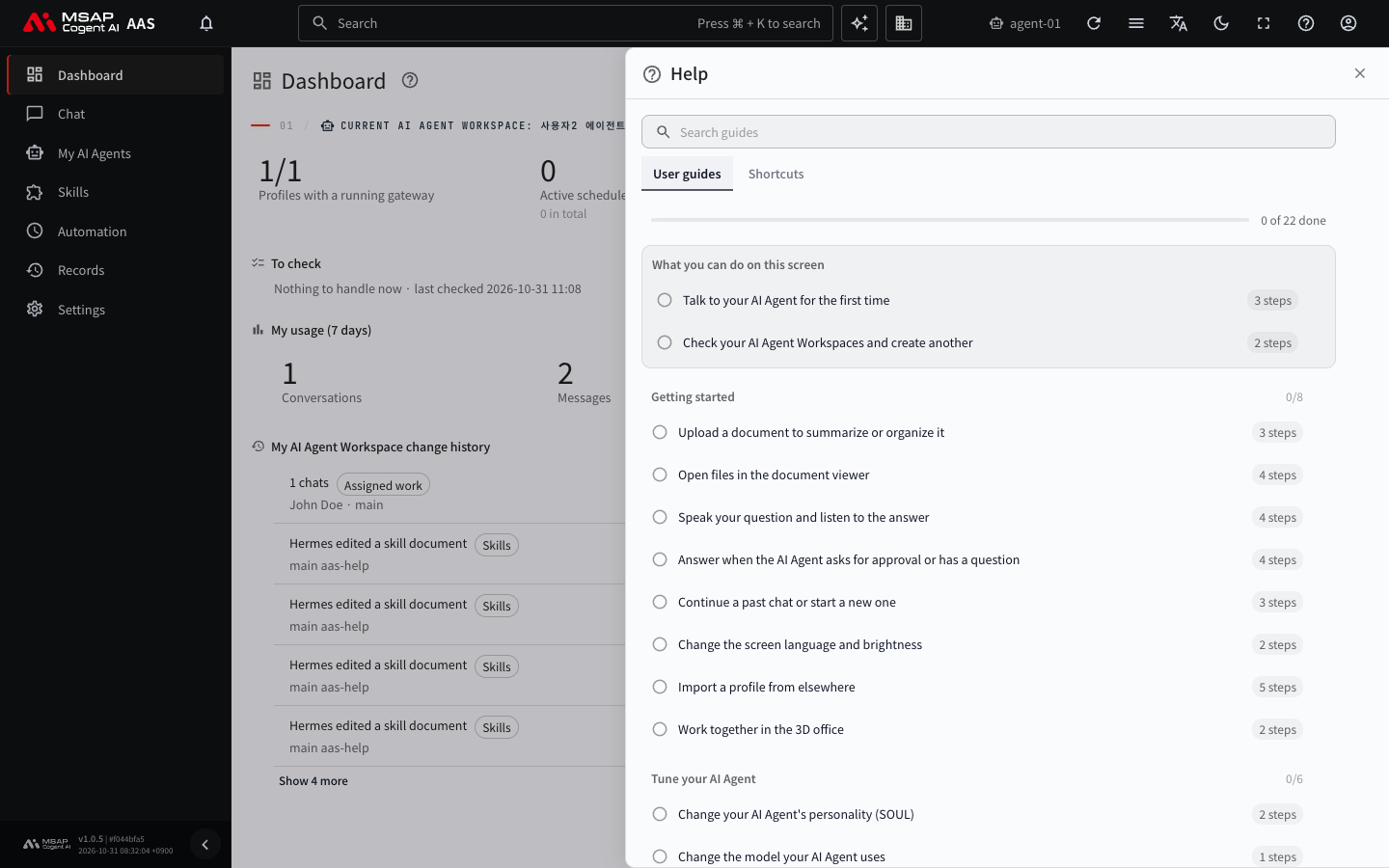
Figure 1.3-2. The help drawer
| Tab | Contents |
|---|---|
| User guides | The list of guides every user can see. |
| Admin guides | A tab visible only to administrators. |
| Shortcuts | The shortcut table. For details, see A.2. Keyboard Shortcuts. |
Finding a Guide
- Type a word in the "Search guides" field at the top of the drawer.
- Select a guide in the list.
If you do not search, the guides appear in four groups.
| Group | Contents |
|---|---|
| Getting started | Basic use (the first chat, files, approvals and questions, and so on) |
| Tune your AI Agent | How to fit your AI agent to your work, such as personality, model, and skills |
| Connect | How to connect to other services, such as external tools, secrets, and messengers |
| Operations | How to check status and set things, such as scheduled jobs, usage, and the department slogan and goals |
Guides related to the screen you have open are gathered in the "What you can do on this screen" box at the top. The icon on each guide row shows its progress. There are three states: "Not started" (an empty circle), "In progress" (a clock), and "Done" (a green circle with a check mark). Next to each group name you see "{done} of {total} done." Finished guides and progress are saved in this browser. In another browser or on another computer, you start over from the beginning.
Reading a Guide
When you select a guide, you see the following three items.
- "What it is for"
- "When you need it"
- "How to do it": A list of steps, each with a title and a description.
To return to the list, select "Guide list."
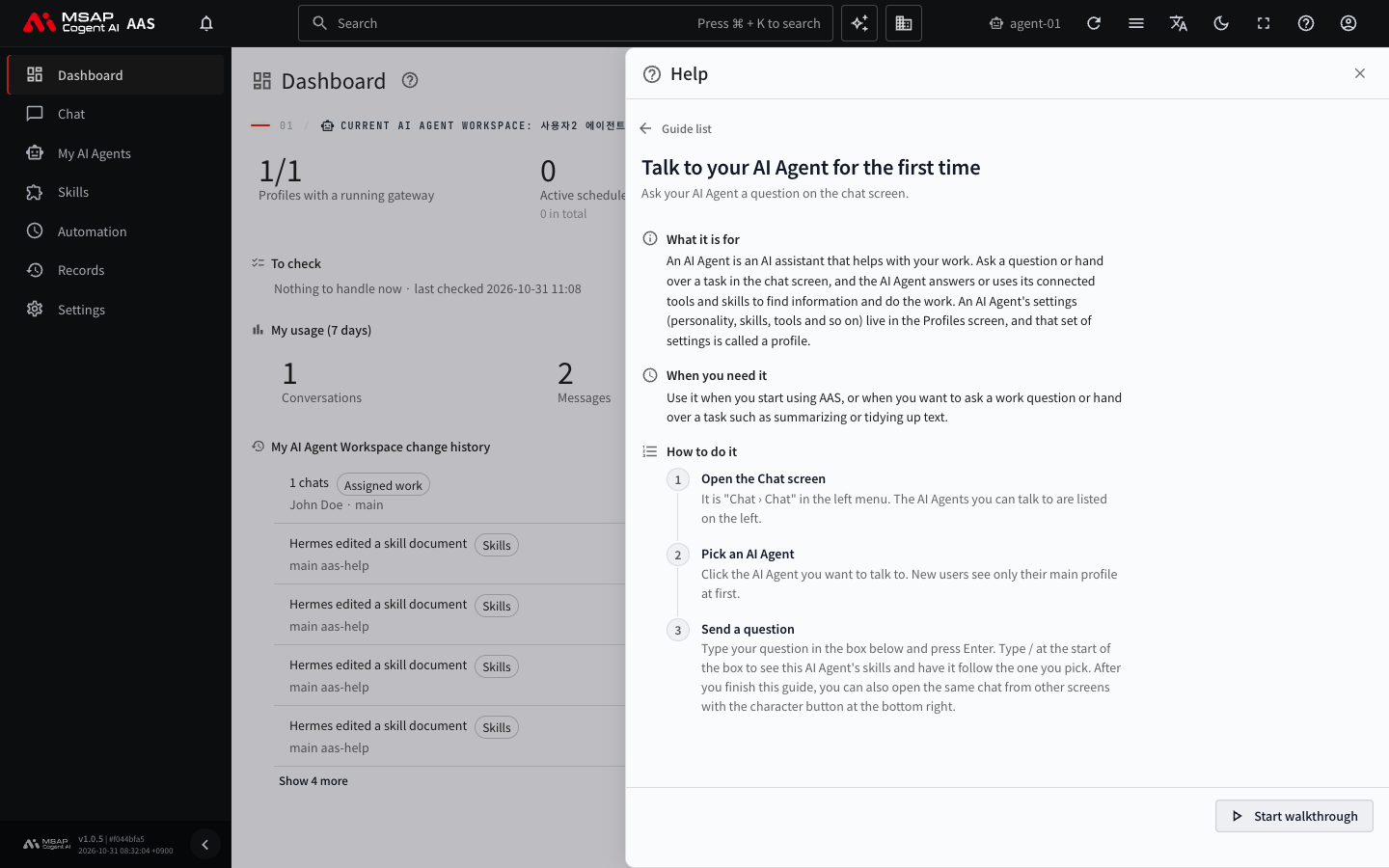
Figure 1.3-3. The guide reading screen
Walkthrough
When you select "Start walkthrough" at the bottom of the guide screen, the help drawer closes and the screen for the first step opens. A walkthrough card appears at the bottom right of the screen, and the place you need to select in the step is outlined. The outline blinks twice at first and stays for the rest of that step.
Using the Card
The card shows the guide name, the step number, the step title, and a description. The horizontal bar at the top shows where you are among all the steps.
| Button | What it does |
|---|---|
| Next | Opens the screen for the next step and moves the highlight. On the last step, it changes to "Finish." |
| Back | Goes back to the previous step. |
| Open this screen | If you moved to another screen while using the card, returns you to the screen for the current step. |
| Collapse the guide card, Expand the guide card | Shrinks the card into a small pill or expands it again. |
| Stop the guide | Stops the guide. The position where you stopped is remembered, and you can continue from there with "Continue" in the help drawer. |
| Ask the AI | Asks an AI agent about the point where you are stuck. See the section below. |
Press Alt + Shift + H to move focus to the card in progress. On a narrow screen, the card appears as one line at the bottom of the screen. If a chat window is open, the card shrinks into a pill at the bottom left of the screen.
When you finish a guide, an "All done" card appears. If there is another guide worth following, it points you to it with "Next: {guide name}." You can run only one guide at a time. You can continue a stopped guide with "Continue" in the same browser tab. If you start a different guide, the stopped position is lost and the earlier guide goes back to "Not started."
When the Card Shows a Message
| Message | Meaning and what to do |
|---|---|
| Try again when your AI Agent Workspace is ready. | The workspace is still being created. Try again in a moment. |
| Only administrators can open this screen. Ask an administrator. | The screen for this step is for administrators. Ask your administrator. |
| Could not check your permissions. | Select "Try again." |
| Could not find the field on this screen. Follow the description to find it. | The highlight did not appear. Find the place yourself, following the description on the card. |
| Ask an administrator for the steps you could not do. | Some steps were skipped because you do not have permission. |
Ask the AI
If you get stuck while following a guide, select "Ask the AI" on the walkthrough card. When there is no guide for what you are looking for, use "Ask the AI" and "Ask the AI about anything else" in the help drawer.
- Select "Ask the AI."
- A new chat window with your AI agent opens.
- Read the text filled into the message box.
- After "Where I am stuck:" at the very end, write what is difficult.
- Press
Enterto send.
When you select it from the walkthrough card, the message box is pre-filled with the guide name, the step number, the step title, the step description, and the current screen. This text is not sent until you send it yourself. When you select it from the help drawer, the message box is filled with "I want to do something in AAS but don't know where:".
The "How to use CogentAI AAS" Skill
AI agents come with the "How to use CogentAI AAS" skill by default (knowledge placed in advance so the AI agent knows how to use AAS). If you ask in chat something like "Where do I change my profile?", the AI agent answers by naming the screens. Screens for administrators are not in this skill, so for administrator tasks it tells you to ask your administrator. For the skill itself, see 5.2. Built-in Skills in AAS.