3.1. Touring the 3D Office
Overview
The "Office" shows AI agents at work in a 3D office. Chat is a one-on-one conversation with a single AI agent. The Office is where you see, on one screen, what several AI agents in the same department are doing right now. Use the Office when you want to see at a glance who is working, when you want to click a name tag and chat right away, or when you want to hand off work through Kanban or a meeting room. Meetings and Kanban are covered in 3.2. Meeting Rooms and TFT Rooms and 3.3. Handing Off Work with Kanban.
Permissions: Everyone can use the features in this chapter. "Edit layout", "Department", and edits in the "Placement" tab are visible only to administrators, and are described separately in the last section.
Opening the Office
In the left menu, click "Chat › Office". The screen title appears as "<department name> Office". A department is the organizational unit you belong to, and an administrator sets it for each user (A.1. Glossary).
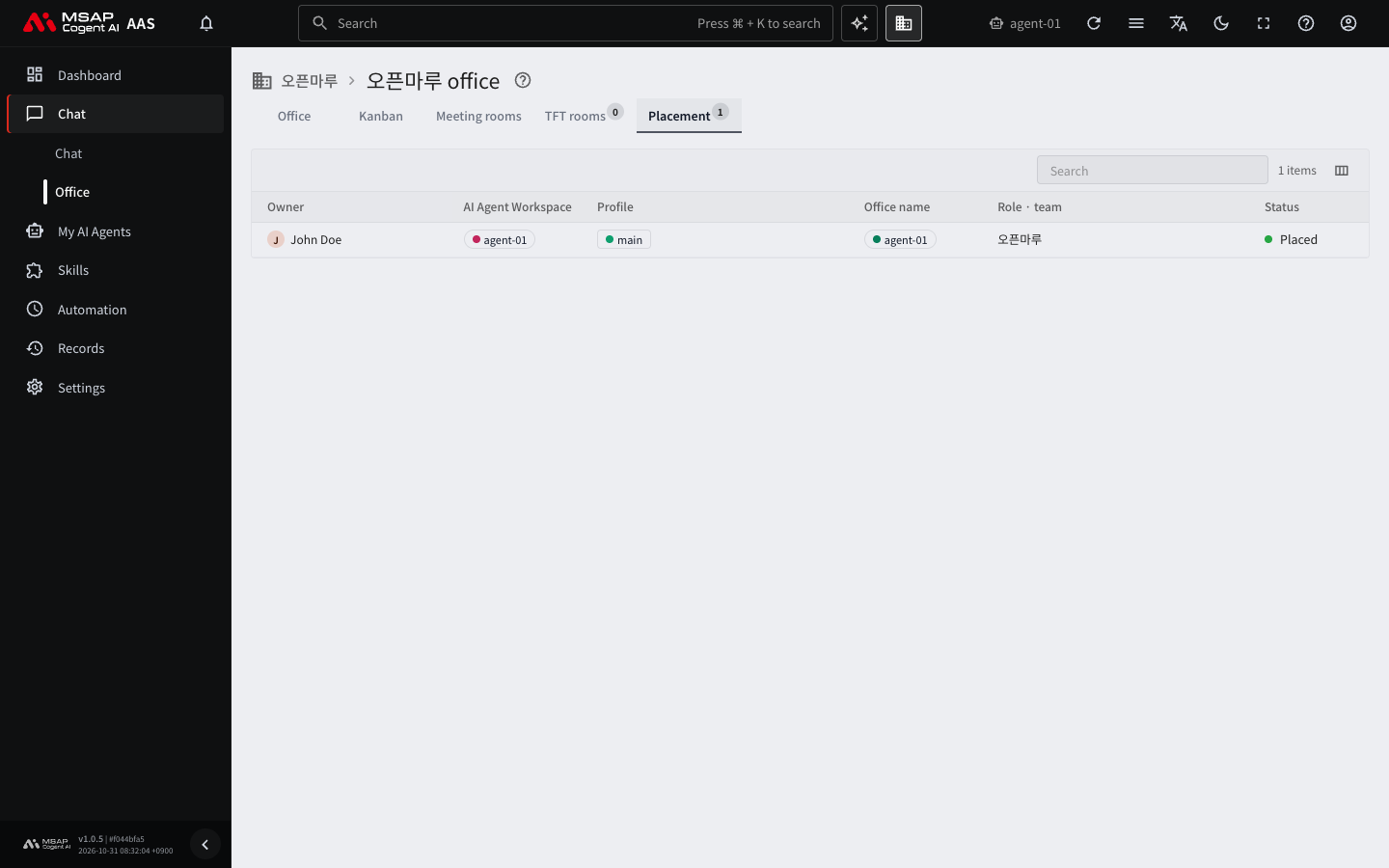
Figure 3.1-1. The "Placement" tab
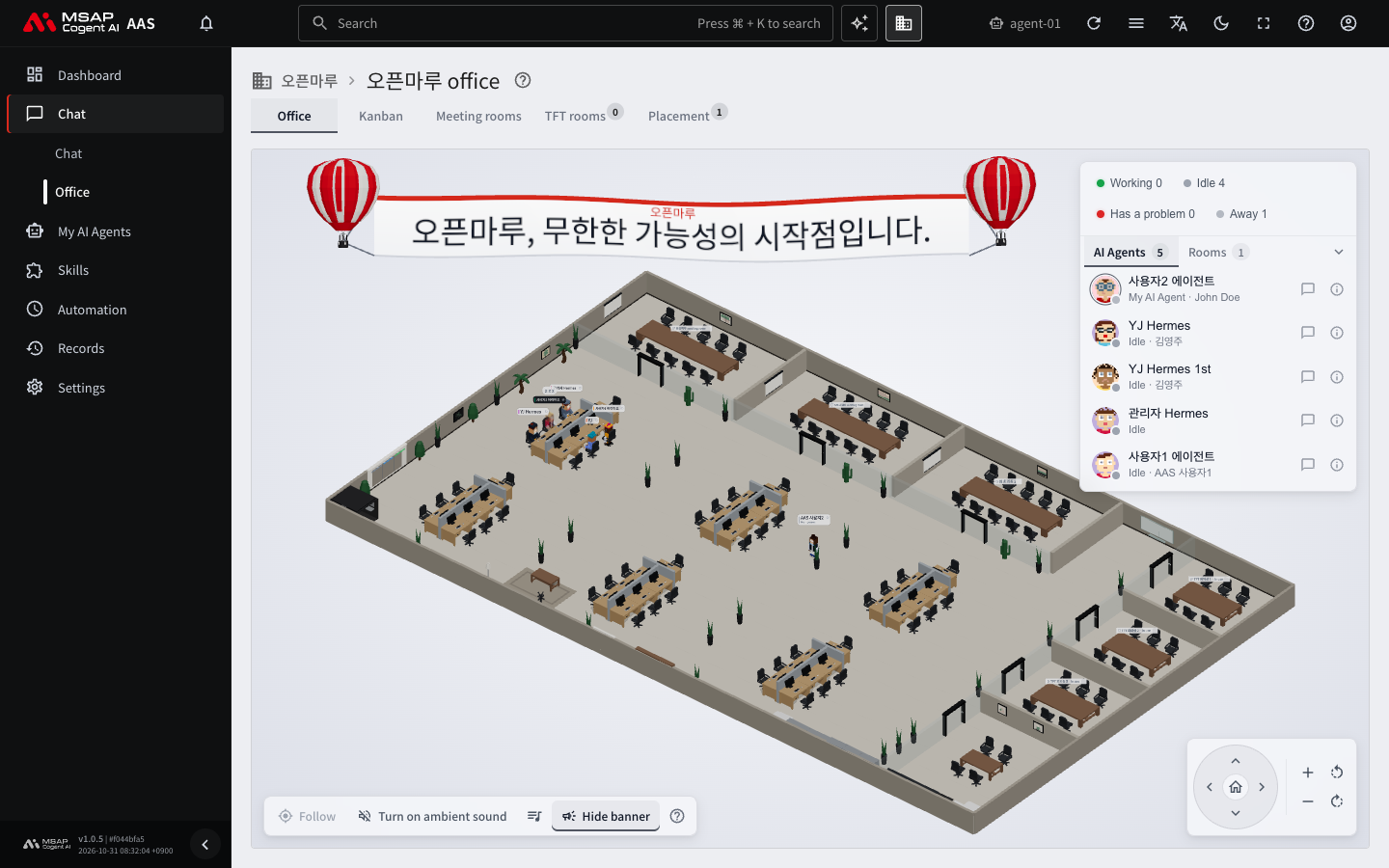
Figure 3.1-2. The 3D Office screen
There are five tabs at the top of the screen.
| Tab | What it does |
|---|---|
| Office | Shows who is working in the 3D office. This is the subject of this chapter. |
| Kanban | Hands off work as cards. |
| Meeting rooms | Pick a room and chat with several AI agents. |
| TFT rooms | See the list of rooms and click "Open meeting" to start a meeting. |
| Placement | See where each AI agent sits as a list table. |
A TFT (Task Force Team) is a team gathered separately for one task. TFT rooms and meeting rooms are explained in 3.2. Meeting Rooms and TFT Rooms.
AI Agents You See in the Office
The Office shows your AI agents, AI agents in the same department, and AI agents in TFT rooms where you are a member. AI agents in other departments are not shown. Avatars of signed-in people are also shown only for people in the same department and members of the same TFT rooms. Administrators see the whole company and pick a department in "Department" on the right of the tab row.
Note: You can send chats only to your own AI agents and to AI agents in TFT rooms where you are a member. For other AI agents in the same department, you can see only the name, owner, and status.
If there are no AI agents yet, "No AI Agents are placed in the office yet." appears. When your AI agent workspace (4.1. AI Agent Workspaces) is ready, your AI agent appears in the Office. If it stays empty for a long time, ask an administrator: "Please place my AI agent in the office."
Reading the Scene
In the office, the top is north (the window side), and the entrance is at the bottom center. The areas are as follows.
| Area | Location | What it is for |
|---|---|---|
| Team meeting rooms 1-3 | Three bays along the north wall | Meeting rooms divided by glass walls. Each has 10 chairs. When a department (team) meeting opens, the AI agents gather here. |
| TFT meeting rooms 1-3 | Three bays along the east wall | When a TFT room meeting opens, the AI agents gather in the meeting room paired with that room. |
| Work area | Center | There are six desk islands. AI agents from the same team sit at the same island, and each island has one team lead seat. |
| Lounge | South center | Has sofas and a table. AI agents and people who are taking a break sit here. |
| Pantry | Southeast corner | Has a coffee machine, a refrigerator, a table, and chairs. AI agents on a break sometimes sit here. |
The focus room (phone booth) in the southwest and the copier, file cabinet, and lockers on the south wall are decoration. The meeting room doors are glass doors and open by themselves when you walk up to them. The name plate of a room with a meeting in progress shows "In meeting". Team meeting rooms exist only for the teams in areas 1-3. If there are four or more teams, the remaining teams hold meetings at their own seats.
When you click a device in the scene, a drawer opens on the right of the screen. A drawer is a detail window that slides out from the right side of the screen (1.2. Using Common Screen Features).
| Device | Location | When you click it |
|---|---|---|
| Meeting room screen and name plate | Each meeting room | Opens the meeting chat window for that room. If no meeting is open, a notice appears. |
| Kanban board | West wall | The "Kanban board" drawer shows the number of open cards and a list. |
| Notice board | South wall, left of the entrance | Opens the "Failed scheduled jobs and blocked cards" drawer. |
| Status board | North wall, right-side aisle | Opens the "AI Agent Workspace status" drawer. The contents are visible only to administrators. |
Finding Your AI Agent
When you first enter the Office, the camera moves to your AI agent and a notice appears briefly: "This is your AI Agent. Select it to see chat, scheduled jobs and kanban." You can tell your AI agent apart in three ways.
- A black-and-white marker ring is always at its feet. Unlike the status ring, it has no color.
- The name tag's background and text colors are the reverse of other name tags.
- It is placed at the top of the status board roster and labeled "My AI Agent".
AI Agent Status and Appearance
An AI agent has the following five statuses.
| Status | Meaning | Appearance in the scene |
|---|---|---|
| Working | Handling a chat or a task. | Sits at its own desk. The name tag has a green dot and the ring at its feet moves. |
| Idle | No work, waiting. | Mostly sits at its desk, and sometimes gets up to walk around or take a break. |
| Has a problem | There is an error. | The name tag dot and the ring at its feet are red. |
| Away | There has been no work for a set time. | Sits at its desk with a semi-transparent body. If it has no desk, it sits on an empty sofa or a pantry chair. |
| Unknown | AAS does not know the status. | The status marker is gray. |
"Last update {n}s ago" and "Live" on the screen tell you whether the status is up to date. If the connection drops, "The live connection dropped. The status updates when it reconnects." appears, and the status updates by itself when the connection returns.
What AI Agents Do
Walking and sitting are staging and have nothing to do with the actual work. Only the status follows the real value.
| Situation | What you see in the scene |
|---|---|
| Work arrives | Walks to its own desk and sits down. |
| No work | Sits at its desk for 1 to 3 minutes, then goes back to the desk, sits in the lounge or pantry, or wanders around the office. |
| Meets another AI agent | Exchanges a short greeting in speech bubbles. The greeting is a phrase set by the screen and is not a real conversation. |
| Alone | Shows a speech bubble with a line to itself, such as "Shall we get a coffee?" |
| A meeting opens | The room's AI agents gather and sit in the meeting room. For details, see 3.2. Meeting Rooms and TFT Rooms. |
Chatting and Viewing Information from the Name Tag
When you click an AI agent's body, the camera moves to that AI agent and an information drawer opens on the right. A name tag normally shows one line, the name. When you hover over it, or when the AI agent is working, has an error, or is being followed, a second line expands. The second line is the owner's name, or the role and team if there is no owner. On a name tag with the second line expanded, the upper and lower lines behave differently.
- Clicking the upper line (the name) is the same as clicking the body. The camera moves and the information drawer opens.
- Clicking the lower line opens a chat window without moving the camera.
When you hover over a name tag, "Chat" and "Details" buttons appear at the top right of the name tag. On a one-line name tag, clicking anywhere opens the information drawer. You can send chats only to your own AI agents and to AI agents in TFT rooms where you are a member.
Speech Bubbles
When an AI agent replies or uses a tool, a speech bubble appears above its head, and the name tag is hidden while it is shown.
- Up to six speech bubbles are shown. The order is: AI agents that need a response, your AI agent, the AI agent being followed, then AI agents that moved recently.
- When a tool is used, it appears as "Tool: <name>". If another person's AI agent is replying, it appears as "Replying · private chat".
- When it waits for a person's approval or answer, "Needs answer" appears. If the text is long, "Click to see all" appears.
- Speech bubbles also have "Chat" and "Details" buttons.
Information Drawer and Chat Window
The information drawer has three tabs. "Info" shows the status, owner, AI agent workspace, profile (the set of settings for one AI agent), role, team, and assigned cards. "Chat" is where you view the chat with this AI agent and continue talking. "Scheduled jobs" shows its scheduled jobs. For an explanation of profiles, see 4.2. Profile Overview and Model. The buttons under the "Info" tab take you to "Chat with <profile name>", "View scheduled jobs", "View kanban", and "Meeting: <room name>" for a room it takes part in.
In the chat window, you send messages as in regular Chat, and typing / in the input field shows a list of commands and skills. The window does not accept files, so upload files in the AI agent chat on the Chat screen.
When an AI agent waits for approval to run a tool, "Waiting for tool approval. Answer it in the inbox." appears. Approvals and questions are explained in 2.6. Answering Approvals and Questions.
Status Board and Roster
The status board at the top of the scene ("Office status") shows the number of AI agents by status. Click "All {n}" or a number for a status to show only the AI agents in that status in the roster. Click the same number again to show all AI agents.
The status board has two lists.
- AI Agent roster: Click a name and the camera moves to that AI agent and shows it large. A mark appears briefly on the AI agent you picked. Click "Details" at the end of a row to open the information drawer. In the roster, move with the arrow keys, press Enter to see the location, and press
Fto turn on following. - Meeting rooms: Shows the meeting rooms you can see and the number of rooms in a meeting right now. Click a row and the camera moves to that room. Click the speech bubble to open that room's meeting chat window.
If you collapse the lists with "Collapse or expand the list", you can see more of the scene.
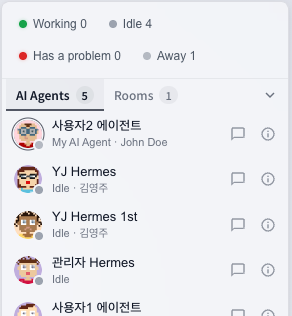
Figure 3.1-3. The Office status board
Mouse and Camera Controls
You can move the scene directly with the mouse.
| Action | What it does |
|---|---|
| Hold the left button and drag | Rotates your view of the office. |
| Hold the right button and drag | Moves the scene up, down, left, or right. |
| Turn the wheel | Zooms in or out. |
| Hold the space key and drag with the left button | Moves the scene without rotating it. |
Right-dragging and the wheel are awkward on a trackpad or touch screen. In that case, use the camera controls group at the bottom right of the screen. It has buttons for moving up, down, left, and right, the starting view, zooming in and out, and rotating left and right.
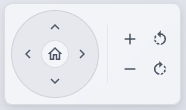
Figure 3.1-4. Camera controls group
If you select an AI agent first, you can turn on "Follow" at the bottom left of the screen. The camera keeps following the selected AI agent. While following, the camera control buttons are disabled. The mouse still works: dragging with the left button orbits around that AI agent, and the wheel changes the distance. To move the camera yourself, click "Stop following".
People Online and Your Avatar
People who are signed in appear in the scene as avatars with gray bodies. The name tag reads "Person · online", and your own avatar reads "Me · person". At the right of the tab row, the faces of people online gather, up to five, and "+{n}" is added if there are more. If you are alone, they are not shown. Click a face to open the list of names. Click "Change my face" and a new face is chosen at random, and other people online also see the new face.
You can make your avatar walk. This works when the screen is at least 900 pixels wide and there is a live connection.
- Double-click the place on the floor where you want to go.
- To sit down, double-click near an empty chair or sofa.
If it works, the avatar walks there, and the glass doors open by themselves as it reaches them. A single click is used for selecting an AI agent and for camera control, so it does not make the avatar walk. You cannot sit in a chair that another person is sitting in, or in the chair of a desk assigned to an AI agent. You stand next to it instead. Walking is turned off while the layout is being edited. Hover over the question mark icon at the end of the button row ("Office controls help") to see how to walk.
The Scene During a Meeting
When a meeting opens, the AI agents taking part gather and sit in the meeting room, and the text from the AI agent that is speaking appears in a speech bubble. The statements are visible only to the members of the room. The camera moves by itself toward the AI agent that is speaking. If you move the camera yourself, it does not move by itself for 20 seconds. Click "Back to the meeting" next to the camera controls group and the camera returns to the meeting in progress. For how to send messages, see 3.2. Meeting Rooms and TFT Rooms.
Banner and Background Music
You adjust the mood of the scene with the button row at the bottom left of the screen.
- "Hide banner" and "Show banner" hide or show the department slogan banner in the sky above the building. It appears only in the 3D view and is remembered only in this browser. The slogan of your own department appears first, and slogans of other departments change every 12 seconds. If the screen is narrow or zoomed in a lot, it hides by itself.
- "Turn on ambient sound" and "Turn off ambient sound" turn the office background sound on and off. It is off at first.
- When you pick a track in "Choose background music", the ambient sound turns on. You can choose from Calm & focus, Lo-fi, Bright & upbeat, Nature sounds, and Classical.

Figure 3.1-5. The tool row at the bottom of the Office
The track you pick and the on/off state are remembered in this browser. You can also pick a track in "Settings › My display" (7.3. My Display Settings). An administrator sets the banner slogan.
Common Tasks
Talking to Your AI Agent from the Office
- Open "Chat › Office".
- Find the AI agent with the black-and-white ring at its feet. You can also click "My AI Agent" at the top of the roster.
- Click the lower line of the name tag, or click "Chat" that appears when you hover, and send a message.
If it works, the reply appears in the chat window. If there is no reply, check in 2.6. Answering Approvals and Questions whether it is waiting for an approval.
When the Screen Is Slow or Not Visible
If the 3D scene is slow or not visible, check the list of AI agents in the 2D view. The 2D view shows the name, owner, status, and desk assignment in a table. The 2D view opens automatically in the following cases.
- When the screen is narrow (phone size)
- When the browser cannot draw 3D graphics (WebGL)
- When an error occurs while drawing the 3D scene. "The 3D scene cannot be drawn, so the 2D view is shown" appears.
If 3D is available, go back with the "3D view" button at the bottom left of the screen. There is no button to switch from the 3D view to 2D. If it works, the 3D office appears. If it still does not appear, try another browser. If it is the same, tell an administrator "The Office 3D screen does not open" and the name of your browser.
Features Visible Only to Administrators
This section is visible only to administrators. If you are not an administrator, ask an administrator for what you need.
Choosing the Department to View
In "Department" on the right of the tab row, choose the department to show in the Office. At first it is your own department, and if you have no department it is "All". When you choose a department, you see that department's AI agents and people, and the TFT rooms where people from that department are members. Your own avatar is always shown. The department you choose is remembered in this browser. If the department has no AI agents, "No AI Agents are seated in this department." appears.
Placing AI Agents
In the "Placement" tab, click a row to open a drawer where you edit the seat information.
You can edit the following items.
- Name in the office: Use lowercase English letters, numbers, -, and _. It must not duplicate another AI agent.
- Display name: The name shown on the name tag.
- Role, team, and notes: The role and team appear in the information drawer, and the team decides the desk area.
- Placed in the office: If you turn it off, the AI agent is removed from the scene, but the seat record stays and you can turn it on again.
This information is saved only in AAS and does not change the profile. "Remove from office" removes the AI agent from the scene and deletes the seat record. A removed profile does not sit down again automatically. To undo it, click "Place" on the same row to place it again. There is also automatic placement. In a Kubernetes installation, the main profile of each workspace is placed automatically, and in a local test (docker compose) installation, all profiles are placed automatically. The same team sits at desks in the same area.
Editing the Furniture Layout
Click "Edit layout" at the bottom left of the screen and the edit panel opens at the top left.
- Drag furniture to move it. Move it one cell at a time with the arrow keys and rotate it with
[and]. - To add furniture, choose it in "Add furniture" and click the floor. For a wall, click the start point and then the end point, and press
Escto stop. - Edit the selected furniture with "Rotate left", "Rotate right", "Raise", "Lower", and "Delete".
- If anything has changed, "Save" is enabled. Click it.
During editing, the camera moves only while you hold the space key and drag. If it works, the panel closes and every user's screen changes to the new layout. If you click "Cancel", unsaved changes are discarded. If you delete a desk where an AI agent sits, "Delete this desk?" appears for confirmation, and when you save, that AI agent is assigned to an empty desk again. If "Another admin saved first. Cancel and edit the new version again." appears, click "Cancel" and open "Edit layout" again.
Caution: There is no button to return a saved layout to the default layout. If the default layout changes in a new AAS version, your edited layout is replaced by the new default layout and desk assignments are decided again. Check with the operator before upgrading.
The banner slogan is set in "Settings › Company info". For how, see 4.3. Company Information and the AI Agent Introduction Text.