6.1. Scheduled Jobs
Overview
A scheduled job (cron) makes an AI agent do the same task automatically at a set time. Use it for tasks that are tedious to request every time, such as a daily morning work summary or a weekly report draft. This chapter explains how to create a scheduled job in CogentAI AAS (AAS) and how to check run results and failures.
Permissions: Everyone can see the scheduled job list. The owner of the AI agent workspace, team managers, and administrators create and change jobs. Administrators close open issues (Closing Open Issues).
First, here are the terms used in this chapter. The full list is in A.1. Glossary.
| Term | Meaning |
|---|---|
| AI agent workspace | The place where AI agents work. One is created for each user. It holds settings, skills, memory, and files. See 4.1. AI Agent Workspaces. |
| Profile | The set of settings for one AI agent in a workspace. Scheduled jobs belong to each profile separately. For details, see 4.2. Profile Overview and Model. |
| Gateway | The channel through which an AI agent receives messenger messages and scheduled jobs. If the gateway is stopped, scheduled jobs do not run. |
| Issue | A record that AAS keeps when a job fails. It closes only after a person acknowledges it. |
| Acknowledge (ack) | Marking an issue as "checked" to close it. |
To see whether the gateway is running, look at the "Gateway" column in the "Automation › Messenger connections" table. If it says "Stopped", ask an administrator to start it. The request text is in When the Gateway Is Stopped.
Opening the Scheduled Jobs Screen
Open "Automation › Scheduled jobs" in the left menu. Below the screen title, you see the number of jobs in the current AI agent workspace and the time of the last check.
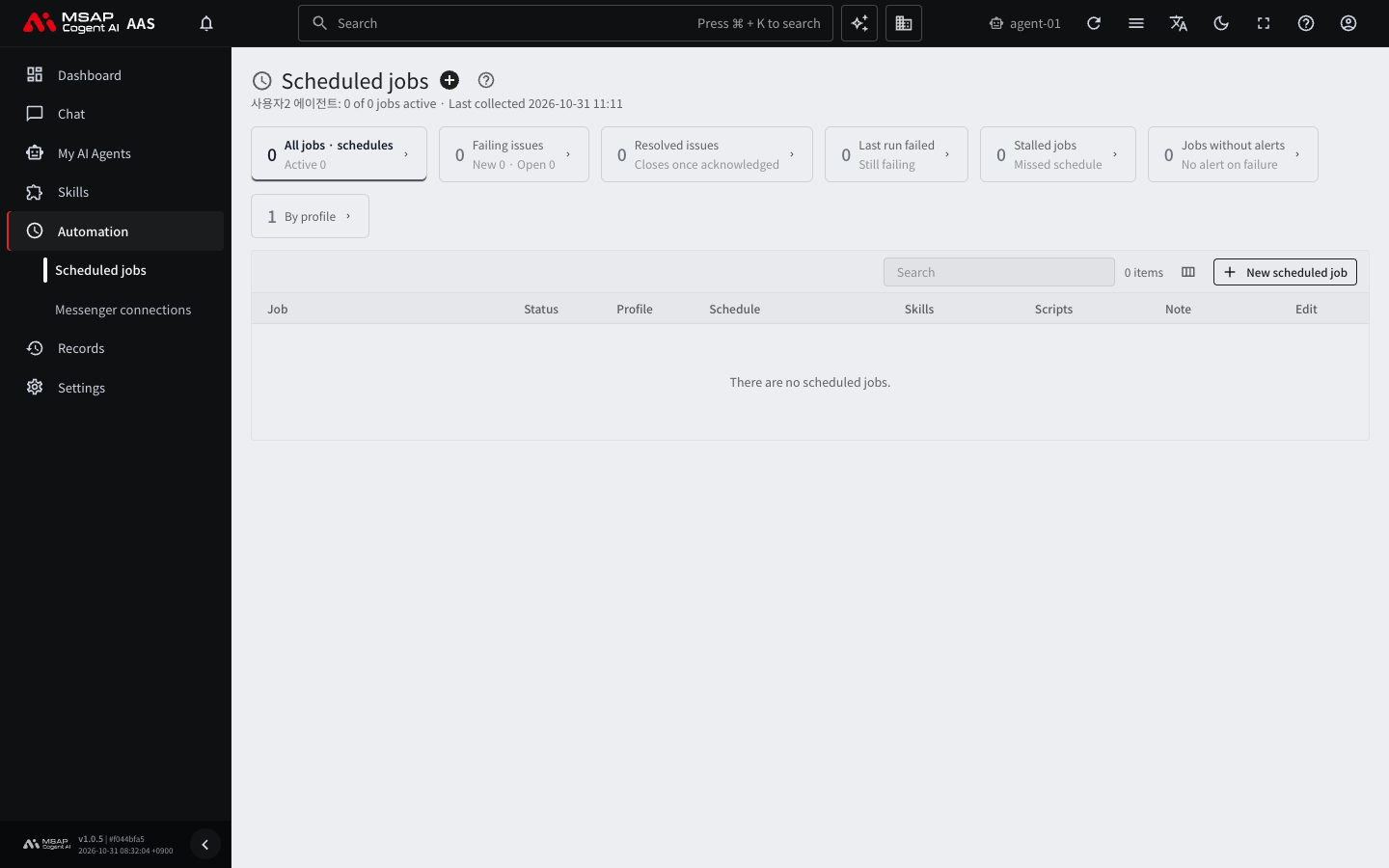
Figure 6.1-1. Scheduled job list
Choose a view with the cards at the top of the screen. Each card shows the number of jobs in that view.
| View | Jobs shown |
|---|---|
| All jobs · schedules | All scheduled jobs. This view appears when you first open the screen. |
| Failing issues | Issues where the failure is still continuing |
| Resolved issues | Failures that succeeded again but are still listed because no one has acknowledged (ack) them |
| Last run failed | Jobs whose last run failed |
| Stalled jobs | Jobs that were due but did not run |
| Jobs without alerts | Jobs that send no alert when they fail |
| Muted jobs | Jobs whose failures are left out of the summary. This view appears only when there are muted jobs. |
| By profile | For each profile, the number of jobs, runs in 7 days, and the failure rate over 7 days |
Click a table row to open a detail drawer (a detail window that opens on the right side of the screen; see the A.1. Glossary). In the detail drawer, you can change the schedule and run the job.
Creating a New Scheduled Job
Permissions: The owner of the AI agent workspace, team managers, and administrators can create and change jobs. If you do not have permission, ask the owner or an administrator to create the job.
- Click "New scheduled job" above the table. The plus button next to the screen title does the same thing.
- Choose "Profile (runs the job)". If there is only one profile, you do not need to choose.
- Enter a "Job name". Example:
weekly-report - To use a skill, choose it in the "Skill to run" field. To run only a prompt without a skill, leave this field empty.
- In "Prompt", write the instructions for the AI agent. If you run only a skill, you can leave the prompt empty.
- Choose where to receive the result. If you choose "Save only (no notification on failure)", the result is only saved and no one is notified even when the job fails.
- In "Schedule", choose a type.
- Read the sentences under "What this job will do" and "Check before creating" and make sure the content is correct.
- Click "Create job".
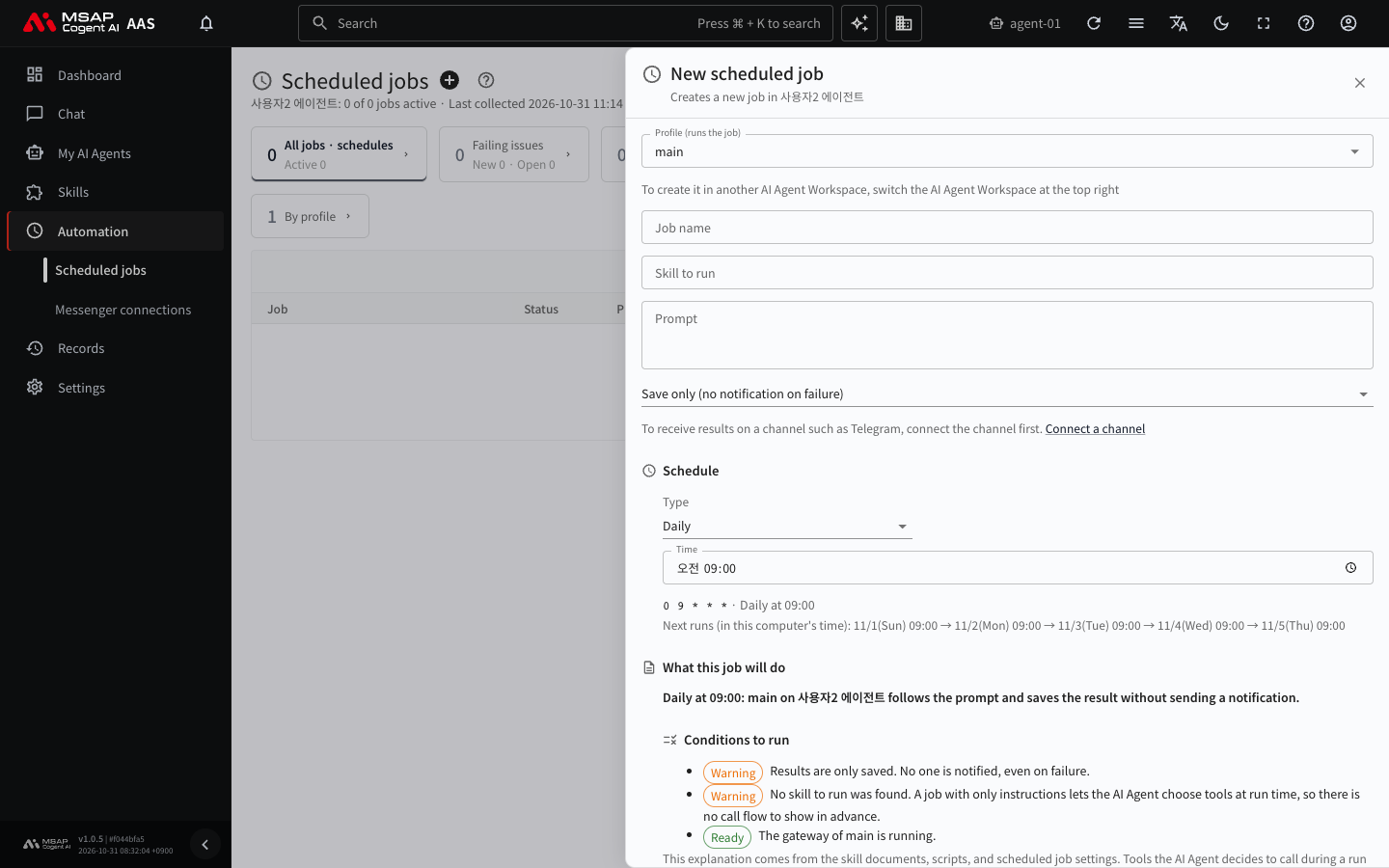
Figure 6.1-2. The "New scheduled job" drawer
When the job is created, the notification "Created job ○○" appears and the job shows in the table. The new job is turned on right away. The job runs only while the gateway of that profile is running. If the job is not created, read the guidance under "Check before creating" and fix the problem. If it still fails, see the "Scheduled jobs" table in A.3. Troubleshooting.
Schedule Types
| Type | Description |
|---|---|
| Daily | Runs every day at the set time. |
| Weekdays (Mon–Fri) | Runs every weekday at the set time. |
| Weekly (choose days) | Runs on the chosen days of the week at the set time. |
| Monthly (choose a date) | Runs on the chosen dates at the set time. |
| Repeat every few hours | Repeats at an interval of 1 to 23 hours. |
| Repeat every few minutes | Repeats at an interval of 1 to 59 minutes. |
| Custom (cron expression, 30m, every 2h) | You enter a cron expression or a notation such as 30m or every 2h yourself. Example: 9:00 AM on weekdays is 0 9 * * 1-5. |
If "Custom" is difficult, choose one of the other types. A cron expression has five fields in the order "minute hour day month weekday".
After you choose a schedule, "Next run" shows the next run time. This time is a preview calculated in your PC's time zone. If your PC's time zone differs from the time zone of the AAS server, it may differ from the actual run time. The actual run can follow the AAS server's time zone, so if the run time is not what you expect, ask an administrator about the server's time zone.
A warning appears if the interval is shorter than 5 minutes. Each run makes the AI agent call a model, which costs money.
Receiving Results in a Messenger
The list of places to receive results shows the messengers that are connected and turned on for that profile. If no messenger is in the list, click "Connect a channel" to connect one. For how to connect, see 6.2. Messenger Connections.
Changing a Job in the Job Details
Click a job row to open the detail drawer. The drawer shows what the job does, its schedule, the next run time, recent runs, and the prompt.
If you have permission, you can use the buttons at the top of the drawer.
| Button | What it does |
|---|---|
| Turn off, Turn on | Stops or restarts the job. A job that is turned off does not run until you turn it on again. Use "Turn on" to restore it. |
| Run once now | Runs the job once without waiting for the set time. The result is delivered as usual. |
| Mute this job | Failures are not counted in the summary numbers. The job keeps running. Enter a reason. |
| Delete job | Deletes the job. You cannot undo this. If you need the same job again, create it again. To confirm, type the job name once more. |
In the drawer you can also edit "Change schedule", "Result delivery target", "Skill to run", "Prompt", and "Job note". When you change the schedule, a confirmation window shows the old value and the new value.
In "Job note", write why this job exists and who checks it. The note is stored only in AAS.
To stop a job for a short time, use "Turn off" instead of deleting it.
Note: If you do not have permission, the drawer shows the message "Only the owner of this AI Agent Workspace, team managers and admins can change this." and the buttons are hidden.
Checking Run Results
The run status appears in the "Recent runs" list in the detail drawer. Each run shows the time, how long it took, and its status. This list does not show the result text.
Read the result text in these places.
- If you set the result to go to a messenger, read it in that messenger.
- For a job set to "Save only", read it in the past chats under "Chat › Chat" in the left menu. Filter the source by "Scheduled job" to see the result chats. Results you have not opened yet are marked "New". For how to use past chats, see 2.2. Past Chats and New Chats.
- When a job finishes, a "Scheduled job finished" notification may arrive in your inbox.
A job that runs without an AI agent leaves no chat record, so the drawer may show "No run was saved as a session". To count the chats created by scheduled jobs, use "By source" in 7.1. Usage.
Checking Failures or Stalled Jobs
If a number appears next to "Scheduled jobs" in the left menu, there are jobs to check. This number is the total of issues that are still failing and jobs whose last run failed.
Order of Checks When a Problem Occurs
- Find the failed job in the "Last run failed" view. The "Failures in a row" column shows how many times in a row it has failed.
- Click the row to open the drawer. "Error" shows the last error text. You can copy the text with "Copy error" and send it to an administrator.
- To investigate the cause with the AI agent, click "Investigate in chat". A new chat opens with the question filled in. You send it yourself.
- In the "Stalled jobs" view, look at "Probable cause" and "Time elapsed". If the gateway of the profile is stopped, the job does not run.
- A job in the "Jobs without alerts" view has "Save only" as its result delivery target, so it tells no one when it fails. To receive alerts, change the delivery target to a messenger in the drawer.
When the Gateway Is Stopped
If the "Gateway" column of a profile in the "Automation › Messenger connections" table says "Stopped", the scheduled jobs of that profile do not run. An administrator starts the gateway. Send the administrator a request like this.
Scheduled jobs are not running. The gateway of profile
○○(AI agent workspace△△) appears as "Stopped". Please start the gateway.
When the gateway changes to "Running", the job runs from the next set time. If the job is still listed under "Stalled jobs" after that, check in the drawer whether the job is turned off. If it is not, tell the same administrator.
Closing Open Issues
"Failing issues" and "Resolved issues" close only when someone acknowledges (ack) them. Administrators close issues. General users cannot close issues on this screen. AAS does not close issues on its own either. Scheduled jobs keep running even if no one acknowledges an issue. A "Failing issue" keeps counting in the number next to the left menu until it is closed.
Your part is to tell an administrator.
- Click the issue row to open the drawer.
- Click "Copy acknowledge (ack) command". The command that the administrator runs is copied.
- Paste the copied text and send it to the administrator. Here is an example.
Please acknowledge the open issue of a scheduled job. The profile is
○○and the job isweekly-report. Please run the command below.(Paste the copied acknowledge (ack) command here)
When the administrator handles it, the issue disappears from the list. If the issue occurs again, tell the administrator in the same way. Closing an issue does not change the job itself.