2.2. Past Chats and New Chats
Overview
Chats you have with an AI agent are kept as past chats. To pick up work from yesterday, find the past chat and continue it. When the topic changes, start a new chat. This chapter explains how to find and open a past chat and how to start a new chat. To stop a long reply, see "Stopping a Reply" in 2.1. Chat Basics.
Continuing a Chat vs. Starting a New Chat
Within one chat, the AI agent remembers what was said earlier and answers with it in mind. If you keep using the same chat to give completely different work, the earlier content can get mixed into the answers. For example, if you suddenly ask about a vacation schedule in a chat that was about a report, the answer may be pulled toward the report. So it is better to open a new chat when the topic changes.
When you choose an AI agent on the chat screen, the most recent chat you had with that AI agent in AAS opens automatically so you can continue it. A continued chat shows the "Previous conversation ends here" divider, and you can continue writing below the divider.
Finding and Continuing a Past Chat
- Select the "Past chats" button at the top of the conversation area.
- The "Past conversations" drawer opens on the right.
- In the list, select the chat you want to continue.
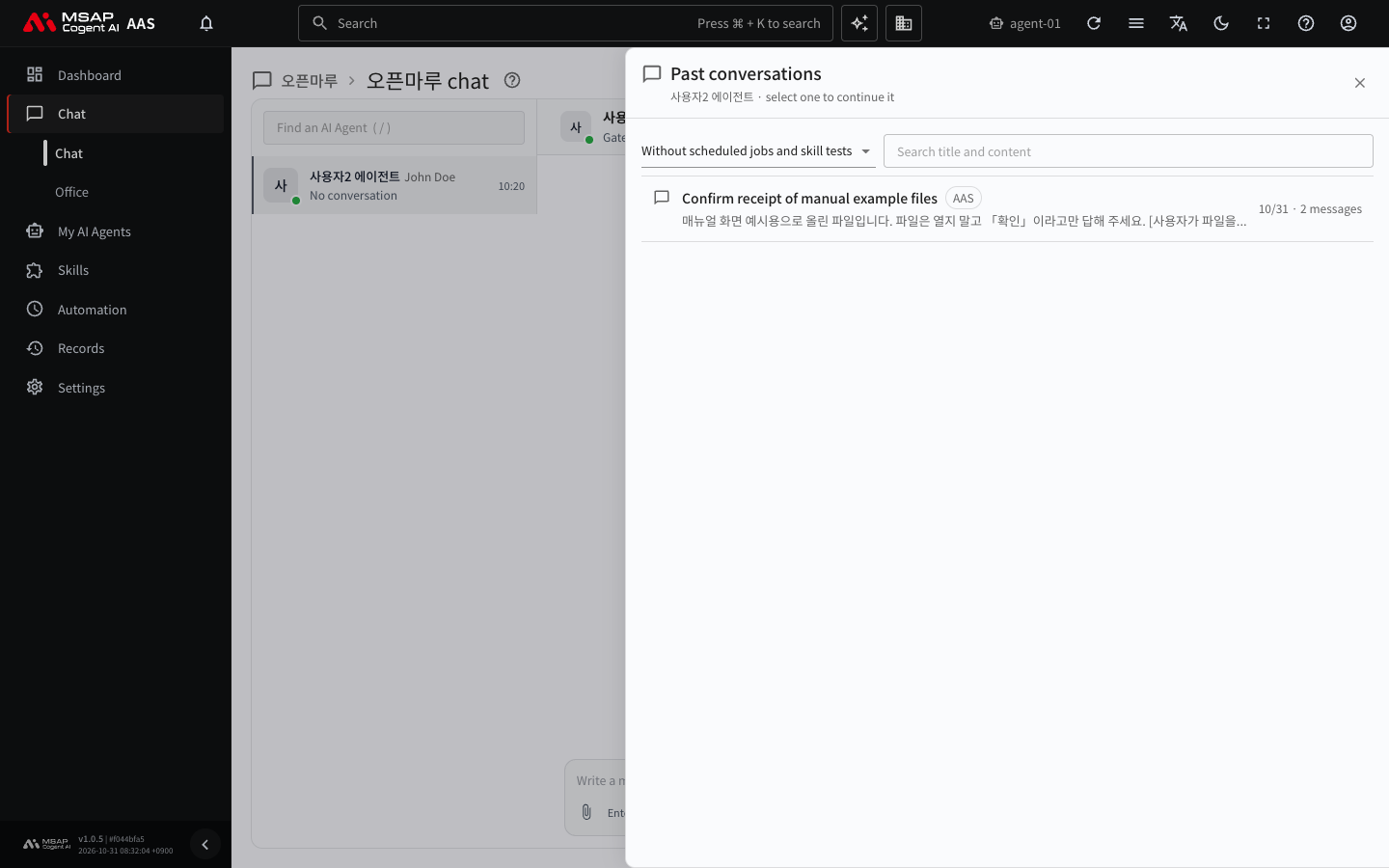
Figure 2.2-1. The "Past conversations" drawer
When you select a chat, the drawer closes and that chat opens. Write a new message in the message box to continue the chat.
Reading the Rows in the List
Each row shows the chat title, part of the first content, the date, and the message count. A chat with no title appears as "(Untitled)." The following indicators may appear next to the title.
| Indicator | Meaning |
|---|---|
| Source name | Where the chat was started. Most are AAS (this screen), but some chats were started from a messenger (Buzz, Telegram) or from a scheduled job. |
| Open | The chat that is open on this screen now. |
| Claude Code | A chat opened by Claude Code (an AI tool for developers) on your PC. "Claude Code is using it" means Claude Code is using that chat now. |
| New | A result from a scheduled job that you have not opened yet since the job finished. |
| Looping, Goal in progress | A chat that has /loop or /goal set. |
If you send a message to a chat that Claude Code is using, it is sent after Claude Code finishes what it is doing. For the Claude Code connection, see 7.5. Connecting Claude Code.
Searching and Filtering
At the top of the drawer there are a "Source" selector and a "Search title and content" field.
| Field | What it does |
|---|---|
| Source | Filters by where the chat was started. At first it is set to "Without scheduled jobs and skill tests." |
| Search title and content | Keeps only chats that have the word you typed in the title or content. |
With the initial settings, chats made by scheduled jobs are not shown. To see them, change the source to "Scheduled jobs," and to see all chats, choose "All." The source selector also has CLI (chats started in a command window) and "Skill tests (Claude Code)" (chats used to test a skill while making it). If no chat matches the conditions, "No matching conversations" is shown.
Note: The "Past conversations" and "Files" drawers are stored in the browser address. If you copy the address and send it to someone else who uses the same AAS, the same drawer opens. The person who views it must have permission to view that AI agent workspace.
Starting a New Chat
- On the chat screen, choose the AI agent you want to chat with.
- Select the "New chat" button at the top of the conversation area.
- Write the new topic in the message box and press
Enter.
When you select "New chat," the current chat is kept as a past chat and an empty new chat opens. Past chats are not deleted. A new chat does not carry over the text of the earlier chat. If you need a result from the earlier chat, copy it from the past chat and paste it in.
Related Documents
- 2.1. Chat Basics (including stopping a reply)
- 2.3. Uploading and Downloading Files
- 2.7. When Replies Are Blocked or Slow