4.1. AI Agent Workspaces
Overview
Read this chapter when an AI agent does not answer, or when you want to create another workspace. It explains how to check the status of a workspace, restart a stopped workspace, create a new one, and choose the default chat profile. The relationship between the three terms used throughout Part 4 is explained first, in "Part 4 Guide" below.
Permissions: General users. Only administrators delete workspaces and transfer ownership.
Part 4 Guide: Workspaces, Profiles, and AI Agents
Part 4 explains how to tune your AI agent to your work. First, look at how the three terms relate. The terms are also in A.1. Glossary.
| Term | Meaning | Where users see it |
|---|---|---|
| AI agent workspace | The place where an AI agent works, created one per user. It holds settings, skills, memory, and files. | "My AI Agents › AI Agent Workspaces" |
| Profile | The set of settings for one AI agent in a workspace. It holds the personality, rules, model, skills, and external services to connect. Each workspace starts with one "main profile". | "My AI Agents › Profiles" |
| AI agent | The one that chats and works. One profile is one AI agent. In the chat list it appears under the profile name. | Chat, Office |
In one line, the relationship is: "A workspace contains profiles, and one AI agent works for each profile." Most tuning to your work means editing one profile. At first you do not need to create a new workspace, and editing just the two texts in 4.3. Personality (SOUL) and Instructions (AGENTS) changes the answers.
Figure 4.1-1 shows how these three terms contain one another.
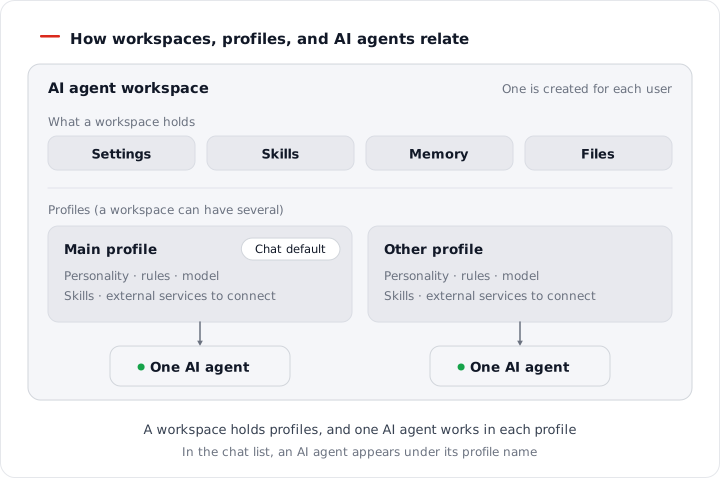
Figure 4.1-1. The relationship between AI agent workspaces, profiles, and AI agents
When You Want to Separate Your Work
To separate personality, skills, and secrets by task, create a new profile first (see "Creating a New Profile" in 4.2. Profile Overview and Model). You can use several profiles in the same workspace. Create a new workspace in cases like these.
- When you want to separate even storage and the runtime environment completely
- When you have reached the number of profiles you can have and have no profile to delete
There are limits on the number of workspaces and the number of profiles. The limits differ for each installation. The workspace limit is in "Limit on the Number of Workspaces" in this chapter, and the profile limit is in 4.2. Profile Overview and Model.
Finding the Chapter to Read for What You Want to Do
| What you want to do | Chapter to read |
|---|---|
| Change the AI agent's tone or role | 4.3. Personality (SOUL) and Instructions (AGENTS) |
| Enter keys used for external services | 4.4. Secrets and Credential Files |
| Connect external tools such as a calendar or issue system | 4.5. Connecting External Tools (MCP) |
| Move the AI agent settings you used on your PC | 4.6. Importing and Exporting a Profile from a PC |
| Change the model or create profiles for each task | 4.2. Profile Overview and Model |
| Turn skills on and off, or create new ones | Part 5 (starting with 5.1. Skill List) |
| Have work done at a set time | 6.1. Scheduled Jobs |
| Talk to the AI agent in a messenger | 6.2. Messenger Connections |
| The AI agent does not answer | "Checking Status" in this chapter |
Opening the Workspace Screen
In the left menu, click "My AI Agents › AI Agent Workspaces". Below the title, "My AI Agent Workspaces: n · Limit: n" appears.
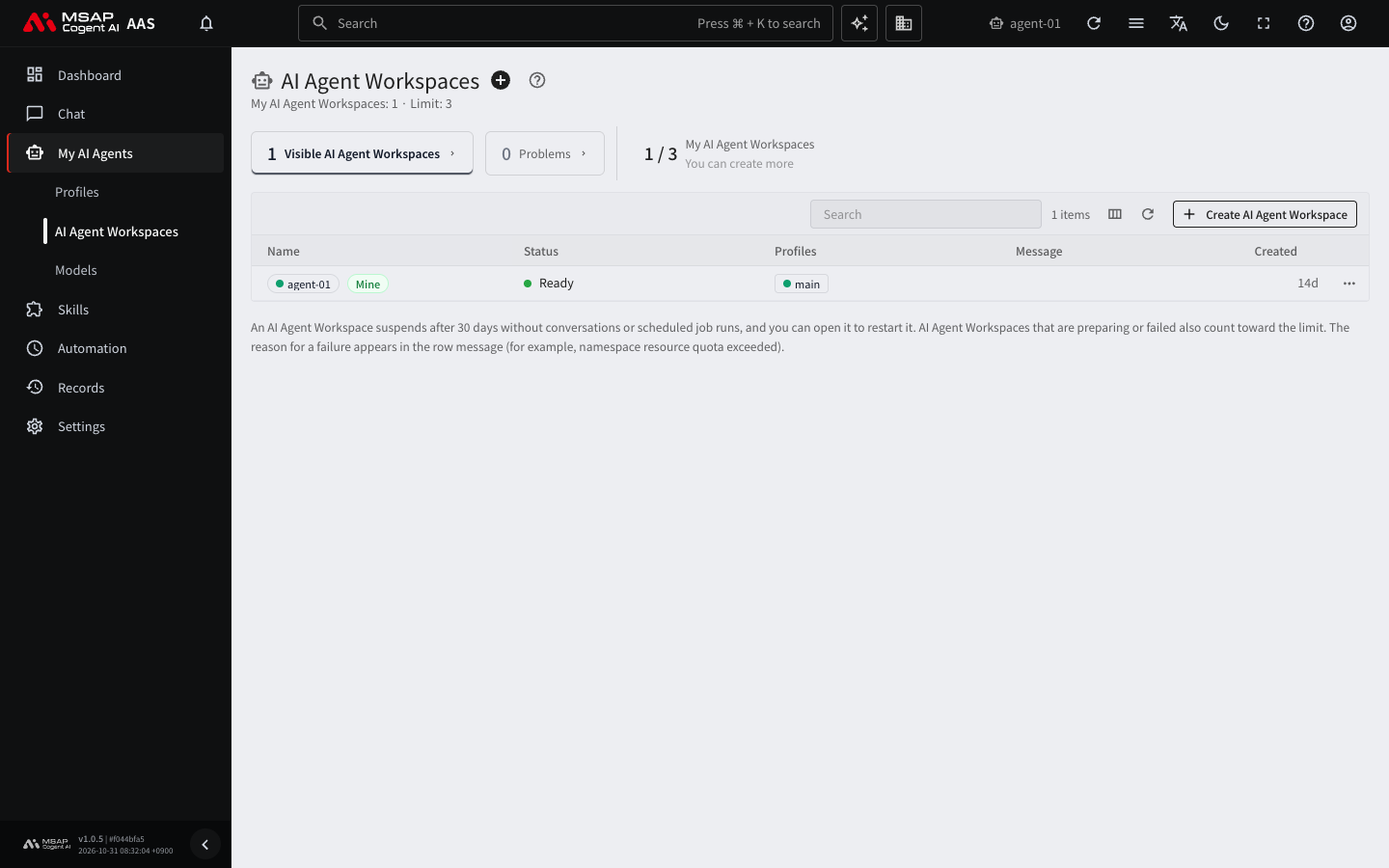
Figure 4.1-2. The AI agent workspace list
The columns in the list are as follows.
| Column | Contents |
|---|---|
| Name | The workspace name. A workspace you own has a "Mine" mark. |
| Status | Shows whether it can be used right now. |
| Message | Notes such as the reason for a failure. |
| Profiles | The profiles in the workspace. The one with a star is the default chat profile. |
| Created | When the workspace was created. |
Use the tabs "Visible AI Agent Workspaces" and "Problems" at the top to filter the list. Click a row and a detail drawer opens on the right. A drawer is a detail window that opens from the right side of the screen (1.2. Using Common Screen Features).
Checking Status
When an AI agent does not answer, first check the status on this screen.
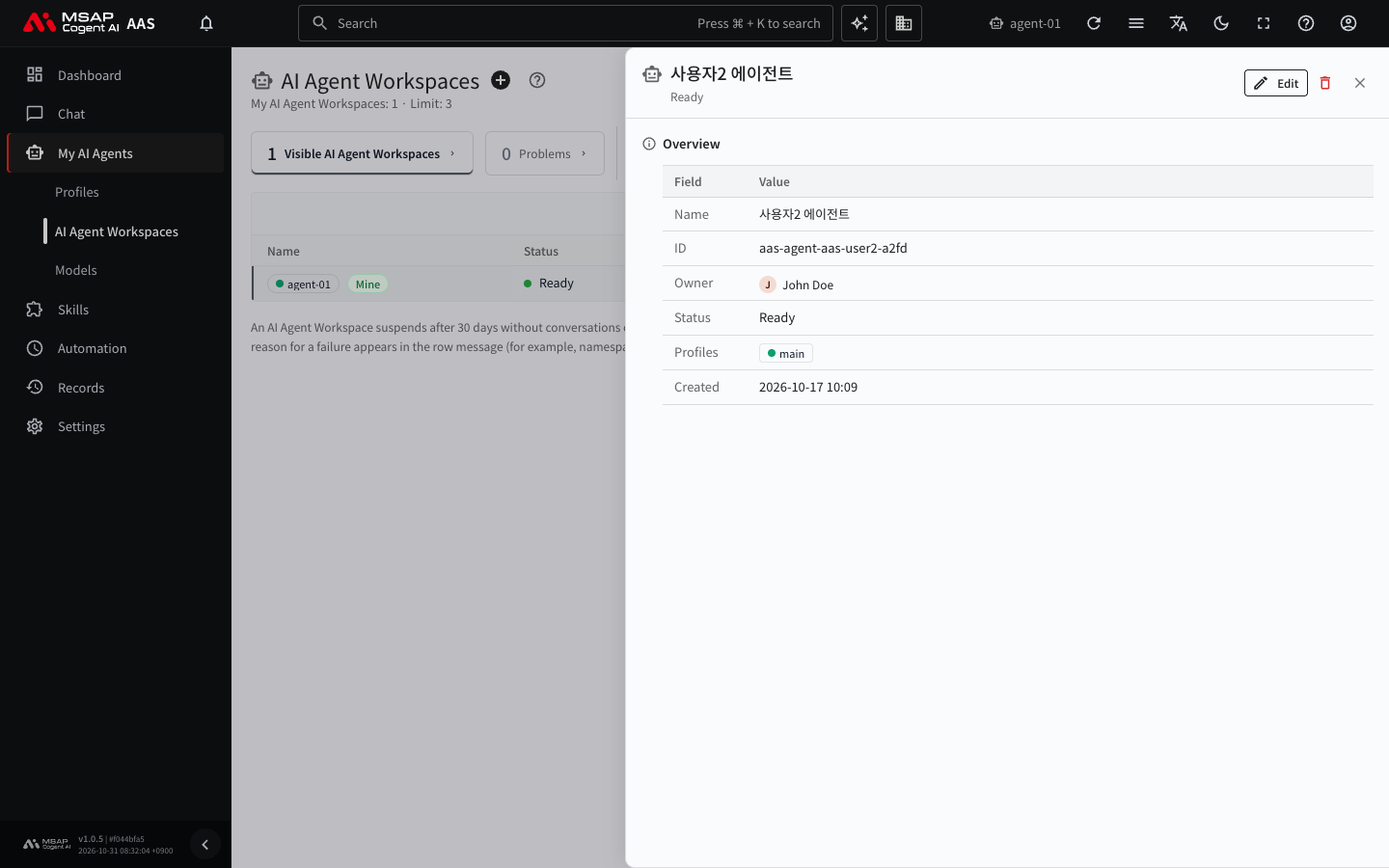
Figure 4.1-3. The AI agent workspace detail drawer
| Status | Meaning | What to do |
|---|---|---|
| Ready | Normal. | Nothing. |
| Preparing | The workspace is being prepared. Shown while the needed programs and storage are being prepared. | Wait a moment. |
| Creating | A new workspace is being created. | Wait a moment. |
| Failed | It could not be created or started. The reason is in the "Message" column. | Check the message and tell an administrator. |
| Suspended | The workspace has stopped. The reason is shown with it. | See "Restarting a Stopped Workspace" below. |
| Disconnected | AAS cannot reach the workspace. | Check again after a while, and tell an administrator if it continues. |
If "Preparing" or "Creating" does not change for a long time, tell an administrator. When you tell them, send the workspace name and the contents of the "Message" column. If the status is "Ready" but there is still no answer, see 2.7. When Replies Are Blocked or Slow.
Restarting a Stopped Workspace
A workspace stops if there are no chats or scheduled job runs for 30 days. The reason it stopped is shown as one of the following.
- Suspended after a long idle period
- Suspended after removal from the OIDC group (the group of your company sign-in account; ask an administrator to put you back in the group)
- Suspended by an admin (ask the administrator why it was stopped)
Your data stays as it is even when stopped. Restart it in the following order.
- In the list, click the row of the stopped workspace to open the detail drawer.
- Click "Restart".
- Confirm in the confirmation window.
If it works, the status goes through "Preparing" and becomes "Ready". If it does not change for a long time, tell an administrator.
Creating a New Workspace
Before you create a new workspace, first read "When You Want to Separate Your Work" above. For separating work, a profile is enough in most cases.
- On the "AI Agent Workspaces" screen, click the + button next to the title ("Create AI Agent Workspace").
- Write a name in "Name (optional)". Example: Marketing helper
- Click "Create".
If it works, the new workspace appears in the list as "Preparing", and when it is ready it becomes "Ready". You can create one without writing a name. Tune the profiles in the new workspace on the "Profiles" screen, which is explained in 4.2. Profile Overview and Model.
If you do not see the + button, you cannot create workspaces in this environment. Ask an administrator.
Limit on the Number of Workspaces
There is a limit to the number of workspaces you can create. An administrator sets the limit for each person.
- The create screen shows "You can create up to n AI Agent Workspaces and have n now."
- When you reach the limit, the + button is turned off and "You reached the limit of n" appears.
- Workspaces that are preparing or have failed also count toward the limit.
When you reach the limit, ask an administrator like this. An example request:
"Please raise my AI agent workspace limit to n. Reason: I need one more workspace for marketing work."
You can also free up the limit by asking an administrator to delete a workspace you do not use. Only administrators can delete a workspace, and users have no way to undo it. Before it is deleted, download the settings you need to your PC with the export in 4.6. Importing and Exporting a Profile from a PC.
Choosing the Default Chat Profile
The profile that opens first when you open the Chat screen is called the "Default chat profile". At first it is the main profile. When you have split profiles by task, you use this setting to decide which profile appears first when you open Chat. You can change it when the workspace has two or more profiles and the workspace is ready.
- Click the workspace row to open the detail drawer.
- Click "Edit" in the drawer header.
- Choose a profile in "Default chat profile".
- Click "Save".
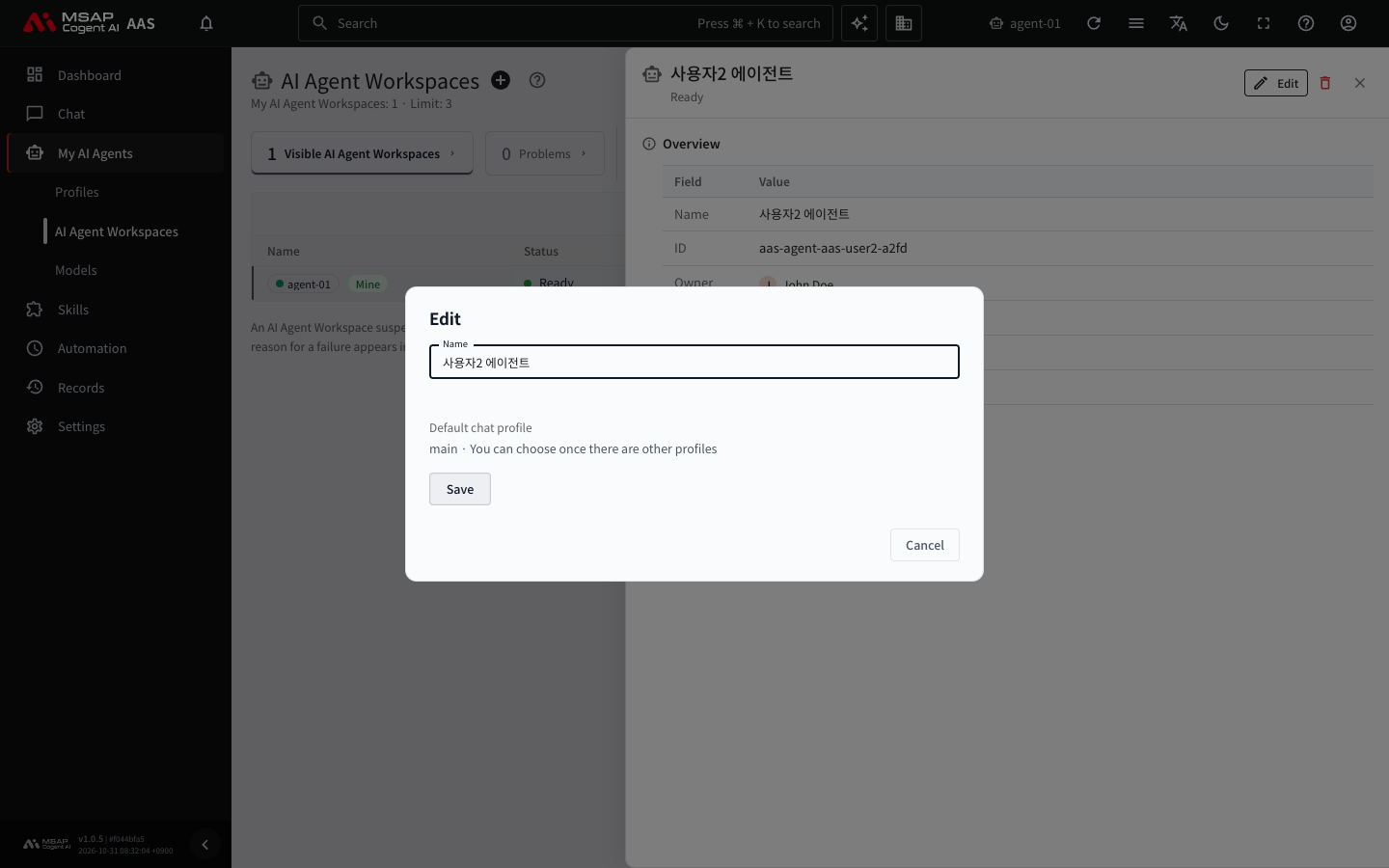
Figure 4.1-4. The workspace "Edit" window
If there is only one profile, "<name> · You can choose once there are other profiles" appears. You can also change the same setting by clicking "Make chat default" in the menu of a profile row on the "Profiles" screen. When you change it, "Chat now opens <profile> in <workspace> first" appears.
Renaming a Workspace
In "Edit" in the detail drawer header, change the "Name". A name can be up to 80 characters. You cannot save with the name empty.