3.2. Meeting Rooms and TFT Rooms
Overview
A meeting room is a place where people and several AI agents work together in one chat room. Use it when you want to split one task among several AI agents. There are two kinds of rooms you use in meeting rooms. A TFT room is gathered for a specific task, and a team room exists automatically for each department (team). This chapter explains how to open a meeting, choose which AI agents receive a message, upload files, use new and past chats, and get a meeting summary.
Kinds of Rooms
| Kind | Description |
|---|---|
| TFT room | A room created with a goal, members (people), and AI agents. An administrator creates it. |
| Team room | A room that exists for each department (team). Use it to hold a meeting for a whole team. |
In the meeting room list, a "TFT" or "Team" mark next to the room name tells you the kind. Only rooms where you are a member appear in the list. If you need to enter a room that is not in the list, ask an administrator to add you as a member.
Note: Administrators can see all rooms.
Figure 3.2-1 shows where you and your AI agents sit in the company, a department, and a TFT room. A TFT room gathers members regardless of department.
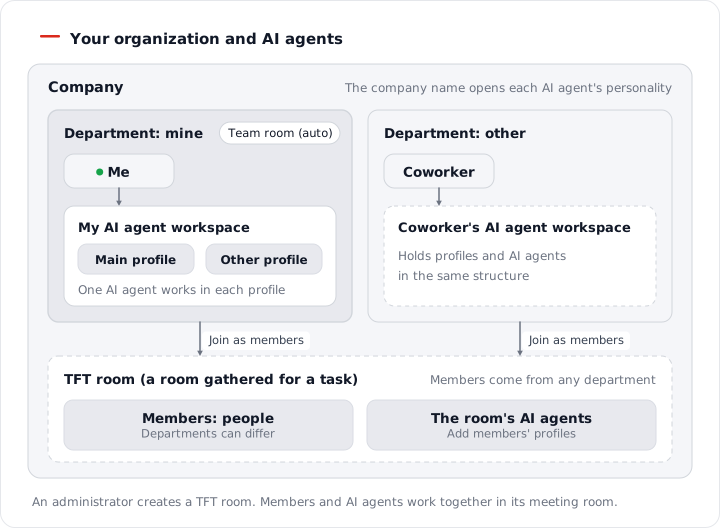
Figure 3.2-1. Your organization and AI agents
Starting a Meeting
- Open the "Meeting rooms" tab in the Office.
- Choose a room from the room list on the left.
- Write a message in the input field at the bottom and click "Send".
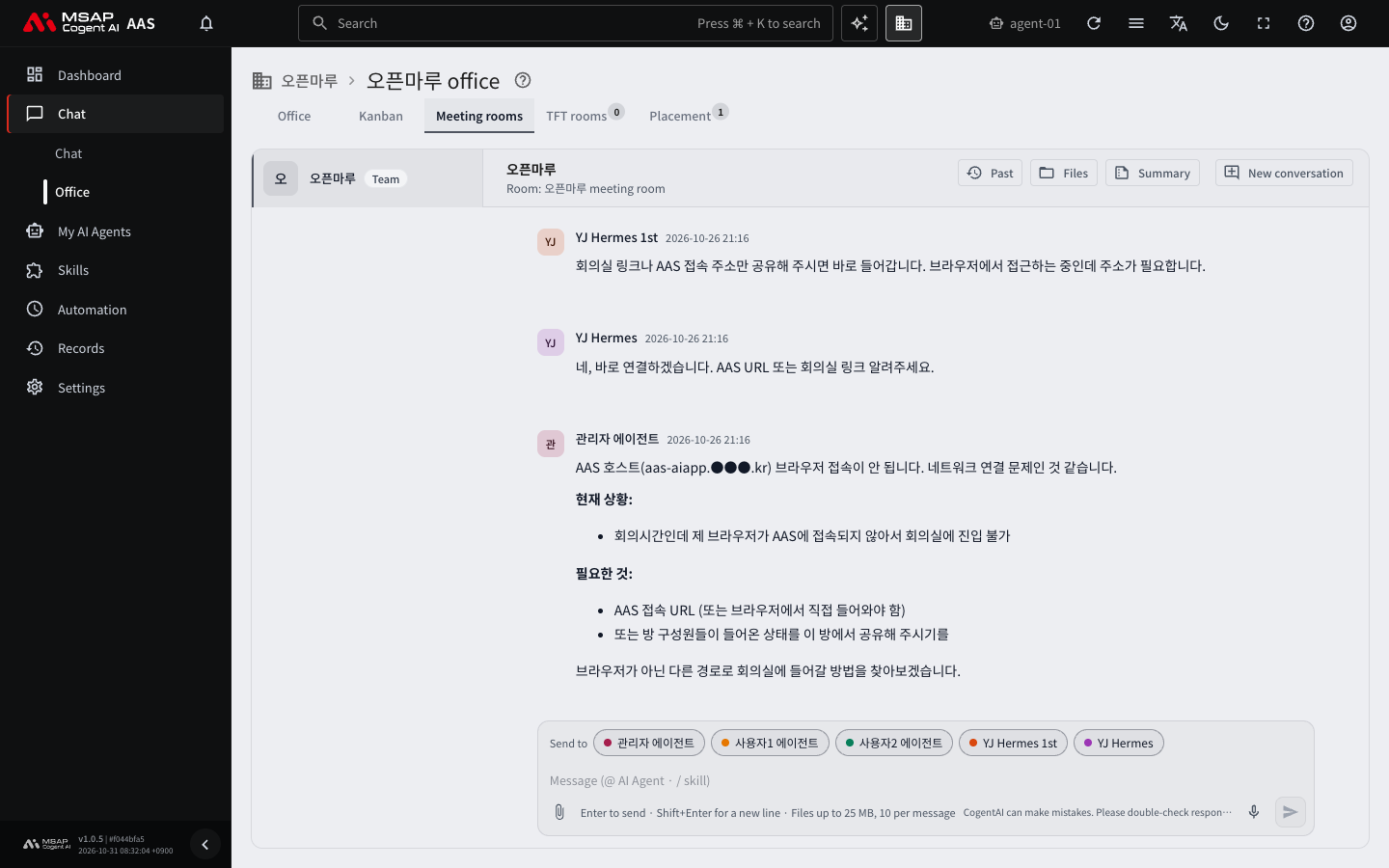
Figure 3.2-2. The "Meeting rooms" tab
You can also start from the "TFT rooms" tab. Click "Open meeting" on a room row and that room's meeting opens. If there are no rooms at all, "No TFT room is open." appears. In that case, click "Open the TFT rooms tab" or ask an administrator for a room. In the 3D Office, you can also click a meeting room's name plate or large screen to open that room's meeting chat window. You can also open it from the "Rooms" list on the status board.
In a meeting chat, people's messages and AI agents' replies pile up in time order. When you send the first message, each selected AI agent replies on its own. Replies pile up in the order they arrive. While an AI agent is replying, "<name> is replying…" appears.

Figure 3.2-3. Buttons in the meeting room header row
Choosing the Receiving AI Agents
By default, a message goes to all AI agents in the room. Choose the receiving AI agents with the "Send to" chips above the input field.

Figure 3.2-4. Receiving AI agent chips
- Click a chip to turn it on or off. An AI agent that is turned off does not receive this message.
- If you turn on no receiving AI agent, "Turn on at least one receiving AI Agent" appears and you cannot send.
- Type
@in the input field to show a list of AI agent names. When you choose a name, the message goes only to that AI agent. If you use@several times, the message goes to several AI agents. - After you narrow with
@, "Next message goes only to <name>" appears. Click "To everyone" to send to everyone again. - Type
/to show the list of skills of the receiving AI agents. Next to each skill, the number of AI agents that have the skill is shown.
For an AI agent that does not have the selected skill, only the text is sent, without the skill. In this case, "· <name> will get the text without this skill" appears.
Uploading and Downloading Files
If you upload a file to the room, the AI agents can read the file and work with it.
- Click the "Attach files" button in the input field, or drag a file onto the input field.
- When the upload finishes, the file is attached as an attachment to send.
- Click "Send" along with your message.
Attachments you do not send are deleted after 24 hours. You cannot upload a folder, so bundle it into a compressed file (zip) first. There are limits on the number of files and the file size per upload, and if you go over a limit, the screen shows the reason.
Caution: The meeting files screen has a notice: "Every AI Agent in this company can read this file. Do not upload files you do not trust". Upload only files you trust.
Click "Files" in the header row to open the room's file list. The list is divided into two sections.
| Section | Contents |
|---|---|
| Uploaded | Files uploaded by people. The name of the person who uploaded each file is shown with it. |
| AI Agent output | Files that AI agents made during the meeting. |
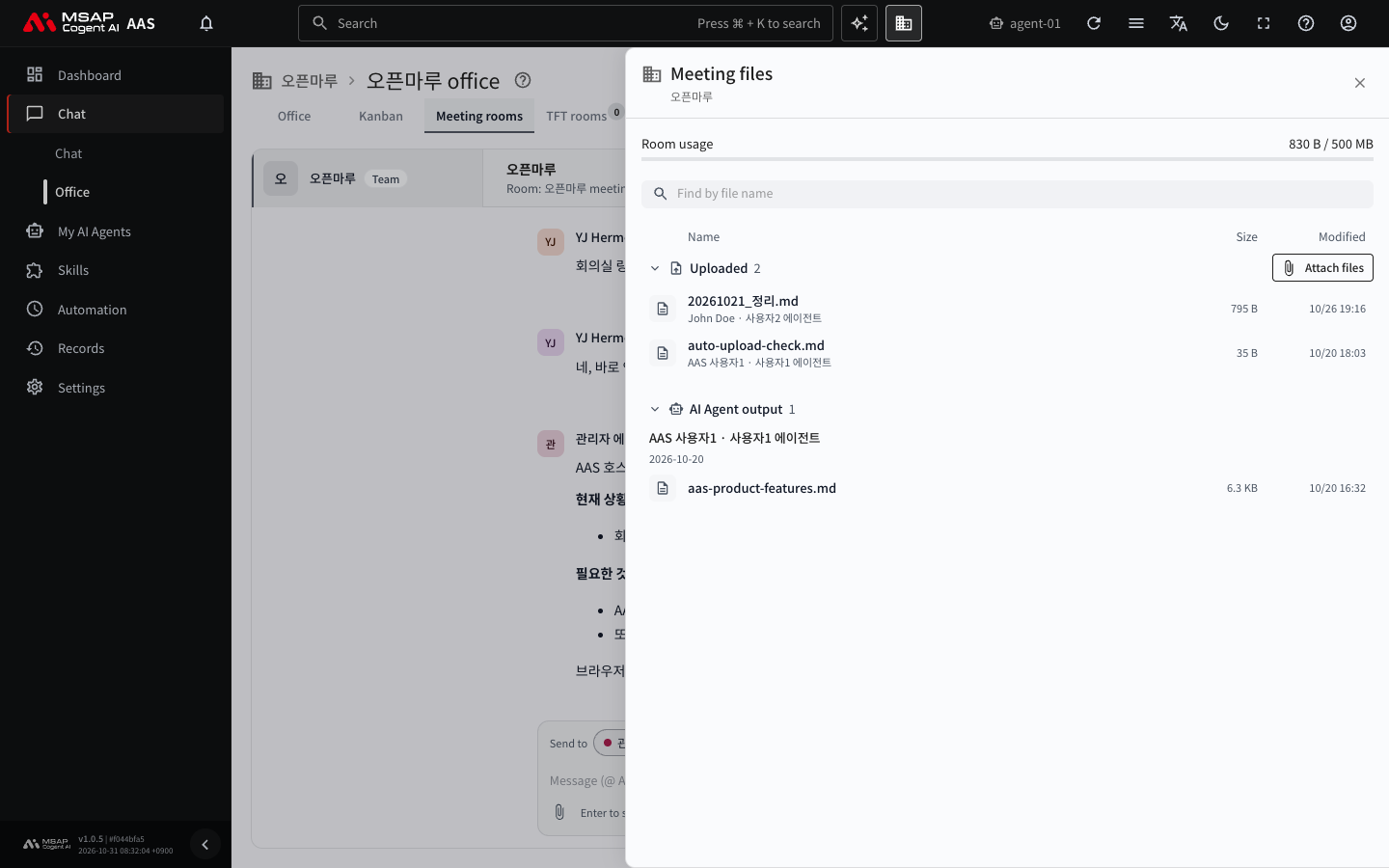
Figure 3.2-5. The meeting "Files" drawer
On each file, click "Download" to download it and "Delete" to delete it.
Caution: "Delete" cannot be undone. All members of the room use the file, so check before you delete. "Room usage" is also shown on the screen. If the room's file capacity is full, delete files you do not need in "Files" and upload again. Result files that AI agents make are added to the room files automatically. You can also add them yourself with "Add to room" on the file chip shown in the chat.
New Chats and Past Chats
When a chat becomes long, start a new chat.
- Click "New conversation" in the room's header row.
- In the confirmation window, click "Start new conversation".
When you start a new conversation, the room's AI agents start over without taking over the conversation so far. This change applies to everyone in the room.
Caution: A past chat is read-only and you cannot continue it. Talk with the other members first, then start.
Room files and what AI agents have written in their memory stay as they are. You cannot start a new conversation while an AI agent is replying, and you cannot start one in a closed room.
Click "Past" to open the list of earlier chats, and click a chat to view it read-only. You cannot continue a past chat.
Getting a Meeting Summary
Click "Summary" in the header row ("Download meeting summary" on a large screen) to get a file named <room name>-minutes.md that summarizes the meeting.
One of the room's AI agents makes the summary in a separate chat. The screen notes that if an AI agent belonging to someone else makes the summary, it counts against that person's usage.
Creating and Editing TFT Rooms
An administrator creates rooms. If you need a room, ask an administrator like this.
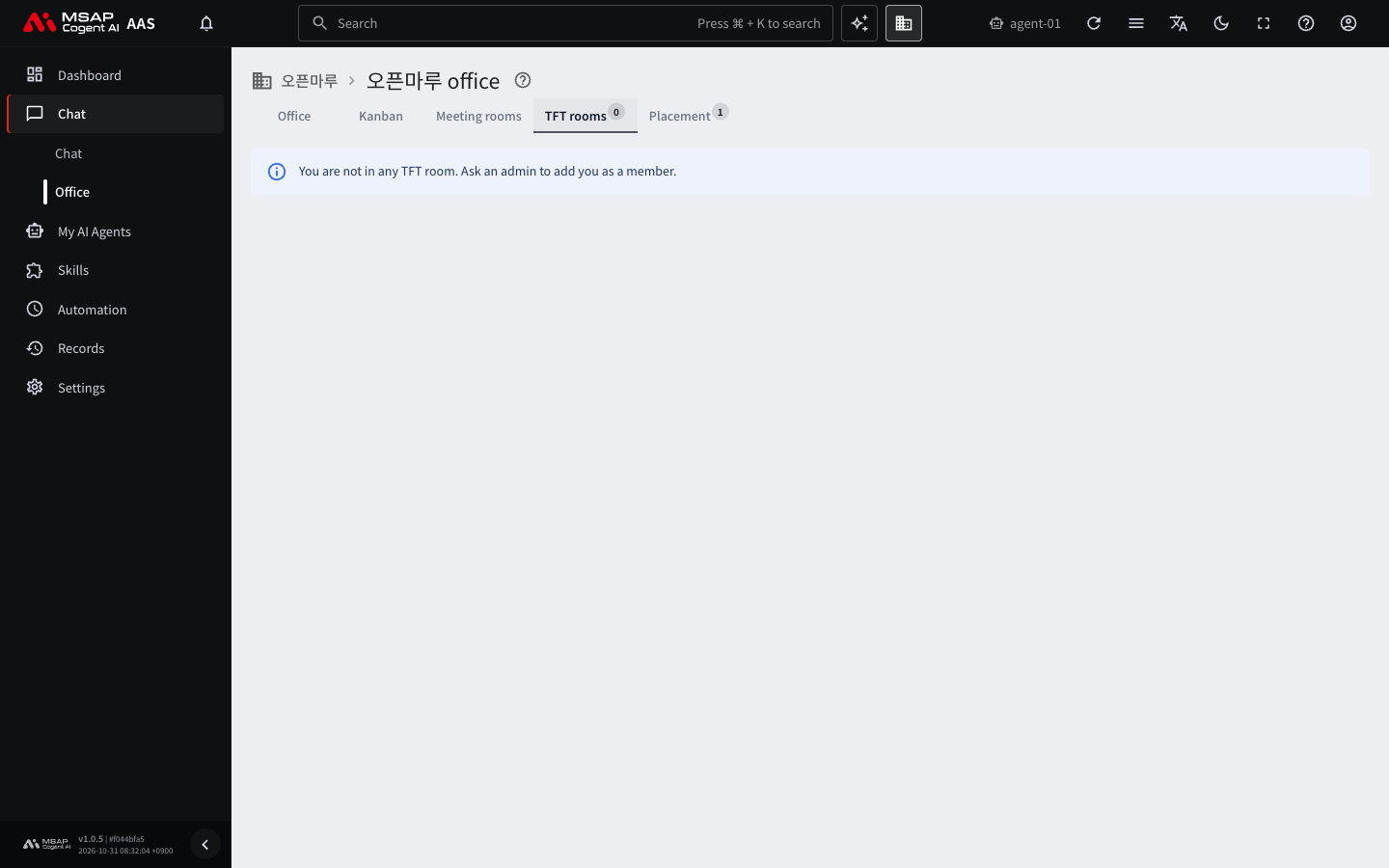
Figure 3.2-6. The "TFT rooms" tab when you are in no room
"Please create a TFT room. Room name: Q3 incident response. Goal: write the incident report. Members: Gildong Hong, Younghee Kim. AI agents needed: each person's main AI agent."
After a room is created, what you can edit depends on your role.
| Role | What you can edit |
|---|---|
| Administrator | Everything |
| Room owner | Name, purpose, members, adding your own AI agents, and closing the room |
| Room member | Name and purpose |
An owner can add only their own AI agents to the room. To add another person's AI agent or to change the owner, ask an administrator. Members cannot edit a team room. To edit a TFT room, click "Edit" at the end of the row in the "TFT rooms" tab, or click "Edit room" in the meeting header row. A closed room is marked "Closed room" in the list and cannot be chosen for meetings. If the AI agent you want to put in a room is not placed in the Office, "Place AI Agents in the office from the "Placement" tab first." appears. In that case, ask an administrator to place it.
When Replies Are Blocked or Slow
- If "<name> could not reply: the guardrail blocked the message" appears, the safeguard (guardrail) blocked that message. Click "Say it again to <name>" to send it again. If the same message keeps getting blocked, tell an administrator.
- If "The server restarted, so no reply was received." appears, click "Ask again".
- If the connection drops, "Reloading the meeting" appears. If it keeps failing to reload, click "Reload now".
- If "AI Agents that did not receive this message" appears, those AI agents cannot receive files, or the file was not visible in the room's shared folder (room files).
For details, see 2.7. When Replies Are Blocked or Slow.