2.6. Answering Approvals and Questions
Overview
Before an AI agent does something that could be risky, it may ask for your permission. It may also ask a question so it can continue its work. An approval card or a question card then appears in the chat, and the same item also appears in the inbox on the top bar. This chapter explains how to answer approval requests, how to answer an AI agent's questions, and how to check notices in the inbox. The AI agent stops what it is doing and waits until you answer.
Permissions: General users. Approvals and questions from chats you started arrive in your inbox.
Figure 2.6-1 shows the flow from the moment an AI agent asks, to how the work continues depending on your answer.
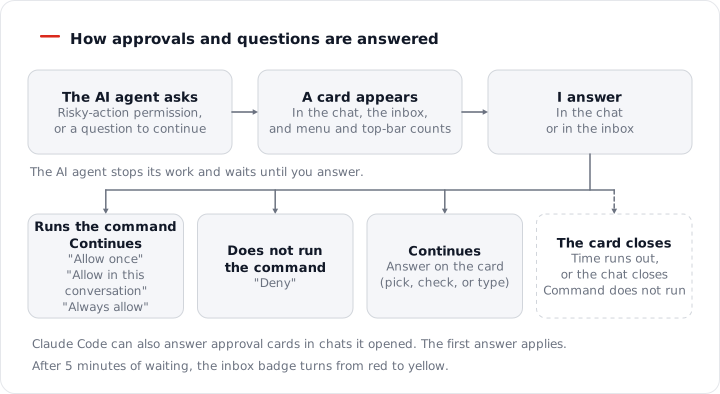
Figure 2.6-1. The flow of answering approvals and questions
Signs That an Answer Is Needed
When something needs your answer, a sign appears in the following places.
| Place | Sign |
|---|---|
| In the chat | An approval card or question card is attached above the message box. "↓ Waiting for your answer above the message box" may appear at the bottom of the chat area. |
| AI agent list in Chat | The row shows a "Reply needed" mark and the text "Waiting for your answer". |
| Left menu | A number next to "Chat" shows how many chats are waiting for an answer. |
| Top bar | A number appears on the inbox (bell) button. |
If an approval or question waits for more than 5 minutes, the number badge on the inbox changes from red to yellow. Yellow means it has been waiting for a long time. If you do not answer within the set time, the approval closes automatically and the command does not run.
Answering an Approval Request
Before an AI agent does something that could be risky, such as deleting a file or running a program, an "Approval needed" card appears first.
- Read the description on the card and the command text below it. The command text shows exactly the command (an instruction given to the computer) that the AI agent wants to run.
- Click one of the buttons below.
| Button | Meaning |
|---|---|
| Allow once | Lets the command run this one time only. |
| Allow in this conversation | Lets the same kind of action run without asking again, only within this chat. |
| Always allow | Lets the same kind of action run without asking again from now on. This is saved in this profile's settings. |
| Deny | Does not let the command run. |
Caution: If you are not sure what the action is, click "Deny" instead of "Allow once". After you deny, you can ask the AI agent why it wanted to do it. "Always allow" means you will not be asked again, so choose it carefully.
Be especially careful if the command text shows any of the following.
- A command that deletes files or folders (for example:
rm -r report-folder) - A command that sends files or content outside
- A command that installs a program, or downloads and runs one
Undoing "Always allow"
There is no button on the screen that undoes "Always allow" in one step. The permissions you gave build up as command_allowlist entries in that profile's settings file (config.yaml). You can undo them by deleting these entries.
- In the left menu, click "My AI Agents › Profiles", then click the row of the profile where you gave the permission.
- Open the "Settings (config)" tab in the drawer.
- Under
command_allowlist, delete the lines you want to remove. To undo everything, delete the wholecommand_allowlistentry. - Save.
If this works, the approval card appears again the next time the AI agent does the same kind of action. When you save in the Settings (config) tab, Hermes rewrites the file, so comments and line layout are lost. For details, see 4.2. Profile Overview and Model. If the Settings (config) tab does not appear or the save fails, ask an administrator. Example request: "Please delete the entire always-allow list under command_allowlist in the {profile name} profile."
The buttons on a card can differ depending on the approval request. When you answer, the card closes and "Answered the approval request with "{choice}"" is left in the chat. If the answer cannot be sent, "Could not send the answer… Try again." appears. Click the same button again. In a chat opened by Claude Code on your PC (an Anthropic program that helps with coding on your PC), the card shows a "Claude Code can answer" mark. Whichever of the two answers first is applied. For the connection, see 7.5. Connecting Claude Code.
Answering an AI Agent's Question
When the AI agent asks something so it can continue, a "The AI Agent asks" card appears.
- Read the question on the card.
- Choose or type an answer.
- If needed, click "Answer".
| Card type | How to answer |
|---|---|
| A card with choice buttons | Click one button and the answer is sent right away. |
| A "The AI Agent asks (you can pick several)" card | Check the items that apply and click "Answer". |
| A card with a "Type your own" field | Type your answer in the field and click "Answer". Use this field also when none of the choices is the answer you want. |
After you answer, the AI agent continues its work. "Question: {question} → Answer: {answer}" is left in the chat.
Cards That Closed Without an Answer
If you do not answer for a long time, or the chat ends, the card closes by itself. A one-line reason remains where the card was.
| Line left behind | Meaning |
|---|---|
| The approval request timed out. The command did not run | You did not answer within the set time. The command did not run. |
| The approval request was stopped. The command did not run | The work was stopped, for example with "Stop reply". |
| The approval request ended because the chat closed. The command did not run | The chat was closed. |
| The approval request was answered elsewhere | It was already answered in the inbox or in another window. |
| Question: {question} → Timed out without an answer | The question went unanswered and time ran out. |
After a card closes, ask the AI agent to do the work again in the chat.
Inbox
You can open the inbox from any screen.
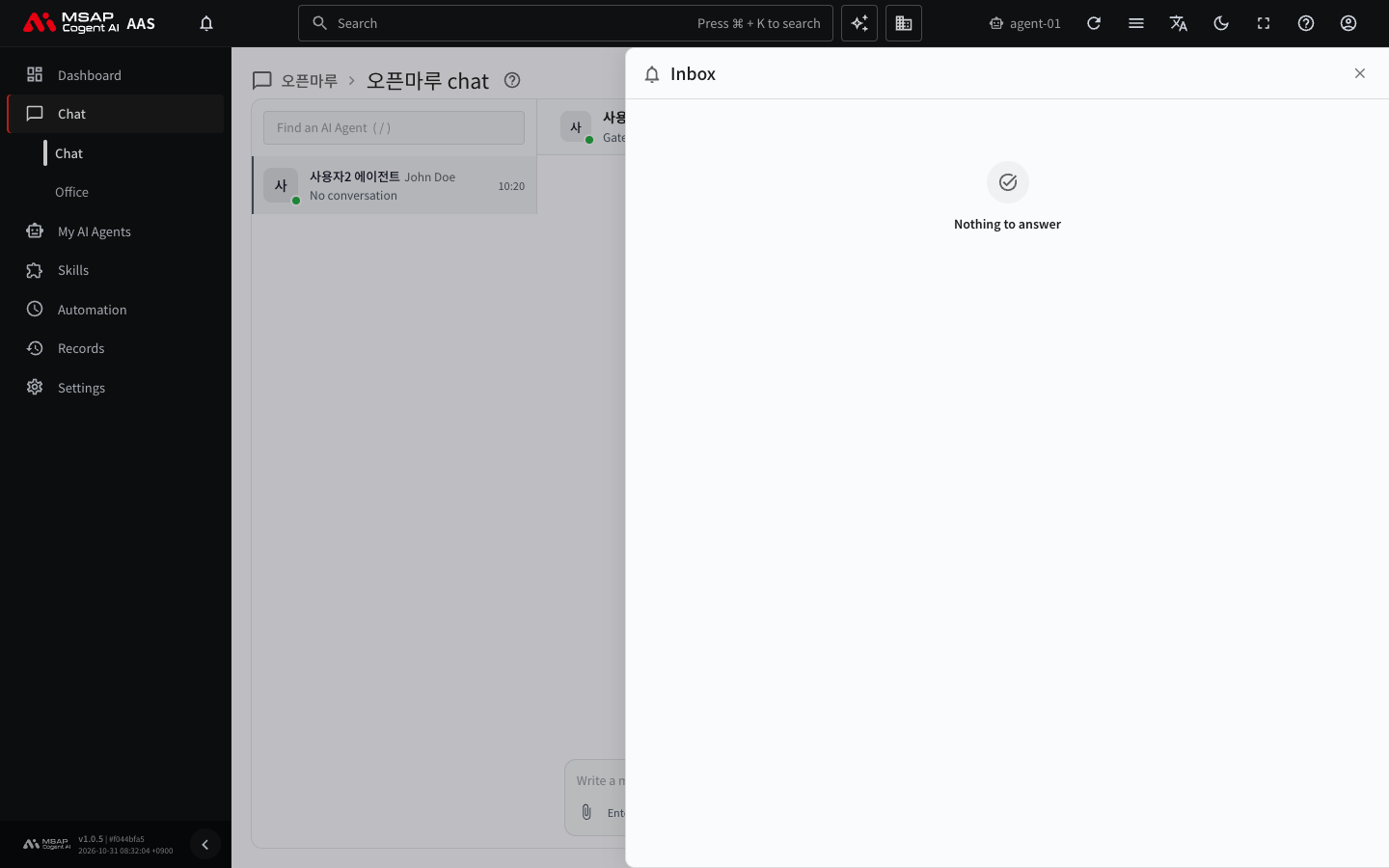
Figure 2.6-2. Inbox drawer
- Click the inbox (bell) button on the top bar.
- The "Inbox" drawer opens on the right.
When you hover over the button, the count is read out as "Inbox {number}". The drawer is divided into two groups. A group with no items is hidden, and if there are no items at all, "Nothing to answer" appears.
| Group | Contents |
|---|---|
| Needs you | Approval requests, AI agent questions, cards to review or unblock in Kanban (a board where you turn work into cards and hand them to AI agents; 3.3. Handing Off Work with Kanban), failed scheduled jobs, and sign-in requests for external tools (MCP (Model Context Protocol) servers; 4.5. Connecting External Tools (MCP)) |
| Notices | Scheduled job completions, results of importing from a PC, Claude Code connection notices, and results of requests you sent |
Each row shows the main text in bold, with "type · AI agent" in gray below it.
Answering in the Drawer
You can answer from the inbox in the same way as in the chat.
- When you click a button on an approval request row ("Allow once", "Allow in this conversation", "Always allow", "Deny"), a confirmation window appears. The window shows the AI agent's name and the command. When you confirm, the answer is sent.
- A question row has a field for your answer and a "Send" button.
- For "Card to review" and "Blocked card", click "Open in kanban" to go to the Kanban in the Office (3.1. Touring the 3D Office).
- For "Failed scheduled job", the link below the row takes you to that scheduled job's screen.
- For a row that asks you to sign in to an MCP server ("Sign in to the MCP server {server} of {alias}"), click "Open the MCP tab" to go to the profile's MCP tab. For how to sign in, see 4.5. Connecting External Tools (MCP).
Approvals and questions from chats you started are collected in your inbox. Approvals and questions raised by AI agents in meetings and Kanban cards you started also arrive in the same place.
Checking Notices
A notice is an item you only need to read. After reading it, click the check button at the right of the row ("Dismiss") and it disappears. If you have several notices, use "Dismiss all" in the drawer's title row.
- Click "Dismiss all" in the drawer's title row.
- Read the confirmation window: "Dismiss all {number} notices? Approvals, questions and requests that need an answer stay."
- Click "Dismiss all".
"Dismiss all" removes only notices. Items that need an answer, such as approvals, questions, and requests, stay. If some cannot be dismissed, "Could not dismiss {number} notices. Try again." appears. Click the button again. If there are no notices, the "Dismiss all" button does not appear.
Results of Requests Sent to an Administrator
If you sent a request to an administrator, the result comes back as a "Request result" notice. If the administrator handled it, you see "An admin handled your request". If the administrator declined it, you see "An admin declined your request". For how administrators handle requests, see Handling User Requests in the Administrator Manual.