5.1. Skill List
Overview
This chapter is the entrance to Part 5 (Skills). It first explains what a skill is and who can do what, and then it explains the "Skill list" screen. In the "Skill list", you can browse all the skills your AI agent has in one place. Open this screen when you want to check which skills exist, where they came from, and what they do.
Permissions: Everyone who can view this AI agent can view, search, and download skills. Only the owner of the AI agent workspace, team managers, and administrators can install (5.3), create (5.4), and request publishing (5.5). For details, see "Who Can Do What" below.
What Is a Skill
A skill is a set of instructions that describes how the AI agent does a certain job. For example, when the agent hears "Make a weekly report", the skill describes the steps to follow and the points to watch. In CogentAI AAS (AAS for short), most skill names are in English. The AI agent chooses skills on its own, so you do not need to memorize the names.
Terms
Similar-looking terms are distinguished as follows. The other chapters in Part 5 link to this chapter instead of explaining this table again.
| Term | Meaning | Where you see it on the screen |
|---|---|---|
| Skill | One set of instructions that the AI agent follows. It contains an instruction file (SKILL.md) and, if needed, program files (scripts). | One row of the table in the "Skill list" |
| Package | A bundle of skills posted in the Skill Hub. When you install it, it is placed in your profile as a skill. | The "Package" card in the "Skill Hub" |
| Skill Hub | The place where packages are collected and where you find and install them. You can also post your own skills there to share with others. | "Skills › Skill hub" in the left menu |
| My skills | Skills in your profile that are not Hermes built-in skills. Skills you created yourself, skills installed from the Skill Hub, and the six AAS default skills all appear here. | The "My skills" card in the "Skill list" |
| Built-in | Skills that Hermes has from the start. Hermes is the program that runs AI agents inside AAS. | The "Built-in" card in the "Skill list" |
| AAS default skills | Six skills that AAS puts into every profile. Their source is the Skill Hub, so they appear in "My skills". They are explained in 5.2. Built-in Skills in AAS. | The "My skills" card in the "Skill list" |
Figure 5.1-1 shows where skills come from and how they reach the AI agent.
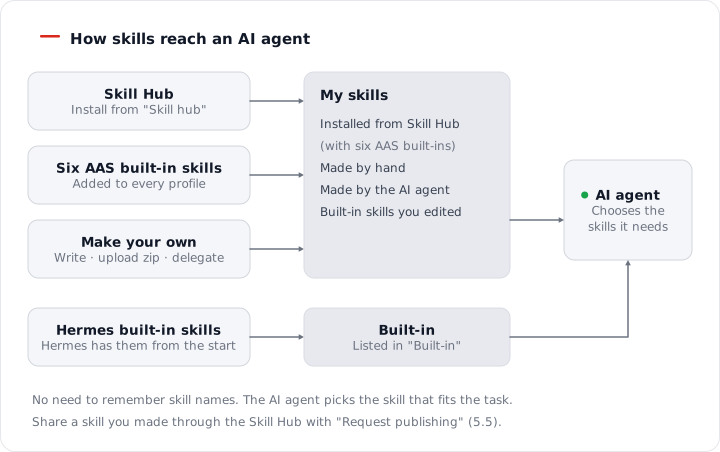
Figure 5.1-1. How skills reach the AI agent
Terms You See Often in This Part
| Term | Meaning |
|---|---|
| Profile | The bundle of settings of one AI agent in a workspace. For details, see 4.2. Profile Overview and Model. |
| Main profile | The profile that Chat uses by default. Each workspace has one at the start. |
| Shared | The place for skills that all of your profiles use together. |
| SKILL.md | The name of a skill's instruction file. Each skill has one. |
| Script | A program file that a skill can run. If a skill has a script, the AI agent can run that program. |
| Environment variable | The name of a value, such as a key or an address, that a skill uses. Enter the value in the profile's "Secrets (.env)" tab. See 4.4. Secrets and Credential Files. |
| MCP (Model Context Protocol) | The standard by which an AI agent connects to external tools. See 4.5. Connecting External Tools (MCP). |
| Namespace | The division by which the Skill Hub groups packages. The screen shows "Shared" and "Restricted". Packages in the "Restricted" namespace can be installed only after an administrator allows them. |
Finding the Chapter to Read for What You Want to Do
| What you want to do | Chapter to read |
|---|---|
| See which skills my AI agent has | This chapter |
| Ask for basic work such as reading documents, creating documents, or organizing business cards | 5.2. Built-in Skills in AAS |
| Find and use a skill that is already made | 5.3. Installing from the Skill Hub |
| Turn the steps of a task I do often into a skill | 5.4. Creating Your Own Skill |
| Let others use a skill I made | 5.5. Publishing Your Skill to the Hub |
| Check what a skill calls, or edit a skill's document | 5.6. Skill Map |
| Let the AI agent read the company wiki (Docmost, Outline) | 5.7. Company Wiki Skills |
Who Can Do What
| Task | Who can do it |
|---|---|
| View the skill list, search, download (zip) | Everyone who can view this AI agent |
| Install from the hub, upload a new version, delete a skill | Owner, team manager, administrator |
| Create a skill (write it yourself, upload a zip), edit a skill's document | Owner, team manager, administrator |
| Request publishing to the hub | Owner, team manager, administrator |
| Approve or reject a publishing request, allow the "Restricted" namespace | Administrator |
The owner is the person who has the AI agent workspace. The workspace that was created when you first signed in is yours, so you are usually the owner. A team manager can do the same things in a team member's workspace.
How to check whether you are the owner
- Click the account button in the top bar and open "My account". If "Role" is "AI Agent Workspace owner", you are the owner. If it is "Admin", you are an administrator. If it is "User", you are not the owner.
- Open "My AI Agents › AI Agent Workspaces" in the left menu. The workspace with the "Mine" badge next to its name is a workspace you own.
If you are not the owner, the install, create, and publish buttons are disabled, or the screen shows "Only admins or the owner of this AI Agent Workspace can change this". In that case, ask an administrator. Here is an example request.
Hello. I want to install the
weekly-reportpackage from the "Skill Hub" into my AI agent (profile name: main). I cannot install it because I do not have owner permission. Please install it for me or check my permissions.
When you ask for creating or publishing, replace "I want to install" with "I want to create the weekly-report skill" or "I want to publish the weekly-report skill I made to the Skill Hub".
Opening the Screen
Click "Skills › Skill list" in the left menu. Next to the title, the "New skill" button (a plus sign) and the "Hand off to AI Agent" button create a new skill. For details, see 5.4. Creating Your Own Skill.
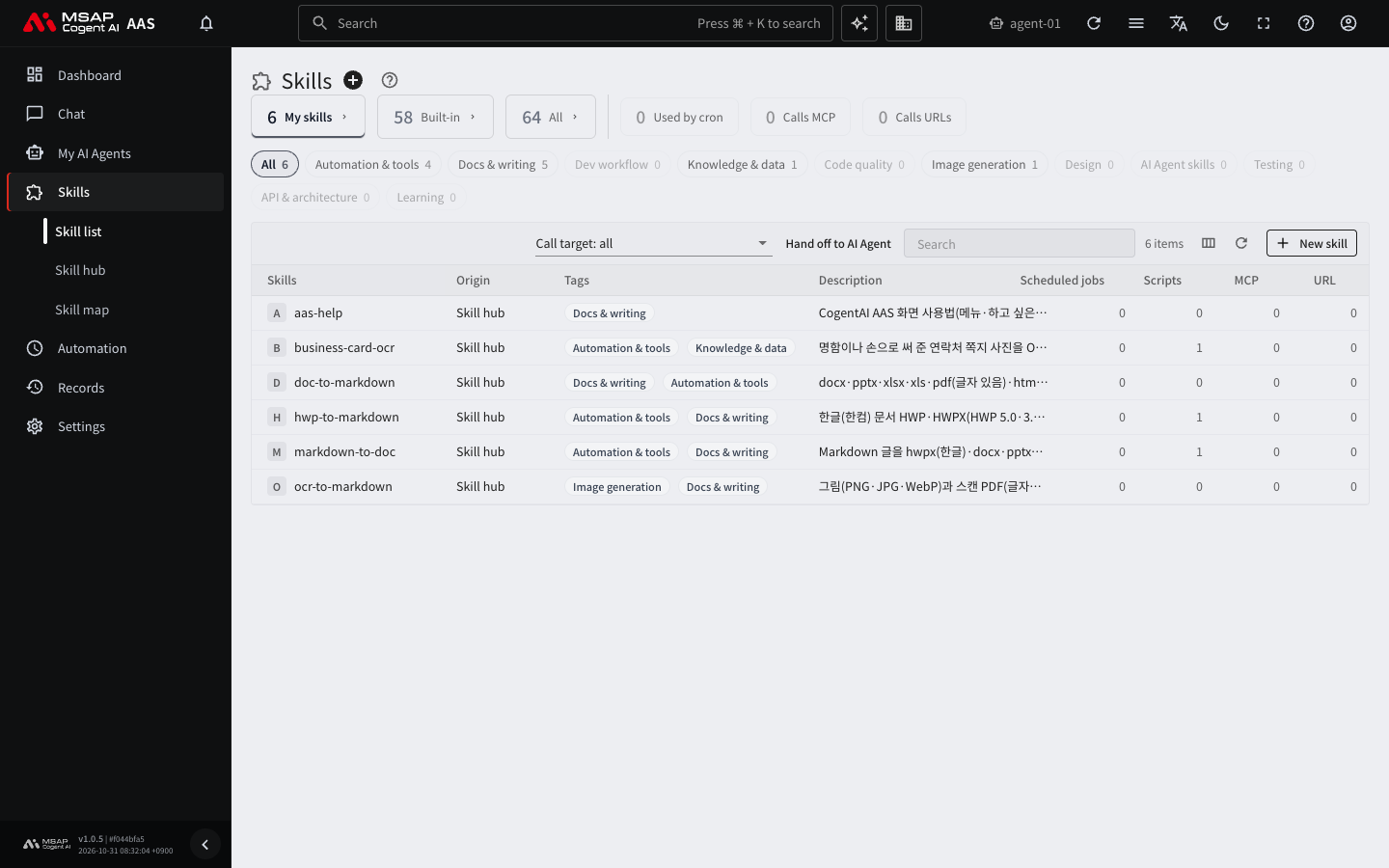
Figure 5.1-2. The "My skills" tab
Three Views
Three cards at the top of the screen divide the views. Click a card to change the view. The number on a card is the number of skills in that view. "My skills" opens first.
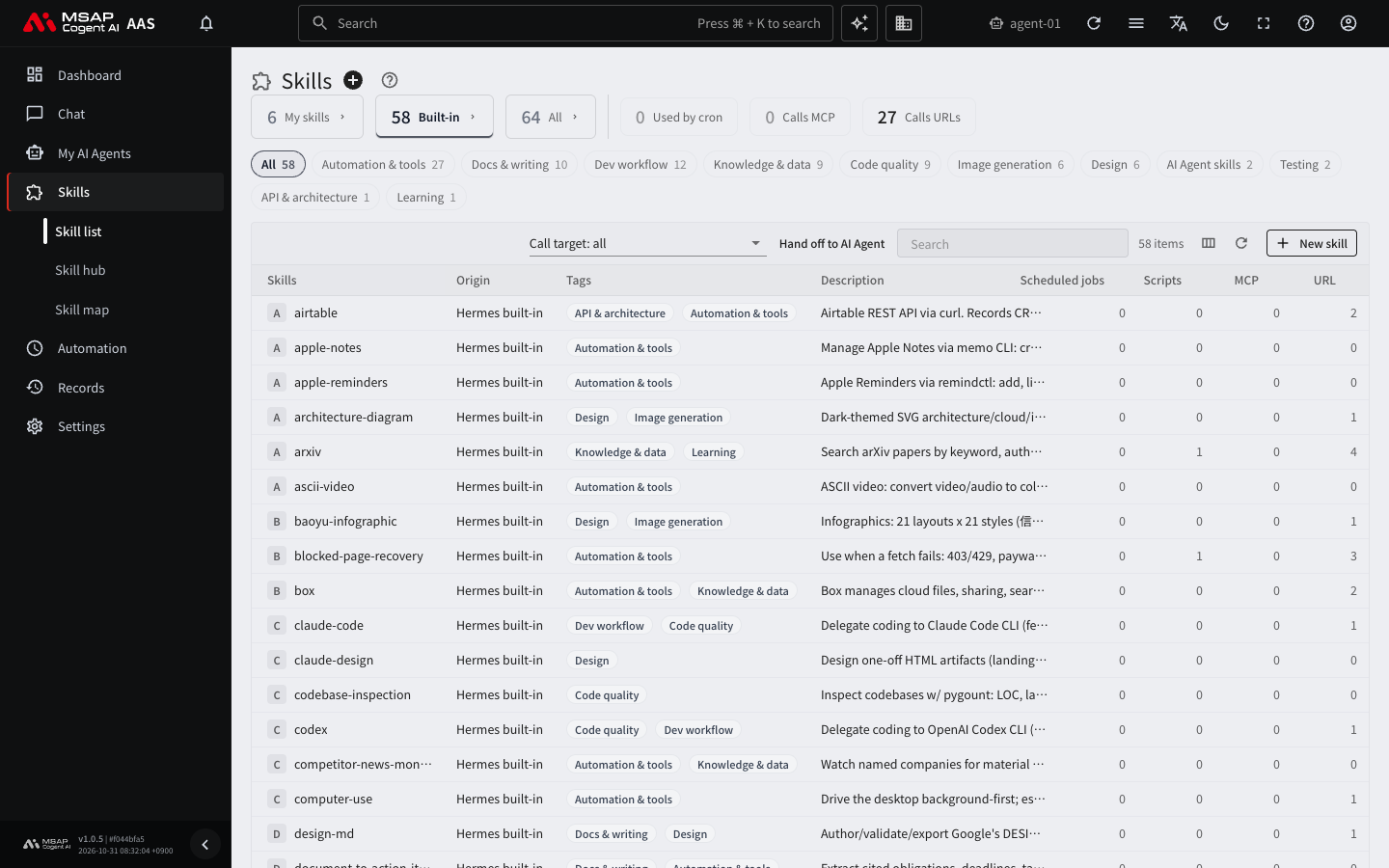
Figure 5.1-3. The "Built-in" tab
| View | Skills shown |
|---|---|
| My skills | Skills you created yourself, skills the AI agent created, skills installed from the Skill Hub (including the six AAS default skills), skills received from the Hermes hub, and built-in skills that you edited |
| Built-in | Skills that Hermes has from the start |
| All | A list that combines the two views above |
Note: The six AAS default skills have the source "Skill hub", so they appear in "My skills" and not in "Built-in". These skills are explained in 5.2. Built-in Skills in AAS.
If the "My skills" view has no skills, a guide screen appears. From it you can go to "New skill", "Upload zip", "View n built-in", and "Skill Hub".
The Source Column
The "Source" column in the table tells you where a skill came from.
| Source | Meaning |
|---|---|
| Hermes built-in | A skill that Hermes has from the start |
| Built-in (changed) | The content differs from the Hermes built-in skill. It is a copy that was edited, or one that came in through a PC import. |
| Skill hub | A skill installed from the Skill Hub. The six AAS default skills also belong here. |
| Hermes hub | A skill received from the Hermes hub |
| Made by the AI Agent | A skill the AI agent created during a chat |
| Made by hand | A skill you created yourself on this screen |
| AAS built-in | A skill that the AAS server put in directly, in the old way. You cannot edit it, and it appears in the "Built-in" view. The six AAS default skills in use today have the source "Skill hub", not this one. |
A skill that has a new version in the Skill Hub shows a label such as "New version v1.2.0" next to its source. This label is shown only to people who can install or upload skills.
Choosing a Profile
One user can have several profiles. If there are two or more profiles other than "Shared", a "Profile" selection box appears under the title. If there is only one profile, all its skills are shown without a selection box.
- Open the "Profile" selection box under the title.
- Choose the profile you want to view.
The selection list has the following values.
- "{name} · main profile": the profile that Chat uses by default (see 4.1. AI Agent Workspaces)
- A profile name: the skills of that profile only, plus the shared skills
- "Shared": the place for skills that all profiles use together
- "All profiles": all skills of all profiles in one table
When you first open the screen, the profile you chose last is selected. If you have never chosen one, the main profile is selected. If a skill that is not in the chosen profile exists in another profile, the "Nothing in {name}. {n} in other profiles" message and the "Show all profiles" button appear.
If several profiles have the same skill, "All profiles" shows one row per profile. The "Location" column in the table tells you which profile's skill it is. If there is only one location, the "Location" column does not appear.
Reading the Table
| Column | Content |
|---|---|
| Skill | The skill name |
| Location | The profile where the skill is |
| Source | Where the skill came from |
| Tags | Labels that classify the skill. This column appears only when at least one tag exists. |
| Description | What the skill does |
| Scheduled jobs, Scripts, MCP, URL | The number of scheduled jobs that run this skill, the number of program files in the skill folder, the number of MCP servers it calls, and the number of external addresses it calls |
If the numbers for scripts, MCP, or URLs are not 0, the skill runs programs or communicates with outside systems. For a skill whose source you do not know, check these numbers. If a description is in English, a sentence automatically translated into Korean is shown, and you can see the original with "Show original" in the drawer.
Searching and Filtering
| Method | What it does |
|---|---|
| Search field | Finds text in names, descriptions, profiles, and tags. |
| Tag chips | Click a tag to keep only skills with that tag. If you turn on several tags, only skills that have all of the tags you turned on remain. |
| "Used by cron" badge | Shows only skills that scheduled jobs run. |
| "Calls MCP" badge | Shows only skills that call an MCP server. |
| "Calls URLs" badge | Shows only skills that call an external address. When you turn this badge on, the "Called URLs" column appears. |
| "Filter by call target" | Shows only skills that call a specific MCP server or external host. |
Tags keep only the skills that have all the tags you turned on (AND), and badges show skills that match any of them (OR). If you turn on several badges, skills that match at least one are shown. If the filter gives no results, the screen shows "Nothing matches", so clear the filters. Administrators also see a "Reclassify tags with AI" button. The AI adds tags automatically by looking at skill names and descriptions.
Skill Drawer
When you click a skill row in the table, a drawer opens on the right. A drawer is a detail pane that slides in from the right side of the screen. The drawer shows the following, in order.
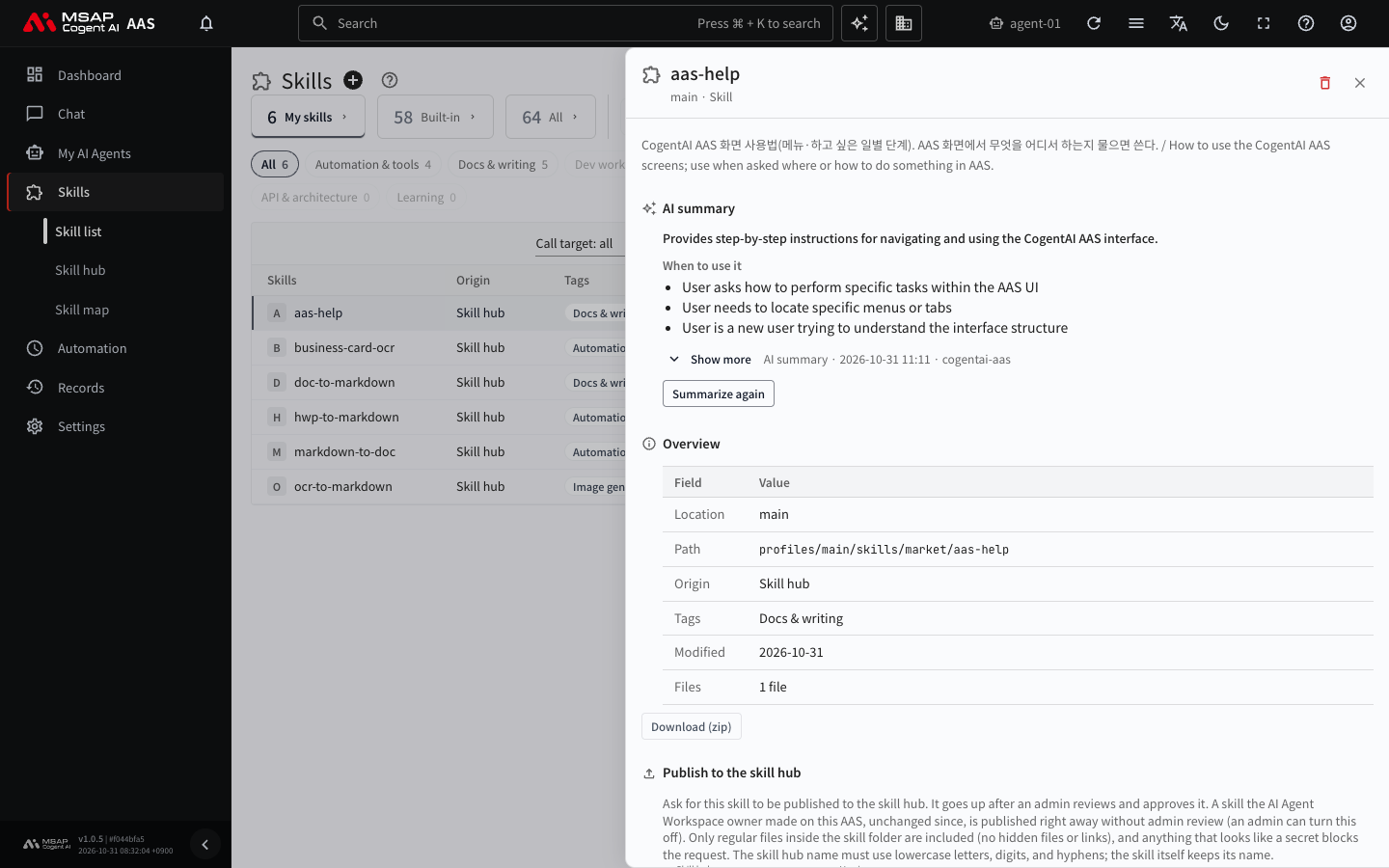
Figure 5.1-4. The skill detail drawer
- The description and the "AI summary". The summary is divided into "When to use", "What it does", "Why it helps", "What you need", and "Watch out for".
- The location, path, source, tags, last modified date, and number of files
- The "Download (zip)" button
- "Required secrets". The environment variables the skill uses are shown as "Set", "Needed", or "Optional".
- "Skill map and chat". It has the "View skill map", "Ask AI more", and "Request a change" buttons.
- "Scheduled jobs that run this skill", "MCP servers it calls", and "Other skills it calls". These appear only when there is something to show.
"Ask AI more" and "Request a change" open the chat and fill in a question for you. Read the sentence and send it, and the AI agent answers. For "Request a change", write the points you want to change before you send it.
An item shown as "Needed" in "Required secrets" has no value yet. Click "Enter in the Secrets tab" to open the profile's "Secrets (.env)" tab. A messenger channel cannot ask you for secrets, so enter them in this tab.
Note: The call information in the drawer is the result of automatic reading, so it can be wrong. It may miss an address, or include an example address.
What You Can Do in the Drawer
| Button | What it does | Who can use it |
|---|---|---|
| Download (zip) | Downloads the skill folder as a zip. Files that contain secrets are left out of the zip, and the names of the left-out files remain in the drawer. | Everyone who can view this profile |
| Publish to skill hub | Shares the skill with other people. See 5.5. Publishing Your Skill to the Hub. | Owner, team manager, administrator |
| Delete | Deletes the skill. See "Delete skill" in 5.3. Installing from the Skill Hub. | Owner, team manager, administrator |
Skills with the source "AAS built-in" and shared skills taken from another profile do not have "Download" or "Publish to skill hub". If you edit a shared skill in its original profile, the change applies to all profiles right away.
Turning Skills On and Off
If a skill is not being used, first check whether it is turned off.
- Open "My AI Agents › Profiles" in the left menu.
- Click a profile to open the drawer and open the "Skills" tab.
- Turn the switch on the skill row on or off. If you turn the switch off, the AI agent does not use that skill.
The "My skills only" chip in the "Skills" tab shows the list without the Hermes built-in skills.
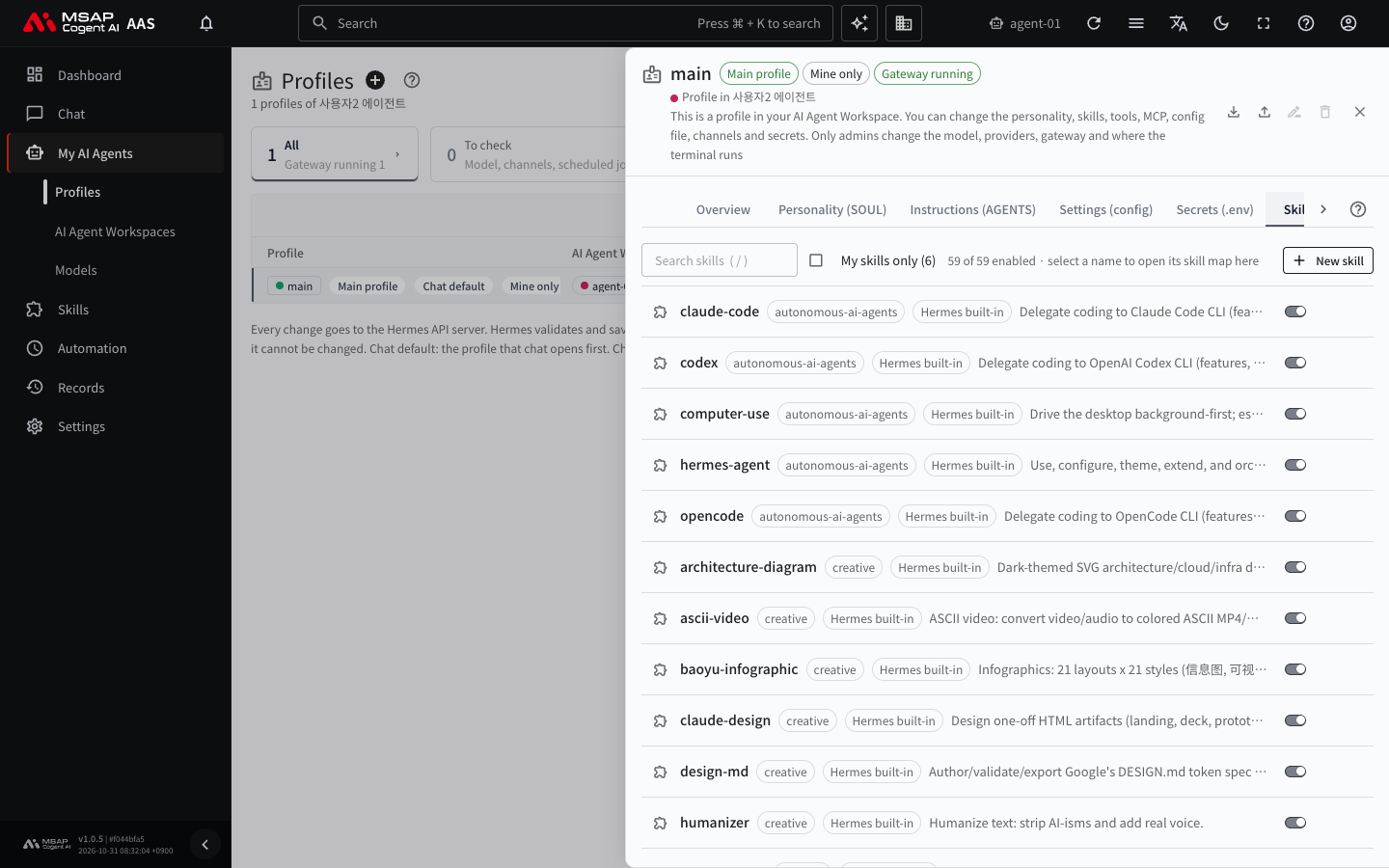
Figure 5.1-5. The "Skills" tab of the profile drawer
Using Skills in Chat
When you type / in the chat input field, the list of this AI agent's skills appears. You can choose one to have the agent work by following that skill.