1.2. Using Common Screen Features
Overview
Most CogentAI AAS (AAS for short) screens are built on the same frame. You choose a screen in the left menu, find items in a list table, and select an item to open a detail drawer on the right. This chapter explains the menu, list tables, detail drawer, shortcuts, and top bar, which work the same way on every screen. Once you learn this frame, you can use the screens in the other chapters in the same way. This chapter is for reference. At first, read only the "Left Menu" and "Top Bar" sections, and come back to the rest when you need them.
Term: In this manual, a "drawer" is a detail window that slides out from the right side of the screen. The help drawer, the "Past conversations" drawer, and the "Files" drawer look the same. For other terms such as "profile" (the settings bundle of an AI agent), see A.1. Glossary.
Left Menu
The left menu is divided into groups based on what you want to do. Select a group name to expand the screens inside it.
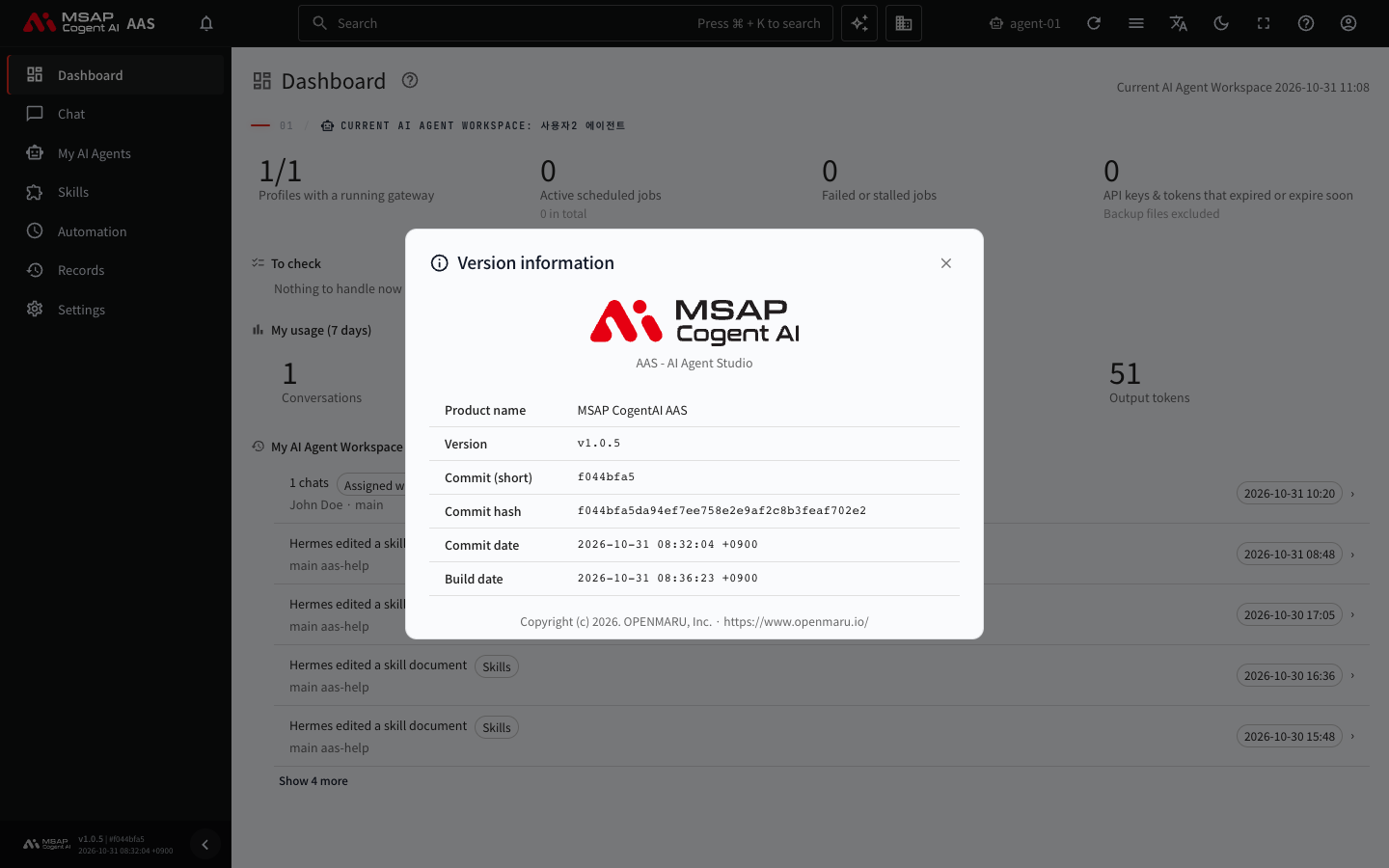
Figure 1.2-1. The version information window
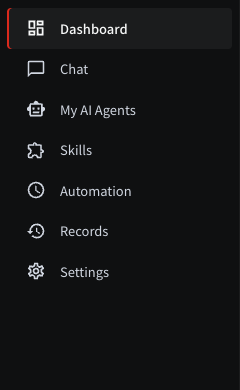
Figure 1.2-2. The left menu
| Group | Screens | What it does |
|---|---|---|
| Dashboard | Dashboard | Shows the workspace status and items to check on one screen. |
| Chat | Chat, Office | Chat with AI agents and work together in the 3D office. |
| My AI Agents | Profiles, AI Agent Workspaces, Models | A profile holds an AI agent's personality, skills, and tool settings. Models is where you choose the AI model the AI agent uses. On the workspace screen, you manage workspaces. |
| Skills | Skill list, Skill hub, Skill map | The Skill hub is where you download skills your company has collected. The Skill map is a diagram that shows how skills connect to each other. |
| Automation | Scheduled jobs, Messenger connections | Have work done at set times and chat through a messenger. |
| Records | Usage, Change history | View usage and changes. |
| Admin | Users & roles, Role templates, Notices | Visible only to administrators. |
| Settings | My display, API keys & tokens, Claude Code connections, Company info | Manage your display settings, keys, and connections. |
Some screens do not appear in the menu, depending on your permissions. The "Admin" group is visible only to administrators, and "Change history" is visible only to administrators, workspace owners, and team managers. A screen you cannot see means you do not have permission. If you need it, ask your administrator.
A number next to a menu item means there is something to check. For example, the number next to "Chat" is the count of chats waiting for a reply or approval. The number next to "Scheduled jobs" is the count of failed jobs. Select the menu button on the top bar to collapse or expand the left menu. Select the version button at the bottom of the left menu to see AAS version information.
List Screens
Screens with many items, such as "Skill list," "Scheduled jobs," and "Usage," use the same frame. From top to bottom, it is tabs, number cards, a toolbar, and a table.
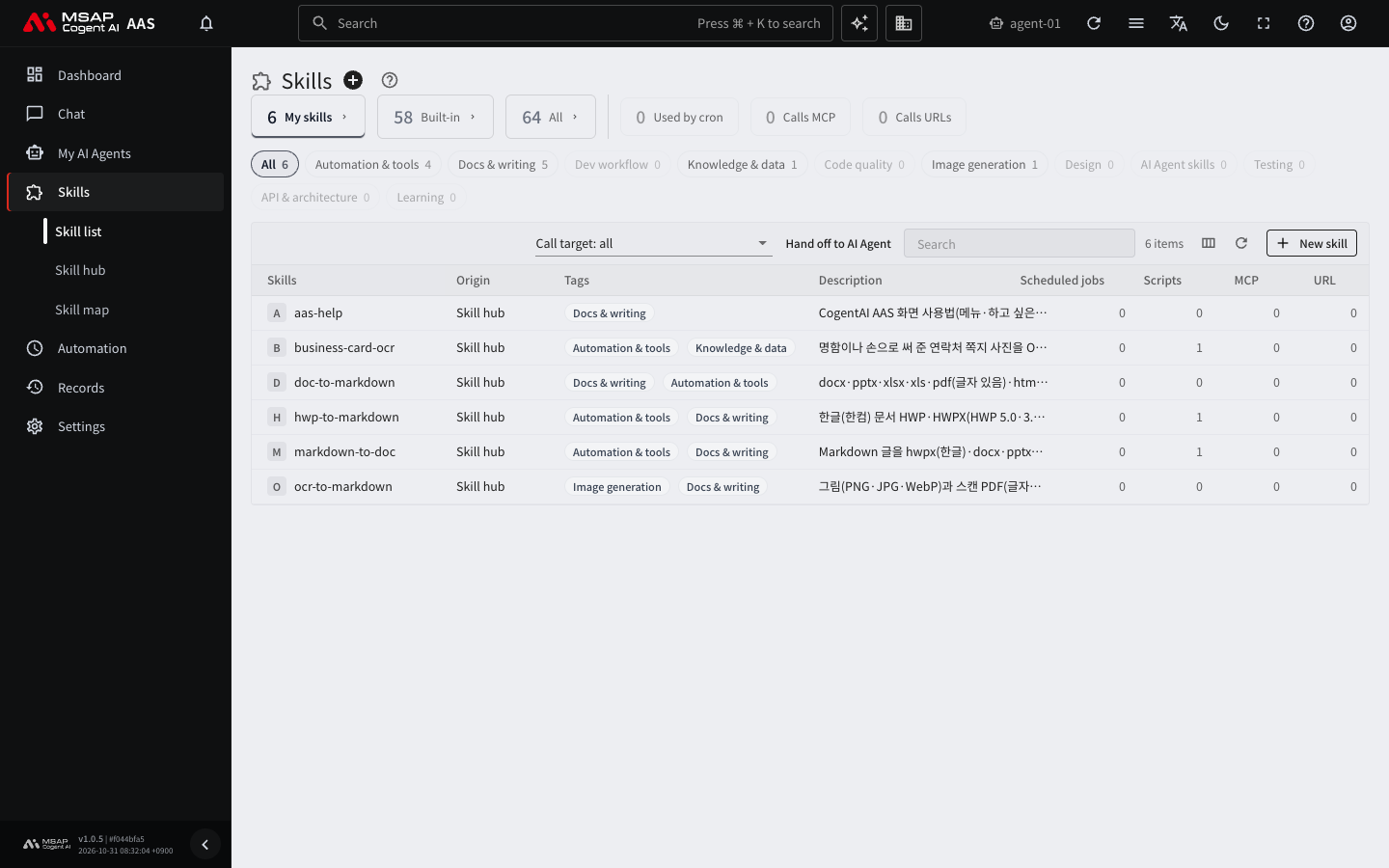
Figure 1.2-3. The layout of a list screen
Tabs and Summary Cards
Selecting a tab changes the range you see on the same screen. On screens with number cards, you can select a card to filter to the matching items. Select the card again to remove the filter.
Search and Filters
If you type a word in the search field on the toolbar, only items that contain that word stay in the table. The toolbar also has the following buttons.
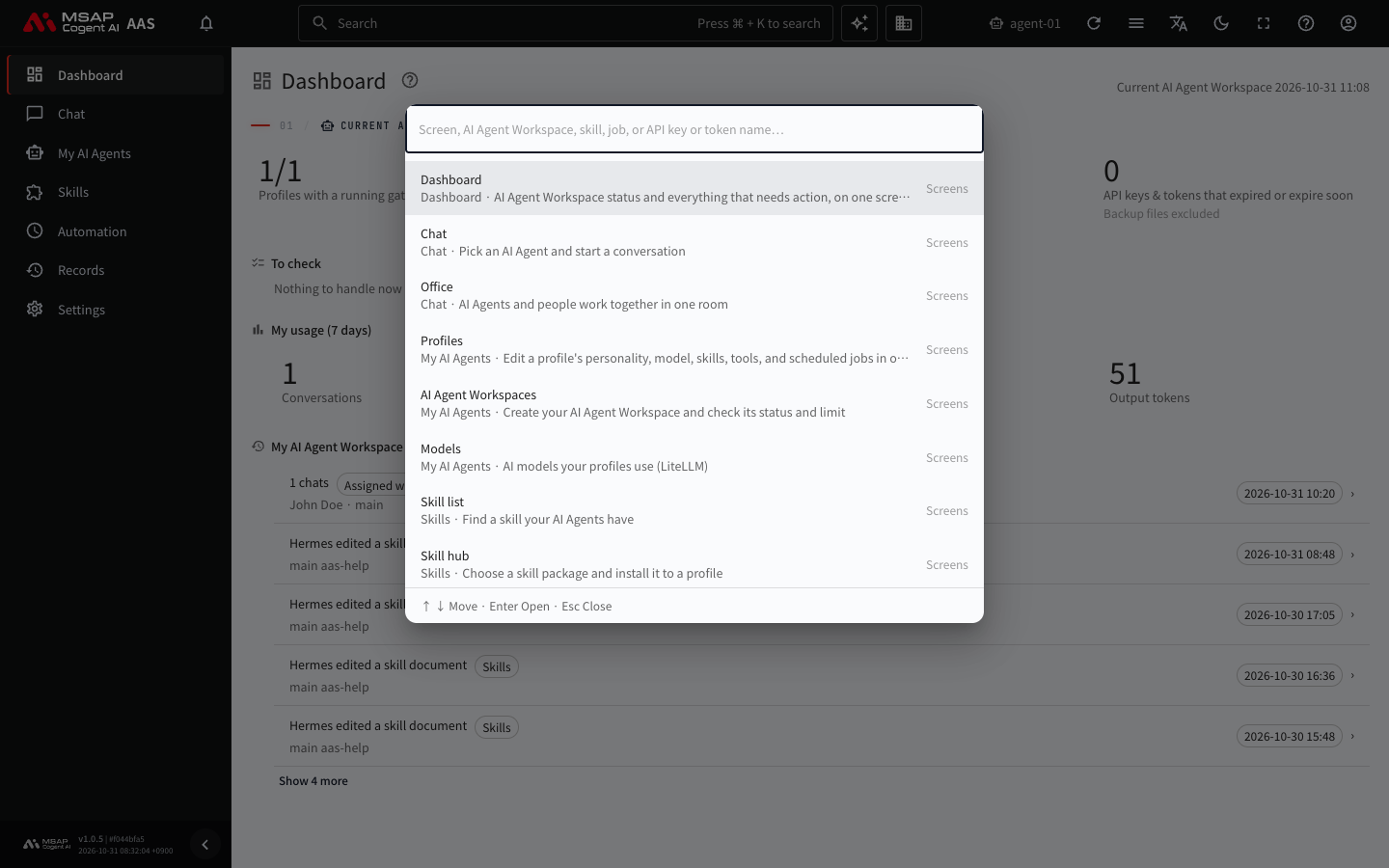
Figure 1.2-4. The search-and-go window
| Button | What it does |
|---|---|
| Column filters | Filter items by choosing values for each column. "Clear filters" removes all of them. |
| Columns | Choose which columns the table shows. Select "Reset to default" to return to the original state. |
| Refresh | Reads the values on the screen again. |
On a narrow screen, these buttons are gathered in the "Table tools" menu. The Columns setting is saved only in this browser.
Note: Press
/on the keyboard to jump straight to the search field on the current screen.
Sorting and Row Menus
Select a column header to sort by that column. Select the "…" button at the end of each row to see the actions available for that item. "View details" opens the item's detail drawer.
Paging
When there are more than 20 items, page buttons and a "Rows" (the number of items shown on one screen) selector appear below the table. Choose "Rows" from 20, 50, or 100. You can also change the same value in "Table rows" under "Settings › My display."
Screen State in the Address
The tab, search word, sort order, and selected cards are stored in the browser address. So the same screen opens again when you refresh. If you copy the address and send it to someone else, they can open the same list state.
Detail Drawer
When you select an item in a table, a detail drawer opens on the right side of the screen. In the drawer, you read and edit the item's contents.
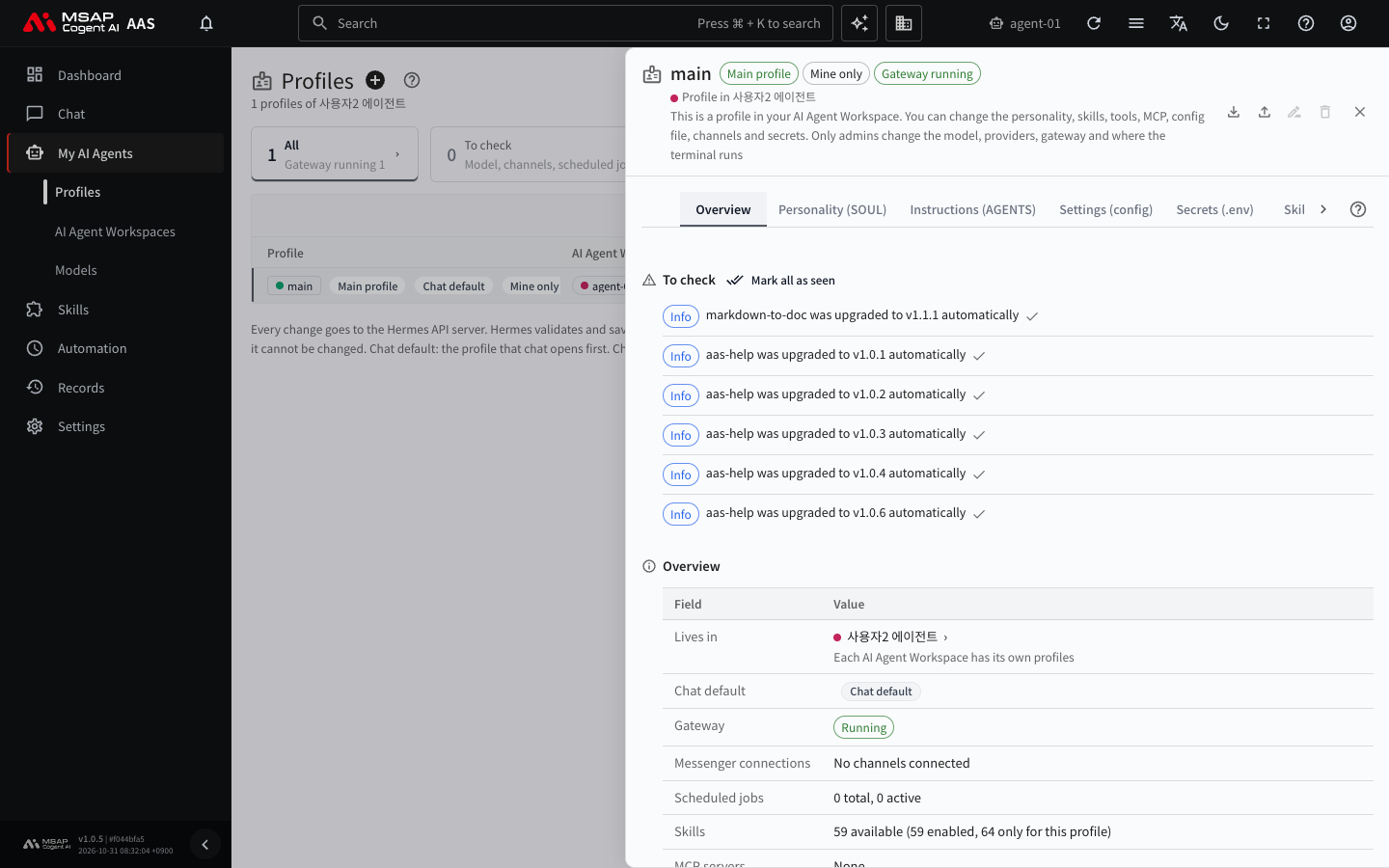
Figure 1.2-5. A detail drawer opened from a list row
| Control | What it does |
|---|---|
| Previous, Next | Move back and forth among the items you opened in the drawer. |
| Open in its screen | Opens the drawer's contents in full screen. If there is unsaved content, a confirmation window may appear first. |
| Close | Closes the drawer. |
| Resize | Drag the left edge of the drawer to change its width. With the keyboard, select the edge and press the arrow keys (left, right). |
You can also close a drawer with the Esc key. If there is unsaved content, a confirmation window may appear before it closes.
Search and Go
Select the search field on the top bar, or press Ctrl + K (Command + K on a Mac), to open the "Search and go to" window. You can find screens, AI agent workspaces, skills, jobs, and API key or token names in one place.
- Press
Ctrl + K. - Type the word you want to find.
- Choose a result with the arrow keys.
- Press
Enter.
Press Esc to close the window.
Keyboard Shortcuts
| Key | What it does |
|---|---|
Ctrl + K, Command + K | Search and go to |
/ | Jump to the search field on the current screen |
g, then a letter | Go straight to a screen |
Esc | Close the detail drawer, a menu, or search |
Alt + Shift + H | Move to the guide card in progress |
? | Show the shortcut table |
If you press a screen letter right after pressing g, that screen opens. For example, g then c is Chat. While you are typing in a message box, the g, /, and ? shortcuts do not work.
For the full list of screen letters and the permissions, see A.2. Keyboard Shortcuts. You can also see the shortcut table by selecting "Keyboard shortcuts" in the account menu on the top bar.
Top Bar
The top bar is at the very top of every screen. From left to right, it has the following.
| Button | What it does |
|---|---|
| Logo | Goes to "AAS home." |
| Search | Opens the "Search and go to" window. |
| AI | Opens the "Chat with my AI Agent" window. The chat stays the same when you move to another screen. The character button at the bottom right of the screen opens the same window. You can drag this button to move it. |
| 3D office | Goes to the Office screen. |
| Switch AI Agent Workspace | Changes the current workspace when you can see more than one. |
| Reload | Reads the data on the screen again. Hover over the button to see when data was last collected. |
| Collapse sidebar, Expand sidebar | Collapses or expands the left menu. |
| Language | Chooses the screen language. Korean and English are available. |
| Light mode, Dark mode | Changes the screen brightness. |
| Fullscreen | Switches the browser to full screen. |
| Help | Opens help and the walkthrough guides. |
| Inbox (bell icon) | Collects the things you need to answer and your notifications. |
| Account | Opens the account menu. |
When the screen is narrow, the Reload, Language, brightness, Fullscreen, and Help buttons are hidden. Help is also in the account menu.
Account Menu
Select the account button to see your name and email, followed by these items.
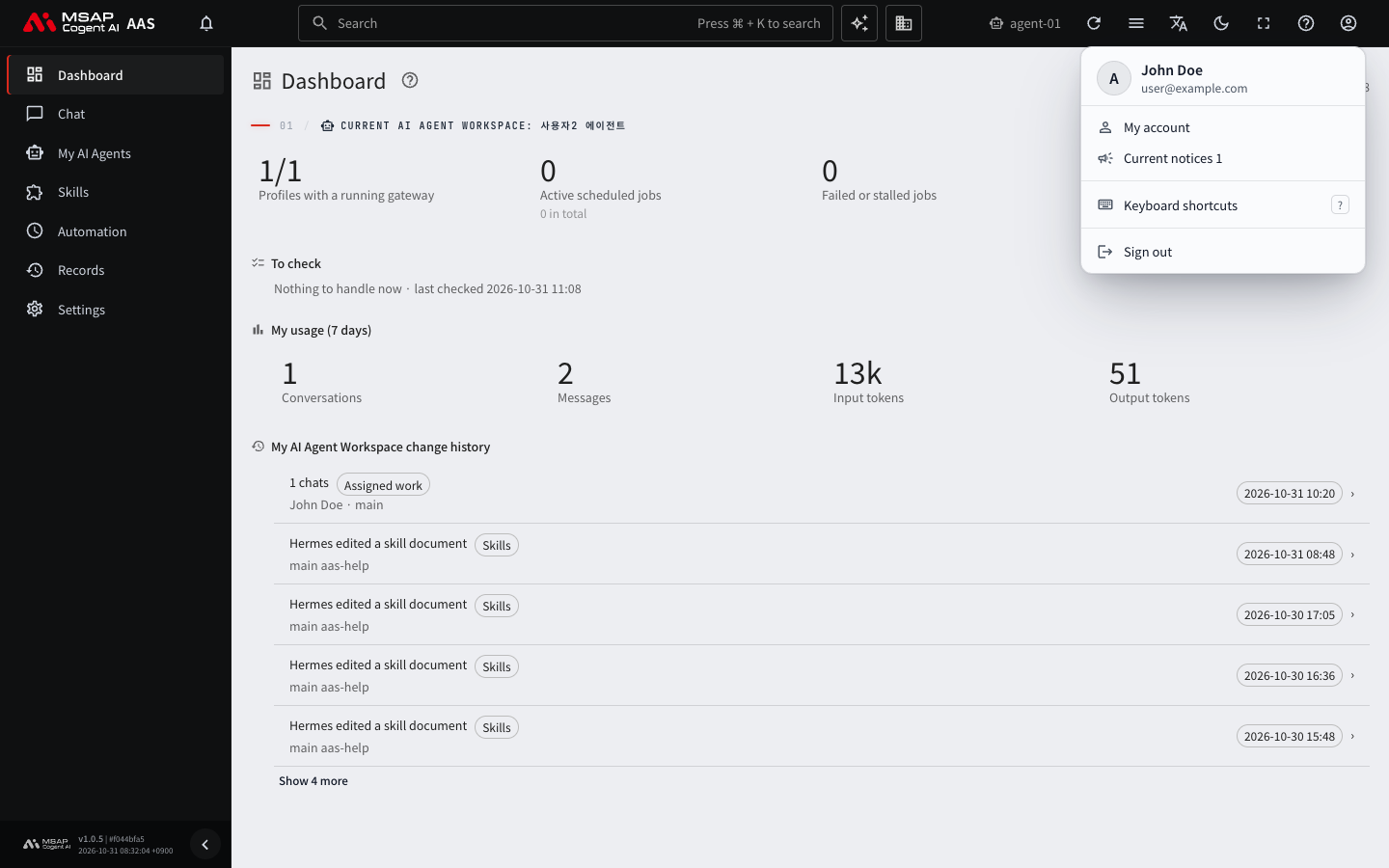
Figure 1.2-6. The account menu
- "My account": Opens your account information.
- "Current notices": Appears when some notices posted by your administrator are showing. You can bring back a notice you closed.
- Workspace list: Appears when you can see two or more AI agent workspaces.
- "Help," "Keyboard shortcuts," and "Sign out."