2.3. Uploading and Downloading Files
Overview
If you attach document or photo files to a chat, the AI agent reads the content and summarizes or organizes it. You can download files the AI agent made to your computer. This chapter explains attaching files, the "Files" drawer, viewing folders, downloading and deleting files, and checking storage space. To open a file on the screen, see 2.4. Document Viewer.
Permission: General users. The "Files" button appears only in AI agent workspaces that can use the file feature.
Note: An AI agent workspace is the working place of an AI agent, created one for each user. Settings, skills, memory, and files are kept here. For a fuller explanation, see 4.1. AI Agent Workspaces and A.1. Glossary.
Uploading Files
The AI agent can read Word, Excel, PowerPoint, PDF, and HWP (Hangul) documents. It also reads text in scanned documents and photos. If the text is blurry or small, it may not be read, so for important content, check the answer against the original.
Caution: Files you upload are saved in the work folder of this AI agent workspace. The work folder is where files are collected inside the workspace. AI agents in the same workspace can read these files even if their profiles are different. Files stay until you delete them yourself. Check your company policy before uploading personal information or confidential documents. The AI agent sends the file content to an AI model to read it. Where the model runs differs by installation, so ask your administrator whether you may upload confidential documents.
- On the chat screen, choose an AI agent.
- Select the "Attach files" button next to the message box.
- Choose the files to upload. You can choose several at once.
- Wait until the file names appear above the message box. While files upload, you cannot send a message, and "Uploading files… you can send when they finish" is shown.
- Write what you want done in the message box and press
Enter.
You can also upload by dragging a file and dropping it on the chat screen. While you drag, "Drop here to upload" is shown.
Write what you want done specifically, such as "Summarize this report in ten lines." If you also say which part of the document to look at and what form you want the result in, the result matches better.
Upload Limits
| Item | Limit |
|---|---|
| File size | Up to 100MB per file |
| Files per message | Up to 10 files in one message |
| Empty files | Cannot be uploaded. |
| Folders | Cannot be uploaded. Bundle them into one zip file with a compression program and upload that. Ask the AI agent to read the files inside, and if it cannot read them, upload the files one by one. |
| Files with the same name | The name is changed automatically and "Renamed because a file with the same name exists" is shown. |
If a file cannot be uploaded, the reason and a "Retry" button appear next to the file name. If the reason is "The work folder is full," delete files you no longer use in "Files" and upload again. For other reasons, follow the message and upload again within the limits.
Removing a File You Attached by Mistake
Select the remove button next to the file name above the message box, and the file is removed from that message only. A file that has already been uploaded stays in the "Files" drawer. To delete it from the drawer, see "Deleting Files" below.
The "Files" Drawer
Select the "Files" button at the top of the conversation area to open the files drawer. The drawer is a detail window that opens on the right side of the screen. This drawer shows the work folder of the AI agent workspace. All profiles in the workspace (a profile is the settings bundle of one AI agent) share this folder.
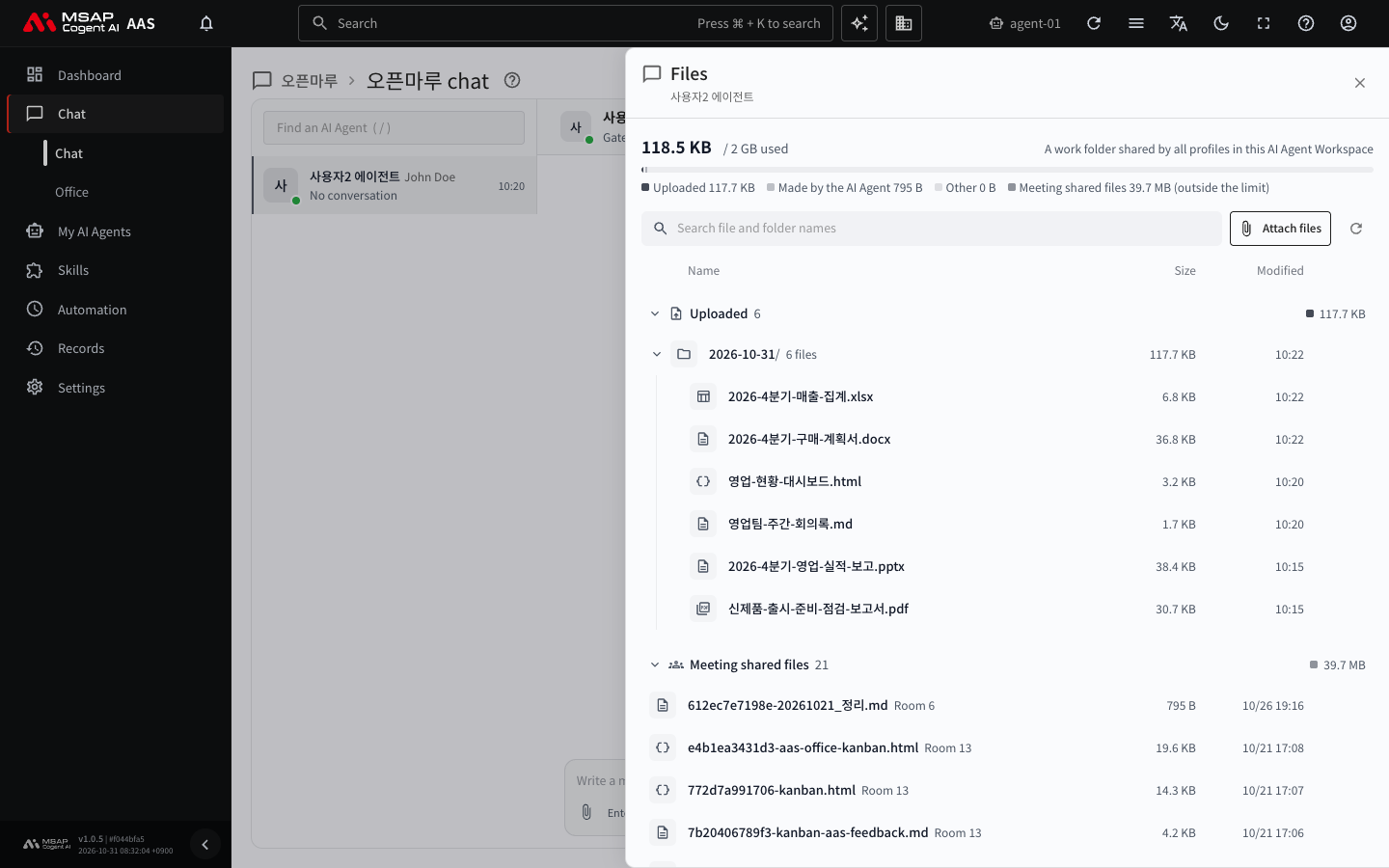
Figure 2.3-1. The "Files" drawer
At the top of the drawer, the storage space in use is shown as "{usage} / {limit} used," with a bar below it. When you go over 80% of the limit, the notice "Over 80% of {limit}. Delete files you no longer need." appears. When you reach the limit, you cannot upload new files and "The limit is reached and new uploads are blocked. Delete files and upload again" is shown.
The files in the drawer are divided into three groups.
| Group | Contents |
|---|---|
| Uploaded | Files I uploaded to the chat. They are divided into folders by upload date, and at first only the folder with the most recent date is expanded. |
| Made by the AI Agent | Files the AI agent made in the work folder. They are shown in the folder structure. |
| Meeting shared files | Files uploaded in meetings (a feature where people and several AI agents work together in one chat room; see 3.2. Meeting Rooms and TFT Rooms) and results the AI agents shared with the meeting. They do not count toward the storage limit. |
Next to each group name, the number of files in the group is shown. Select a group name to collapse or expand it. If there are no files, each group shows a notice. For example, "No files yet. Upload with the attach button or ask the AI Agent to make a file." is shown.
Viewing Folders
Select a folder row to expand or collapse it. A folder row shows the folder name, the file count, the size, and the time it was last modified. Folders are collapsed at first, and the folders you expand are remembered even if you close and reopen the drawer. With the keyboard, expand and collapse with Enter or Space.
At the same depth, folders come first and files come after. The most recently modified items are at the top. If there are so many files that only some are shown, a notice appears, so search by name.
Finding Files
If you type a word in the "Search file and folder names" field in the drawer, only the matching files appear, in a flat list with their folder paths. Clear the field to return to the folder view. If no file matches, "No files match “{word}”." is shown.
Downloading Files
When the AI agent creates a file, the file name appears below the answer. Select the file name and it opens right on the screen. Below the answer, "Files changed in this reply" is also shown. There are two ways to save a file to your computer.
- Select the file name to open the viewer and select "Download."
- In the "Files" drawer, select "Download" on the file row.
A file row in the drawer has the following buttons.
| Button | What it does |
|---|---|
| Download | Saves the file to your computer. |
| Copy path | Copies the location (path) where the AI agent finds this file. Paste it when you say "Open this file" in another chat. |
| Put a question about this file in the message box | Closes the drawer and attaches that file to the message box. If the message box is empty, it also fills in "Tell me what this file contains." You select Send yourself. |
| Delete | Deletes the file. |
For a file that cannot be downloaded, the reason is shown on the row. A common reason is "The file does not exist. It may have been deleted." For other reasons, read the message, and if it does not resolve, tell your administrator. Select a file row name to open the viewer. For the viewer, see 2.4. Document Viewer. In the viewer you can use the same "Download," "Ask AI," "Copy path," and "Delete," and they work as in the table above.
Deleting Files
- In the "Files" drawer, select "Delete" on the row of the file to delete.
- In the confirmation window, read "Delete {name}? This cannot be undone."
- Confirm.
After you delete, "Deleted {name}" is shown and the list is read again. A deleted file cannot be restored. To use it again, upload the original on your computer again. Save any file you will need with "Download" before you delete it.
You can delete folders too. When you select "Delete" on a folder row, the confirmation window shows the folder and the number of files inside. The window also tells you that hidden files not shown on the screen are deleted together. When you confirm, "Deleted the {name} folder" is shown.
Caution: Deleting a folder deletes all the files inside it. It cannot be undone, so check the number and names of the files in the folder before you select it.
The top of the work folder, the top folder of uploaded files, the meeting shared folder, and the internal folders used by the AI agent cannot be deleted. "This folder cannot be deleted" is shown.
Opening the Plan File
After you use the /plan command, an "Open the plan file" button appears below the answer. Select it, and the "Files" drawer opens with the plan folder expanded. If there is no plan file yet, "No plan file yet. It appears here when the AI Agent finishes the plan." is shown. If there are so many files that the plan folder is not found, type plans in the search field.