4.2. Profile Overview and Model
Overview
A profile is a bundle of settings that defines the personality and permissions of your AI agent. It holds how the agent speaks and which rules it follows, which AI model it uses, and which external services it connects to. Each setting has its own chapter. Tone and rules are in 4.3. Personality (SOUL) and Instructions (AGENTS), the keys used to connect are in 4.4. Secrets and Credential Files, connections to external systems are in 4.5. Connecting External Tools (MCP), skills are in 5.1. Skill List, scheduled jobs are in 6.1. Scheduled Jobs, and messengers are in 6.2. Messenger Connections. One AI agent workspace can hold several profiles. For how workspaces and profiles relate, see "Part 4 guide" in 4.1. AI Agent Workspaces. This chapter explains how to read the "Profiles" screen, the "Overview" tab of the detail drawer, how to create a new profile, the main model, and how to request a model change.
Opening the Profiles Screen
Click "My AI Agents › Profiles" in the left menu. Under the title, the screen shows "{n} profiles in my {n} AI Agent Workspaces".
The columns of the list are as follows.
| Column | Content |
|---|---|
| Profile | The profile name and its badges. |
| AI Agent Workspace | The workspace that contains the profile. |
| Gateway | The status of the program that runs messengers and scheduled jobs. |
| Channels | The messengers that are connected. |
| To check · About | Problems to fix, or the profile's introduction text. |
| Model | The main model the profile uses. |
| Active scheduled jobs | The number of scheduled jobs that are turned on. |
| Skills | The number of skills. |
| Last activity | The time the profile was last used. |
These badges may appear next to a profile name.
| Badge | Meaning |
|---|---|
| Main profile | The profile created when the workspace was first created. You cannot rename or delete it. |
| Chat default | The profile that opens first when you open Chat. |
| Current | The workspace that the whole screen currently uses as its reference. |
If you see a profile marked "Root" in the list, do not use it. Use the main profile. When you click a profile row in another workspace, the current workspace changes to that workspace. The message "Switched to <workspace>" appears, and "Undo" returns you to the previous workspace. If a workspace is stopped or starting, the screen shows "Stopped · starting: <name>". You can view that workspace's profiles after it restarts.
Profile Detail Drawer
When you click a profile row, a detail drawer opens on the right. A drawer is a detail pane that slides in from the right side of the screen. The drawer has the following tabs.
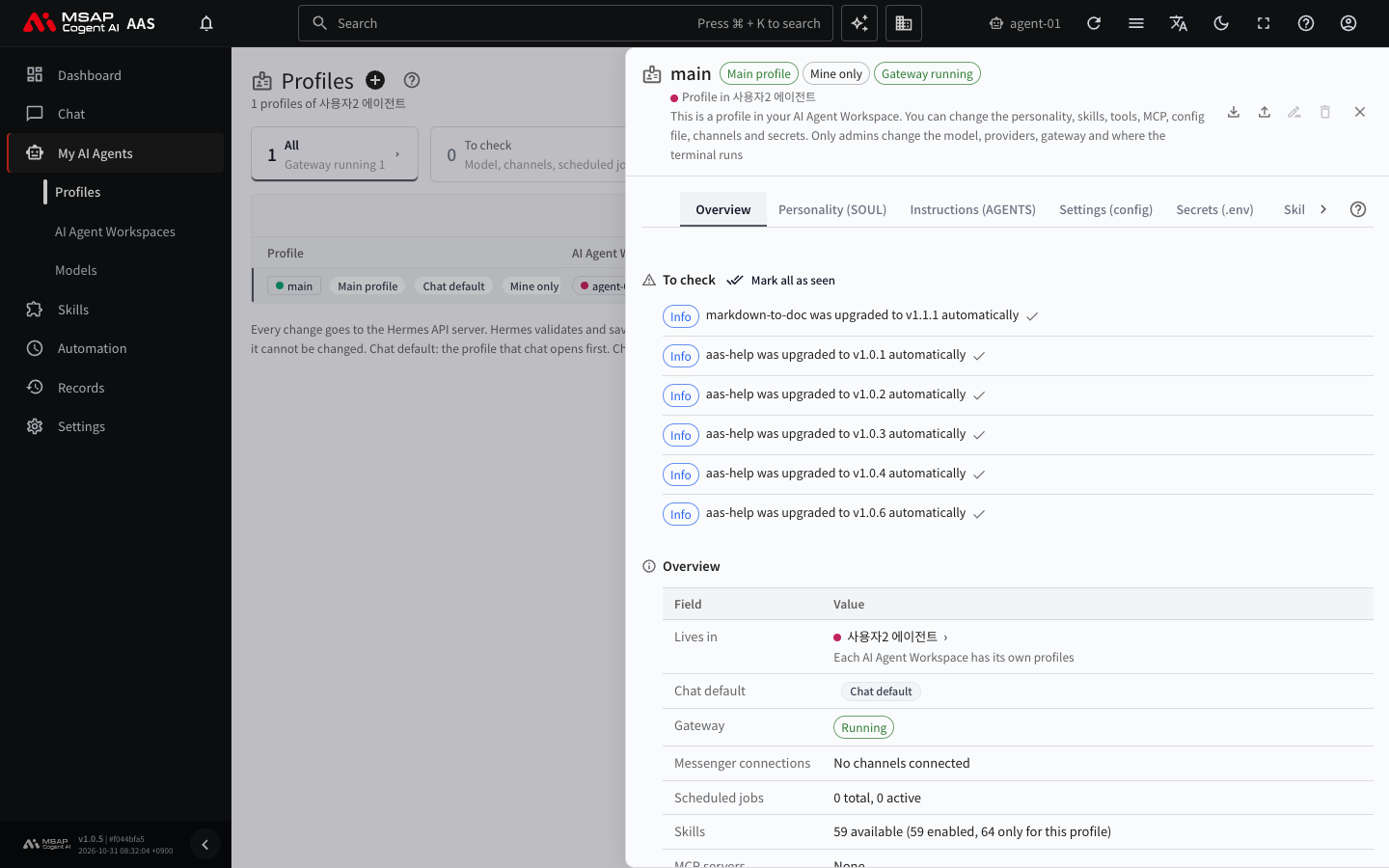
Figure 4.2-1. The "Overview" tab of the profile drawer
| Tab | Content | Chapter |
|---|---|---|
| Overview | View the status, main model, and gateway. | This chapter |
| Personality (SOUL) | Edit the AI agent's personality and rules. | 4.3. Personality (SOUL) and Instructions (AGENTS) |
| Instructions (AGENTS) | Edit how the AI agent works. | 4.3. Personality (SOUL) and Instructions (AGENTS) |
| Settings (config) | Edit the settings file. Edit it only when an administrator or the person in charge tells you to. | This chapter |
| Secrets (.env) | Enter secrets such as API keys. | 4.4. Secrets and Credential Files |
| Skills | Turn skills on and off. | 5.1. Skill List |
| MCP · Toolsets | Connect external tools. | 4.5. Connecting External Tools (MCP) |
| Scheduled jobs | View this profile's scheduled jobs. | 6.1. Scheduled Jobs |
| Messenger connections | Connect messengers. | 6.2. Messenger Connections |
The buttons in the drawer header let you use "Export to my PC" and "Import from PC", rename the profile, and delete it. For importing from and exporting to a PC, see 4.6. Importing and Exporting a Profile from a PC.
What You Can Edit
One line above the drawer shows the scope of your permissions. In a profile in your own workspace, you can do the following.
- Edit the personality (SOUL), instructions, skills, tools, MCP servers, and settings file.
- Change channels and secrets.
- Rename and delete the profile.
Only administrators can change the following. To change them, ask an administrator.
- The model and model connections (model, model provider, auxiliary model)
- Starting, stopping, and restarting the gateway
- Runtime environment settings (where the terminal runs, backend)
- Who may use a messenger and the approval rules (channel authorization, command approvals)
- The profile's introduction text
In another person's profile, the screen shows "View only. Only admins can make changes". A team manager can edit the same scope as the owner in a team member's workspace. If you try to change a locked setting in the Settings (config) tab, the screen tells you which setting it is. You cannot edit a file in this tab if it contains lines that look like secrets.
Caution: Edit the Settings (config) tab only when an administrator or the person in charge tells you to. When you save, the program that runs the AI agent (Hermes) rewrites the file, and comments and line layout are lost. Turn skills and MCP on and off in their own tabs.
The Overview Tab
The Overview tab shows "To check", the basic information, "About", "Main model", "Gateway", and "Shortcuts for this profile", from top to bottom. "To check" appears only when there is a problem. It collects problems with the model, channels, scheduled jobs, and API keys or tokens. When a problem appears, fix it in the matching tab.
| Section | Content | What to do |
|---|---|---|
| Basic information | The workspace that contains the profile, whether it is the chat default, the gateway, channels, scheduled jobs, skills, MCP servers, API keys and tokens, and the number of sessions and the last activity in the past 7 days. | Check the status. |
| About | Text that describes what the profile does (up to 600 characters). Only administrators can edit it. | To change it, ask an administrator. |
| Shortcuts for this profile | Links to the screens for chat, scheduled job status, skill map, messengers, API keys and tokens, secrets, model settings, and usage. | Go to the screen you need. |
"Main model" and "Gateway" are explained separately below. On the "Gateway" line, only administrators can start, stop, and restart. If the gateway needs to be restarted, ask an administrator.
Main Model
The main model is the AI model the AI agent uses to produce answers. The quality and speed of answers depend on the model. The "Main model" line shows the name of the model in use. "AAS default model" means the agent uses the default model that AAS has set. You can choose only from the models that an administrator has registered.
Only administrators can change the model. Users ask an administrator to change it.
Requesting a Model Change
Make a request when answers are often wrong or too slow, or when a task requires a specific model.
- In the detail drawer of your main profile, open the "Overview" tab.
- On the "Main model" line, click "Ask an admin to change the model".
- Enter the model you want.
- Click "Send request".
The request is recorded in AAS and goes to the administrator's inbox. You cannot send the same request again before it is handled, and "Waiting to be handled (day n)" appears in its place. The result arrives in your inbox. When the model is changed, it applies from the next chat and the next scheduled job run.
Creating a New Profile
Create a new profile when you want to separate settings by task. To separate tasks, use a profile before you create a new workspace. If you do need a new workspace, see "When you want to separate your work" in 4.1. AI Agent Workspaces.
- Click the + button ("New profile") next to the title of the "Profiles" screen.
- Under "Created in", you see the workspace that will hold the profile. If you have several workspaces, choose one from the list.
- Enter the "Name" using lowercase English letters, digits,
-, and_. Example: research - Read the note "Start as a clone of the main profile". A workspace owner does not choose a starting point and always starts from a clone of the main profile. To share skills with the original, turn on "Share skills of main instead of copying them". If you are not the owner, "Start from" appears instead of the note, so choose a starting point.
- If needed, enter an "About" text that describes what this AI agent does. Only administrators can edit it after the profile is created, so write it now.
- Click "Create in <workspace name>".
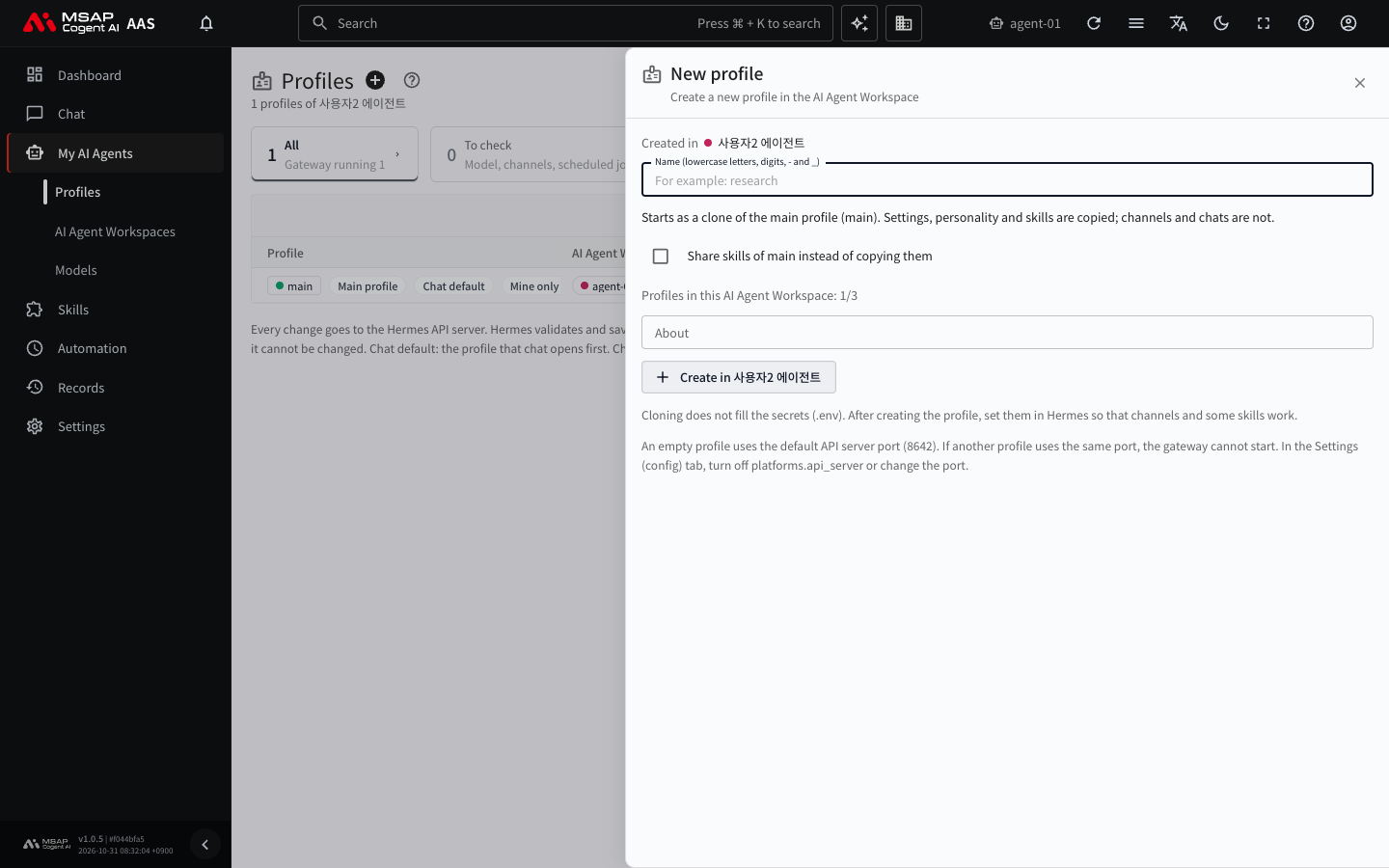
Figure 4.2-2. The "New profile" drawer
When it succeeds, the message "Profile <name> was created" appears and the new profile shows up in the list. Click the row and start with editing the personality in 4.3. Personality (SOUL) and Instructions (AGENTS).
When "Start from" appears, you can choose one of two starting points.
| Starting point | Description |
|---|---|
| Start with an empty profile | Creates a profile with nothing in it. |
| Clone the main profile (<name>) | Settings, personality, and skills are copied. Channels and chats are not copied. |
When you clone, you can also choose to share skills with the original instead of copying them. The create screen shows which option is selected first. If you share them, a change to a skill in the original applies to the new profile right away, and you cannot edit that skill in the new profile. For how to create a profile based on a profile in another AI agent workspace, see 4.6. Importing and Exporting a Profile from a PC.
Caution: Cloning does not copy secrets. After you create the profile, enter values in the "Secrets (.env)" tab. Messengers and some skills do not work without them.
Each workspace has a limit on the number of profiles. The screen shows "Profiles in this AI Agent Workspace: n/n". When the limit is reached, delete a profile you do not use and then create the new one. If you start with an empty profile, its settings may overlap with other profiles and the gateway may fail to start. If the gateway does not start, tell an administrator.
Renaming and Deleting
Use the buttons in the drawer header. You cannot rename or delete the main profile (main).
- Rename: Enter the new name and click "Change". Scheduled jobs and channel settings that point to this name move with it. The request may be rejected while the gateway is running.
- Delete: The profile, its settings, skills, memory, and scheduled jobs are deleted and cannot be restored. To confirm, enter the profile name again. Before deleting, AAS exports an archive file first, and if the export fails, nothing is deleted. Only administrators can retrieve the archive file, so ask an administrator if you want to restore the profile.