6.2. Messenger Connections
Overview
When you connect a messenger, you can talk to your AI agent in the messenger without opening the CogentAI AAS (AAS) screen. You can connect Telegram, Discord, Slack, and Mattermost. Connect a messenger when you are on the move, when you mostly use a messenger, or when you want to receive scheduled job results in a messenger.
You connect a messenger for each profile (the set of settings for one AI agent in a workspace; see 4.2. Profile Overview and Model). This chapter explains the values you need, how to connect, how to set allowed users, and how to check the connection status.
Permissions: The owner of the AI agent workspace, team managers, and administrators connect and turn off messengers. If you do not have permission, ask the owner or an administrator to connect it. Administrators start and stop the gateway.
Terms
The full list is in A.1. Glossary.
| Term | Meaning |
|---|---|
| AI agent workspace | The place where AI agents work. One is created for each user. It holds settings, skills, memory, and files. See 4.1. AI Agent Workspaces. |
| Channel | One messenger connected to a profile. On the screen, "channel" and "messenger" mean the same thing. |
| Bot | An account that speaks for your AI agent inside a messenger. You must create a separate bot for each messenger. |
| Bot token | A secret string that a messenger issues for each bot. AAS does not show the value again after you enter it. |
| Gateway | The channel through which an AI agent receives messenger messages and scheduled jobs. The gateway must be running for a messenger to work. An administrator starts and stops it. |
| Allowed user | A person who can talk to the bot. You set this with the user ID used in the messenger app. It is not the AAS sign-in ID. |
| Pairing request | An approval request that appears when a person who is not allowed talks to the bot for the first time. |
Values Needed to Connect
Each messenger needs different values. The fields marked "Required" in the connection window are the required values. The field names are in the table below.
| Messenger | Required values (field names) | What the value is |
|---|---|---|
| Telegram | TELEGRAM_BOT_TOKEN | The token of a bot made with Telegram's bot creation feature. Enter the whole text: digits, a colon, and the secret string. |
| Discord | DISCORD_BOT_TOKEN | The token of a bot made in the Discord developer portal. |
| Slack | SLACK_BOT_TOKEN, SLACK_APP_TOKEN | Two tokens: the bot token (starts with xoxb-) and the app token (starts with xapp-). You get them by creating an app and installing it in the workspace. |
| Mattermost | MATTERMOST_URL, MATTERMOST_TOKEN | The address of your company Mattermost, and a bot token or a personal access token. |
The general flow for getting the values is the same for all four messengers.
- In the messenger, create a bot (an app in Slack) and give it the permissions it needs.
- Get the token that the messenger issues.
- Paste it into the matching field in the AAS connection window.
Steps 1 and 2 are done in each messenger service, so this manual does not explain their screen steps. If your company already has a bot, or you do not have permission to create a bot, get the token from an administrator or the person in charge of that messenger service. Here is an example request.
I need a Slack bot to connect to AAS. Please send me the bot token (
xoxb-) and the app token (xapp-). The profile to connect is○○.
A token is like a password. Do not write it in a chat or messenger conversation. Paste it into the connection window right where you received it. Do not reuse the token of a bot that another profile already uses.
Connecting a Messenger
Connect one bot to only one profile. If you put the same bot in two profiles, they take the connection from each other.
Opening the Connection Screen
There are two ways.
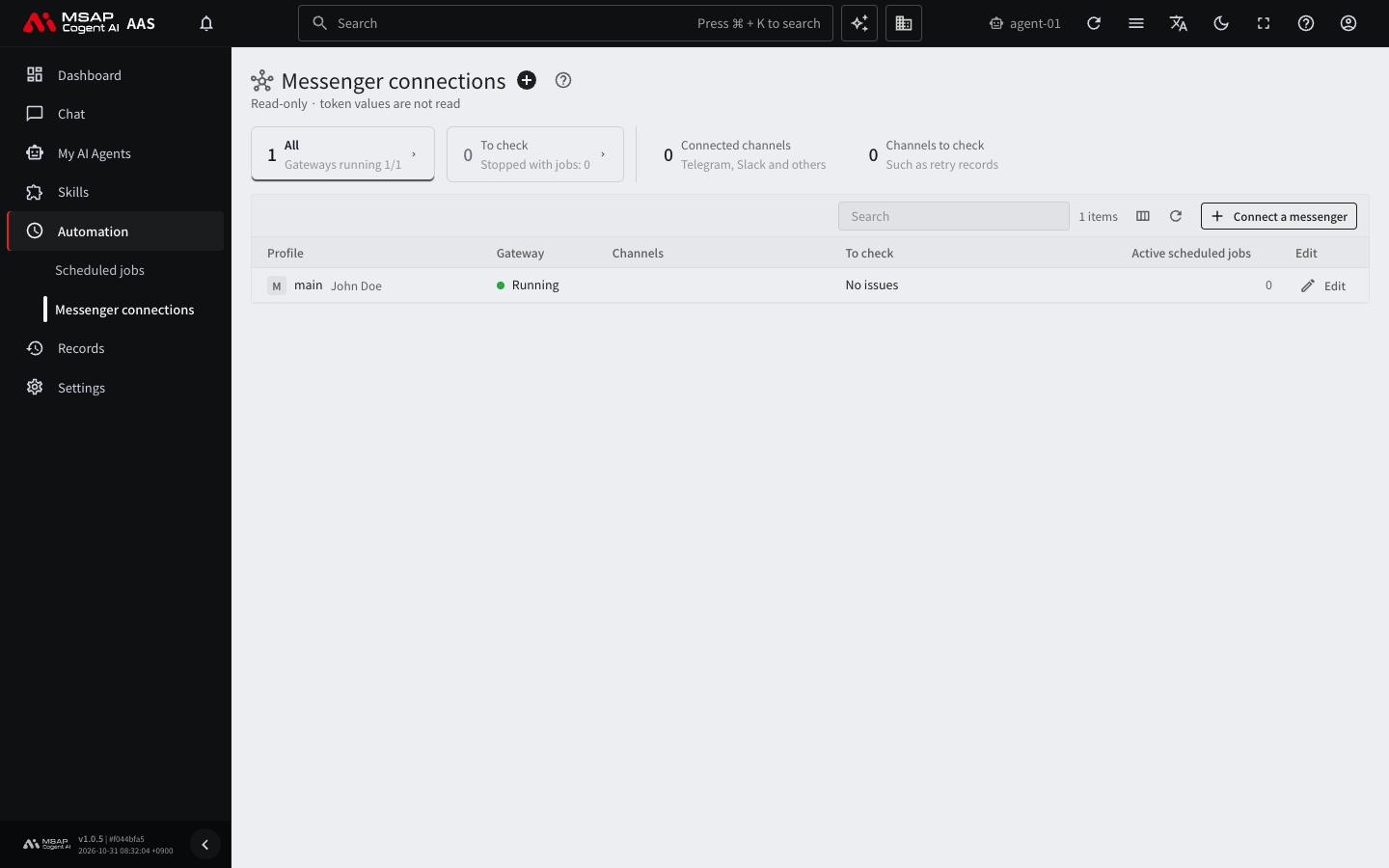
Figure 6.2-1. Messenger connections screen
- On the "Automation › Messenger connections" screen, click "Messenger connection" (the plus button). If you have several profiles, choose the profile first.
- Open a profile in "My AI Agents › Profiles" and open the "Messenger connections" tab.
Connection Steps
- Click "Messenger connection" to open the "Choose a messenger" window.
- Click the messenger you want to connect. For a messenger that is already connected, the message "Already connected" appears, and clicking it opens its settings.
- Enter the required values from the table above in the fields. The required values are marked "Required" below the field. While one is empty, "Save and turn on" cannot be clicked.
- Enter user IDs in the "Allowed users" field. To leave it empty, see "Setting Allowed Users" below.
- Click "Save and turn on".
- After saving, AAS runs a connection test. The result appears below the fields.
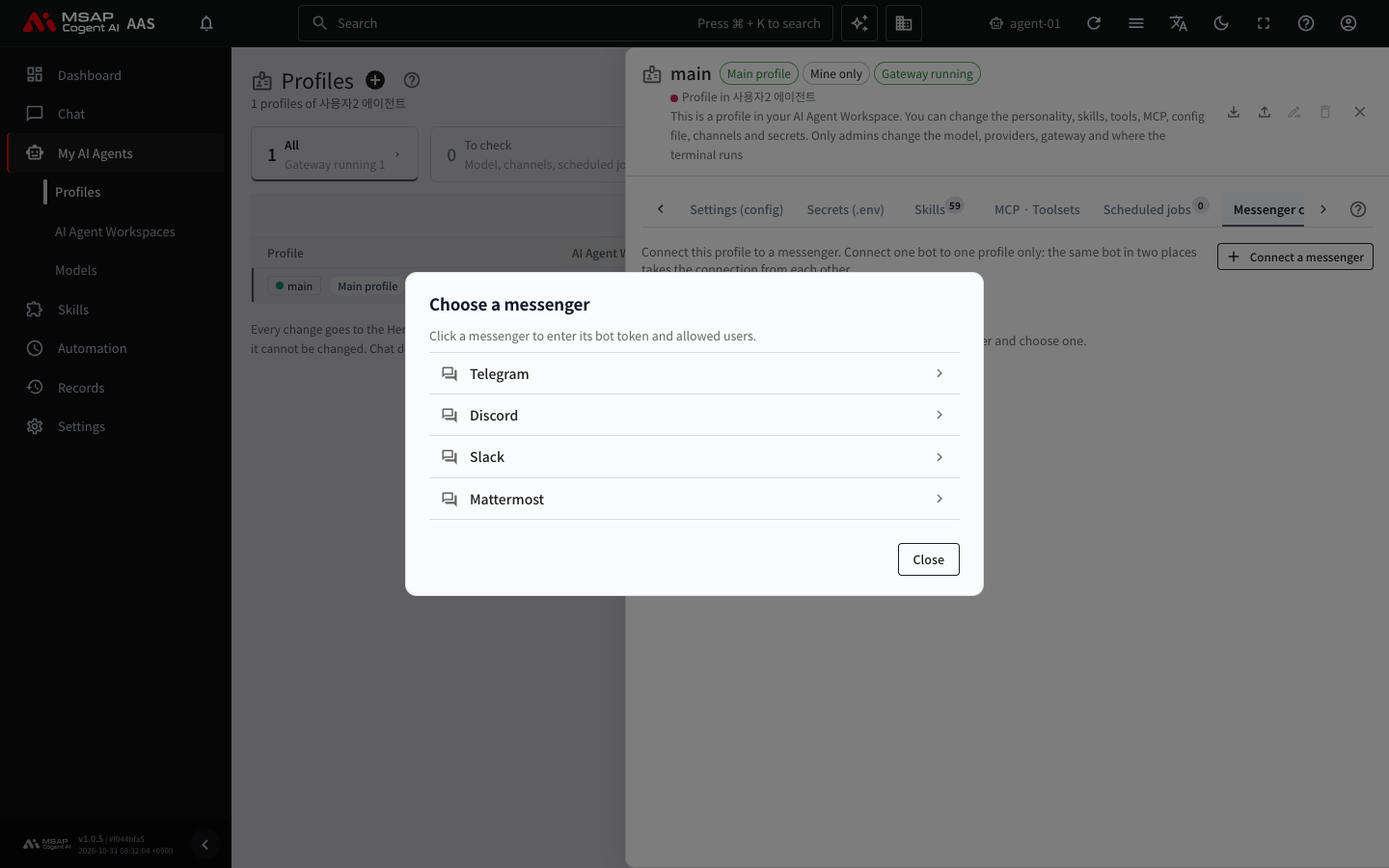
Figure 6.2-2. The "Choose a messenger" window
If it succeeds, "Saved and the connection was verified." appears and the card shows "Connected". If it fails, "Saved, but the connection failed." appears with the cause. In that case, see the "Messenger connections" table in A.3. Troubleshooting.
Saved secret values are not shown again. To change a value, enter the new value in the "New value (leave empty to keep)" field and save again.
Mattermost also needs the address of your company Mattermost. The address must start with http or https.
Turning Off a Messenger
Open "Settings" on the card of the connected messenger and click "Turn off".
Setting Allowed Users
If the allowed users field is empty, no one can talk to the bot. There are two methods.
Method 1. Approve a Pairing Request
This is the easiest method. You do not need to look up an ID with an outside bot, so we recommend it first.
- Turn on the messenger with the allowed users field left empty.
- In the messenger app, talk to the bot first.
- The request appears in the "Pairing requests and allowed users" section. An approve button with the user's name also appears right below the field.
- Click "Approve".
- In the messenger app, talk to the bot again and check that it answers. If it answers, you are done.
The approved person becomes an "Allowed user". To remove the permission, click "Revoke" on that person's row.
Method 2. Enter the User ID Directly
Enter the messenger user ID of the person you want to allow in the "Allowed users" field. How to find the ID differs by messenger.
| Messenger | How to find the user ID |
|---|---|
| Telegram | It is a number. If you talk to the bot and approve the request, it is entered automatically. To look it up yourself, talk to @userinfobot in Telegram. It is an outside bot, so first check that it meets your company's security rules, and use Method 1 above whenever possible. |
| Discord | Turn on Developer Mode under Discord Settings › Advanced. On your profile, choose "Copy User ID". |
| Slack | In Slack, open your profile › the more menu with three dots › choose "Copy member ID". It starts with U. |
| Mattermost | Open your avatar › "Profile". The user ID (26 letters and digits) appears. It is different from @username. |
If you click "Save and turn on" while the allowed users field is empty, a confirmation window appears. Continue only if you plan to talk to the bot and approve the request after turning it on.
Checking the Connection Status
Status of Each Messenger
The status appears on the card of each connected messenger.
| Status | Meaning |
|---|---|
| Connected | The messenger is connected normally. |
| Off | The user turned it off. |
| Needs setup | A required value is empty. |
| Pending | It was saved but not applied yet. Click "Test connection" after a moment. |
| Gateway stopped | The gateway of this profile is off. Ask an administrator to start it. |
| Failed to start | The connection could not start. Check that the bot token is correct. For Slack, also check the app token. |
The request text for asking to start the gateway is in "When the Gateway Is Stopped" in 6.1. Scheduled Jobs.
Click "Test connection" to check the current status again. If there are requests waiting for allowed-user approval, the card shows "waiting" with the number.
Overall Status Screen
On the "Automation › Messenger connections" screen, you can see the gateway and channel status of each profile at a glance.
- "Connected channels" card: the number of connected channels.
- "Channels to check" card: the number of channels that have retry records.
- "Gateway" column of the table: one of "Running", "Stopped", "Disabled", or "Unknown".
- "To check" column of the table: the first line of the problem to check. In the "To check" view, you see only the profiles that have problems.
- "Active scheduled jobs" column: if the gateway is stopped, scheduled jobs do not run, so read this number together with the gateway status.
This screen does not read token values. Click a row to see the status of each channel, the last update time, and the error text in the detail drawer.