4.3. Checking Build History
When to Look at This
- When confirming that a build succeeded
- When finding out why a build failed
- When tracing back which image was created and when
Builds Run as Pods
A build runs as a pod inside the cluster, not on a separate server.
Knowing this makes it easier to guess the cause of a problem.
| Problem you hit | The same cause as for pods |
|---|---|
| The build does not start | The node has no resources, or the namespace quota is hit (see 8.1) |
| The build dies partway | The memory limit was exceeded (OOMKilled) |
| Cannot fetch the image | The builder image pull failed |
| It takes a long time | The node is busy, or there is no cache |
Build pods are cleaned up when they finish, but the result and log remain on the build resource.
The Build List
Going to Build > Builds shows the builds run so far.
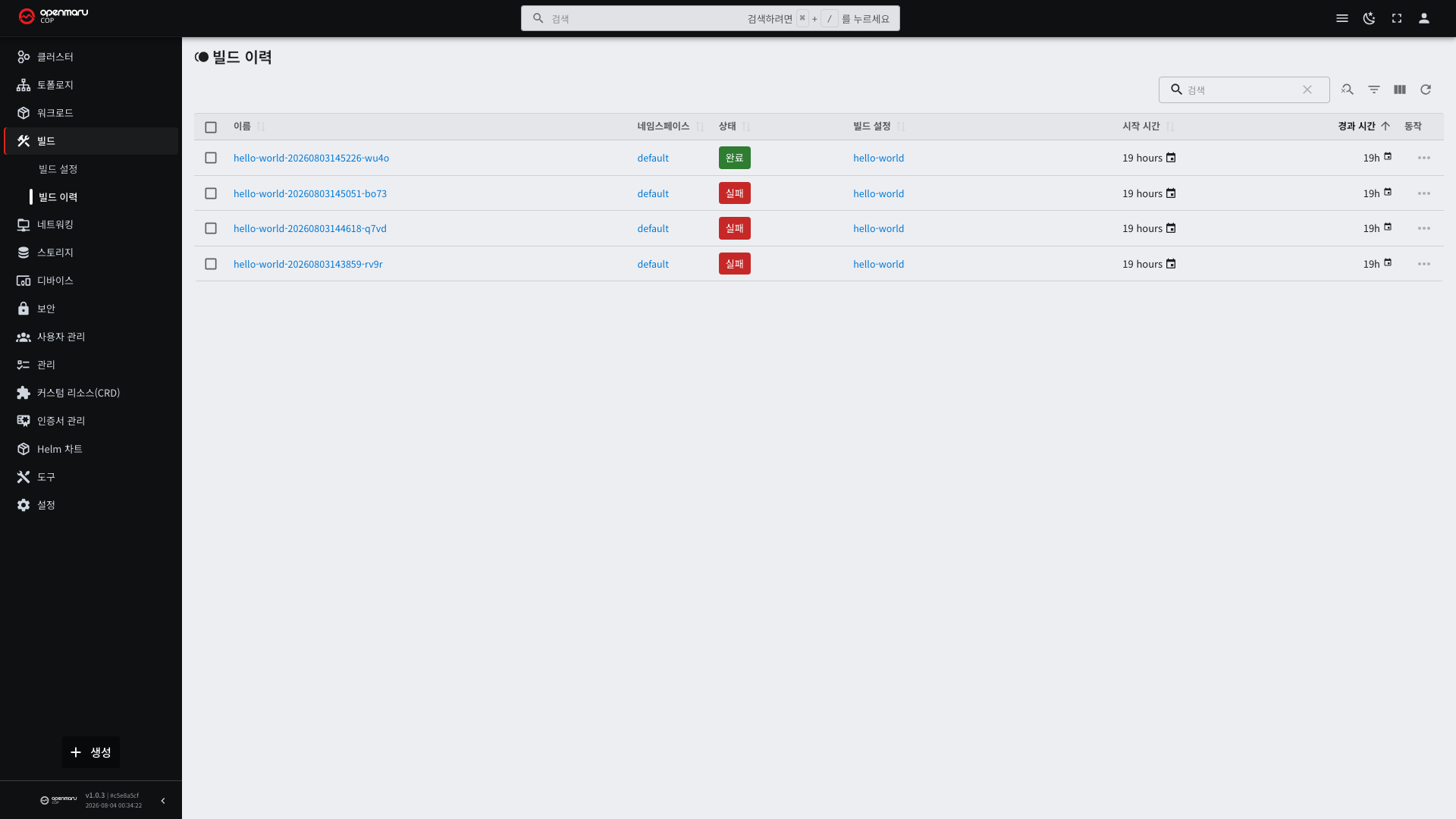
| Column | Description |
|---|---|
| Name | build-<build config name>-<timestamp>-<4 random chars> |
| Namespace | The namespace it belongs to |
| Status | The build progress state |
| Start time | When the build started |
| Duration | How long the build took |
The name always starts with build-. A build runs as a Job inside the namespace, and without the prefix it
would be indistinguishable from the other Jobs there. Example: build-egov-build-20260827143012-a3f9.
When the duration is longer than usual, dependency libraries are often being fetched anew, or build resources are short. Attaching a cache volume reduces it (see 4.2).
Build Statuses
| Status | Meaning | What to do next |
|---|---|---|
| Pending | Waiting to start | If it lingers, check the resource quota |
| Running | The build is in progress | The log can be watched live |
| Complete | Succeeded. The image was pushed to the registry | Deploy it |
| Failed | Failed | Find the cause in the log |
| Cancelled | The user cancelled it |
Builds in progress carry a spinner on the status badge (see 1.2).
Build Detail
Selecting a build name opens the detail screen.
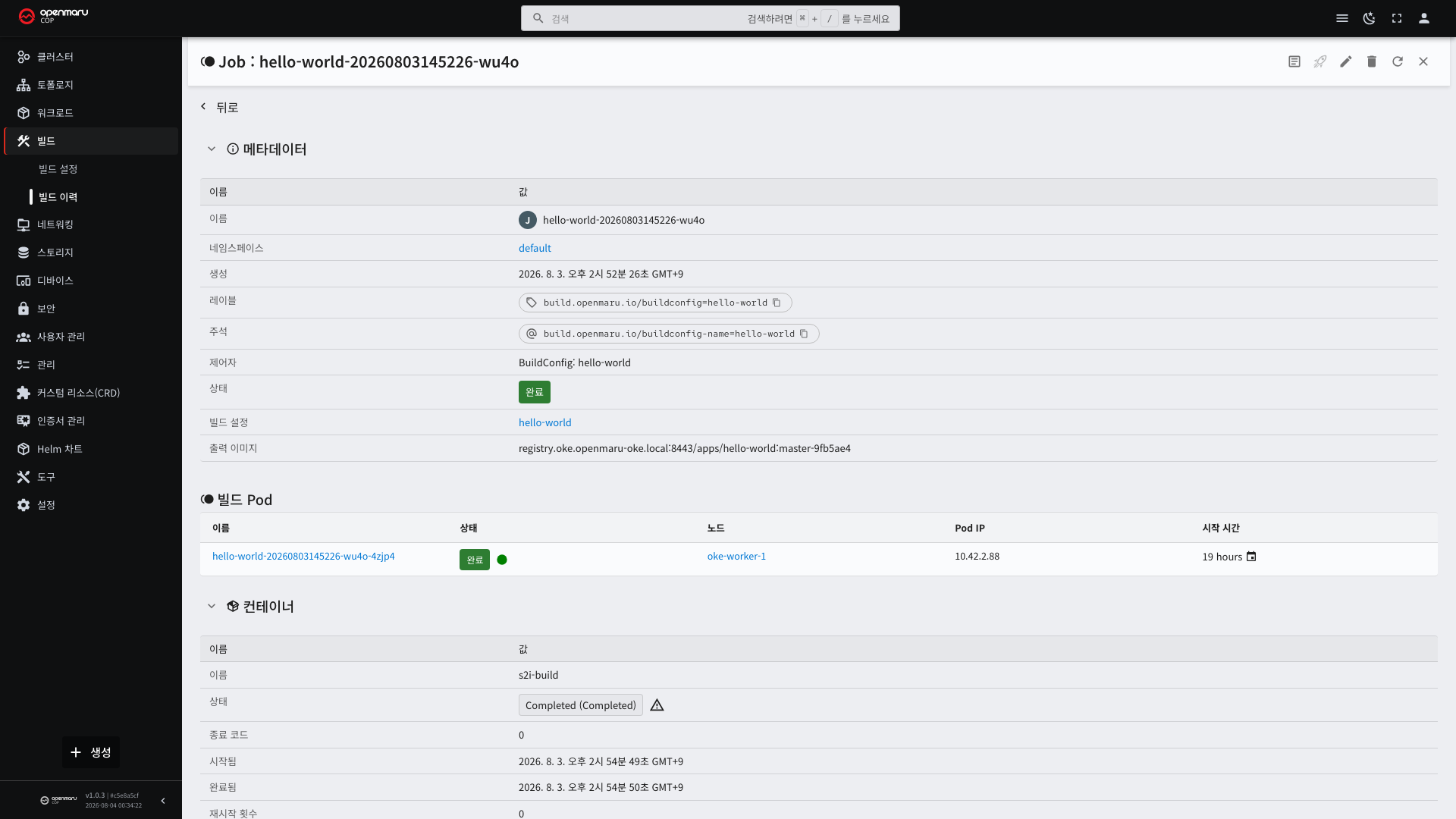
| Section | What it tells you |
|---|---|
| Metadata | Which build config it came from and which run number it is |
| Source | The repository, branch, and commit actually fetched |
| Result | The name and tag of the created image |
| Status | Start and end times, duration |
| Log | The full build output |
Checking the commit value in the source tells you which point in the code this image was built from. When "I deployed but my changes are not there", look at this value first. If the branch is right but the commit is old, the source was not pushed.
How to Read a Build Log
The log follows the stages in order. Finding the stage that failed narrows the cause.
| Order | Stage | If it fails here |
|---|---|---|
| 1 | Fetching the source | Repository URL, branch, authentication |
| 2 | Preparing the builder image | The builder image could not be fetched |
| 3 | Compilation | Source errors, dependency libraries |
| 4 | Creating the image | Build script errors |
| 5 | Pushing to the registry | Credentials, project permissions |
Compilation failure at stage 3 is the most common. In that case the log shows the compiler's errors verbatim. It is a source problem, not a Kubernetes problem, so try building in your development environment first.
Stage 5 failures appear as UNAUTHORIZED or denied. Check the account in the credential Secret and that
account's permissions on the registry project (see 3.4).
If the log is long, save it to a file with Download and search it there. It is faster than searching in the browser.
The log continues live while the build runs. For long builds, this is where you check which stage it is sitting in.
Checking Where the Image Went
When a build succeeds, the image is in the registry. The Console cannot show a list of images.
| What to check | Where |
|---|---|
| The image name and tag | The result on the build detail |
| Whether that image is in the registry | Harbor (see 9.3) |
| The image currently deployed | The containers on the deployment detail (see 3.2) |
Rerunning and Cancelling
| What you want to do | How |
|---|---|
| Build again with the same configuration | The rerun button on the detail screen |
| Abort a build in progress | The cancel button on the detail screen |
If it failed from a temporary network error, rerunning alone often succeeds. If the same error repeats, check the configuration.
A cancelled build creates no image. If it is cancelled after the push has already happened, the image remains.
Cleaning Up Records
As build records accumulate, they become hard to find in the list. Each build config has a retention count, and beyond it the oldest are deleted automatically (20 by default).
Deleting build records does not remove images already pushed to the registry. Image cleanup is done separately in the registry (Harbor).