5.1. Networking
When to Look at This
- When a deployed application cannot be reached
- When checking the external access address
- When communication between services is blocked
Why Pod Addresses Are a Problem
A pod receives a new IP address each time it is created. Recreating it changes the address, and increasing replicas produces several addresses.
| Situation | The pod address |
|---|---|
| The pod restarts | It changes |
| A new version is deployed | They all change |
| Three replicas | Three addresses |
| Moved to another node | It changes |
So pods must not be called by address directly. The caller would have to discover the address every time, and decide where to send when there are several.
Kubernetes solves this with Services.
How the Network Resources Relate
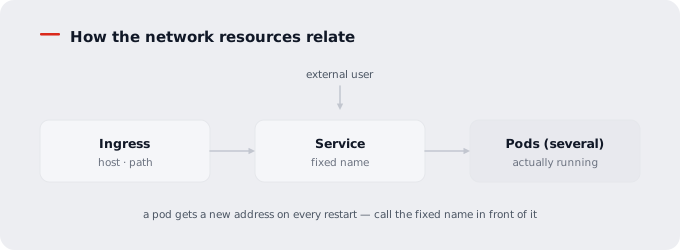
What a Service Is
It is the resource that gives a group of pods a fixed name and address.
Creating a Service produces three things.
| What you get | Description |
|---|---|
| A fixed IP (ClusterIP) | This address stays the same even as pods change |
| A DNS name | You can call it by name instead of by address |
| Load balancing | With several pods behind it, traffic is distributed |
The caller only has to know the Service name. It does not have to care how many pods are behind it, which node they are on, or whether one just restarted.
The DNS naming rules are as follows.
| Where you call from | The name to use |
|---|---|
| The same namespace | <service-name> |
| A different namespace | <service-name>.<namespace> |
| The full name | <service-name>.<namespace>.svc.cluster.local |
How a Service Finds Pods
A Service does not designate pods by name. It selects them by label.
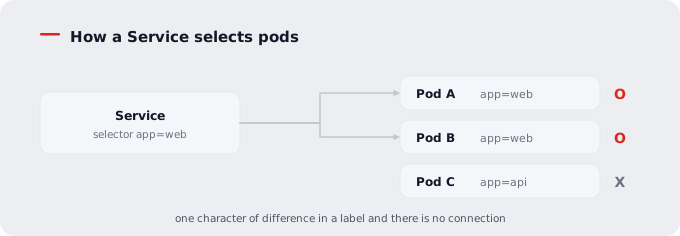
Because of this, the Service configuration does not have to change when pods appear or disappear. Anything with matching labels joins the target set automatically.
Conversely, one character of difference in a label means no connection. Half of all connection problems start here.
Service Types
| Type | Access scope | When to use it |
|---|---|---|
| ClusterIP | Inside the cluster only | The default. For internal services calling each other |
| Headless | Inside the cluster only, without distributing | When a StatefulSet's pods must find each other |
| NodePort | From outside, on a specific port of a node | Temporary checks, environments without a load balancer |
| LoadBalancer | Through an external load balancer | Cloud environments |
| ExternalName | Forwards to an external address | Calling a system outside the cluster by name |
Web services usually use the ClusterIP plus Ingress combination.
NodePort uses ports in the 30000-32767 range. You have to remember the port number, and the access address changes when the node address changes, so it is not recommended beyond temporary checks.
What Makes Headless Different
ClusterIP creates one representative address and distributes requests across the pods. The caller cannot tell which pod it reached, and does not need to.
Headless creates no representative address. Asking for the name returns the pod addresses themselves.
| ClusterIP | Headless | |
|---|---|---|
Asking for db-svc returns | One representative address | Every pod address |
| Distributes requests | Yes | No |
| Cluster IP column | 10.29.x.x | None |
Use it when members must reach each other directly, as in database replication or Kafka. Node 3 has to connect to node 1, and a representative address would land it anywhere.
Choose Headless under Type when creating the Service. This is what a StatefulSet's Service Name field
points at (see 3.2).
Whether a Service is headless cannot be changed after creation. The edit screen offers only Headless for a
headless Service, and everything except Headless for a regular one. Changing it means deleting and recreating.
The Service List
Go to Network > Services.
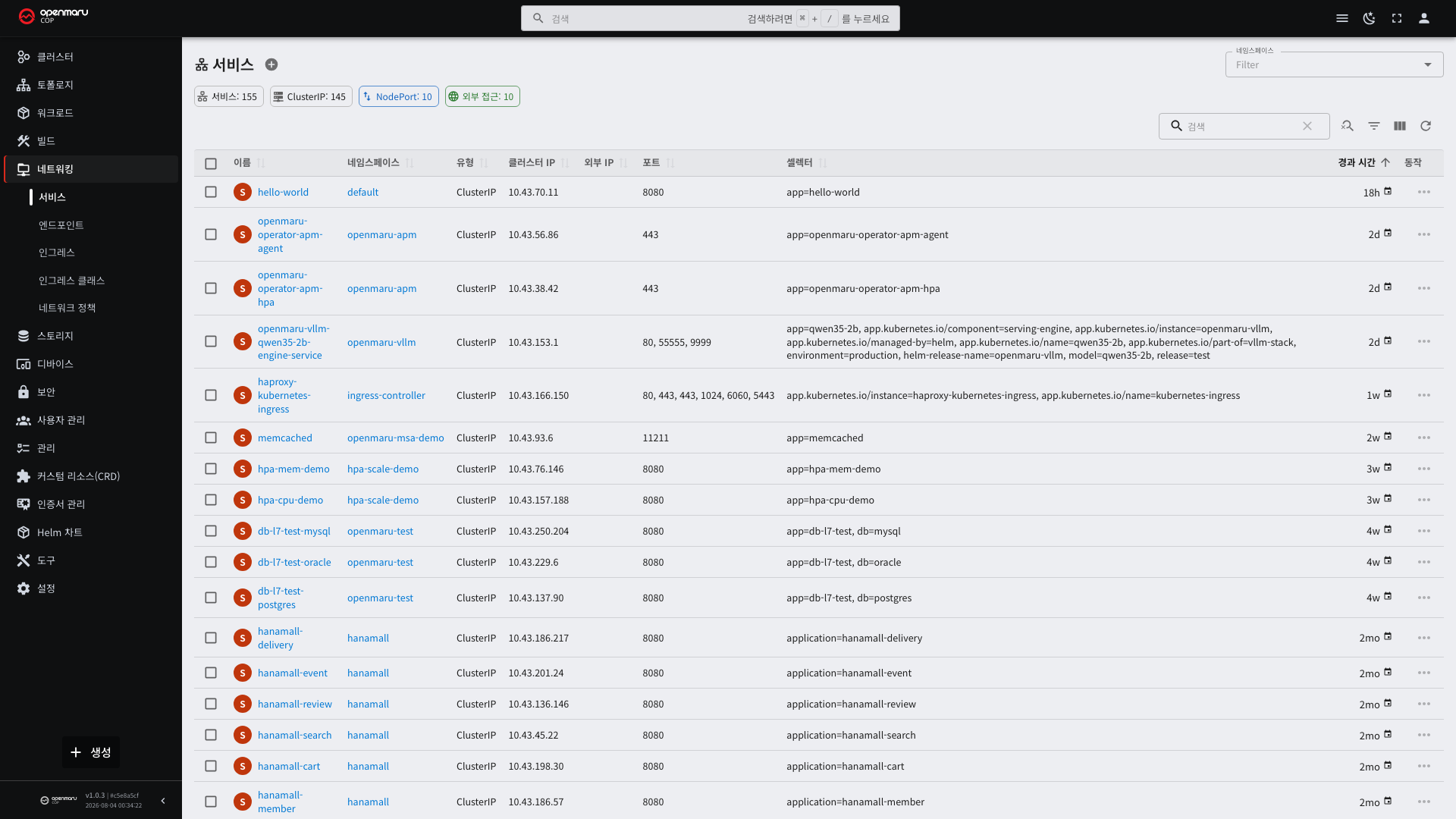
| Column | Description |
|---|---|
| Name | The Service name. This is the name used to call it inside the cluster |
| Namespace | The namespace it belongs to |
| Type | How it is exposed |
| Cluster IP | The internal cluster address |
| Ports | The receiving port and the port it forwards to |
Service Detail
Selecting the name opens the detail screen.
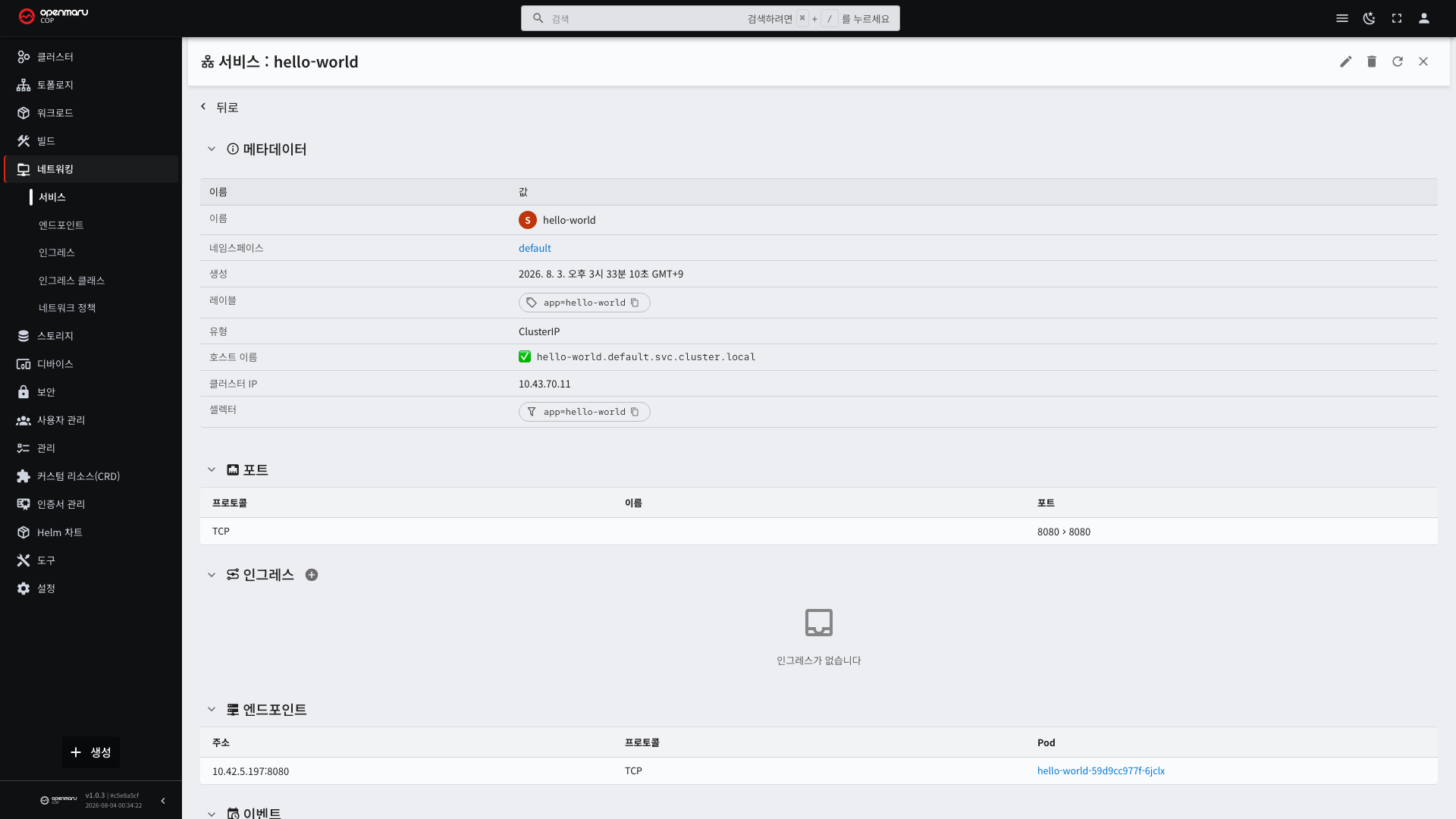
| Item | What to check |
|---|---|
| Selectors | Which labeled pods to send to. It must match the pod labels exactly |
| Ports | The receiving port (port) and the pod's port (targetPort) |
| Endpoints | The list of pod addresses actually connected |
It helps to know why there are two ports.
| Name | Meaning |
|---|---|
| port | The port the Service receives on. The number the caller uses |
| targetPort | The port the pod actually opens |
The two can differ. For example, callers use 80 from outside while the application opens 8080. If targetPort differs from the container's actual port, there is no connection.
Empty endpoints mean traffic has nowhere to go. In that case, compare the selector with the pod labels (see the pod detail in 3.1).
What an Endpoint Is
It is the list of pod addresses a Service actually sends traffic to. Kubernetes creates and manages it automatically.
You can also view them separately under Network > Endpoints.
A pod drops out of the endpoints if it is not Ready. This is the key mechanism of zero-downtime deployment. A new pod that is not ready yet receives no traffic and joins the list once it is.
Readiness is determined by the readiness probe (see 3.1).
| Situation | Endpoints |
|---|---|
| The pod is ready | It joins |
| The readiness probe is failing | It drops out |
| The pod is being deleted | It drops out |
| There is no readiness probe at all | It joins as soon as the container starts |
If a pod is up but not in the endpoints, its readiness probe is failing. Check on the pod detail that the probe path and port are correct.
Conversely, with no readiness probe traffic arrives the moment the container starts. If the application is still starting, those requests fail. If brief errors appear on every deployment, suspect this case.
What an Ingress Is
It is the rule connecting incoming external HTTP requests to internal Services.
External exposure is possible with Services alone (NodePort, LoadBalancer), but there are limits.
| Problem | How Ingress solves it |
|---|---|
| Each service needs a port or a load balancer | Many services share one entry point |
| Cannot be distinguished by domain name | Sends to different Services per host |
| Cannot be split by path | Sends /api and /web to different Services |
| HTTPS configured per service | Handled once at the Ingress |
The Difference Between Ingress and Service
| Service | Ingress | |
|---|---|---|
| Layer it handles | TCP/UDP ports | HTTP requests (host and path) |
| Basis for decisions | Port number | Domain name and URL path |
| HTTPS handling | None | Handled by attaching a certificate |
| What it needs | Nothing | An Ingress controller must be installed |
An Ingress is only a rule. What actually handles traffic is the Ingress controller installed in the cluster. Without a controller, creating an Ingress does nothing.
COP installs the HAProxy Ingress Controller. Its class name is default, and the whole cluster shares this one
controller.
COP's Ingress Controller Defaults
These values are decided at installation. They apply as they are when you create an Ingress, so knowing them narrows problems quickly.
| Item | Value | Meaning |
|---|---|---|
| Class name | default | The value to write in the Ingress ingressClassName |
| Cluster default | Yes | This controller handles it even without ingressClassName |
| Placement | One per node | It accepts traffic to any node address |
| Receiving ports | 80 · 443 | It uses the node's ports directly |
| Default certificate | wildcard-tls in kube-system | HTTPS works even without TLS in the Ingress |
| HTTPS redirect | On (to 443) | See "Allowing Access Over HTTP" below |
X-Forwarded-For | On | See "Knowing the Client's Address" below |
X-Forwarded-Proto | Fixed to https | See the same section |
| Header buffer size | 16KB | See below |
Four Things Worth Knowing
HTTPS works even without TLS in the Ingress. A default certificate (wildcard-tls) is configured, so HTTPS
access is open even if you omit spec.tls. However, going outside the address range that certificate covers makes
the browser warn. If you use a separate domain, obtain a certificate and write it in spec.tls (see 7.3).
It works even without ingressClassName, because it is designated the cluster default class. Writing it is
still recommended — if controllers are added later, it becomes impossible to tell where an Ingress without it will
go.
One controller is up on every node. The same rules apply no matter which node address traffic arrives at. If one node goes down, service continues through another node.
Large response headers cause 502 errors. The header buffer is 16KB. Applications that put long authentication tokens in cookies can exceed this limit. If the pod is fine but the browser shows 502, suspect this and ask operations staff. This value cannot be changed per Ingress; it is a cluster-wide setting.
The Ingress List
Go to Network > Ingresses.
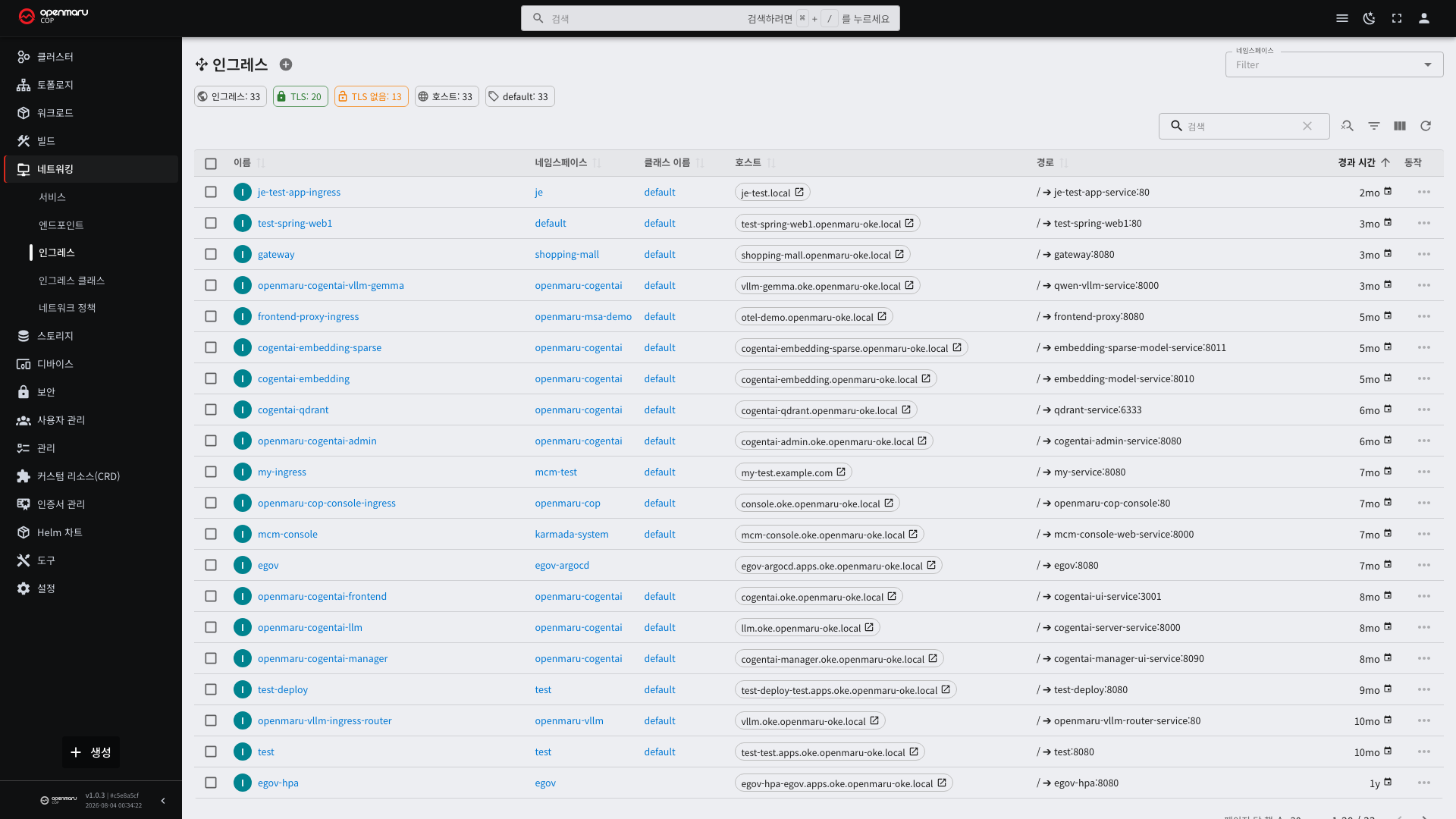
| Column | Description |
|---|---|
| Name | The Ingress name |
| Class | The Ingress controller that will handle it |
| Host | The external access address |
| Path | The connection rules per path after the address |
IngressClass is the label that decides which controller handles it when several are in use. COP uses only
default, and it is designated the default, so you do not have to specify it.
Ingress Detail
| Item | Description |
|---|---|
| Rules | Which Service and port to send to, per host and path |
| TLS | The name of the certificate Secret for HTTPS |
| Annotations | Settings that adjust controller behavior |
Important settings go in the annotations. COP's HAProxy controller uses names beginning with haproxy.org/. The
main ones are these.
| Annotation | What it does |
|---|---|
haproxy.org/path-rewrite | Rewrites a request arriving at /api/users to /users |
haproxy.org/ssl-redirect | Redirects HTTP to HTTPS (see below) |
haproxy.org/route-acl | Sends only requests matching a condition to this Service. Used for canary deployment (see 4.8) |
haproxy.org/timeout-server | Extends the time limit for slow services |
haproxy.org/load-balance | Sets how requests are distributed among the pods behind it |
For certificate issuance, see 7.3. If the Secret specified in TLS does not exist, HTTPS access fails.
Allowing Access Over HTTP
COP enables HTTPS redirect cluster-wide. Every request arriving over HTTP is redirected to HTTPS. That is right in most cases, but sometimes a particular service has to accept HTTP.
| When | Description |
|---|---|
| An internal-only API | Called only inside the cluster, where attaching a certificate is cumbersome |
| Older clients that cannot handle HTTPS | Programs that cannot follow a redirect |
| HTTPS already terminated in front | A separate appliance handles encryption and forwards in plain text |
Attaching the annotation to just that Ingress is enough. Other Ingresses keep redirecting.
apiVersion: networking.k8s.io/v1
kind: Ingress
metadata:
  name: internal-api
  namespace: my-app
  annotations:
    haproxy.org/ssl-redirect: "false"    # allows HTTP for this Ingress only
spec:
  ingressClassName: default
  rules:
    - host: internal-api.apps.example.com
      http:
        paths:
          - path: /
            pathType: Prefix
            backend:
              service:
                name: internal-api
                port:
                  number: 8080
There are three related annotations, and all can be attached to an Ingress.
| Annotation | What it does | Value |
|---|---|---|
haproxy.org/ssl-redirect | Turns the redirect on or off | "true" · "false" |
haproxy.org/ssl-redirect-port | The port to redirect to | 443 by default |
haproxy.org/ssl-redirect-code | The response code | 301 · 302 (default) · 303 |
Wrap values in quotes. Annotation values are strings, so writing false without quotes is rejected on apply.
Remove spec.tls as well. An Ingress with a TLS section has the redirect on even without the annotation. To
accept HTTP only, drop the tls section and set the annotation to "false".
HTTP does not encrypt its contents. Do not use it for services exchanging sign-in or personal information. Even on an internal network, the contents are visible to anyone on that network.
Knowing the Client's Address (X-Forwarded-For)
The address the application sees is not the real user's address. Because the request comes through the Ingress controller, what connected, from the application's point of view, is the controller.
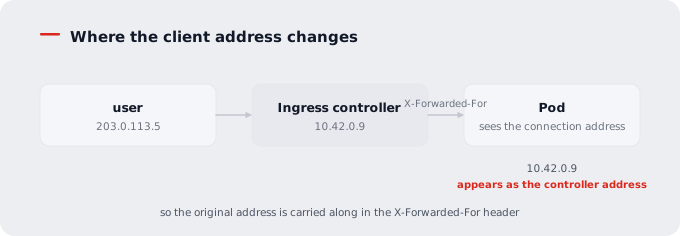
So access logging, address-based access restriction, and region detection all see the same one address.
The solution is the X-Forwarded-For header. When forwarding the request, the controller writes the original
user's address into the header. The application reads that header instead of the connection address.
COP's Defaults
It is on without any configuration. It applies to every Ingress.
| Header | The value it carries | State |
|---|---|---|
X-Forwarded-For | The user's real address | On |
X-Forwarded-Proto | The scheme the user used (https) | On |
It is worth knowing about X-Forwarded-Proto as well. The controller receives HTTPS and forwards to the pod over
HTTP, so an application looking only at the connection scheme mistakes it for HTTP. Reading this header is how it
knows the user connected over HTTPS.
There is a reason COP fixes this value to https. The feature that returns users to their original screen after
sign-in builds the address from this value. Without it, an address beginning http:// is generated and sent, and the
browser returns over HTTPS with the sign-in information lost. SSO sign-in repeating endlessly is the classic
symptom (see 1.1).
Reading It in the Application
Each framework has its own setting for reading this header. It has to be turned on for the value to be used in place of the connection address.
| Framework | Setting |
|---|---|
| Spring Boot | server.forward-headers-strategy=NATIVE |
| Tomcat | Add RemoteIpValve to the server configuration |
| Node.js (Express) | app.set('trust proxy', true) |
| Nginx (inside the container) | set_real_ip_from · real_ip_header X-Forwarded-For |
There Can Be Several Values
X-Forwarded-For appends in the order it passed through. With another appliance in front, there are several
values.
X-Forwarded-For: 203.0.113.5, 198.51.100.20
                 ↑ the real user   ↑ intermediate appliance
The first one is the real user. Most frameworks handle this for you, but if you read it directly, use the first value.
Do not use this value for security decisions as it stands. The header can be set arbitrarily by the user. To use it for access restriction or authentication, the setup has to strip and refill this header ahead of the controller, which is a matter to discuss with operations staff. Access logging and statistics are fine.
Turning It Off
Rarely needed, but if you must, turn it off with an annotation on the Ingress or Service.
metadata:
  annotations:
    haproxy.org/forwarded-for: "false"
What a Network Policy Is
By default, every pod in the cluster can communicate with every other. Different namespaces are not blocked.
A network policy restricts this. It defines "this pod accepts requests only from pods like these".
View them under Network > Network Policies.
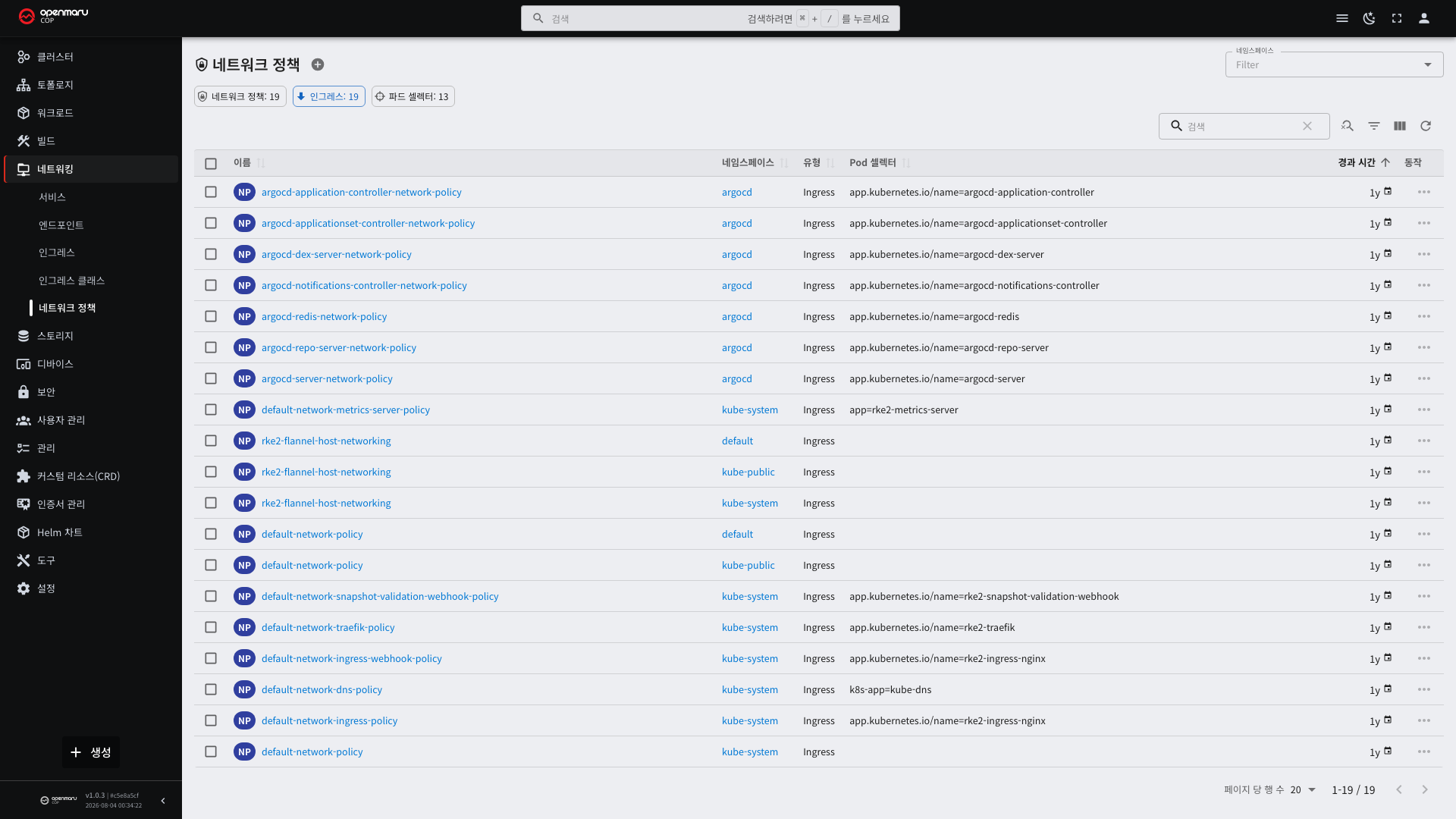
| Direction | Description |
|---|---|
| Ingress | Allow rules for incoming traffic |
| Egress | Allow rules for outgoing traffic |
Allowed targets are specified in three ways.
| Method | Description |
|---|---|
| Pod labels | Pods with particular labels |
| Namespace labels | All pods in particular namespaces |
| IP range | Address ranges outside the cluster |
Creating Them — YAML
Service
apiVersion: v1
kind: Service
metadata:
  name: my-app
  namespace: my-app
spec:
  type: ClusterIP
  selector:
    app: my-app          # sends to pods with this label
  ports:
    - name: http
      port: 80           # the port used when calling the Service
      targetPort: 8080   # the port the container actually opens
      protocol: TCP
| Field | Description |
|---|---|
selector | Must match the pod labels exactly. One difference and the target set is empty |
port | The number other pods use when calling, as in http://my-app:80 |
targetPort | The number the container actually listens on. A name can also be used |
port and targetPort are easy to confuse. Swapped, the Service looks fine but simply does not connect. Pods do
appear on the Endpoint screen, which makes the cause hard to find.
Ingress
apiVersion: networking.k8s.io/v1
kind: Ingress
metadata:
  name: my-app
  namespace: my-app
spec:
  ingressClassName: default        # the COP default — the HAProxy controller handles it
  tls:
    - hosts:
        - app.example.com
      secretName: app-tls-secret      # the Secret holding the certificate (see [7.3](/docs/cop-user-guide/cert-manager))
  rules:
    - host: app.example.com
      http:
        paths:
          - path: /
            pathType: Prefix
            backend:
              service:
                name: my-app          # the Service name created above
                port:
                  number: 80          # the Service's port (not targetPort)
| Field | Description |
|---|---|
ingressClassName | Which Ingress controller handles it. For COP it is default |
pathType | Prefix matches everything starting with that path; Exact matches exactly |
backend.service.port.number | Write the Service's port. Not the container port |
You can send different paths to different services.
          paths:
            - path: /api
              pathType: Prefix
              backend:
                service:
                  name: api-service
                  port:
                    number: 8080
            - path: /
              pathType: Prefix
              backend:
                service:
                  name: web-service
                  port:
                    number: 80
Write longer paths first. Writing / first can send /api requests there too.
Network Policy
The first thing to create is a policy that opens DNS. As explained in "Pitfalls" below, adding even one policy switches that pod to allow-list mode, so without DNS open, all communication by name is cut off.
apiVersion: networking.k8s.io/v1
kind: NetworkPolicy
metadata:
  name: allow-dns
  namespace: my-app
spec:
  podSelector: {}                     # every pod in this namespace
  policyTypes:
    - Egress
  egress:
    - to:
        - namespaceSelector:
            matchLabels:
              kubernetes.io/metadata.name: kube-system
      ports:
        - protocol: UDP
          port: 53
        - protocol: TCP
          port: 53
podSelector: {} is correct as an empty value. It means "no condition", so every pod in that namespace is the
target.
Then open the communication you actually need. Below is an example letting only pods labeled web reach my-app on
port 8080.
apiVersion: networking.k8s.io/v1
kind: NetworkPolicy
metadata:
  name: allow-web-to-app
  namespace: my-app
spec:
  podSelector:
    matchLabels:
      app: my-app                     # what to protect
  policyTypes:
    - Ingress
  ingress:
    - from:
        - podSelector:
            matchLabels:
              app: web                # web pods in the same namespace
        - namespaceSelector:
            matchLabels:
              kubernetes.io/metadata.name: frontend   # the whole frontend namespace
      ports:
        - protocol: TCP
          port: 8080
Entries in the from list are "or". The example above accepts requests from web pods or from the
frontend namespace.
Two conditions in one entry become "and". Below allows only web pods in the frontend namespace — note where
the list marker (-) sits.
      from:
        - namespaceSelector:
            matchLabels:
              kubernetes.io/metadata.name: frontend
          podSelector:                # in the same entry — both must be satisfied
            matchLabels:
              app: web
This difference is one character of YAML with a very different result. It either opens wider than intended or lets nothing through.
Before Adding a Policy
- Add the DNS policy first.
- Try the policy on just one target pod (narrow the
podSelector). - Confirm communication works, then widen the scope.
- Keep the policy YAML so you can revert.
Network Policy Pitfalls
Once even one policy applies to a pod, all traffic that policy does not allow is blocked.
With no policy everything is allowed, but the moment one exists it switches to allow-list mode. Not knowing this leads to adding one policy and cutting off the whole service.
If communication breaks after adding a policy, check whether you missed the following.
| Easy to miss | Description |
|---|---|
| DNS lookups | Port 53 in the kube-system namespace. Blocked, all communication by name fails |
| Probes | kubelet sends them from the node, so they are not caught by pod labels |
| Monitoring collection | The metric collector has to reach the pods |
| The outbound direction | Opening only Ingress and forgetting Egress blocks external API calls |
Diagnostic Order When a Connection Fails
Checking in this order finds the cause in most cases.
| Order | What to check | Where |
|---|---|---|
| 1 | Whether the pod is Running and ready | Workloads > Pods (see 3.1) |
| 2 | Whether the Service's endpoints are non-empty | Service detail |
| 3 | Whether the Service's targetPort matches the container port | Service detail, pod detail |
| 4 | Whether the Ingress host and path match the request | Ingress detail |
| 5 | Whether a network policy is blocking it | Network Policies |
| 6 | For HTTPS, whether the certificate is ready | Cert-manager (see 7.3) |
Step 2 is where it stops most often. One character of difference between the Service selector and the pod labels means no connection.
To check from inside a pod, call another service from the web terminal (see 3.1). If the name fails but the IP works, it is a DNS problem; if both fail, it is a network policy or port problem.