4.2. Building From the Console
When to Use It
- When you want to turn source code into a container image without writing a Dockerfile
- When you want to run a build from a screen and deploy the result right away
- When the application is simple and does not need a Jenkins pipeline
If you need repeated runs or a deployment approval process, use Jenkins (see 4.4).
The Relationship Between a Build Config and a Build
Two things need to be distinguished.
| Name | What it is | In concrete terms |
|---|---|---|
| Build config (BuildConfig) | A reusable template holding "what to build and how" | A configuration resource stored in the cluster |
| Build | One execution of that config | A Job running in the cluster |
Once you create a build config, you only have to select Start build whenever the source changes. Each run creates a new build and accumulates as history.
The build config by itself does nothing. It is only stored, and the work is created from its contents when you run it.
The Build Config List
Go to Build > Build Configs.
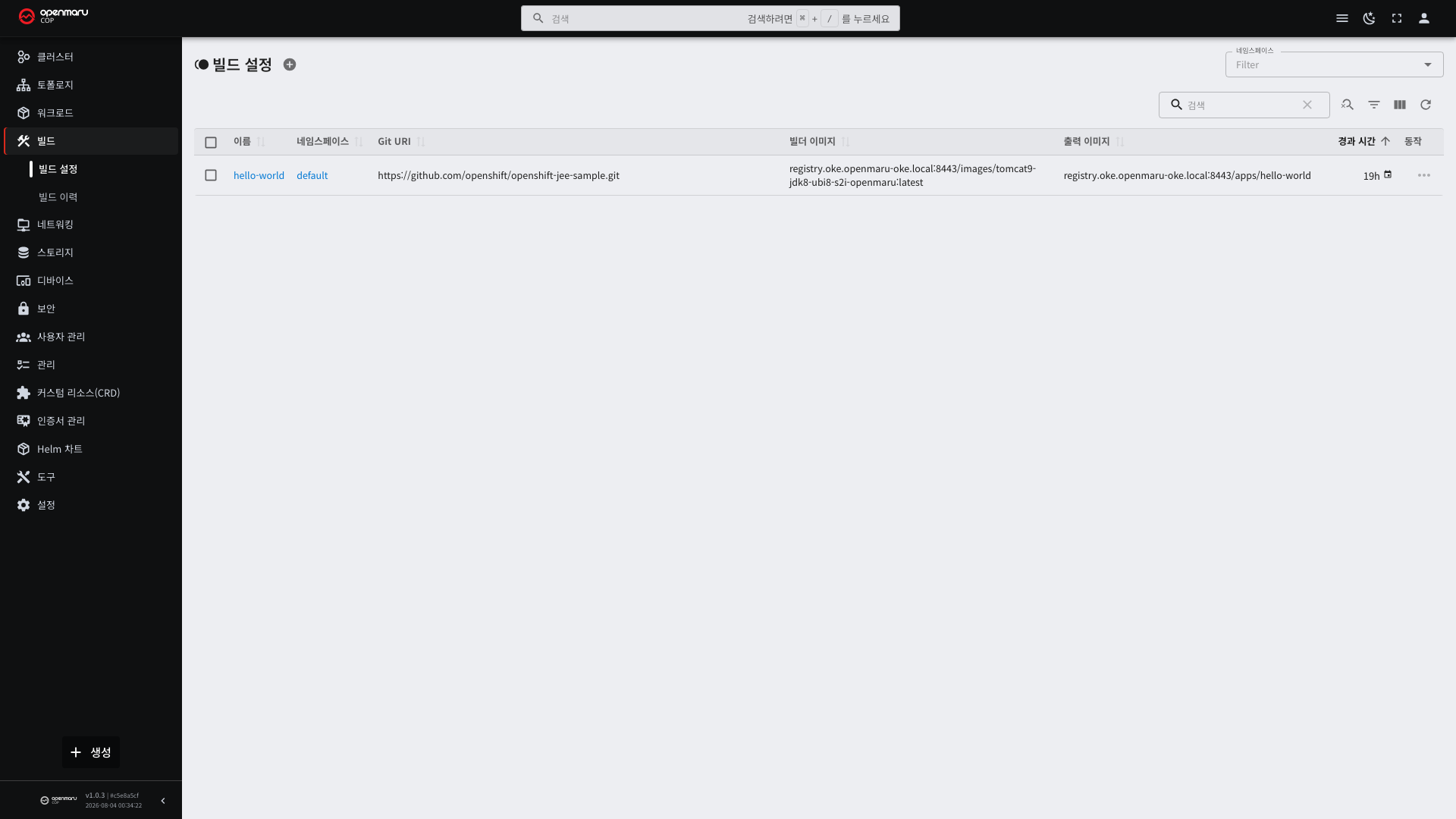
| Column | Description |
|---|---|
| Name | The build config name |
| Git URL | The repository the source comes from |
| Builder image | The image responsible for compilation |
| Output image | The name of the image to be created |
| Age | Time elapsed since creation |
If the list is empty, a guidance message appears with a Create build config button. This is the first screen you see, so start there.
On clusters where the build feature is not installed, a guidance banner appears instead of the list. Ask operations staff to install the build feature.
Creating a Build Config — Four Tabs
Selecting Create at the top right of the list opens a window with four tabs.
| Tab | Description | When to use it |
|---|---|---|
| Guided editor | A dedicated input form for build configs | The default. Enough for most cases |
| YAML editor | Enter the configuration directly as YAML | When copying another configuration over |
| Form editor | Every field in an automatically generated form | When you need a field the guided editor lacks |
| API documentation | A description of each field | When you want to know what a field means |
In the guided editor you choose Secrets, volumes, and builder images from dropdowns. Because you do not type names yourself, failures from typos are reduced.
Guided Editor Fields
| Field | Description | Example |
|---|---|---|
| Name | The build config name. Must be unique within the namespace | egov-build |
| Namespace | Where the build runs and its result is placed | egov |
| Git URL | The repository holding the source | http://gitlab.../egov.git |
| Branch or tag | The point to fetch. Empty means the default branch | main |
| Subdirectory | The path inside the repository to build | backend |
| Source credentials | The Secret to use for a private repository | gitlab-cred |
| Builder image | The image matching the language and build tool | Select from the dropdown |
| Builder credentials | The Secret for pulling the builder image | harbor-cred |
| Build environment variables | Values used during compilation | MAVEN_ARGS, MAVEN_MIRROR_URL |
| Output image | The address of the image to be created | harbor.../egov:latest |
| Push credentials | The Secret for pushing to the registry | harbor-cred |
| Tag policy | See "Image Tag Rules" below | GitRef |
Only builders registered in the cluster appear in the builder image list. Commonly used languages such as Java, Node.js, and Python are prepared. If the builder you need is absent, ask operations staff to register it or use the Jenkins or Bastion route (chapters 4.4 and 4.5).
Entering the Git URL fills in the name. When the Name field is empty, the repository name goes into it.
Entering http://gitlab.../egov.git, for example, sets the name to egov. Characters a name cannot use (uppercase,
_) are folded to lowercase and -. A name you typed yourself is left alone.
Entering the name fills in the output image and the deploy target too. Typing all three separately makes them easy to mistype, and they are normally the same name. Values you edited yourself are left alone.
The output image address is entered in two parts: registry and image name. If a default registry is configured
on the cluster, the first field already holds <registry>/apps/, so you only enter the name. To push to a different
registry, choose Other in the first field and enter the full name including the address. (With no default
registry configured, the field is not split — you enter the full address in a single field.)
The image name is filled in as <namespace>/<name>. A build named egov-web in the egov namespace, for
example, becomes egov/egov-web. The namespace goes in as a path segment, so the registry screen groups images by
namespace. Before a namespace is chosen the name goes in without a prefix; the prefix appears the moment you pick one.
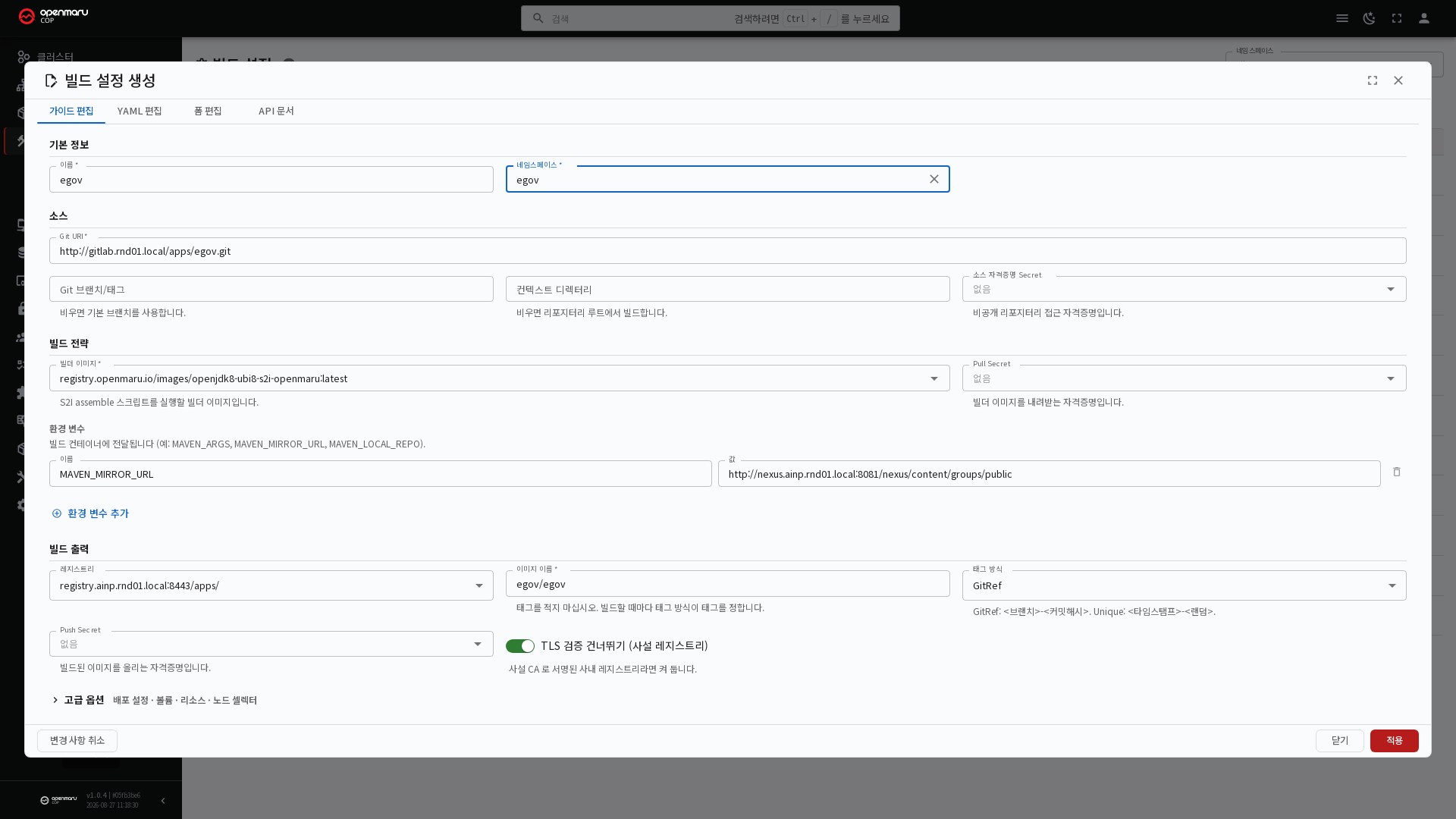
In environments using an internal library repository (Nexus), you have to add the MAVEN_MIRROR_URL environment
variable to fetch dependency libraries. Air-gapped environments cannot reach external repositories.
Image Tag Rules
The tag written in the output image is a base value, and the actual tag is decided by the tag policy.
| Tag policy | Tag produced | Characteristic |
|---|---|---|
| GitRef (default) | <branch>-<7-character commit hash> | The tag alone tells you which source it was built from |
| Unique | <time>-<4 random characters> | Always different on every run |
Both policies produce a different tag on every run, so deploying definitely brings up a new version. Pinning the
tag to latest leaves the image address unchanged, which causes the problem of pods not changing on deployment; COP
prevents that this way.
With GitRef, rebuilding the same commit produces the same tag. In that case, deploying triggers no rollout. If you need to deploy again without changing the source, use Unique.
Build Resource Settings
A build runs as a pod inside the cluster. Resource requests and limits are always filled in.
| Field | Default |
|---|---|
| Requested CPU | 500m |
| Requested memory | 1Gi |
| Requested ephemeral storage | 4Gi |
| CPU limit | 2 |
| Memory limit | 4Gi |
There is a reason the defaults are not left empty. A pod with no resource requests falls into the first-to-be-evicted grade (BestEffort; see chapter 3.1), and the build could consume node memory to the end and take other pods down with it.
If a large project runs short of memory, raise the limit. Conversely, if the limit exceeds the namespace resource quota, the build does not start (see 8.1).
Reducing Build Time With a Cache
Maven and Gradle take a long time if libraries are fetched anew every time. Attaching storage (a PVC) at the cache path makes subsequent builds faster.
Choose a PVC in the volume section of the guided editor and specify the mount path.
| Build tool | Cache path |
|---|---|
| Maven | /home/jboss/.m2 (may differ by builder image) |
| Gradle | ~/.gradle |
| npm | ~/.npm |
The PVC has to be created first before it appears in the list (see 6.1).
Where to Put an Environment Variable
Environment variables have three possible places, and each applies at a different time. Choosing the wrong one means the value is ignored without any error.
| Place | Applies | Typical variables |
|---|---|---|
| Environment variables in the build settings | Only while the source is turned into an image | Build tool settings such as MAVEN_MIRROR_URL |
.s2i/environment in the source repository | Both build and run | Values needed in both places |
| Environment variables on the deployment screen | When the container starts | Runtime settings such as TOMCAT_MAX_THREADS |
Putting a build-time value on the deployment side, or the reverse, leaves both the build and the deployment successful while the value is discarded. Which variable belongs where, and the full list, are in 4.9 S2I Environment Variables.
What Is Created Alongside
Creating a build config also creates a deployment skeleton (a Deployment). Its replica count is 0, so no pods start.
The reason is that starting a pod while no image exists yet produces repeated ImagePullBackOff errors because the
image cannot be pulled. It goes from 0 to 1 on the first deployment.
A Service is not created at this point. Which port to open can only be known after the build finishes.
Running and Cancelling a Build
The buttons are grouped on the build config detail screen.
| Button | What it does |
|---|---|
| Start build | Runs a new build with the current configuration |
| Cancel build | Aborts the build in progress |
| Rebuild | Cancels what is in progress and starts anew |
| Deploy | Deploys the image from the last successful build |
Two builds of the same build config cannot run at the same time. While one is in progress, the start button is disabled.
The lower part of the detail screen shows the history of builds run with this config. Along with name, status, and start time, it shows which node it ran on, so you can tell here if it fails only on a particular node.
Build history keeps 20 entries by default, and the oldest are deleted.
Deploying
The Deploy button deploys the image from the last successful build.
It behaves as follows.
| Situation | Behavior |
|---|---|
| The deployment target already exists | Swaps the container image and does a rolling update |
| The deployment target does not exist | Creates it (1 replica) |
| Replicas are 0 | Swaps the image and raises it to 1 |
| The image has an EXPOSE port and there is no Service | Creates a ClusterIP Service, once only |
When swapping the image, a confirmation window appears showing the image before and the image after. Check how the tag changes before proceeding.
The deploy button is disabled if the image is already deployed. Deploying the same image again changes nothing. It stays enabled when replicas are 0, however, because turning it on is still an action.
Existing Services are never overwritten. To change a port, edit the Service directly (see 5.1).
What to Check When It Fails
| Symptom | Cause | Remedy |
|---|---|---|
| Cannot fetch the source | Wrong repository URL or branch, missing credentials for a private repository | Check the URL and branch, specify a source credential Secret |
| Compilation failure | An error in the source itself, dependency libraries not fetched | The error line in the build log, check MAVEN_MIRROR_URL |
| Image push failure (UNAUTHORIZED) | Missing registry credentials or insufficient permission | Check the account and password in the push Secret and the permissions on that project |
| Certificate error | A registry with a private certificate | Check the insecure connection option in the build config |
| The build does not start | Not enough resources for the build | Check the namespace resource quota (see 8.1) |
| Aborted due to insufficient memory | The build needs more memory than the limit | Raise the build resource limit |
| Deployed but pods did not change | The same commit was rebuilt with GitRef, so the tag is identical | Change the source or switch the tag policy to Unique |
Even with credentials registered, a wrong value or insufficient permission fails at the push step. Do not check only that the Secret exists; check its contents too (see 3.4).