3.4. Configuration Data
When to Use It
- When you want only the connection addresses or setting values to differ across development, staging, and production
- When you want to manage passwords without putting them inside the image
- When you do not want to rebuild the image every time a setting changes
Why Configuration Belongs Outside the Image
Putting configuration into a container image means building a new image for each environment.
| Inside the image | Outside it | |
|---|---|---|
| Per-environment deployment | You build separate development and production images | You use the same image |
| Changing a setting | You rebuild the image and redeploy | You change only the value |
| What you tested versus what runs in production | Different images | The same image |
| Passwords | Baked into the image where anyone can see them | Only those with permission can see them |
"What you tested and what runs in production are the same" matters most. With different images, what passed testing can fail in production.
What a ConfigMap Is
It is the resource for holding setting values that do not need to be hidden.
It stores key-value pairs, where a value can be a short string or an entire configuration file.
| Example content | Form |
|---|---|
| Connection address | DB_HOST=db.example.local |
| Log level | LOG_LEVEL=info |
| Feature on or off | FEATURE_NEW_UI=true |
| A whole configuration file | The entire contents of application.yml |
What a Secret Is
It is the resource for holding values that must be hidden. Its structure is the same as a ConfigMap, but it is handled differently.
| ConfigMap | Secret | |
|---|---|---|
| On screen | Shown as is | Masked. You have to select to reveal it |
| Read permission | Included in the view role | Excluded from the view role (see 7.1) |
| Storage format | Plain text | base64-encoded |
| Type distinction | None | Yes (see below) |
A Secret Is Not Encryption
Secrets are not stored encrypted. They are only base64-encoded, and anyone can reverse the encoding.
The protection a Secret provides is this.
| What you get | What you do not get |
|---|---|
| Read permission can be managed separately | Encryption of the value itself |
| Accidental exposure on screen and in logs is reduced | Protection if the store is breached |
| When injected into a pod as a file, it stays in memory only |
So grant Secret read permission only to those who truly need it. Encryption of the cluster store (etcd) is configured separately by operations staff.
The ConfigMap List
Go to Workloads > Config Maps.
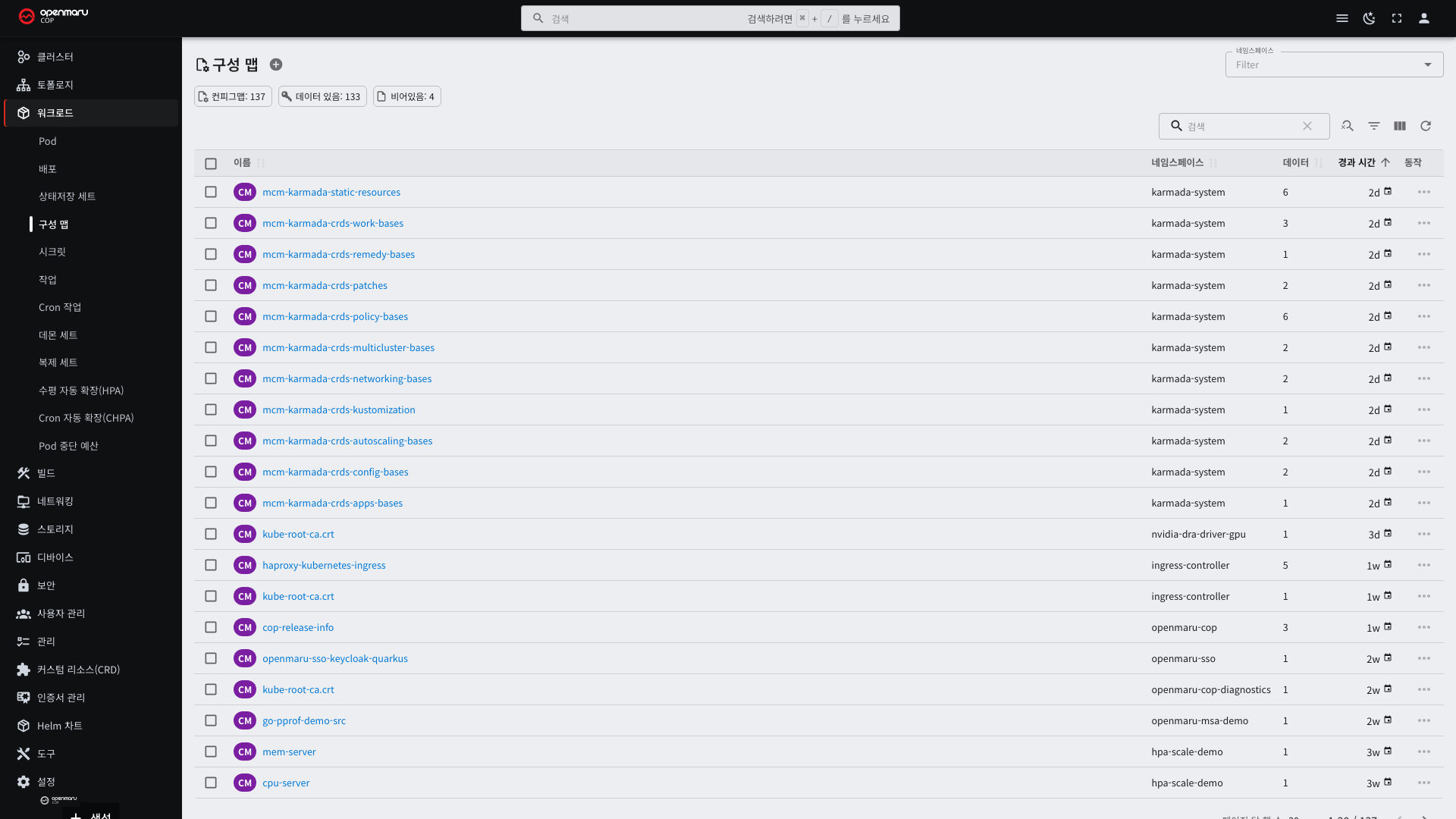
| Column | Description |
|---|---|
| Name | The ConfigMap name |
| Namespace | The namespace it belongs to |
| Data | The number of keys it holds |
| Age | Time elapsed since creation |
ConfigMaps and Secrets are namespace-scoped resources. Pods in other namespaces cannot use them. If several namespaces need the same configuration, you have to create it in each.
ConfigMap Detail
Selecting the name shows the keys and values it holds.
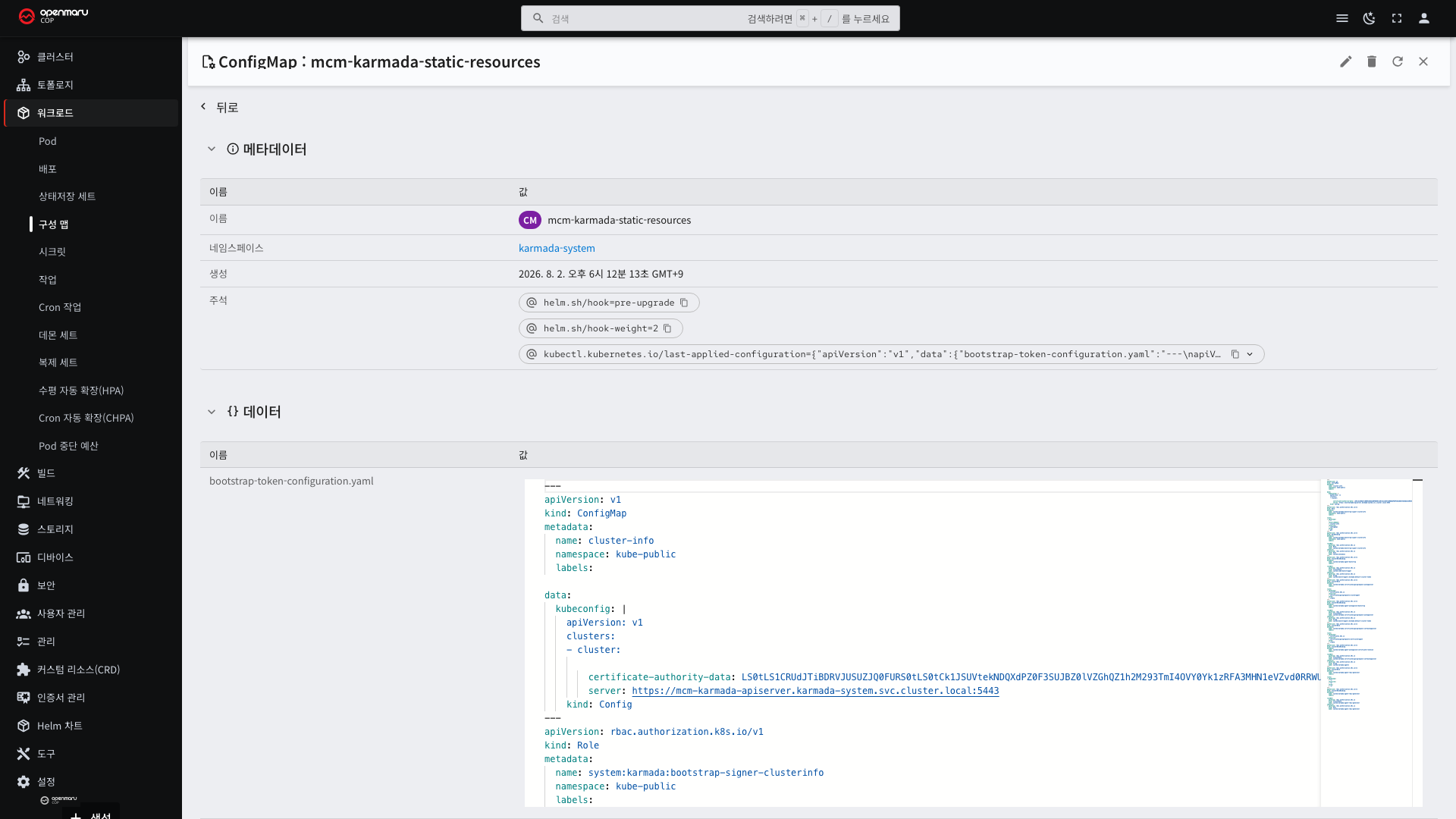
- If a value is a long configuration file, the whole content is shown as is.
- The edit button lets you change values.
- Which pods use this ConfigMap is not shown here. Check the environment variables and mounts on the pod detail (see 3.1).
The Secret List
View them under Workloads > Secrets.
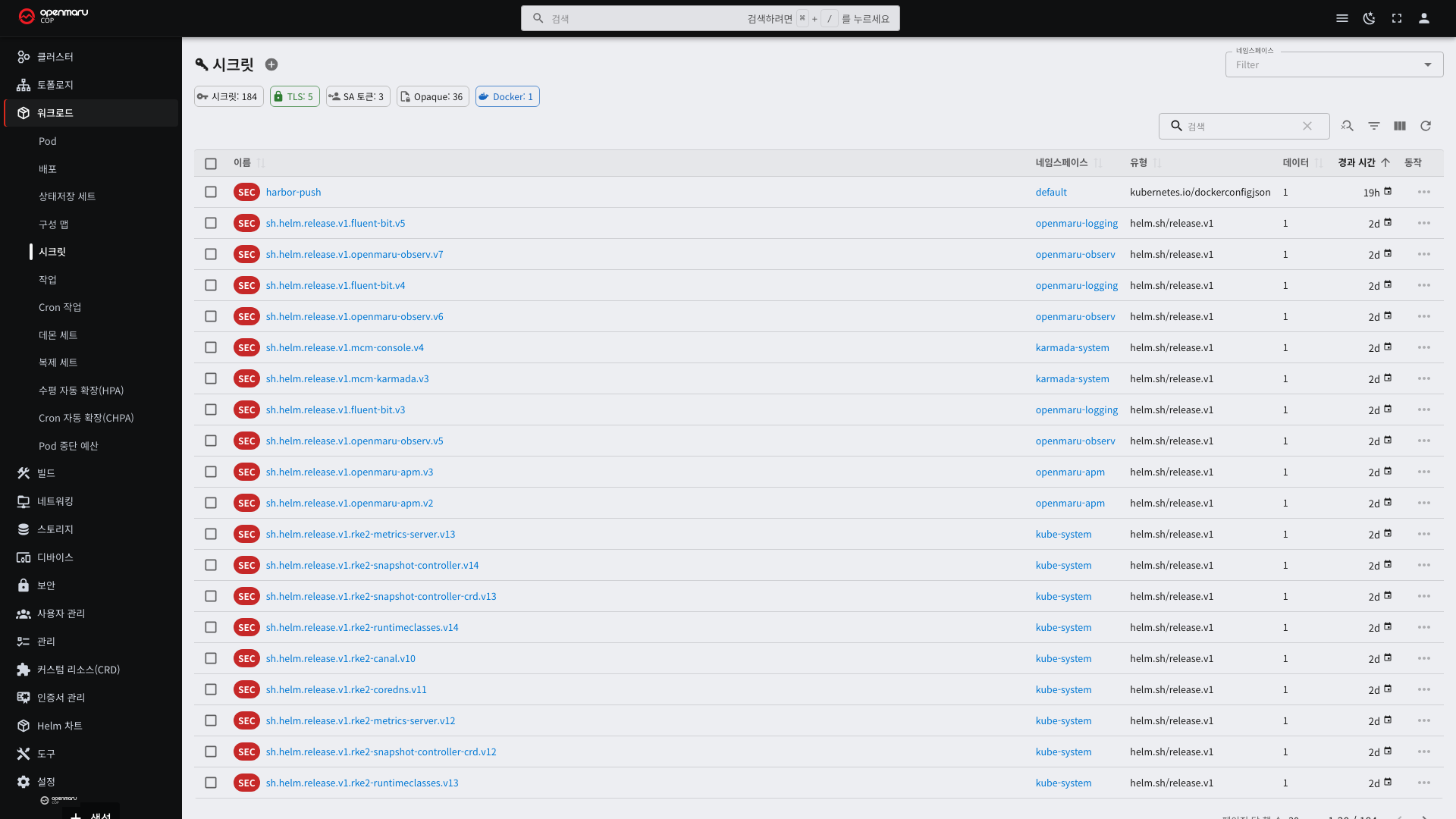
The list layout is the same as for ConfigMaps, with an extra Type column. Values are masked by default and are revealed by selecting the eye button.
Secret Types
The type indicates what the Secret is used for. Each type has a fixed set of keys it must hold.
| Type | What it holds | How it is created |
|---|---|---|
Opaque | General secret values. Key names are free | You create it |
kubernetes.io/dockerconfigjson | Registry sign-in information | Used when pulling images |
kubernetes.io/tls | A TLS certificate (tls.crt) and private key (tls.key) | Generated automatically by cert-manager (see 7.3) |
kubernetes.io/basic-auth | A user name and password | Git repository authentication and similar |
kubernetes.io/ssh-auth | An SSH private key | Git access over SSH |
kubernetes.io/service-account-token | A service account token | Generated automatically by the cluster |
helm.sh/release.v1 | Helm release information | Generated automatically by Helm (see 9.1) |
Seeing several helm.sh/release.v1 entries is normal. Helm leaves one per revision.
When a build cannot push an image to the registry, check the account and password in the dockerconfigjson
Secret (see 4.2).
Two Ways to Attach Them to a Pod
| Method | Description | When it fits |
|---|---|---|
| Environment variables | Passes keys as environment variable names | When there are only a few values |
| Volume mount | Turns keys into files and attaches them to a directory | When a whole configuration file is needed |
The environment variable method splits into two.
| Method | Behavior |
|---|---|
| Specifying keys one at a time | You can pick only the keys you want and rename them |
| Injecting everything | Every key in the ConfigMap becomes an environment variable |
You can check which ConfigMaps and Secrets are attached, and by which method, on the pod detail screen.
Creating and Attaching — YAML
Creating a ConfigMap
apiVersion: v1
kind: ConfigMap
metadata:
  name: app-config
  namespace: my-app
data:
  LOG_LEVEL: "info"                 # a single-value entry
  MAX_CONNECTIONS: "50"
  application.yaml: |               # putting in a whole file
    server:
      port: 8080
    logging:
      level: info
All values are written as strings. Writing the number 50 without quotes is rejected on apply.
Several lines after | become the contents of a single file.
Creating a Secret
apiVersion: v1
kind: Secret
metadata:
  name: db-credentials
  namespace: my-app
type: Opaque
stringData:                          # written in plain text and converted on save
  username: appuser
  password: "s3cr3t-p@ssw0rd"
Use stringData. With data you have to encode values in advance, and if you forget and enter plain text the
application receives a broken value. stringData lets Kubernetes do the conversion for you.
When creating from the Console screen, this conversion happens automatically, so you only enter the value.
Method 1 — Injecting as Environment Variables
Pick keys and give them names.
      containers:
        - name: app
          image: registry.example.com/my-app:1.0
          env:
            - name: LOG_LEVEL                 # the name to use in the container
              valueFrom:
                configMapKeyRef:
                  name: app-config            # the ConfigMap name
                  key: LOG_LEVEL              # the key inside it
            - name: DB_PASSWORD
              valueFrom:
                secretKeyRef:
                  name: db-credentials
                  key: password
With many keys, inject everything. The ConfigMap key names become the environment variable names as they are.
          envFrom:
            - configMapRef:
                name: app-config
            - secretRef:
                name: db-credentials
When injecting everything, the key names must be usable as environment variables. A key containing a dot, such as
application.yaml, cannot become an environment variable and is silently dropped. Use the volume method below for
file-like values.
Method 2 — Attaching as Files
      containers:
        - name: app
          image: registry.example.com/my-app:1.0
          volumeMounts:
            - name: config                   # must match the name under volumes below
              mountPath: /etc/app            # the files are created in this directory
              readOnly: true
      volumes:
        - name: config
          configMap:
            name: app-config
This creates one file per key name under /etc/app/. In the example above, three files appear:
LOG_LEVEL, MAX_CONNECTIONS, and application.yaml.
You can also pick only the keys you need and rename the files.
      volumes:
        - name: config
          configMap:
            name: app-config
            items:
              - key: application.yaml
                path: config.yaml            # created as /etc/app/config.yaml
Secrets work the same way, using secret instead of configMap and secretName instead of name.
      volumes:
        - name: creds
          secret:
            secretName: db-credentials
            defaultMode: 0400                # readable by the owner only
Narrow the permissions when attaching credentials as files. Without a setting, they are created as 0644 and can
be read by others besides the owner.
Cautions When Mounting
Existing contents of the directory given in mountPath are hidden. For example, attaching a ConfigMap at
/etc/nginx makes every file under /etc/nginx that came with the image invisible. To replace only one file,
specify just that file.
            - name: config
              mountPath: /etc/nginx/nginx.conf
              subPath: nginx.conf            # overwrites only this one file
However, a file attached with subPath is not refreshed when the ConfigMap changes. The pod has to be restarted
for it to take effect. Read this together with "What to Do After Changing a Value" below.
What to Do After Changing a Value
Not knowing this part is a frequent cause of "I changed the setting but it did not take effect".
| Attachment method | Whether a value change takes effect |
|---|---|
| Environment variables | It does not. The pod has to be restarted |
| Volume mount | The file contents change within about a minute. The application still has to reread the file for it to apply |
Environment variables do not take effect because they are values passed once when the process starts. The environment variables of a running process cannot be changed from outside.
To be sure it takes effect, restart the corresponding Deployment (see 3.2).
Cautions When Reverting
ConfigMaps and Secrets have no version history. Editing one erases the previous value.
Rolling back a Deployment does not revert the ConfigMap contents (see 3.2). A rollback reverts only the pod template, and the template records only "which ConfigMap to use".
Do one of the following before editing a setting.
| Method | Description |
|---|---|
| Copy the current content | Copy the YAML from the detail screen and keep it as a file |
| Put a version in the name | Create app-config-v2 and change the reference in the deployment definition |
With the second method, a rollback reverts the reference too, so the configuration is restored as well.
Cautions While Working With Them
- Do not rename them. Pods reference them by name. Renaming stops the pods from starting.
- Check whether a key is in use before deleting it. A pod referencing a missing key cannot start.
- If a value needs line breaks, use multi-line notation in the YAML editor.
- A single resource can hold about 1MB. Put large files on a volume (see 6.1).
- Do not write Secret values into application logs. Logs are seen by many people and are included in diagnostic material (see 2.3).