9.3. The Tools Menu
When to Use It
- When moving to the source repository, registry, or build server
- When entering them all from one place without memorizing each address
Why COP Is Made of Several Systems
COP does not do everything with the Console alone. Widely used tools already exist for each area, and COP installs and connects them.
| Area | Tool | Why it is kept separate |
|---|---|---|
| Source management | GitLab | Dedicated features such as code review and branching strategies are needed |
| Image storage | Harbor | Vulnerability scanning, signing, and retention policies are needed |
| Build pipelines | Jenkins | It handles complex flows such as approval stages and conditional branching |
| Authentication | Keycloak | Several systems share one account |
| Monitoring | Observability | Time-series data has to be retained for a long time |
The Console is the screen for working with the cluster, and the rest take charge of their own areas.
The Tools menu is a collection of links that go straight to those systems' screens.
The Tools Screen
Selecting Tools in the left menu shows the registered tools as cards.
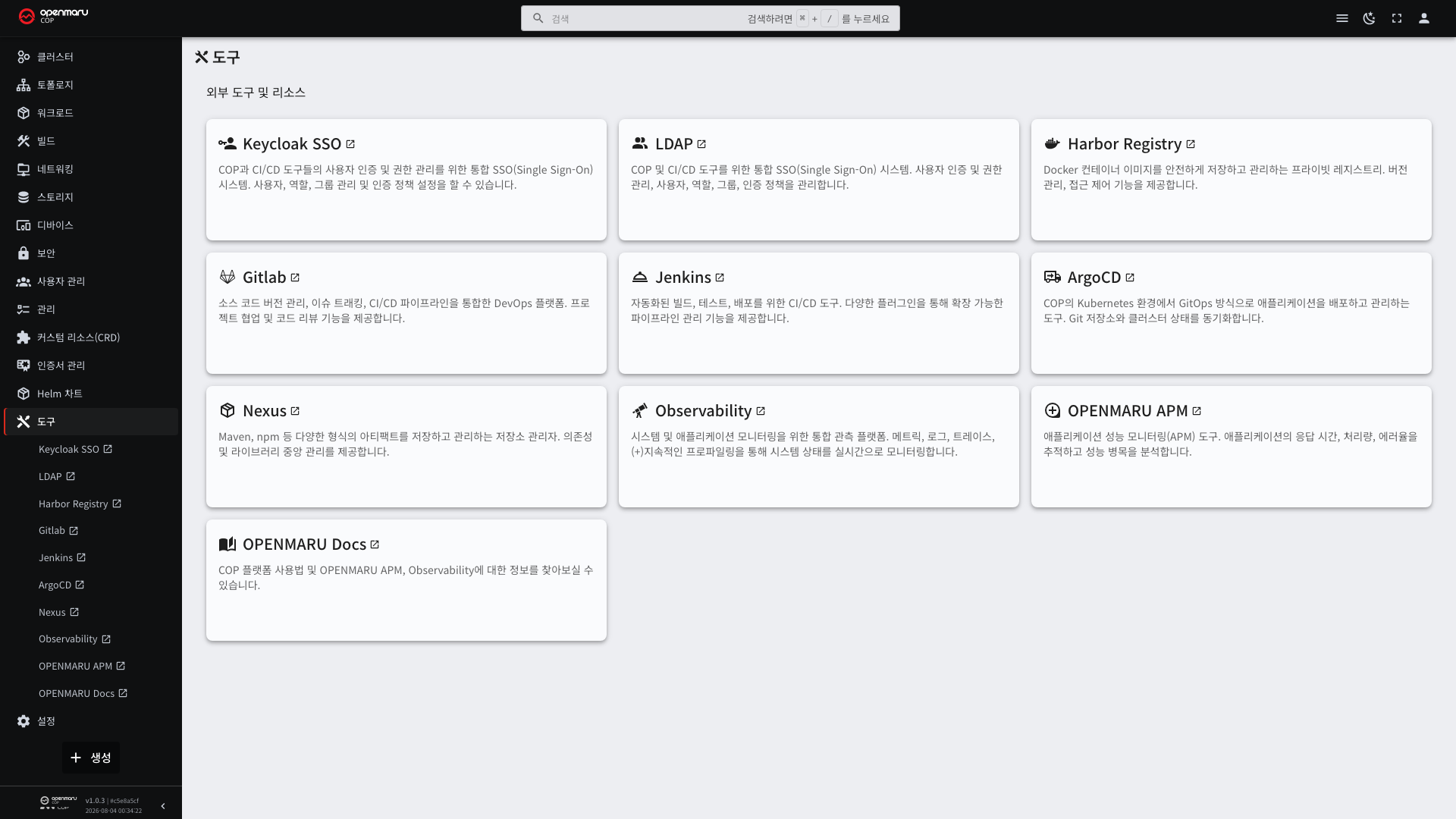
Each card has an icon, a name, and a short description. Selecting a card opens that screen in a new browser tab. The Console stays where it was, so you can move back and forth.
The sub-items under Tools in the left menu go to the same places.
Registered Tools
It varies by environment, but usually the following are registered.
| Tool | Use | Related chapter |
|---|---|---|
| GitLab | Source code repository | 4.2 |
| Jenkins | Build and deployment pipelines | 4.4 |
| Harbor | Container image registry | 4.2 |
| Nexus | Library repository | 4.2 |
| ArgoCD | GitOps deployment | 4.4 |
| Observability | Monitoring | 9.2 |
| Keycloak | Integrated authentication management | 7.2 |
Operations staff configure the list. If a tool you need is missing, ask for it to be registered.
The Division of Roles Between the Tools and the Console
| What you want to do | Where |
|---|---|
| View and edit source code | GitLab |
| Check image lists and tags, clean up old images | Harbor |
| Check image vulnerability scan results | Harbor |
| Run build pipelines and view their history | Jenkins |
| Deploy a build result to the cluster | Console or Jenkins |
| Check deployed pod status and logs | Console |
| Adjust pod counts, roll back | Console |
| Create and delete user accounts | Keycloak |
| Give users cluster permissions | Console (see 7.2) |
| Investigate a past failure | Observability |
What happens inside the cluster is seen in the Console; assets outside the cluster are seen in each tool.
Two boundaries worth clarifying.
- Images live in Harbor and their list cannot be seen in the Console. What the Console shows is only "the image name the pod is currently using".
- Accounts live in Keycloak and cannot be created in the Console. What the Console does is attach cluster permissions to those accounts.
When a Connection Fails
| Symptom | What to check |
|---|---|
| The page does not open | Whether that tool's address is reachable from your PC |
| The sign-in screen appears again | Whether that tool uses integrated authentication. Some tools use their own accounts |
| No permission | Whether your account has permission in that tool |
| Certificate warning | Whether the internal certificate authority certificate is registered on the PC (see 7.3) |
Signing in to the Console does not automatically get you into every tool. Tools using integrated authentication let you straight in, but each tool has its own permission settings inside it.