4.7. Deploying With ArgoCD (GitOps)
When to Read This Chapter
- When deployment history has to be kept in Git so you can trace who changed what and when
- When you want to keep the cluster state from deviating from what was defined
- When deploying the same application to several environments (development, staging, production)
- When you want to control deployment permission through a Git approval process
What GitOps Is
GitOps is the approach of writing down in a Git repository what should be running in the cluster and having a tool match it.
In the approaches so far, a person or a CI tool sends a command to the cluster: "switch to this image". GitOps is the reverse. You write the desired state in Git, and a tool inside the cluster reads it and matches it itself.
Three things follow from that difference.
| Property | Description |
|---|---|
| History is kept | A Git commit is the deployment record. Who changed what and when remains |
| Rolling back is easy | Reverting to an earlier commit returns the cluster to that state |
| Deviations are corrected | Even if someone edits the cluster directly, it is returned to the state written in Git |
What ArgoCD Is
ArgoCD is the program that actually performs GitOps. It runs inside the cluster and repeats the following.
- Reads the designated Git repository periodically.
- Compares the state written there with the cluster's current state.
- If they differ, matches the Git side (automatically, or when a person selects it, depending on the settings).
COP installs ArgoCD as a cluster component. There is nothing to prepare separately.
How It Differs From the Deployments So Far
| So far (chapters 4.2-4.6) | ArgoCD (this chapter) | |
|---|---|---|
| What triggers the deployment | A person selects a button, or a CI tool issues a command | A change in the Git repository |
| Who edits the cluster | Pushed in from outside with kubectl | ArgoCD inside the cluster pulls it in itself |
| Cluster access permission | The CI tool must have it | The CI tool does not need it (only Git write access) |
| Deployment history | Deployment revisions | Git commit history |
| Settings edited by hand | Remain as they are | Are reverted (depending on the settings) |
Not having to give cluster credentials to the CI tool matters a great deal. The CI tool only writes to Git, and only ArgoCD holds cluster permissions.
It Uses Two Repositories
GitOps separates the source repository from the configuration repository.
| Repository | What it holds | Who edits it |
|---|---|---|
Source repository (egov) | Application source code | Developers |
Configuration repository (egov-argocd) | Deployment YAML for Deployments, Services, and so on | The deployment tool, or operations staff |
The reason for separating them is that their change frequency and approval processes differ. Source changes several times a day, while deployment configuration changes rarely. Separated, "what is deployed in production" can be seen from the configuration repository alone, and deployment approval can be controlled through merge requests on that repository.
The Overall Flow
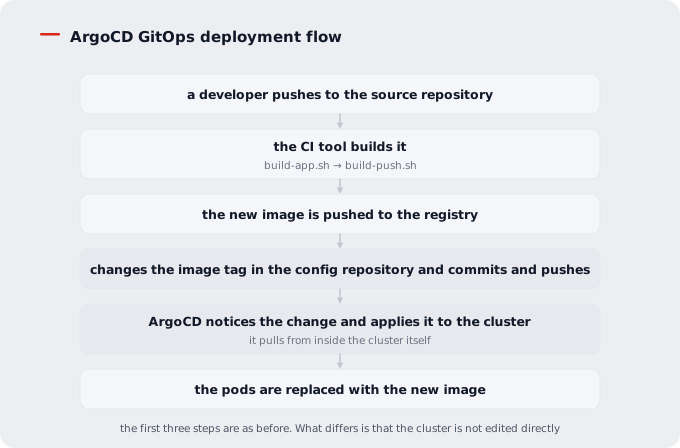
The first half is the same as before. Up to building and pushing to the registry, the scripts from
4.5 are used unchanged. What differs is what comes after — instead of editing the cluster directly with
build-deploy.sh, you edit the image tag in the configuration repository and push it.
COP includes a script that does this. It generates the image tag from the source repository, changes the image value
in deployment.yaml in the configuration repository, and commits and pushes, all in one go.
Adopting the Scripts for Your Own Project
The ArgoCD scripts are created only for the sample application. They appear at the path below during installation, and are not created for other applications.
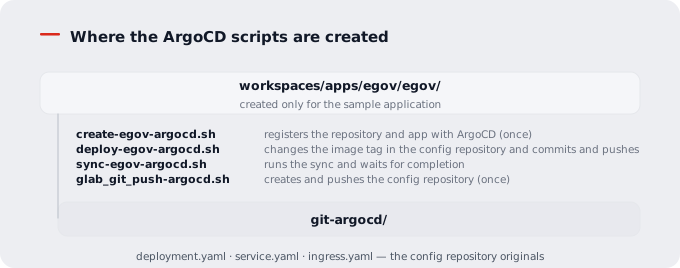
With a default install path of /data, that is /data/workspaces/apps/egov/egov/.
The Jenkins New Project Job Does Not Create These Scripts
The Jenkins new project job unpacks only the build and deploy script bundle. That bundle contains the following seven items, and the ArgoCD scripts are not included.
| What the new project job creates | What it does not create |
|---|---|
env.sh · build-app.sh · build-push.sh · build-deploy.sh · build-history.sh · build-rollback.sh · values.yaml | create-*-argocd.sh · deploy-*-argocd.sh · sync-*-argocd.sh · glab_git_push-argocd.sh · git-argocd/ |
The new project job only substitutes the namespace, Deployment name, and Git URL in env.sh from your inputs.
To use ArgoCD, you have to copy the sample's scripts and edit them yourself.
The Jenkins ArgoCD deploy Job (70-egov-argocd-deploy) is also sample-only. To use it for another project, clone
that Job and change the paths and script names.
Steps for Copying and Using Them
Suppose you are deploying an application called my-app to the my-ns namespace.
1. Copy the scripts.
SRC=<install path>/workspaces/apps/egov/egov
DST=<install path>/workspaces/apps/my-ns/my-app

cp $SRC/create-egov-argocd.sh     $DST/create-my-app-argocd.sh
cp $SRC/deploy-egov-argocd.sh     $DST/deploy-my-app-argocd.sh
cp $SRC/sync-egov-argocd.sh       $DST/sync-my-app-argocd.sh
cp $SRC/glab_git_push-argocd.sh   $DST/glab_git_push-argocd.sh
cp -r $SRC/git-argocd             $DST/git-argocd
chmod +x $DST/*.sh
2. Change the names inside the scripts. The sample names are embedded in several places.
| File | What to change |
|---|---|
create-my-app-argocd.sh | The ArgoCD application name, the configuration repository URL, the target namespace |
deploy-my-app-argocd.sh | The source repository path, the configuration repository path, the container name, the image address |
sync-my-app-argocd.sh | The ArgoCD application name |
glab_git_push-argocd.sh | The configuration repository path and remote URL |
Be sure to check the container name in deploy-*.sh. This script changes the image value of the container
whose name matches in deployment.yaml. The sample's container name is egov, so leaving it unchanged means
my-app's image is not changed — and it passes silently, without an error.
3. Edit the YAML in the configuration repository. In deployment.yaml, service.yaml, and ingress.yaml under
git-argocd/, adjust names, namespace, ports, and addresses to your application.
4. Create and push the configuration repository.
cd $DST
./glab_git_push-argocd.sh
5. Register it with ArgoCD. This is a one-time step that registers the repository and the application.
./create-my-app-argocd.sh
That is the preparation. From then on, deployment takes these two lines.
./deploy-my-app-argocd.sh    # writes the new image tag into the configuration repository
./sync-my-app-argocd.sh      # only when you want it applied immediately (can be skipped with automatic sync)
Putting It in a CI Tool
These are shell scripts too, so any CI tool can call them (see 4.6). You only replace the deployment stage after the build.
# before (edits the cluster directly)
- cd $APP_DIR && ./build-deploy.sh

# ArgoCD (edits the configuration repository)
- cd $APP_DIR && ./deploy-my-app-argocd.sh
Do not keep both build-deploy.sh and deploy-*-argocd.sh. The former edits the cluster directly and the latter
edits Git. With both running and self-healing enabled, deployments oscillate.
If This Is Too Cumbersome
Rather than copying and editing scripts, the essence is changing the image tag in the configuration repository and committing it. If you have a standard CI tool internally, you can do the same thing with that tool's Git integration. The scripts are a starting point showing one way to do it.
Three Ways to Deploy
Method 1 — Selecting It on the ArgoCD Screen
- Connect to the ArgoCD screen. Ask operations staff for the address and account.
- Choose the application.
- Select SYNC.
This applies the state written in Git to the cluster. You can preview what will change, which suits first use.
Method 2 — Running It From a CI Tool
Among the Jenkins Jobs COP provides by default there is an ArgoCD deploy Job. Its content is one line: the script that edits the image tag in the configuration repository and pushes. With another CI tool, call the same script (see 4.6).
Method 3 — Running It From the Command Line
The argocd command is available on the Bastion. Running the sync script is the same as selecting SYNC on the
screen.
argocd app sync <application name>     # synchronize
argocd app wait <application name>     # wait until it finishes
argocd app get  <application name>     # check status
The Three Automatic Sync Settings
Applications created by COP have automatic sync enabled. Three settings are configured together.
| Setting | What it does | What changes when it is on |
|---|---|---|
| Automatic sync | Applies Git changes without anyone selecting a button | A push becomes a deployment |
| Automatic pruning | Deletes resources from the cluster when they are removed from Git | Deleting YAML removes the actual resource |
| Self-healing | Reverts direct cluster edits to the Git state | Something changed with kubectl disappears shortly after |
With self-healing on, editing the cluster directly is pointless. For example, raising the replica count in the Console returns to the value written in Git after a few minutes. To change it, edit the configuration repository.
Take care when also using autoscaling (HPA). The HPA changes the replica count, and if ArgoCD sees that as a deviation and reverts it, the two fight each other. In that case, remove the replica count field entirely from the YAML in the configuration repository (see 3.5).
Reading the Statuses
ArgoCD shows two statuses separately. They have to be distinguished.
| Status | Meaning |
|---|---|
| Synced | The cluster matches Git |
| OutOfSync | It differs from Git. Either it has not been applied yet or someone edited it directly |
| Status | Meaning |
|---|---|
| Healthy | The deployed resources are operating normally |
| Progressing | The deployment is in progress |
| Degraded | It was deployed but is not healthy |
| Missing | It exists in Git but not in the cluster |
Synced together with Degraded is confusing. It means what Git said was applied, but that content itself has a
problem. The image name may be wrong, required configuration data may be missing, or resources may be short. In that
case you have to look at pod logs and events (see 3.1).
Checking in the Console
Even when deploying with ArgoCD, the places to see the result are the same as before.
| What to check | Where |
|---|---|
| Whether the new image was applied | The image tag on the Deployment detail (see 3.2) |
| Whether pods started normally | The pod list and status badges (see 3.1) |
| What was deployed, at a glance | Map (see 2.2) |
| The cause of a failure | Pod logs and events (see 3.1) |
The resources ArgoCD itself creates (application definitions) are custom resources, so they can also be seen on the Custom Resources screen in the Console (see 8.2).
Rolling Back
In GitOps, rolling back means reverting Git.
| Situation | Method |
|---|---|
| The deployment just made was wrong | Revert to the previous commit in the configuration repository and push |
| You have to go back several steps | Revert to the YAML of that commit and push |
| You have to stop right now | Turn off automatic sync on the ArgoCD screen and roll back to an earlier revision |
Do not roll back from Deployment History in the Console. It does revert, but Git stays as it was, so with self-healing on it comes back a few minutes later. On the surface it looks like "I rolled back and it undid itself", which makes the cause hard to find.
When It Does Not Work
| Symptom | Cause | What to check |
|---|---|---|
Stuck at OutOfSync | Automatic sync is off | Select SYNC on the ArgoCD screen |
| Pushed to Git but nothing changed | ArgoCD has not read it yet | Wait a moment or select refresh |
| Cannot read the repository | The repository access information is wrong | Ask operations staff to confirm the repository registration |
Synced but Degraded | The Git content itself has a problem | Pod logs and events, the image name and tag |
| Edited it but it reverted | Self-healing is on | Edit the configuration repository, not the cluster |
| A resource suddenly disappeared | YAML was deleted with automatic pruning on | Recent commits in the configuration repository |
Which Method to Choose
| Situation | Recommended method |
|---|---|
| Trying it for the first time or during development | Console build (see 4.2) or Bastion (see 4.5) |
| A team deploying through a defined procedure | A CI tool (see 4.4, 4.6) |
| A production environment where history, approval, and recovery matter | ArgoCD (this chapter) |
| Deploying the same thing to several environments | ArgoCD (this chapter) |
Do not use two methods for one application. Editing an ArgoCD-managed resource with kubectl or the Console gets
reverted by self-healing. If you are migrating, turn automatic sync off during the move and turn it back on
afterwards.