9.1. Helm Charts
When to Use It
- When installing an application made of several resources in one go
- When deploying the same application per environment with only the values changed
- When a setting change causes a problem and you have to return to the previous state
The Problem of Deploying Several Resources Together
Deploying one application requires several resources.
| Resource | What it does |
|---|---|
| Deployment | Runs the application |
| Service | Gives it a fixed name |
| Ingress | Connects external access |
| ConfigMap | Holds settings |
| Secret | Holds passwords |
| PVC | Requests storage |
Creating these separately causes problems.
- The order has to be kept (a PVC must exist before the Deployment starts)
- Missing even one means it does not work
- Deleting means finding and removing them one by one
- Values differing per environment have to be edited in each place
What Helm Is
It is the tool for bundling several resources to install, change, and delete them together. It corresponds to a package manager for Kubernetes.
Here is what Helm solves.
| Problem | How Helm solves it |
|---|---|
| Several resources | Installed and deleted together with one command |
| Values differ per environment | Reuse the same chart with only the values changed |
| Rolling back is hard | Keeps a revision history to revert to |
| You do not know what is installed | Managed by release |
Chart · Release · Revision
Three words have to be distinguished.
| Word | Meaning | Analogy |
|---|---|---|
| Chart | The bundle of deployment definitions. It holds resource templates and defaults | An installer file |
| Release | One result of installing a chart | An installed program |
| Revision | The number that increases each time a release is changed | The change history |
The same chart can be installed several times with different names. For example, one database chart can produce
two releases, db-dev and db-prod.
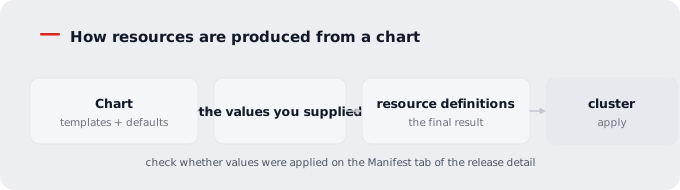
A chart holds templates and defaults. Passing values at install time fills them into the templates, producing the actual resource definitions.
The Release List
Go to Helm Charts > Releases.
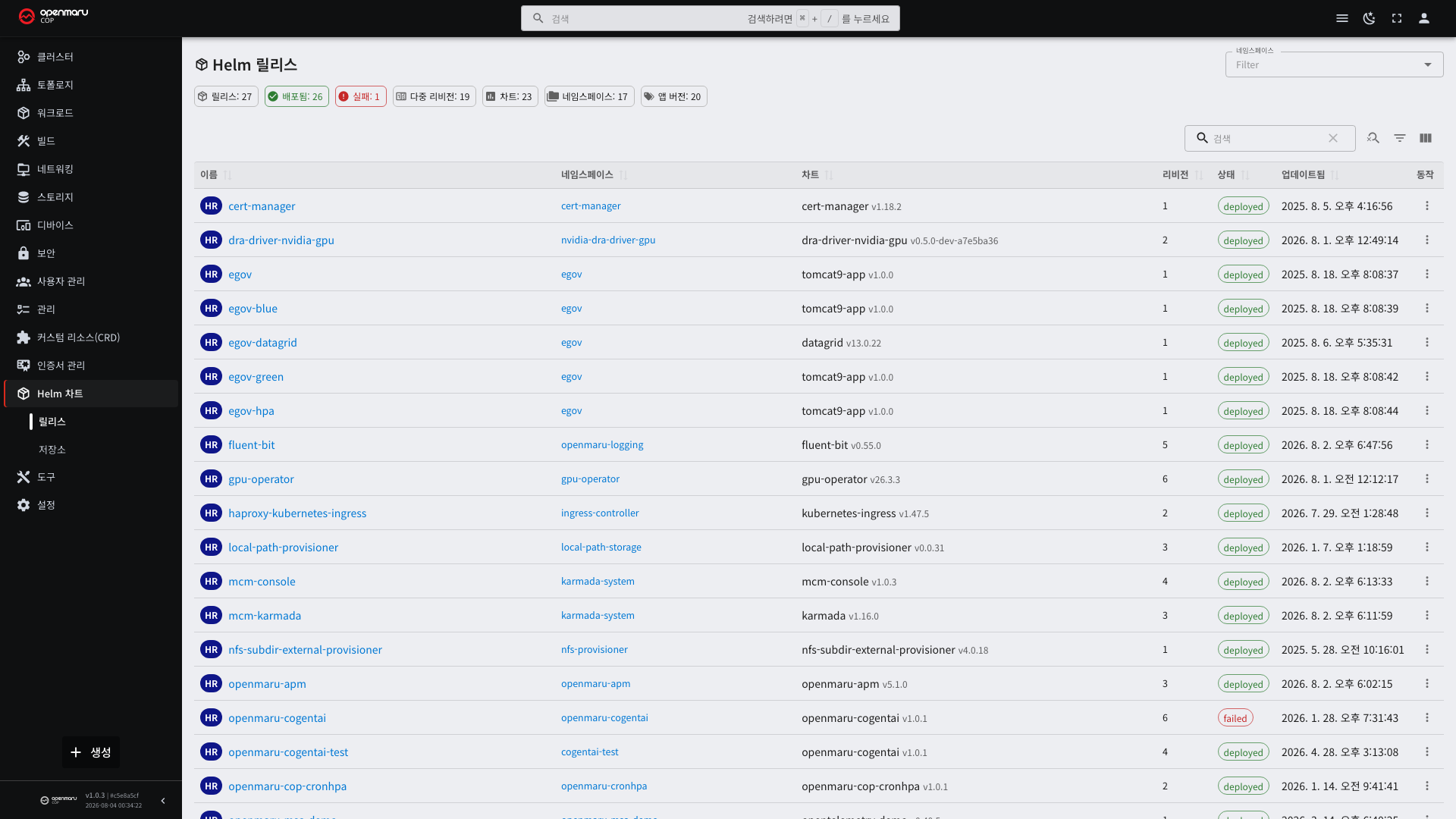
| Column | Description |
|---|---|
| Name | The release name |
| Namespace | The namespace it is installed in |
| Chart | The chart name and version |
| App version | The application version |
| Status | The installation result |
| Revision | Which change number it is |
The chart version and the app version are different.
| Version | The version of what |
|---|---|
| Chart version | The version of the deployment definitions. It rises even if only the templates change |
| App version | The version of the application inside it |
A chart version increasing does not mean the application is a new version.
Release Statuses
| Status | Meaning | What to do next |
|---|---|---|
| deployed | Installed normally | Nothing |
| failed | Installation or change failed | Check the manifest and resource statuses on the detail |
| pending-install | Installation in progress | If it lingers, check resource statuses |
| pending-upgrade | Change in progress | The same as above |
| superseded | Replaced by a newer revision | This is normal. It is a value left in the history |
Lingering in pending-* usually means pods cannot start. Find the pods the release created and check their events
(see 3.1).
Release Detail
Selecting the name opens the detail screen.
| Tab | Content | When you look at it |
|---|---|---|
| Values | The setting values specified at install time | When checking which values it was installed with |
| Manifest | The resource definitions actually created | When checking how the values were applied |
| Resources | The list of resources this release created | When checking the scope of impact |
| Notes | The guidance the chart provides | Access instructions after installation, and so on |
| History | The change record per revision | When choosing a revision to revert to |
The Difference Between Values and Manifest
Distinguishing these two finds problems faster.
| Tab | What it shows |
|---|---|
| Values | Only the values you supplied |
| Manifest | The final result with the chart defaults merged in |
When "I supplied a value but it was not applied", look at the manifest. It is one of three things.
| Cause | How to confirm |
|---|---|
| The value name is wrong | It is not reflected in the manifest |
| The chart does not use that value | It is on the Values tab but not in the manifest |
| Another value overrode it | A different value appears in the manifest |
Managing Repositories
Manage where charts come from under Helm Charts > Repositories.
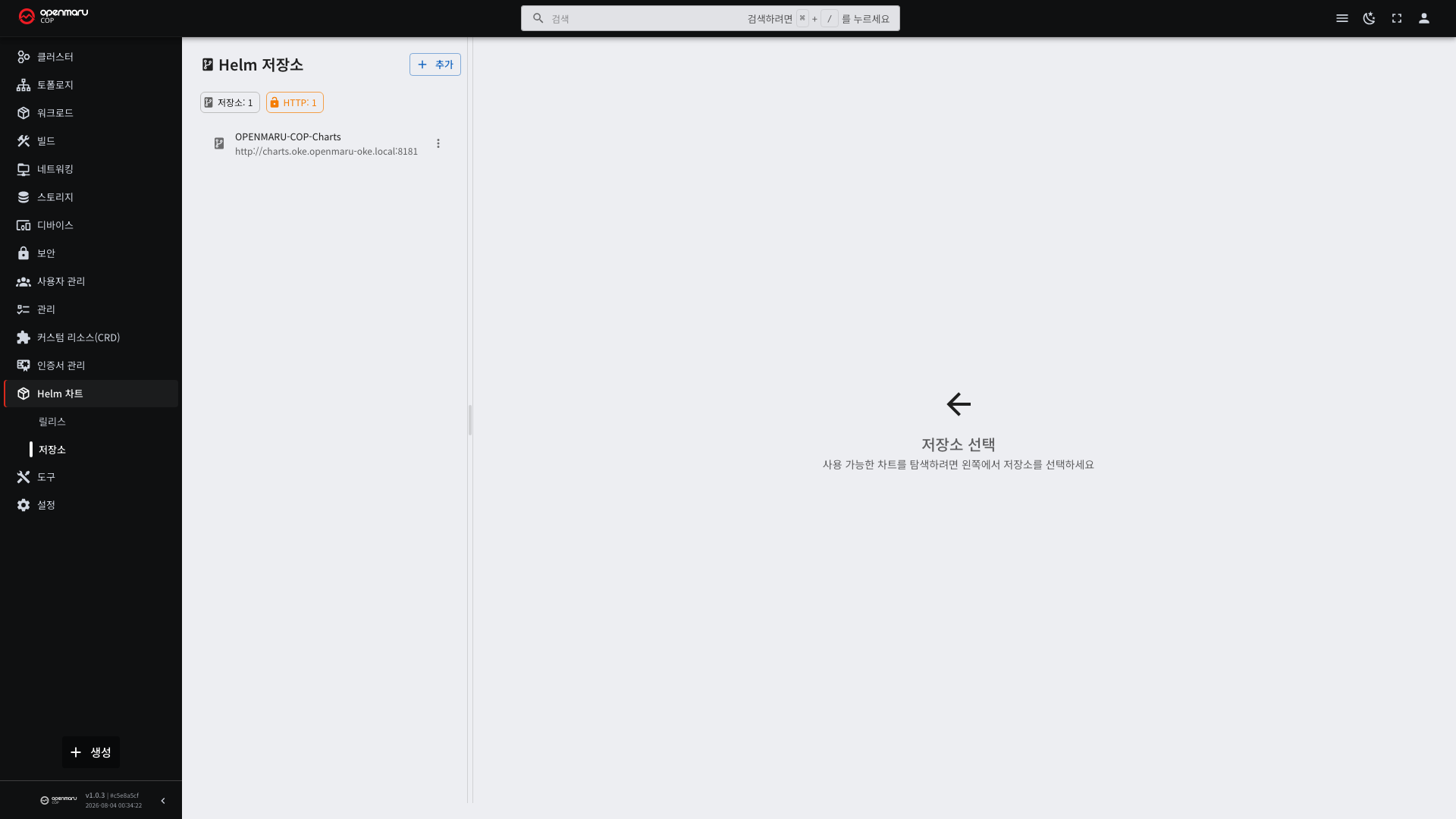
| Item | Description |
|---|---|
| Name | The repository alias |
| URL | The repository URL |
In an air-gapped environment, only the internal repository (ChartMuseum) is registered. External repositories cannot be reached. If a new chart is needed, operations staff have to upload it to the internal repository.
Installing and Upgrading
- Choose a chart from a repository.
- Decide the release name and the namespace to install into.
- Review the setting values and edit what you need.
- Run the installation.
To change the settings of an already installed release, run an upgrade from the detail screen. The revision number
increases by one and the previous revision becomes superseded.
Release names must be unique within a namespace. To install again with the same name, delete it first.
Rolling Back
Choose a revision on the History tab and revert.
Revision numbers move forward even on a rollback. Reverting from revision 3 to revision 2 creates revision 4 with the same content as revision 2. This is the same as a Deployment rollback (see 3.2).
A rollback reverts the chart and the values.
| What reverts | What does not |
|---|---|
| Resource definitions (Deployment, Service, and so on) | Data inside a database |
| Setting values | Files inside a PVC |
| Container image tags | The state of external systems |
An upgrade that changed the database schema can leave problems even after a rollback, because the older version cannot read data in the new format. Before upgrading, check whether the chart's notes mention rollback limitations.
Cautions When Deleting
Deleting a release deletes the resources it created. The following are exceptions, however.
| Resource | Does it remain |
|---|---|
| PVC | Sometimes, depending on the chart settings |
| Resources created manually | Yes |
| CRDs | Mostly yes (see 8.2) |
Delete only when you are certain the data is no longer needed. Before deleting, check on the Resources tab what will disappear with it, and clean up PVCs separately on the storage screen (see 6.1).
The Difference Between Helm and Console Deployment
There are several ways to deploy the same application.
| Method | When it fits |
|---|---|
| Creating resources directly in the Console | When there are only one or two resources and it is simple |
| The deploy button on the build screen | When deploying what you just built from source (see 4.2) |
| Helm | When there are several resources and you need rollbacks and per-environment value management |
| A Jenkins pipeline | When you need an approval process and history (see 4.4) |
Do not edit the resources of a Helm-installed release directly in the Console. Helm remembers the state it created, so that change disappears at the next upgrade. Change it only by editing the values and upgrading.