5.6. Skill Map
Overview
The "Skill map" is a screen that shows in a diagram where a skill is called from and what it calls. You can do two things in this screen.
- Check what a skill calls outside. Read the first part of this chapter (from "Choosing a Starting Point" to "Inspector Panel").
- Edit the skill document (SKILL.md) and restore an earlier version. Skip directly to Editing the Skill Document.
Each box in the diagram is called a node. A skill, a scheduled job, a script (a program file that a skill runs), and an MCP server are each a node. MCP (Model Context Protocol) is a standard for connecting an AI agent to external tools. For details, see 4.5. Connecting External Tools (MCP).
Permission: Everyone can view the diagram. Only the owner of the AI agent workspace, team managers, and administrators can edit skill documents. If you do not have permission, "Only admins can edit this" appears. Ask the AI agent with "Request a change" in the drawer, or tell an administrator. To check whether you are the owner, see "Who can do what" in 5.1. Skill List.
Note: The diagram is built by reading skill documents, scripts, and scheduled job settings. Addresses assembled from variables and tools that the AI agent decides to call at the time may not appear. For this reason, each link shows its evidence and how certain it is.
Choosing a Starting Point
- Open "Skills › Skill map" in the left menu.
- Choose a tab. "From skills" draws the diagram centered on a skill, and "From scheduled jobs" draws it centered on a job that runs at a set time.
- Click the row you want to start from in the table. A wide drawer opens on the right and the diagram appears. (A drawer is a detail window that opens on the right side of the screen.)
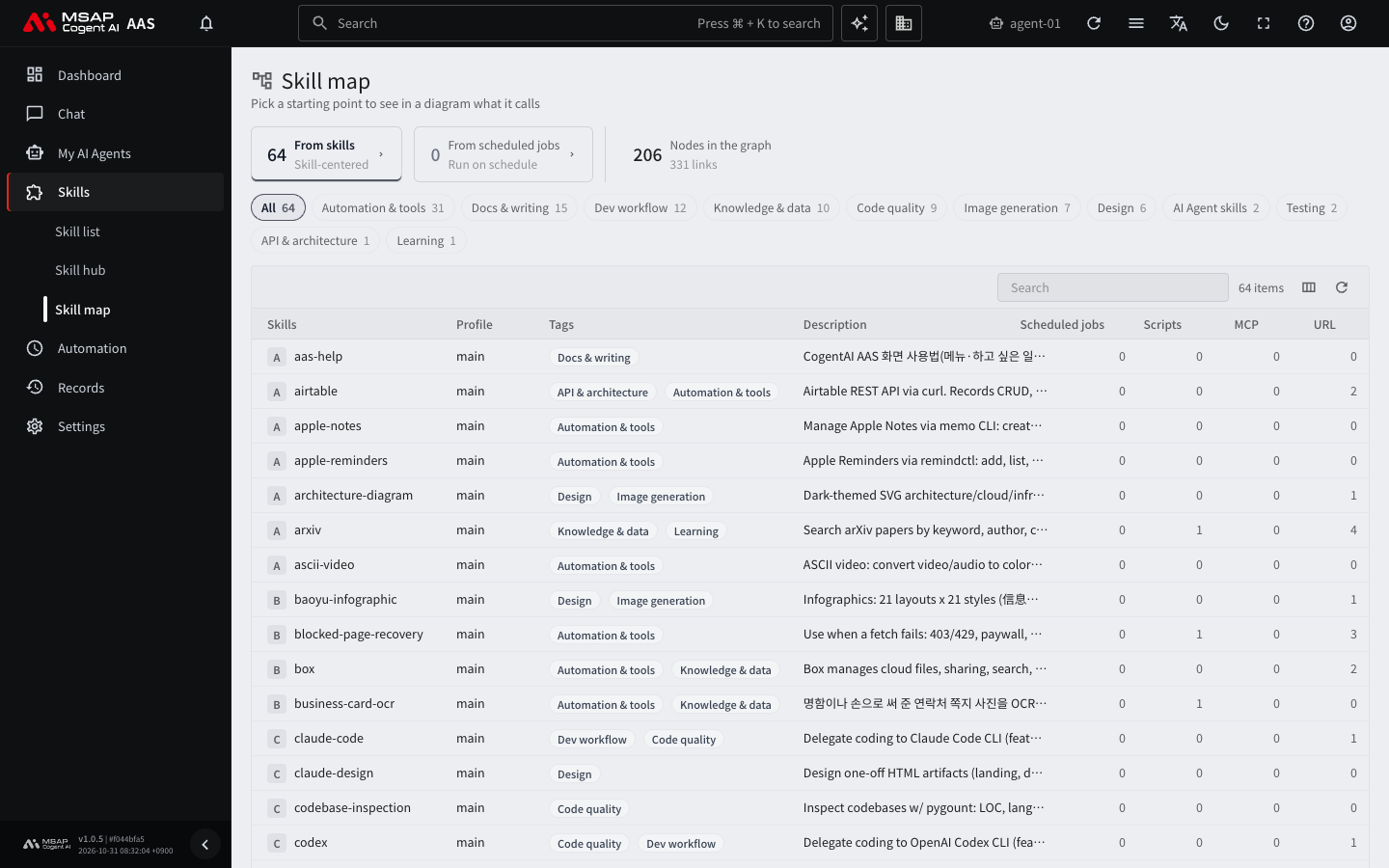
Figure 5.6-1. List of starting points in the Skill map
You can also click "View skill map" in a skill drawer in the "Skill list" to open the same drawer.
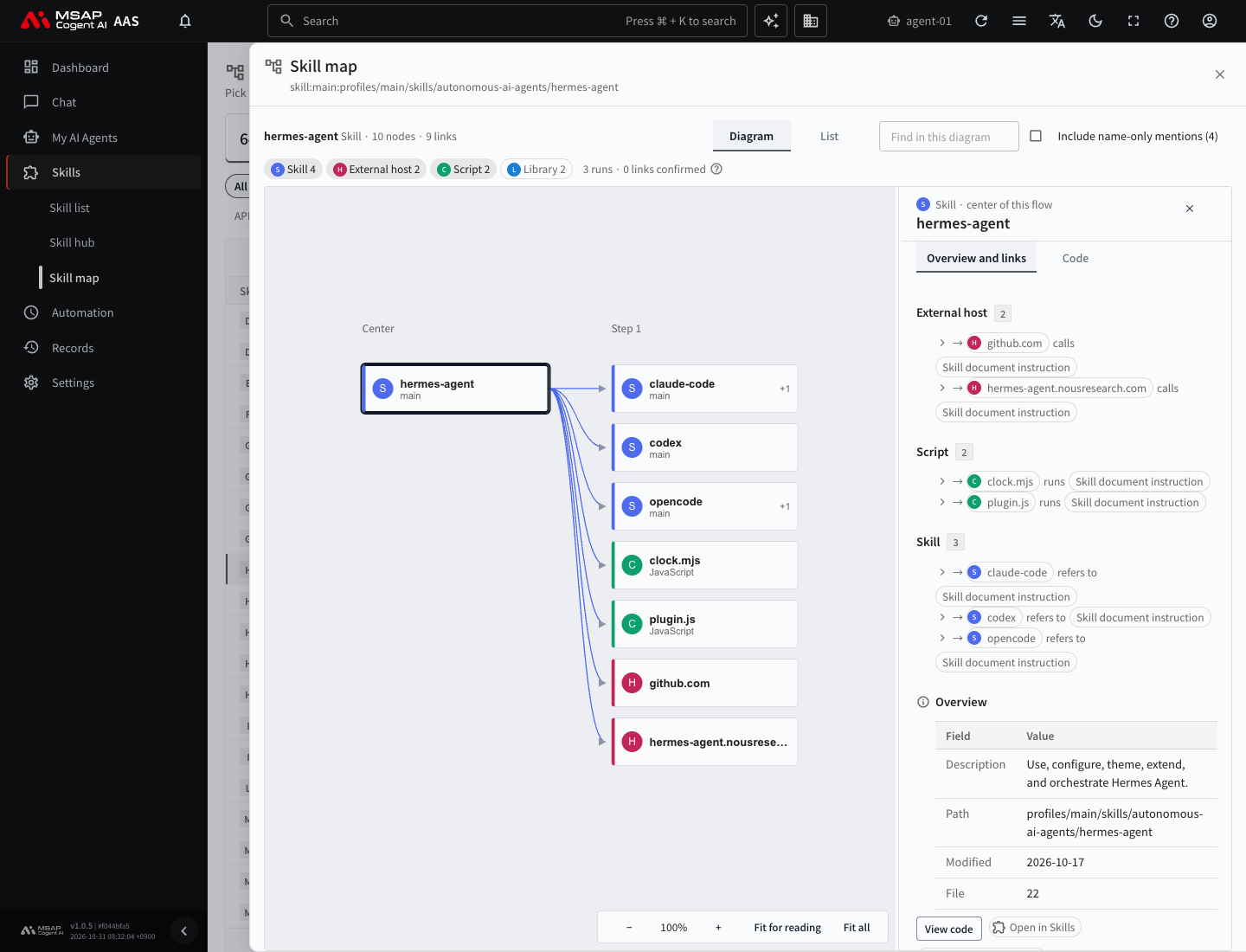
Figure 5.6-2. Skill map drawer of a skill with many links
The cards at the top of the screen show the number of nodes and links in the whole diagram. In the table, you can do the following.
- Use the profile filter to see only the rows of one profile.
- Type in the search box to search the names, descriptions, skills, scripts, and tags.
- Filter with tag chips. If you turn on several chips, only rows that have all of the selected tags remain. In the "From scheduled jobs" tab, the tags are the tags of the skills that the job calls, combined.
The "From skills" table shows the skill name, profile, tags, and description, with the number of scheduled jobs, scripts, MCP servers, and URLs. The "From scheduled jobs" table shows the status, schedule, and the skills and scripts it calls. If the profile is "Shared", the skill is used by all profiles together.
Reading the Diagram
Node Types
| Type | Meaning |
|---|---|
| Scheduled job | A job that runs at a set time |
| Skill | A skill document |
| Script | A program file in the skill folder |
| MCP server | An MCP server that the skill calls |
| External host | An external address that the skill calls |
| API key or token | A credential that the skill uses |
| Library | A bundle of programs that a script imports |
Libraries are hidden at first. You can turn them on in "Filter by type".
Columns
Read the diagram from left to right. The leftmost column, "Callers of this skill", holds the scheduled jobs or other skills that run this skill. To its right come "Center", "Step 1", and "Step 2". The step means how many links away it is from the center. If "This skill has n more below it" appears, click that node and choose "View with this as center" to expand it. If the diagram is too big and only part of it is drawn, "Too large, so only part is drawn" appears.
Line Style and Certainty
Read this section when you check external calls. If you only want to edit a skill document, you can skip it.
The thickness and style of a line show how certain the evidence is. The same explanation is in "How to read" on the screen.
| Line | Certainty | Meaning |
|---|---|---|
| Thick solid line | Scheduled job settings, found in code | Found in the settings or in script code. |
| Thin solid line | Skill document instruction | Written in SKILL.md, which the AI agent reads and follows. |
| Dotted line | Name mentioned only | The name appears in a document, but it is unknown whether it is actually called. |
| Long dashed line | Seen only in runs | Not found in files, but recent run history shows a call. |
"✓ 3 runs" next to a line is the number of recent runs in which the link was confirmed. From the run history, only tool names, skill names, and script paths are read and matched with the links in the diagram. The relation of a link is one of "runs", "calls", "uses the secret value", "imports", and "refers to".
Working with the Diagram
| Action | How |
|---|---|
| Move | Drag an empty area to move the diagram. |
| Zoom | Hold Ctrl (Command on a Mac) and turn the mouse wheel. There are also "Zoom in" and "Zoom out" buttons. |
| Fit | "Fit for reading" sets a size where the text is readable, and "Fit all" shows the whole diagram. |
| Move between nodes | On a node, press an arrow key to move to a neighboring node. |
| Find | Type in "Find in this diagram". Press the / key to jump to this box. |
| View mode | Choose "Diagram" or "List". "List" shows the same content as text. |
| Filter | Use "Filter by type" to turn node types on and off. Turn on "Include name-only mentions" to show dotted links too. |
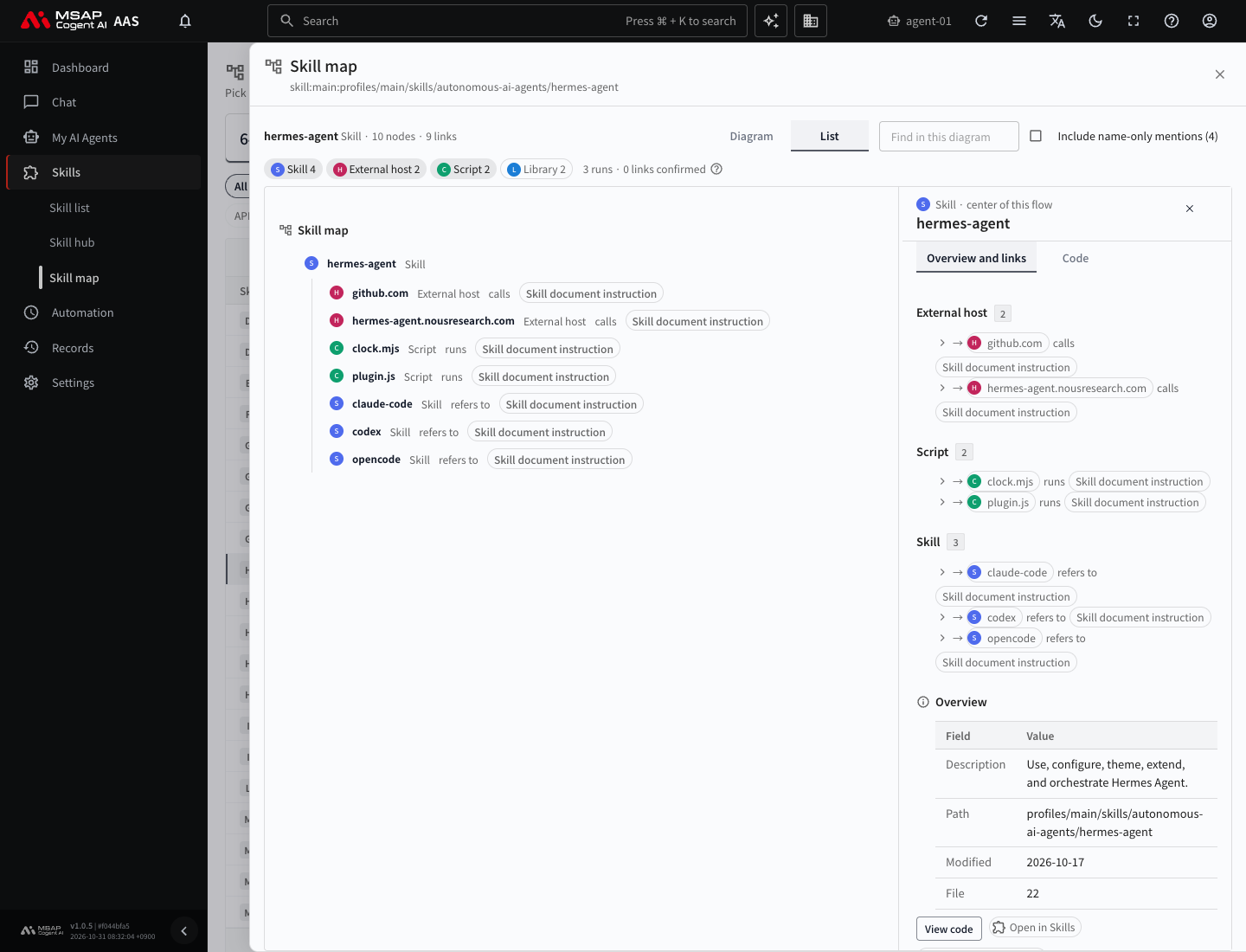
Figure 5.6-3. "List" view
Inspector Panel
When you click a node or a line, its content appears in the "Inspector" panel on the right. If you have not clicked anything, "Select a node or a line to see its details here." appears. Drag the border to change the width of the panel.
The panel has the "Overview and links" and "Code" tabs.
In the "Overview and links" tab, you can see the following.
- "Outgoing links" and "Incoming links" are listed one per line. Click the arrow on a line to expand its evidence.
- The evidence has a file name and a line number. Click it to open that line in the "Code" tab.
- You can see the relation, certainty, run history, tools, and addresses. "n runs in the last n days" is the number of calls in the recent run history.
- "View with this as center" redraws the diagram centered on the node you clicked. Go back with "← Starting points" or "Back to starting points".
- "Get an AI explanation" opens a chat with a sentence filled in that asks the AI agent to read this skill or script and explain it. It asks only for an explanation, not for running anything.
- Links such as "Open in Skills", "Open in Scheduled jobs", and "Open in API keys & tokens" take you to that screen.
- For a scheduled job node, the scheduled job drawer opens, and you can change the schedule, turn the job on or off, and run it.
In the "Code" tab, you can see the following.
- The content of SKILL.md or the script appears read-only, with line numbers and syntax coloring. The evidence lines are highlighted.
- Use "Files in the same folder" to move to a neighboring file. "Copy path" copies the path.
- Lines that look like secrets are hidden, and "lines that look like secrets are hidden: n" appears.
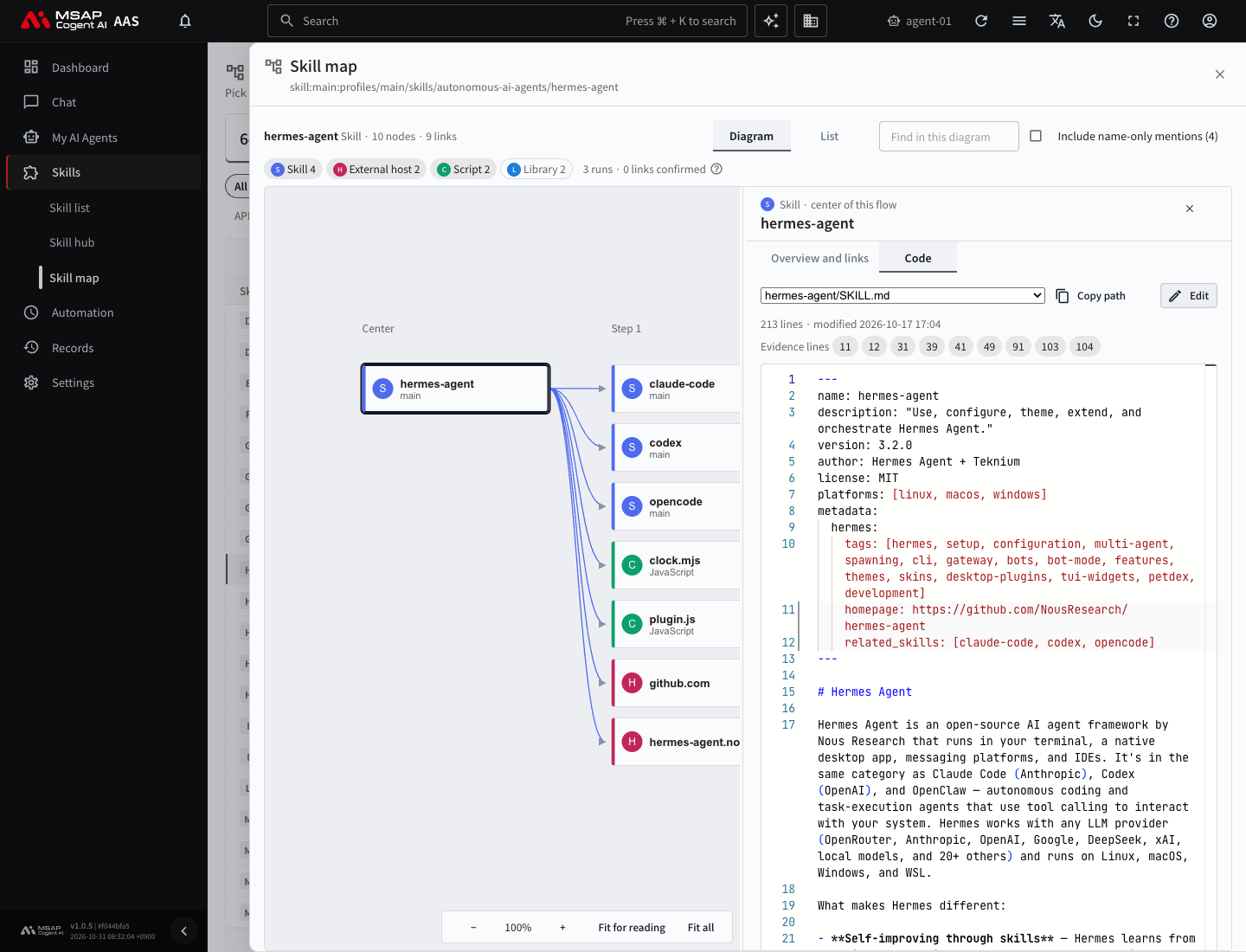
Figure 5.6-4. "Code" tab
Editing the Skill Document
You can edit the skill document directly in the "Code" tab.
- Click a skill node and open the "Code" tab.
- Click "Edit".
- Change the content.
- Write why you made the change in "Save note". You can leave it empty.
- Click "Save".
The content before the edit stays in AAS. To go back to an earlier version, click "Previous versions n", choose the version to go back to, and click "Restore". Versions edited by the AI agent in chat are also kept, labeled "Hermes edited".
When You Cannot Edit
| Message | Meaning and what to do |
|---|---|
| Scripts can only be viewed. To change one, ask the AI agent in a chat. | The only file you can edit is SKILL.md. Ask the AI agent for changes to scripts and reference files with "Request a change" in the drawer or in chat. |
| Only admins can edit this | You do not have permission to edit this skill. Ask the owner or an administrator. |
| Some lines look like secrets, so you cannot edit this here | You must first delete the secrets from the document. |
Version history and restore work for SKILL.md only. Scripts and reference files are not restored.