5.5. Publishing Your Skill to the Hub
Overview
If you publish a skill you made to the Skill Hub, other people in the same CogentAI AAS (AAS) can install and use it from the "Skill hub" screen. For the meaning of Skill Hub, see "Terms" in 5.1. Skill List. This chapter explains how to submit a publish request, how to choose a name and version, how to read the approval status, and how to install a published skill. Publish when you want your team to use the same skill, when you want to put the same skill into your other profiles, or when you want to distribute a new version.
Permission: The owner of the AI agent workspace, team managers, and administrators submit publish requests. Only administrators approve and reject them. To check whether you are the owner, see "Who can do what" in 5.1. Skill List.
If you do not have permission to submit a publish request, tell an administrator the skill name and why you want to publish it. An example request:
I want to publish the
weekly-reportskill of my AI agent (profile name: main) to the Skill Hub. I want my team members to install and use the same skill. I do not have owner permission, so I cannot submit a publish request.
Caution: A published version cannot be undone. You cannot delete it or roll it back to an earlier version. If you published by mistake, ask an administrator to "Hide in skill hub". Hiding removes all versions of that package from the hub list, and skills that were already installed stay as they are. You cannot withdraw a single version. If the publish namespace is "public", people outside the company can see it, so read SKILL.md and the scripts once more before you submit the request.
Figure 5.5-1 shows the steps from sending a publish request to another profile installing the skill.
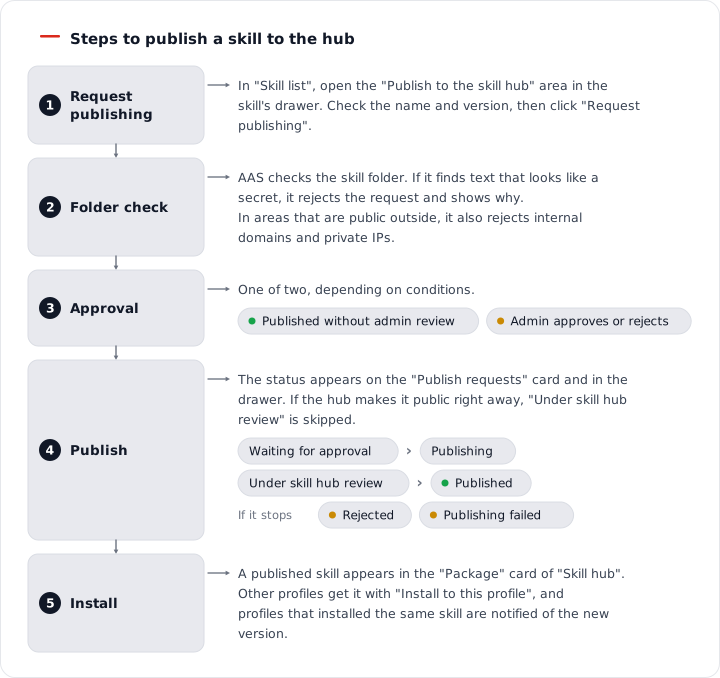
Figure 5.5-1. Steps to publish a skill to the hub
Skills You Can Publish and Approval
Whether you can publish and how approval works depend on the "Origin" in the "Skill list".
| Origin | Publishing | Administrator approval |
|---|---|---|
| Made by hand, made by the AI Agent | Possible | If the owner made it in this AAS and it has not changed since, it is published right away without administrator review. Otherwise, approval is required. |
| Built-in (changed) | Possible | Required. |
| Skill hub | Only skills you edited | Required. You cannot publish an edited package from a restricted namespace. |
| Hermes built-in, AAS built-in | Not possible | Default skills that have not been edited are not published. |
| Shared skills brought from another profile | Not possible | They must be published from the original profile. |
To be published without administrator review, all of the following must be true.
- The person who requests it is the owner of this AI agent workspace.
- The skill is "Made by the AI Agent", or it is "Made by hand" with a record that a person made it in this AAS and has not changed it since.
- An administrator has not turned off "Approve owners' skills automatically".
For a version published without administrator review, the package drawer shows the note "Uploaded by … · this version was published without admin review". If the "Publish to the skill hub" area does not appear in the drawer, the skill does not meet the conditions above, or you are a user who cannot submit publish requests.
Submitting a Publish Request
- Before you publish, check the skill folder. Read "When a Skill Is Not Published" below first.
- In "Skills › Skill list" in the left menu, click the row of the skill you want to publish to open the drawer (a detail window that opens on the right side of the screen).
- Go to the "Publish to the skill hub" area of the drawer.
- Check the "Skill hub name" and change it if needed.
- Check the "Version" and change it if needed.
- Click "Request publishing".
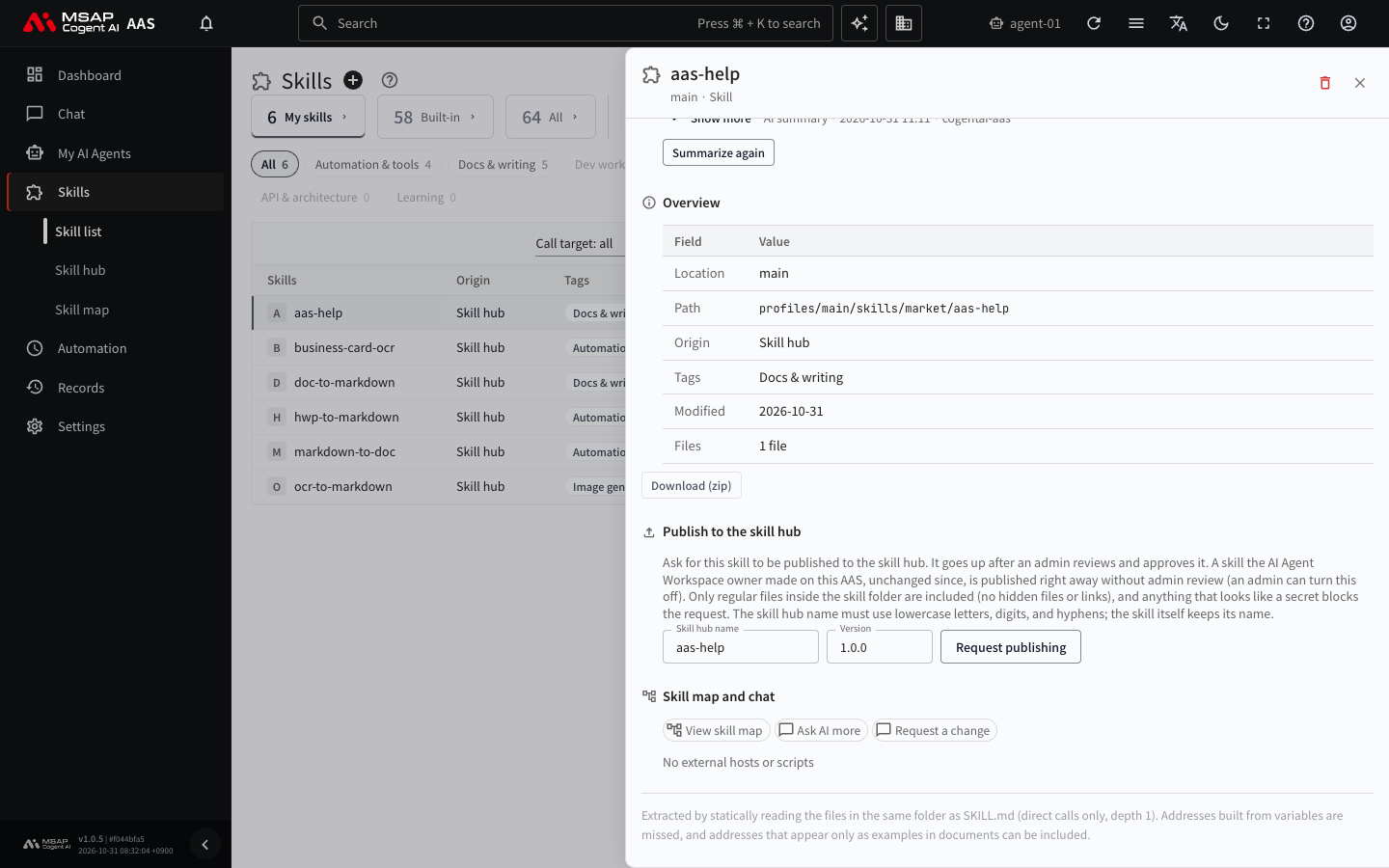
Figure 5.5-2. "Publish to the skill hub" area
Name and Version
| Field | Rule |
|---|---|
| Skill hub name | 2 to 63 characters of lowercase letters, digits, and hyphens. It is created automatically from the skill name at first. The name of the skill itself does not change. |
| Version | In the form 1.2.3. 1.0.0 is filled in at first. |
- If the same name already exists in the hub, use a different name or enter a higher version. Only the first publisher and administrators can upload a new version under an existing name.
- You cannot submit a new request if a publish request with the same name is already waiting.
- If a package with the same name already exists outside, use a different name.
- The skill description (the description in the SKILL.md header) must be at least 20 characters. If it is shorter, make it longer in "Editing the Skill Document" in 5.6. Skill Map.
When a Skill Is Not Published
When AAS receives the request, it checks the skill folder. If any of the following applies, the request is rejected and the reason is shown.
- The only files published are regular files inside the skill folder. Hidden files and links are left out.
- If there is a string that looks like a secret (a key, token, or password), it cannot be published.
- If there is an internal domain or a private IP address, it cannot be published to a namespace that is open to the outside. "It contains internal domains or private IPs: …" appears. For a namespace visible only to members, only a warning appears.
Open the files and strings named in the rejection message in "Editing the Skill Document" in 5.6. Skill Map, delete them, and submit the request again. You cannot edit files other than SKILL.md in that chapter, so ask the AI agent with "Request a change" in the drawer.
Viewing the Approval Status
After you submit the request, one line with "name@version" and the status appears below the "Publish to the skill hub" area of the drawer. You can see the same request in the "Publish requests" card of the "Skill hub" screen.
| Status | Meaning |
|---|---|
| Waiting for approval | It waits until an administrator reviews and approves it. |
| Publishing | It is being uploaded to the Skill Hub. |
| Under skill hub review | The Skill Hub is reviewing it. It is published when the review ends. Just wait. If the status does not change for a long time, ask an administrator. |
| Published | It is in the Skill Hub. |
| Rejected | An administrator rejected it. Read the reason, fix the skill, and submit a new request with a new version. |
| Publishing failed | It could not be uploaded. Read the message. An administrator can publish the same bundle again. |
Right after you submit, one of two messages appears.
- "Requested publishing skill {name}. It goes up once an admin approves": administrator approval is needed.
- "Publishing skill {name} without admin review · {namespace} ({visibility})": it was approved automatically. The braces show the name of the publish namespace. The visibility shows as "public" or "members only".
After Publishing
- A published skill appears in the "Package" card of the "Skill hub". It may take a moment to appear in the hub list.
- To install it in another profile, follow the install steps in 5.3. Installing from the Skill Hub. Choose the profile to install to and click "Install to this profile".
- Profiles that installed the same skill get a new-version notification. For how to upgrade, see "Upgrading to a New Version" in 5.3. Installing from the Skill Hub.
- When you edit the skill, raise the version and submit a publish request again. Keep the name the same.
- For a package published by mistake, ask an administrator to "Hide in skill hub". For details, see the caution at the start of this chapter.