4.4. Secrets and Credential Files
Overview
Caution: Do not paste passwords or keys into the chat window. Whatever you type in a chat stays in the chat history. Enter keys only in the "Secrets (.env)" tab described in this chapter.
The values this chapter covers are as follows.
- API key: A long string issued by an external service. The AI agent uses it like a key to connect to that service on your behalf. Get it from the person in charge of the service, or create it in the service's settings screen.
- Token: A string with the same purpose as an API key. Only the name differs depending on the service.
- Secret: The AAS term that covers API keys, tokens, and passwords.
- Credential file: A file in JSON format used for the same purpose. Only some users need it (see "Credential Files (Advanced)" later in this chapter).
Do not enter the password of your personal account. If you are not sure which value to enter, ask the skill's instructions or the person in charge of the service. Use the methods in this chapter when a skill or MCP server asks for a key, or when a key expires or changes and you need to enter a new value. This chapter explains how to add, change, and delete secrets, and how to upload credential files.
Permissions: Only administrators and the owner of the AI agent workspace can enter values. A user who has only been given access sees "Only admins can change this". In that case, ask an administrator: "I need to add the <name> key to <profile name>."
Points to Keep in Mind When Entering Secrets
- Do not paste them into the chat window. Enter keys and passwords only in the Secrets tab of this screen. For a sign-in procedure that a skill guides you through in the chat (for example, Google sign-in), follow that guidance.
- You cannot view a value after you enter it. To change a value, enter a new one.
- This AI agent can read and write this value. Do not enter a personal password that you also use for other things. Enter a key issued for this purpose.
A changed value applies from the next chat. A value for a messenger applies only after the gateway (the path through which the AI agent receives messenger messages and scheduled jobs) is restarted. Ask an administrator to do this. You cannot change environment variables that apply to the whole container on this screen.
Opening the Secrets Tab
- Click "My AI Agents › Profiles" in the left menu.
- Click your main profile row to open the detail drawer.
- Open the "Secrets (.env)" tab.
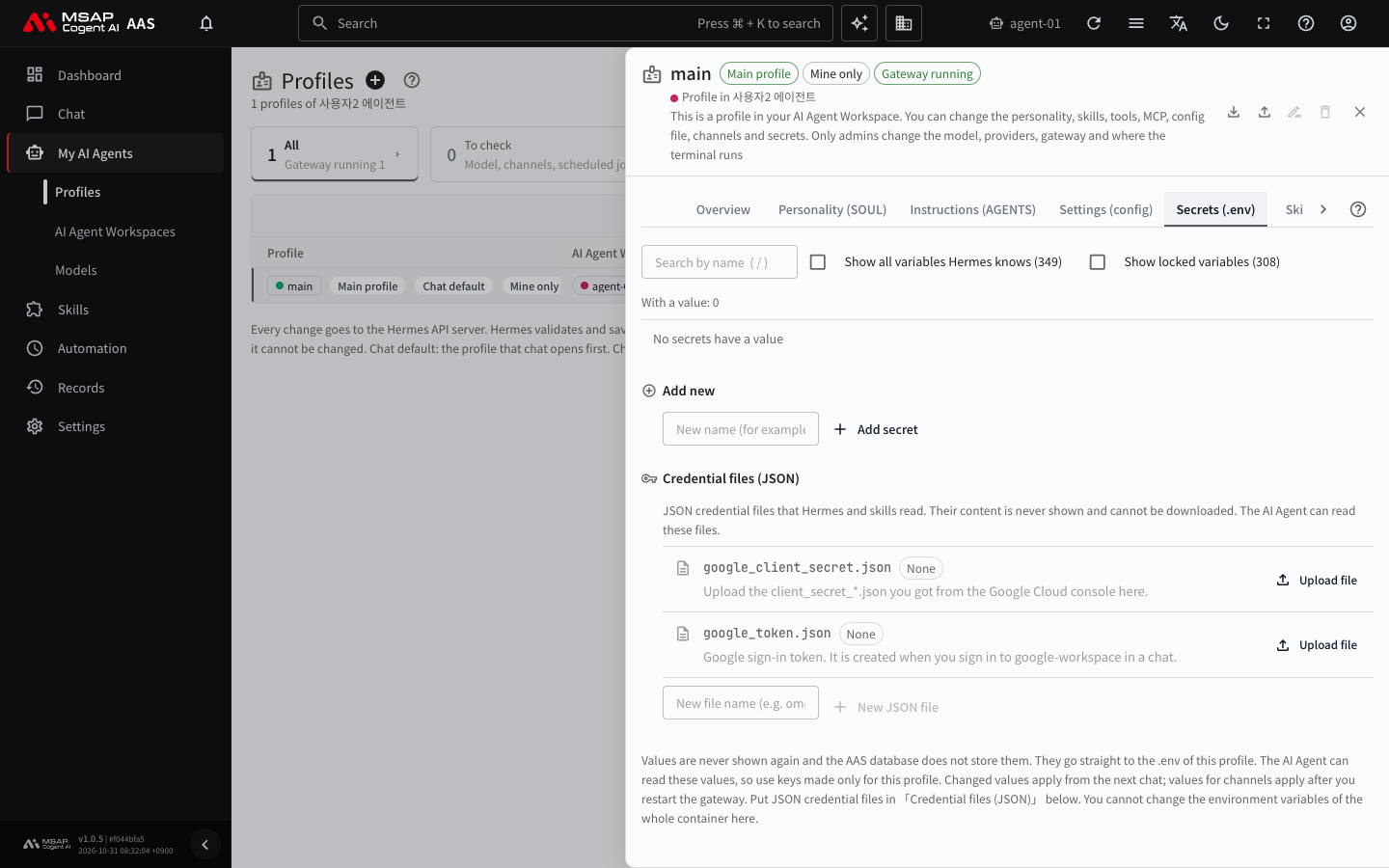
Figure 4.4-1. The "Secrets (.env)" tab
For values you have already entered, only the name and the "Set" badge are shown. "With a value: n" appears above the list. If no values exist, the screen shows "No secrets have a value".
Locked Items
Model provider keys and behavior variables are locked items. The owner cannot change locked items. Turn on "Show locked variables" to see them with a "Locked" badge.
Caution: If the address in the browser address bar does not start with
https(an unencrypted address), the field for entering values does not appear and the screen shows "You cannot set values on an unencrypted address (http, internal IP)". In that case, tell an administrator.
Adding a New Secret
Enter the name exactly as the skill's instructions or the MCP server guide specifies. If no name is specified, start with a letter and use only uppercase English letters, digits, and _. If you type lowercase letters, they are changed to uppercase.
- In the "Add new" section, enter a name in the "New name" field. Example: MY_API_KEY
- Click "Add a new secret".
- Paste the value and save.
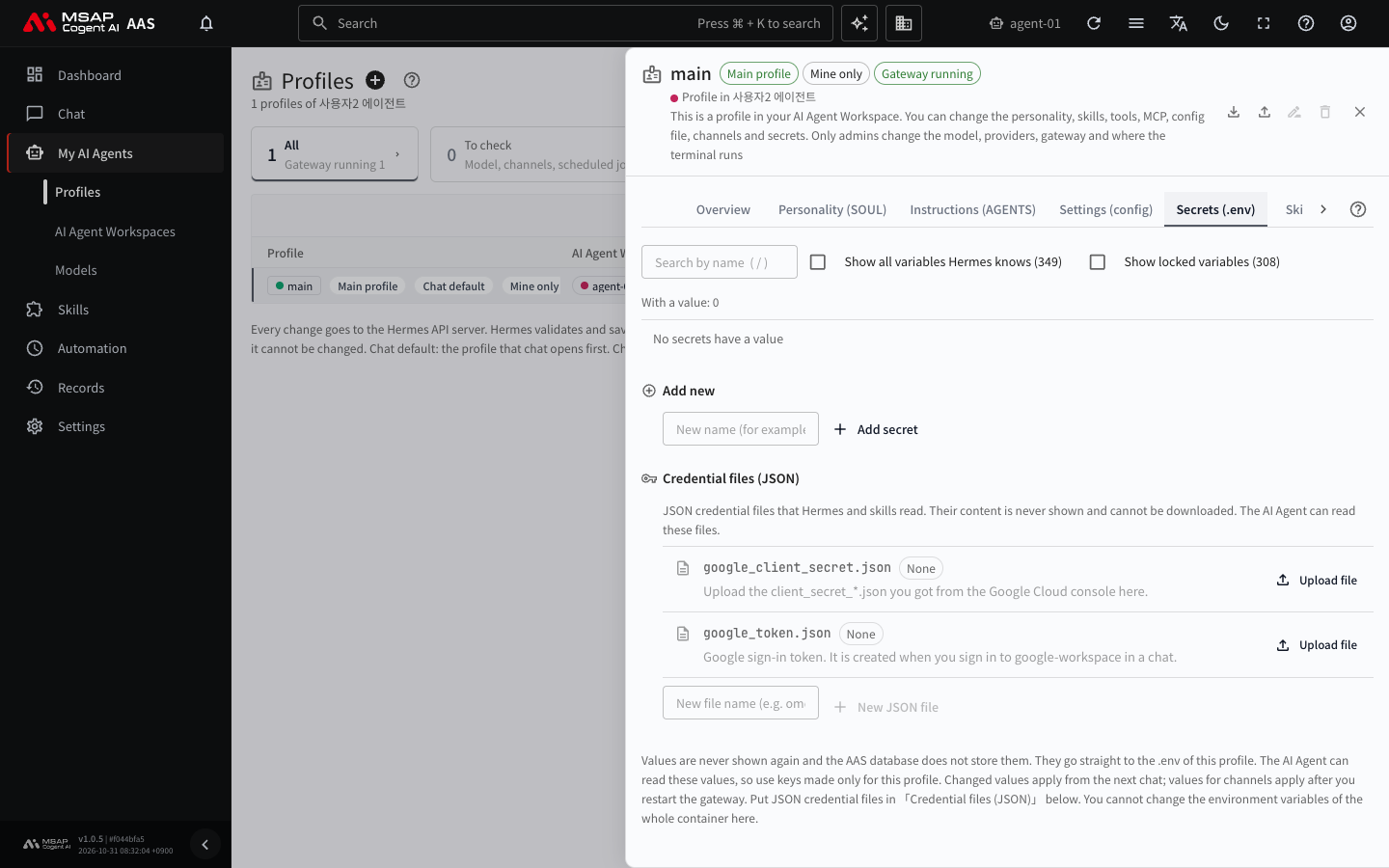
Figure 4.4-2. The "Add new" section
When it succeeds, the name appears in the list with the "Set" badge. If it is not saved, read the error message on the screen and check the naming rules or the address (https).
Finding and Changing Existing Values
By default, the secrets list shows only items that have a value. To find an item that is not in the list, turn on "Show all variables Hermes knows". Hermes is the program that actually runs AI agents inside AAS.
You can type part of a name in the "Search by name" field to find it. Press the / key to move to the search field.
To change a value, click "Change value" on the item, enter the "New value", and save. For an item that has no value yet, click "Set value". The confirmation window before the change says "The current value cannot be viewed again, so this cannot be undone". Unless you kept the previous value somewhere else, you cannot restore it. If you do not know the previous value, issue a new key in that service and enter it.
Deleting a Secret
- Click "Delete" on the item.
- To confirm, enter the secret's name.
- Confirm the deletion.
A deleted value cannot be restored. Skills or MCP servers that used the value may fail. To restore it, check the key again in that service, or issue a new key and enter it again under the same name.
Credential Files (Advanced)
Read this section only when you connect a Google service or when you have been told to. Skip it otherwise.
In the "Credential files (JSON)" section below the "Secrets (.env)" tab, you handle credential files in JSON format. The contents of a file are not shown on the screen and cannot be downloaded. The AI agent can read these files.
| File | Description |
|---|---|
google_client_secret.json | Upload the client_secret_*.json file you got from the Google Cloud console. |
google_token.json | The Google sign-in token. It is created when you sign in to google-workspace in a chat. |
secrets/<name>.json | A JSON file that a setting or a skill points to by path. Create it with "New JSON file". |
Each row shows whether the file exists, the time it was last changed, and who changed it.
Uploading and Replacing a File
- Click "Upload file" on the row (or "Replace file" if the file already exists).
- Choose a
.jsonfile. - Check "Selected: <file name> · <size>" and click "Save".
When "Saved" appears, you are done. After you save google_client_secret.json, follow the "Next: sign in to Google in a chat" guidance.
The file must be a JSON file of 64 KB or less. JSON is a text file format for settings that a service provides. If the JSON does not fit the slot, the screen shows "This JSON does not fit this slot. Check the file".
There is no paste field. Only choosing a file is supported so that secret contents never appear on the screen.
Creating a New JSON File
- Click "New JSON file" and enter a file name. Example: omdm
- Check the path in "File to create: secrets/omdm.json".
- Choose a
.jsonfile and save.
Use lowercase English letters, digits, _, and - for the name, up to 63 characters. The .json extension is added automatically.
Deleting a File
Click "Delete" on the row and enter the file path in the confirmation field. A deleted file cannot be restored. A file that you replaced also cannot be restored.
When You Cannot Use This Section
- It is available only in an environment installed on Kubernetes. It is not available in a trial installation on a single computer.
- It is not available in the default profile that has no name (default). Choose a named profile such as the main profile (main).
- It is available only on an
httpsaddress. - A user who has only been given access cannot change credential files.
- If "Try again after the PC import finishes" appears, wait until the import finishes.
- A message such as "The operator does not know this task. Contact an admin." means that a server update is needed. Pass that message to an administrator exactly as it appears.
Checking Key Expiration
The "API keys & tokens" line on the profile's Overview tab shows the number of keys and the number that will expire soon. To see where all keys and tokens are at a glance, see 7.4. API Keys and Tokens.