5.2. Built-in Skills in AAS
Overview
CogentAI AAS (AAS) adds six default skills to every AI agent. For what a skill is, see "What is a skill" in 5.1. Skill List. You do not turn these skills on. Tell the AI agent in chat what you want to do, and it uses them. You do not need to remember skill names. This chapter explains what the six skills do, how to ask for them, and their limits.
Permission: Everyone who can talk to an AI agent can use these skills in chat. They do not install or edit skills, so owner permission is not required.
Three Things to Know
- Results come out as new files. The original file is not changed.
- Compare important values such as numbers, names, and amounts with the original. Skills that read text can make mistakes.
- Chinese characters (Hanja) and Japanese are barely readable.
The Six Built-in Skills
| Skill name | What it does |
|---|---|
| doc-to-markdown | Reads documents such as Word, Excel, PowerPoint, and PDF and converts them to Markdown. |
| hwp-to-markdown | Reads Hangul documents (hwp, hwpx) and converts them to Markdown. |
| ocr-to-markdown | Reads the text in photos and scanned PDFs and converts it to Markdown. |
| markdown-to-doc | Creates document files such as hwpx, docx, pptx, xlsx, and pdf from text. |
| business-card-ocr | Reads business card photos, adds them to a card list, and lets you search the list and export it to Excel. |
| aas-help | Tells you what to do where in the AAS screens. |
The "ocr" in the names stands for Optical Character Recognition, the technology that reads text in pictures.
Markdown is a text format that writes headings, lists, and tables with simple symbols.
Where They Appear
These six skills come from the Skill Hub. In the "Skill list", they appear under the "My skills" view with the origin "Skill hub". The "Built-in" view shows only the skills that Hermes has from the start, so these six are not there.
- When you create a new profile, these skills are added automatically.
- When a new version of AAS comes out, the skills are upgraded too if an administrator has turned on "Auto upgrade". If "Auto upgrade" is off, you only get a notification. For details, see "Auto upgrade" in 5.3. Installing from the Skill Hub.
- Skills you edited yourself are not changed automatically.
- A default skill that you deleted once is not added back automatically. If you need it, the owner or an administrator installs it from the Skill Hub.
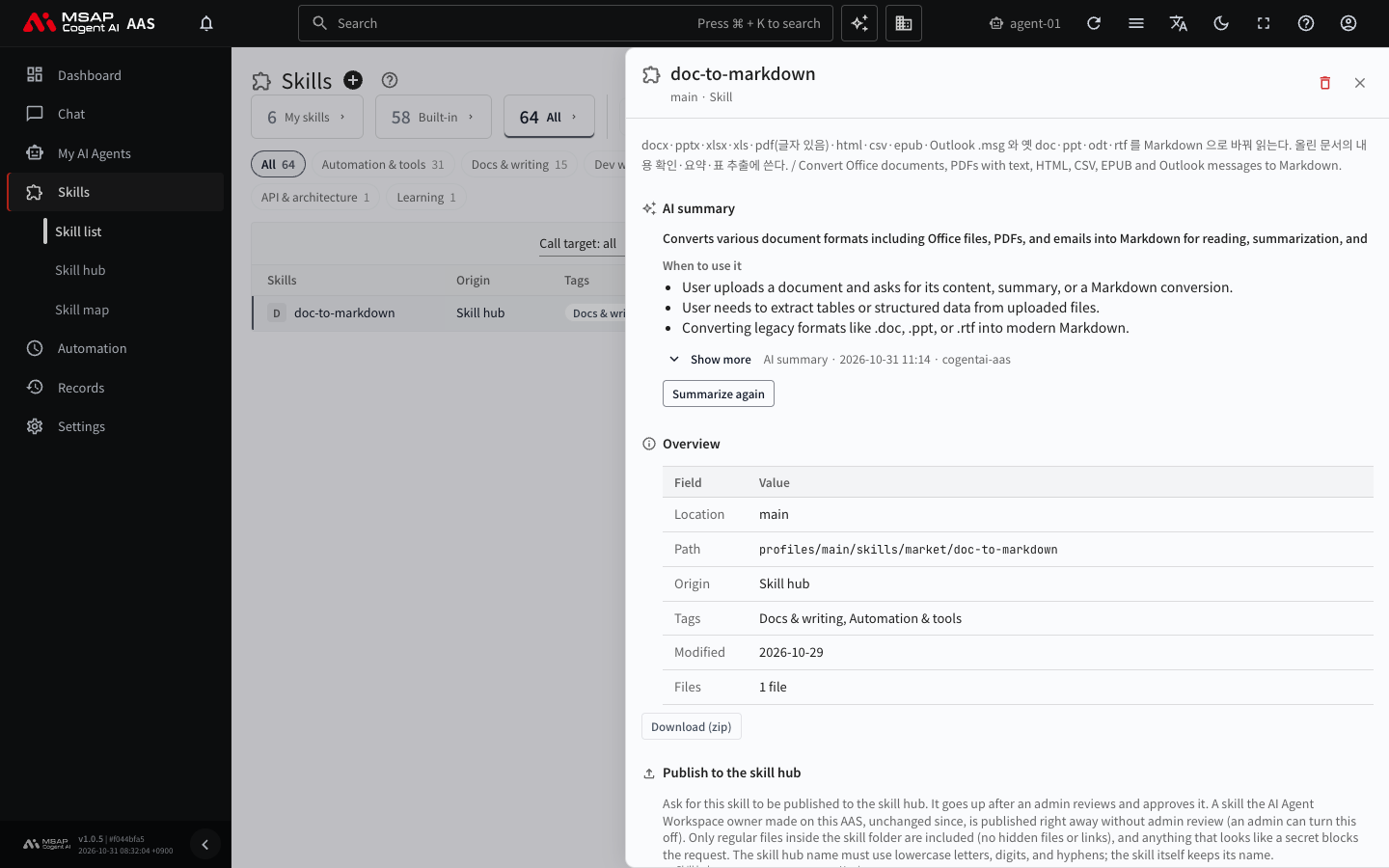
Figure 5.2-1. Built-in skill detail drawer
How to Use
Common Steps
- Open "Chat › Chat" in the left menu.
- If the task uses a file, attach the file to the message box.
- Write what you want to do in plain words and press Enter.
- The result file appears under the answer as a file chip. Click the chip, or download it from "Files" in the chat menu. For reading and summarizing, the summary appears in the answer.
To choose a specific skill, type / in the message box and pick from the skill list.
If a result with the same name already exists, -2, -3, and so on are added to the end of the name.
Reading and Summarizing Documents (doc-to-markdown, hwp-to-markdown)
Upload a document and write something like this.
- "Summarize this document."
- "Extract only the tables."
- "Convert this to Markdown."
The formats these skills can read are as follows.
| Skill | Formats it reads |
|---|---|
| doc-to-markdown | docx, pptx, xlsx, xls, pdf that contains text, html, csv, json, xml, epub, Outlook mail (.msg), and the older formats doc, ppt, odt, odp, rtf |
| hwp-to-markdown | hwp (5.0 and 3.x formats), hwpx |
Keep these points in mind.
- These skills only read. They do not edit or create documents.
- The result comes as a summary in the answer or as a file.
- Bold and italic marks in Word documents may be lost in the result. If emphasis is important, say so in your request.
- An Excel file produces one table per sheet. If there are many sheets, the chat shows only the list of sheet names and the first part of each sheet. Download the file for the full content.
- A large document is not pasted into the chat in full. It is saved as a file, and only the table of contents, the first part, and a summary are shown.
- A pdf whose result is empty or only a few lines may be a scan with no text. In that case, the AI agent switches to reading text from images.
- A table with merged cells in a Hangul document comes out as an HTML table instead of a Markdown table. This keeps the merge information.
- Memos (review comments) in Hangul documents are not read by default. If you need them, write "Read the review comments (memos) too."
- For a Hangul document with a password, the AI agent asks you for the password. The password is not kept in the result or the answer.
Reading Text in Photos and Scanned Documents (ocr-to-markdown)
Upload a photo, a screen capture, or a scanned official document, and write "Read the text", "Convert it to text", or "Copy the table".
It can read the following.
- Image files: PNG, JPG, WebP
- Scanned PDFs whose text cannot be selected
- Korean and English text
- Handwriting and math formulas (formulas are read only from PDFs)
Keep these points in mind.
- Chinese characters (Hanja) and Japanese are barely readable.
- The result may differ from the original. Always compare important values such as numbers, names, and amounts with the original. The AI agent also notes such values as "needs to be checked against the original."
- The AI agent does not correct a value it read to something more plausible. It leaves values that look strange as they are and tells you.
- If handwriting is visible, it reads in handwriting mode. In this case, spaces in printed parts may be joined.
- If it is unclear whether handwriting is mixed in, you get two files: the default result and the handwriting result.
- Spaces after punctuation may be missing.
- If the photo is blurry or tilted and little text is read, ask for a clearer photo.
- Questions about what is shown in a picture are not what this skill does. Use it only for reading text.
- For a pdf with selectable text, the document-reading skill is more accurate.
Creating Document Files (markdown-to-doc)
Write the type of file you want.
- "Make this content into a Hangul (hwpx) report."
- "Give it to me in Word."
- "Make it a PDF."
- "Organize it in Excel."
- "Make it into a presentation."
It can create hwpx, docx, pptx, xlsx, pdf, odt, and html files.
- It can create Hangul documents in official-document formats. Choose from the draft document (gian), report, plan, notice, meeting minutes, outline style, work report, and press release formats. If your department has a template file, it follows that template.
- It can fill in the blanks of a Hangul form. Upload the form file and tell it the field names and values.
- For Excel, it creates one sheet per table, and the sheet name is the heading above the table. It cannot create Excel from text with no tables. Values with a leading 0 and phone numbers are entered as text.
- The Korean font in pdf files is Noto Sans KR.
The limits are as follows.
- The AI agent cannot check how the file looks in Hancom Office or MS Office. If the format is important, open the file and tell the AI agent the result.
- If you create a pptx from a table with merged cells, the merges are undone. The table and values remain.
- If you create a docx or a regular hwpx from a table with merged cells, vertical merges that continue down from a header cell are undone.
- Detailed edits to existing Word, Excel, or PowerPoint files (formatting, tracked changes, comments) are handled not by this skill but by the Hermes built-in skills (docx, xlsx, powerpoint). You can find them in the "Built-in" view of the "Skill list".
Organizing Business Card Photos into a List (business-card-ocr)
Upload a business card photo and write "Register this business card." If the card has a front and a back, upload both images together.
| What you want to do | Example request |
|---|---|
| Register | "Register this business card." "Save it as a contact." |
| Register a handwritten contact note | Upload a photo of the note and write "Register it as a contact." |
| Search | "Find Hong Gildong's phone number." "How many people are from company A?" |
| Get an Excel file | "Give me the business card list in Excel." "Excel of the cards I received this month." |
The fields it registers are name, English name, company, department, title, mobile, phone, fax, email, address, website, and memo. A line it cannot assign to a field goes into the memo. It does not guess text to fill empty fields.
Keep these points in mind.
- The business card list is kept separately for each profile. It does not look at the lists of other profiles.
- If it cannot read two or more of the name, phone, and email, the AI agent asks you before registering. You choose whether to register only the fields that were read or to take the photo again.
- If a card with the same email or mobile number exists, or if neither is present and a card with the same name and company exists, it treats the card as a duplicate and asks you. You answer whether to replace it or add it separately. People with the same name and company can still be different people.
- Chinese-character, Chinese, and Japanese business cards are barely readable. It asks whether to register only the fields that were read. If you tell it the values yourself, it enters them.
- It can read Korean handwriting. It cannot read Chinese or Hanja handwriting.
- Fields that need to be checked against the original are flagged in the registration result table and painted yellow in Excel.
- The business card list is saved as workspace files. If you delete the business card folder in the "Files" screen, the list is lost, so export it to Excel from time to time.
- While it processes business cards, it does not use web search, the browser, messenger connections, or external MCP. It does not send the card contents anywhere you did not ask for.
Asking How to Use AAS (aas-help)
Ask the AI agent in plain words.
- "How do I upload a file on the chat screen?"
- "Where do I create a scheduled job?"
The AI agent tells you the screen names and the steps. The skill contains both Korean and English guidance. For tasks that an administrator must do (managing users, departments, models, and so on), it tells you to ask an administrator. The content of this skill is built from the same source as the help in the AAS screens, and it changes with new AAS versions.
When Something Goes Wrong
| Symptom | What to check |
|---|---|
| The AI agent answers "the required tool is missing" and stops | This AI agent workspace does not have the conversion tool. Do not give the same task again. Tell your administrator, with the skill name and the time of the chat. |
| The result file does not appear under the answer | Open "Files" in the chat menu. You can also ask the AI agent where it saved the file. |
| A default skill is not in the list | Check the "My skills" view of the "Skill list" and the profile selection. If it was deleted, the owner or an administrator installs it again from the Skill Hub. If you are not the owner, ask an administrator (see the example request in 5.1. Skill List). |
| The text it read is wrong | Run it again with a clearer photo. Compare important values with the original. |