5.3. Installing from the Skill Hub
Overview
In the "Skill hub" screen of CogentAI AAS (AAS), you find the package you need and install it to your profile. For the meaning of skill, package, and Skill Hub, see "Terms" in 5.1. Skill List. This chapter explains how to find packages, install them, upgrade to a new version, and delete and restore skills. Open this screen when you want the AI agent to do something it cannot do now, or when you want to use a method that someone has already made.
Permission: Everyone can see the list and descriptions. Only the owner of the AI agent workspace, team managers, and administrators can install, upgrade, and delete. To check whether you are the owner, see "Who can do what" in 5.1. Skill List.
If you do not have permission to install, tell an administrator the name of the package and what you want to use it for. An example request:
Please install the
weekly-reportpackage from the "Skill hub" to my AI agent (profile name: main). I want to use it to create weekly reports. I do not have owner permission, so the install button is disabled.
Screen Layout
Open "Skills › Skill hub" in the left menu. At first, you only use the "Package" card. The other cards appear when there is something relevant, and each section explains them.
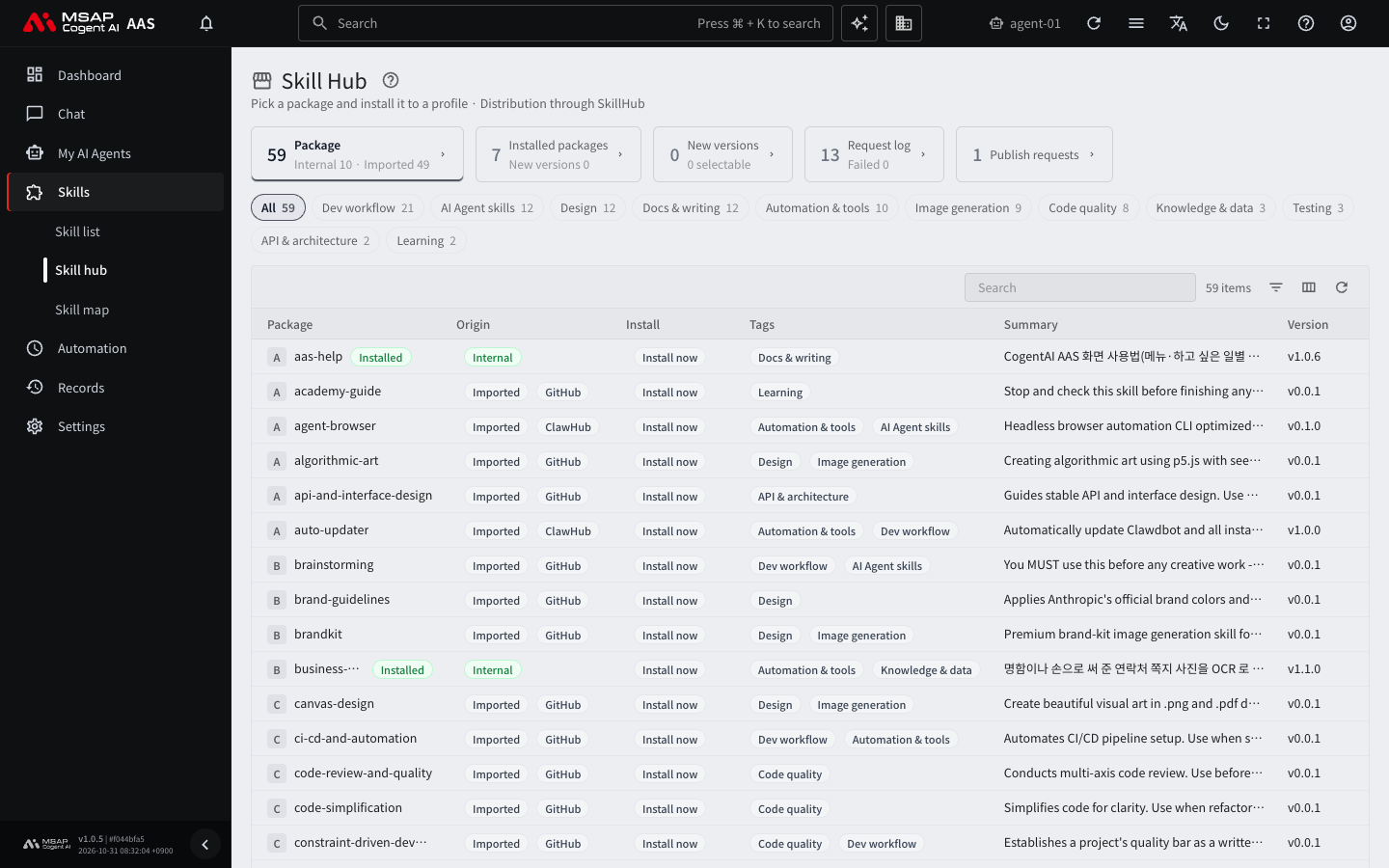
Figure 5.3-1. Skill hub screen
| Card | When to use it |
|---|---|
| Package | To find a package to install |
| Installed packages | To see the packages you installed |
| New versions | To upgrade an installed skill to a new version |
| Request log | To see the results of install, upgrade, and delete requests |
| Publish requests | To see the approval status of skills you published (5.5. Publishing Your Skill to the Hub) |
| Archived | To restore a deleted skill |
When a new version is available, a number also appears on the "Skill hub" item in the left menu.
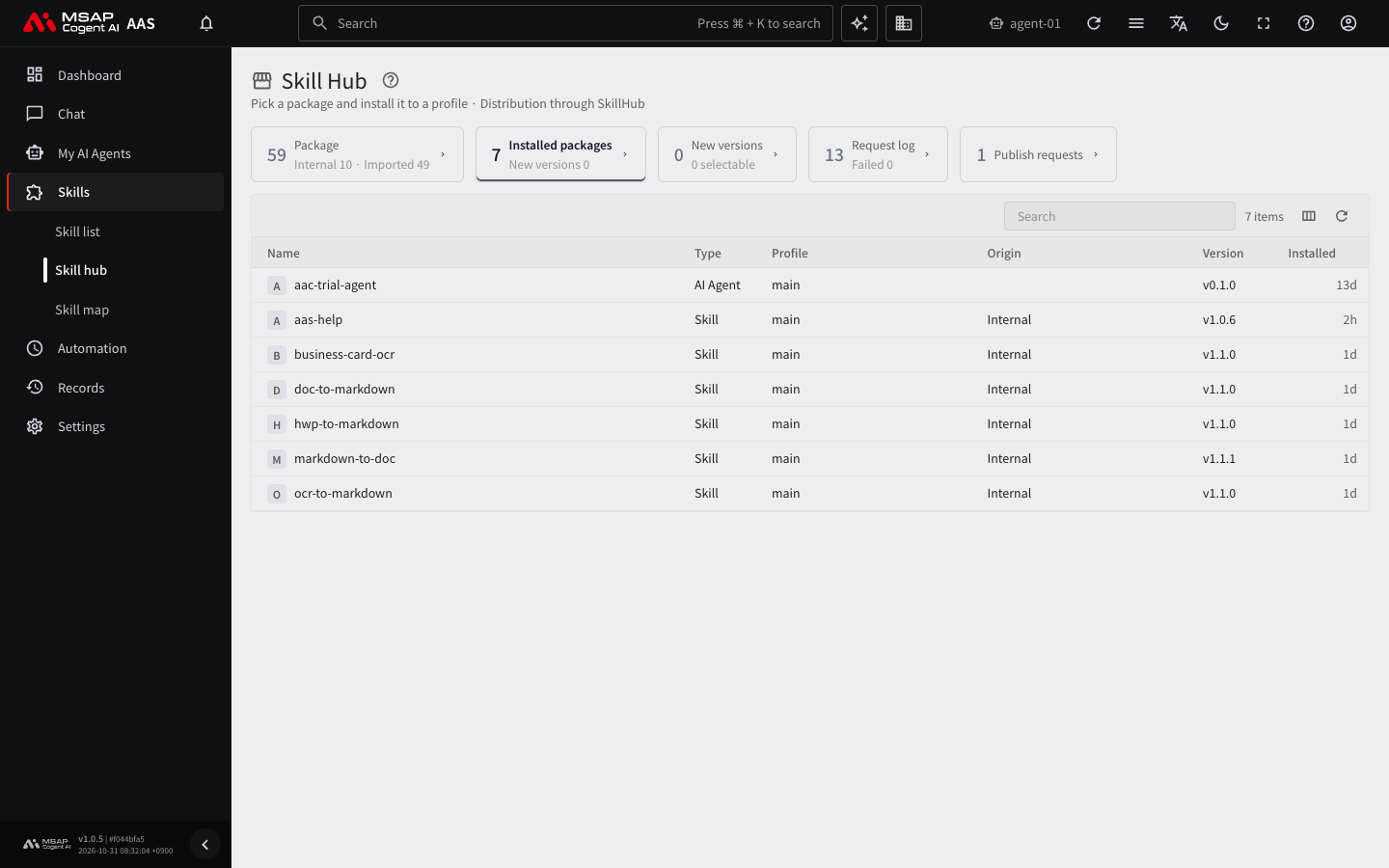
Figure 5.3-2. "Installed packages" view
Finding a Package
- Click the "Package" card.
- Type a name or description in the search box.
- Choose a field (for example, Docs & writing, Testing) from the tag chips above the table.
The "All" chip clears the filter. If you turn on several tag chips, only packages that have all of the selected tags remain.
The table shows the name, origin, install status, tags, description, and version. "Origin" tells you whether the package was registered internally or imported from outside. A package you already installed has an "Installed" mark.
Package Drawer
Click a package row to open a drawer. A drawer is a detail window that opens on the right side of the screen. In the drawer, check the following.
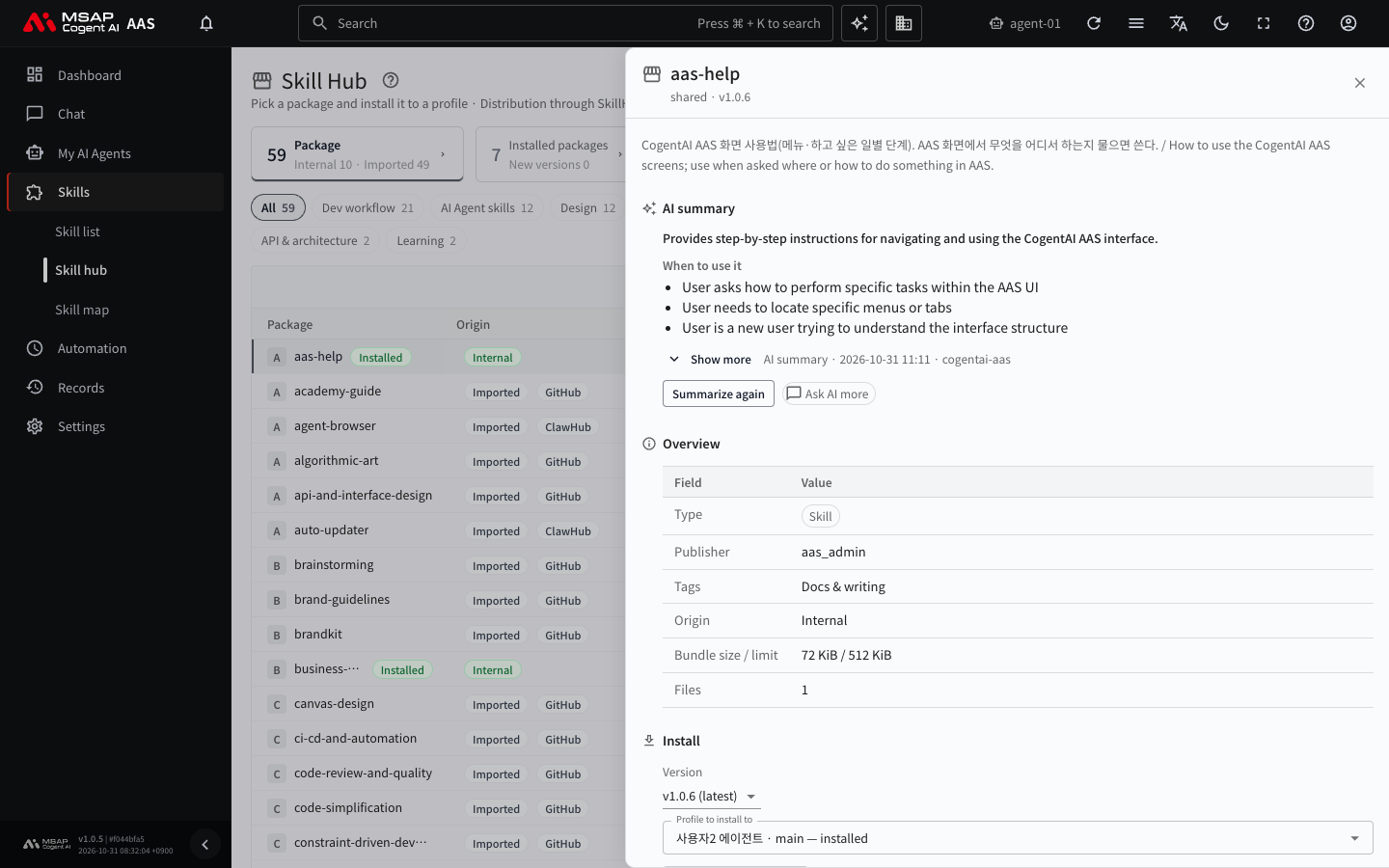
Figure 5.3-3. Package detail drawer
- Type (Skill or AI Agent), namespace, publisher, license (the terms of use), and the list of included files
- If scripts are included, "n scripts" appears next to the file list.
- "AI summary": "When to use it", "What it does", "Why it helps", "What you need", "Watch out for"
- "Ask AI more": A chat opens with a sentence filled in that asks for an easy explanation of this package. The sentence asks only for an explanation, not for installing or running anything.
The AI summary is text written by a model. The chips under "What you need" are values read from the skill files. They show the environment variables it needs, the MCP servers it calls, and external hosts. For environment variables, see 4.4. Secrets and Credential Files. For MCP, see 4.5. Connecting External Tools (MCP). If the summary is based on an earlier version, "Based on the earlier version (v1.0.0)" appears.
This chapter covers skill packages only. This manual does not explain how to install AI agent packages (bundles that hold a personality, skills, scheduled jobs, and MCP together). If you need one, ask an administrator.
Caution: If you install a package that contains scripts, the AI agent can run those programs. For a package from an unknown source, read the drawer description and the "Watch out for" part of the "AI summary" before you install.
Installing
Figure 5.3-4 shows the steps from choosing a package to checking the result. The numbered list continues below.
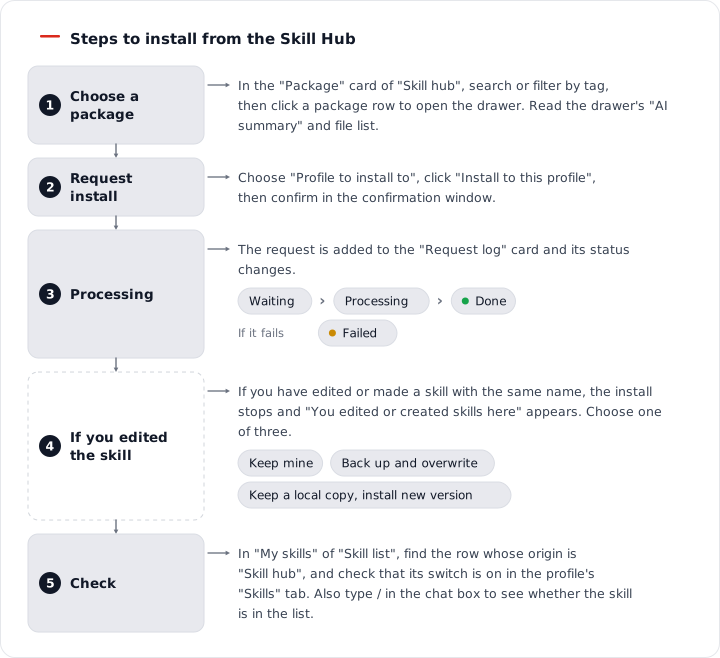
Figure 5.3-4. Steps to install from the Skill hub
- In the "Skill hub" screen, click the package you want to install to open the drawer.
- You do not need to change "Version". The latest version is selected at first.
- In "Profile to install to", choose the profile of the AI agent that will use this skill. If you are not sure, choose the main profile.
- Click "Install to this profile".
- Read the confirmation window and confirm.
Install requests are collected in the "Request log" card. The status changes among "Queued", "Running", "Done", and "Failed". If you install the same package again, only that skill is replaced with the new version.
If it succeeds, the status changes to "Done". Check the following.
- In the "My skills" view of the "Skill list", find the row whose origin is "Skill hub".
- In the "Skills" tab of "My AI Agents › Profiles", check that the skill is on. If it is off, turn on the switch (see "Turning skills on and off" in 5.1. Skill List).
- Type
/in the chat message box and check that the skill appears in the list.
If it fails, click the row in the "Request log" and read the "Result" sentence. If you do not understand the reason, tell the administrator that sentence.
When Installation Is Blocked
| Message | Meaning and what to do |
|---|---|
| Only admins or the owner of this AI Agent Workspace can install packages. | Ask the owner or an administrator. |
| This AI Agent Workspace is not allowed to use the namespace … | The package is in a restricted namespace. An administrator must allow that namespace before you can install. |
| This package is too large to install. | The total file size is over the limit. It cannot be installed. |
| The install helper is not responding. | The AAS function that processes install requests has stopped. The request is kept and is processed when that function runs again. If it takes a long time, tell an administrator. |
| There is no profile to install to. | Create a profile first with "Create a profile". |
When You Have an Edited Skill
If you have edited or created a skill with the same name, the install or upgrade stops and "You edited or created skills here" appears. You then choose one of three options. The button names differ by screen.
| Choice | Button in the "Request log" screen | Button in the "New versions" drawer | Result |
|---|---|---|---|
| Keep mine | Keep mine | None (just do not upgrade) | The edited skill is left as it is, and only the rest is installed. In an upgrade, it is shown as using your edited version. |
| Back up and overwrite | Back up and overwrite | Overwrite | The current content is kept for 30 days, then replaced with the new version. |
| Keep a copy and install the new version | Keep a local copy, install new version | Keep a local copy and upgrade | The edited skill is copied under a name ending in -local, and the new version is installed. The copy keeps working no matter what the Skill Hub updates. |
If you are not sure, choose "Keep a local copy, install new version". It keeps both your edits and the new version.
Upgrading to a New Version
When a new version appears in the Skill Hub, the profiles that use that skill get a notification. "New version v1.2.0" is also added to the origin column in the "Skill list".
- Open the "New versions" card in the "Skill hub".
- Each row shows the profile, the skill, "Now → new", and the status. Click the row you want to upgrade.
- In the drawer, click "Upgrade". The new version applies from the next chat.
To upgrade several rows at once, turn on the checkboxes at the left of the rows and click "Upgrade selected (n)". The upgrade continues even if you close this screen. Progress appears as "n of n done".
Status Labels
Only the statuses that need action are listed.
| Status | Meaning and what to do |
|---|---|
| New version | You can upgrade it right away. |
| Has local changes | It cannot be upgraded in bulk. Click the row to upgrade it on its own, and make the choice described in "When You Have an Edited Skill" above. |
| Unknown | AAS could not check whether you edited it. Choose how to upgrade in the drawer. |
| Failed | Try again in the drawer. |
| Cannot upgrade: shared profile | Skills in a shared profile are not upgraded here. |
| Cannot upgrade: needs approval | An administrator must allow the restricted namespace. |
To remove a version you do not want to upgrade from the notifications, use "Skip this version". You are notified again when a newer version comes out. If you turn on "Show skipped", the skipped rows appear again, and "Notify again" undoes the skip. If you manage more than one AI agent workspace, choose "This workspace" or "All workspaces I manage" in the "Scope" box.
Auto Upgrade
An administrator can turn on the "Auto upgrade" switch. When it is on, the AAS default skills are upgraded automatically when a new version comes out. Skills you edited yourself are skipped. If an automatic upgrade fails, the row status shows "Auto upgrade failed". In that case, upgrade by hand with the steps above.
Deleting a Skill
Caution: If you delete a skill installed from the Skill Hub, your edits cannot be recovered. If you need them, download the skill with "Download (zip)" in the skill drawer before you delete it. If you install it again after deleting, it returns to the original content from the hub.
Click the "Delete" button at the top of the skill drawer, then click "Delete" in the confirmation window. How to undo it depends on the type of skill.
| Skill | When you delete it | How to undo |
|---|---|---|
| A skill you made, or a skill the AI agent made | The skill is moved to the archive. In the confirmation window, you can back it up first with "Download (zip)". | "Restore" in "Skill hub › Archived" |
| A skill installed from the Skill Hub | The delete request is processed and the skill is removed. | Install it again from the Skill Hub (edits do not come back) |
- If scheduled jobs use this skill, the confirmation window tells you. Those scheduled jobs run without this skill from their next run. If needed, change the scheduled jobs first.
- For skills installed from the Skill Hub, only those that AAS recorded as installed are deleted.
- You can also click "Delete" for each profile under "Installed in" in the package drawer.
If a skill cannot be deleted, the button is dimmed and the reason is shown.
| Reason | Meaning |
|---|---|
| Only admins can delete shared skills | The skill is in a shared profile. |
| Two skills have this name, so it cannot be deleted | The names overlap. |
| No install record, so it cannot be deleted from the Skill Hub | AAS has no install record for this skill. |
| Deletion requested | It is already being processed. |
Restoring an Archived Skill
The "Archived" card in the "Skill hub" shows deleted skills and skills that Hermes archived because they were not used for a long time.
- Open the "Archived" card.
- Click the row of the skill you want to restore.
- Click "Restore" in the drawer and confirm.
If it succeeds, the skill appears in the "Skill list" again. You cannot restore it if a skill with the same name already exists. An administrator restores skills deleted from a shared profile.