4.6. Importing and Exporting a Profile from a PC
Overview
This chapter is for people who have installed and used Hermes on a PC. If it does not apply to you, you do not need to read it.
Hermes is the program that actually runs AI agents inside AAS. With this chapter, you can move a Hermes that you used on your own PC (Mac, Linux, or Windows) into an AAS profile, or download an AAS profile to your PC. You can also reuse a personality that you refined in another AI agent workspace in a new profile. This chapter explains three methods.
| Method | When to use it |
|---|---|
| Import from PC | When you want to keep using in AAS the Hermes you used on your PC |
| Import from another workspace | When you want to use a personality you refined in another of your workspaces in a new profile |
| Export to my PC | When you want to use an AAS profile in Hermes on your PC |
Requirements
- The "Import from PC" and "Export to my PC" buttons are in the header of the profile detail drawer.
- You cannot import into the default profile that has no name (default). Use a named profile, including the main profile (main).
- It is available only when AAS is installed on Kubernetes. It is not available in a trial installation on a single computer.
- To move secrets and credential files as well, the address in the browser address bar must start with
https. - Before you import, check the list of service keys you used on your PC. You may need to enter some keys again after the import.
Permissions: Only the owner of the AI agent workspace and administrators can use this. The buttons are not shown to other people. If needed, ask the owner or an administrator to do the import.
Importing from a PC
Caution: When you import, the personality, memory, skills, scheduled jobs, and chat history of that profile are replaced with those from your PC. The content before the replacement is kept, and if the import fails, it is restored automatically. Even so, first check which profile you are replacing, and read "When It Fails or You Want to Undo" below in advance.

Figure 4.6-1. The icon buttons in the profile drawer header
Figure 4.6-2 shows the whole import sequence. Each step is explained below.
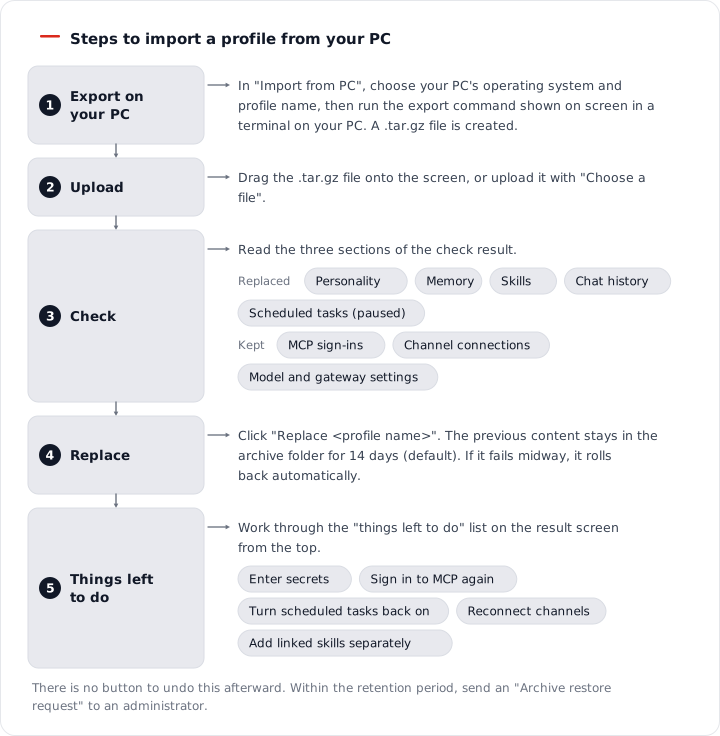
Figure 4.6-2. The sequence for importing a profile from a PC
Step 1: Export from the PC and Upload
A terminal (PowerShell on Windows) is a program where you enter commands as text. On a Mac, search for "Terminal" and open it. On Windows, search for "PowerShell" and open it.
A. Copy the command from the screen
- In "My AI Agents › Profiles", click the row of the profile you want to import into to open the detail drawer.
- In the drawer header, click the upload icon ("Import from PC"). The drawer subtitle shows "1/2 Export and upload".
- Under "Operating system of your PC", choose Mac, Linux, or Windows.
- Under "Profile to export on your PC", enter the name of the profile you used on your PC. When you import into the main profile (main),
defaultis already filled in. - Click "Copy command" on the export command shown on the screen.
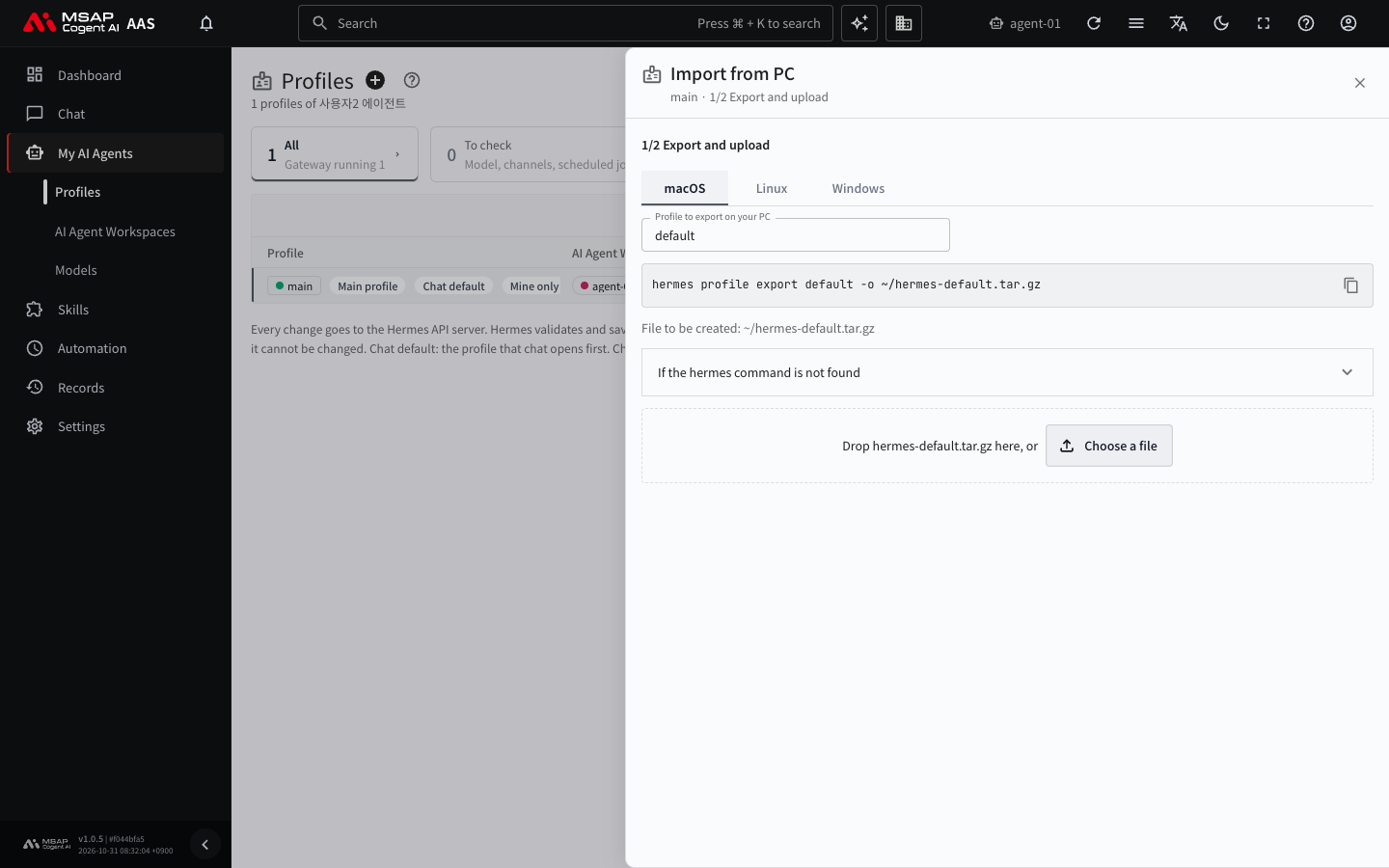
Figure 4.6-3. Step 1 of "Import from PC"
B. Run the command on the PC
- Paste the command into the terminal on your PC (PowerShell on Windows) and run it.
C. Upload the file that was created
- Drag the
.tar.gzfile that was created (a file that bundles several files into one) into the file box on the screen, or upload it with "Choose a file".
The command looks like this. It is safer to copy the command shown on the screen and use it as it is.
hermes profile export <profile name> -o ~/hermes-<profile name>.tar.gz
"File to be created: <name>" shows the file name in advance.
If the hermes command is not found, run it in the terminal or PowerShell you used when you installed Hermes.
A file that is not .tar.gz is rejected with "Only .tar.gz archives can be uploaded". You can also upload an archive of a whole profile folder, and AAS takes only what it needs.
If the archive is too large, the screen shows "The archive is larger than the limit". In that case, click "Ask an administrator for a higher limit", or create the archive again without the chat history (sessions) and upload it.
Step 2: Review and Replace
When the upload finishes, the drawer subtitle changes to "2/2 Review" and the check results appear.
| Section | Content |
|---|---|
| Checked | The archive has a valid format. |
| Replaced | Personality, memory, skills, chat history, and scheduled jobs. All scheduled jobs come in paused. |
| Kept | AAS's MCP sign-ins, channel connections, and the model, gateway, and runtime location settings. Those from your PC are not brought in. |
| Secrets to move | The number of credential files and secrets. For secrets, only keys that AAS does not have are added. |
If other profiles use the same skills, those profiles will also see the replaced skills. The screen shows the names of those profiles.
Model connection files (such as auth.json) are not imported. If you need them, ask an administrator.
Before you replace, it is safer to download the current profile first with "Export to my PC" (the section below) and keep it separately. AAS also keeps the previous content automatically before replacing, but you need an administrator's help to restore it.
When you have checked the content, click "Replace <profile name>". If a chat is open in this profile, close it and open it again. When the replacement finishes, the gateway restarts, so the messenger connections and scheduled jobs of other profiles in the same workspace also pause briefly. If someone other than the workspace owner does the replacement, the owner receives a notice.
The progress screen continues even if you close the drawer. It notifies you in your inbox when it finishes. When it succeeds, the screen shows "Imported the Hermes from your PC into the <profile name> profile". If it fails, see "When It Fails or You Want to Undo" below.
Results and Things Still to Do
When the import finishes, the screen shows "Imported the Hermes from your PC into the <profile name> profile". Work through the "n things left to do" list from the top.
| Item | What to do |
|---|---|
| n secrets needed | Enter the values in the "Secrets (.env)" tab. |
| n MCP servers to sign in again | Click "Sign in" in the "MCP · Toolsets" tab. |
| n paused scheduled jobs from your PC | In the "Scheduled jobs" tab, turn on again only the tasks you need. |
| Channel connection items to connect again | Connect them again in the "Messenger connections" tab. |
| n skills to add separately | Link skills whose content is not in the archive. Add them separately through the Skill Hub or by uploading a skill. |
Step-by-step instructions for finding the location and values of your PC's secrets are in "Find secrets on your PC" on the result screen. Values are not stored in AAS and go straight to the profile. Do not paste values into the chat window. If you entered a channel token, the gateway (the path through which the AI agent receives messenger messages and scheduled jobs) must be restarted. Only administrators can start and stop the gateway, so ask an administrator.
When It Fails or You Want to Undo
If it failed during the import: The screen shows "The import failed, so the <profile name> profile was restored". AAS restored it automatically, so there is nothing for you to do. Click "Retry" to start again from the beginning. If the screen shows "The <profile name> profile may be partly changed", it also says that an administrator has been told. Do not import again; ask an administrator to check the state.
If you change your mind after the import finished: There is no undo button on the screen. The content before the replacement (personality, memory, skills, scheduled jobs, chat history, and the credential files that were replaced) stays in a backup folder inside the AI agent workspace for a set period (14 days by default). The result screen shows the actual number of days in "The previous content is kept for n days".
- Click "Ask an admin" (the backup restore request) at the bottom of the result screen.
- In the request, write "Please restore <profile name> to its state before the PC import".
- An administrator checks the request and does the restore. The restore is a server-side task, so the administrator may hand it to the operator.
After the retention period, the backup is deleted and cannot be restored. There is no way to download the backup from the screen or restore it yourself, so the file you exported to your PC before the import is the surest way to recover. Unlike a failure during the import, undoing after the import finished is done by an administrator.
Importing from Another Workspace
If you have another AI agent workspace that you can use, you can start a new profile from a profile in that workspace.
- Click the + button ("New profile") next to the title of the "Profiles" screen.
- Enter the "Name".
- In the "Import from another AI Agent Workspace" field, choose the profile you want to import.
- Click "Create".
Only the personality (SOUL) and safe settings are copied. Secrets, channels, MCP servers, skills, and model settings are not imported; the new profile uses those of the workspace that it goes into. After the copy, the two profiles change independently. This field appears only when you have another workspace that you can use.
Exporting to My PC
- Open the detail drawer of the profile you want to export.
- In the drawer header, click the download icon ("Export to my PC").
- In the confirmation window, click "Export to my PC".
- In the drawer that appears, click "Download (<size>)".
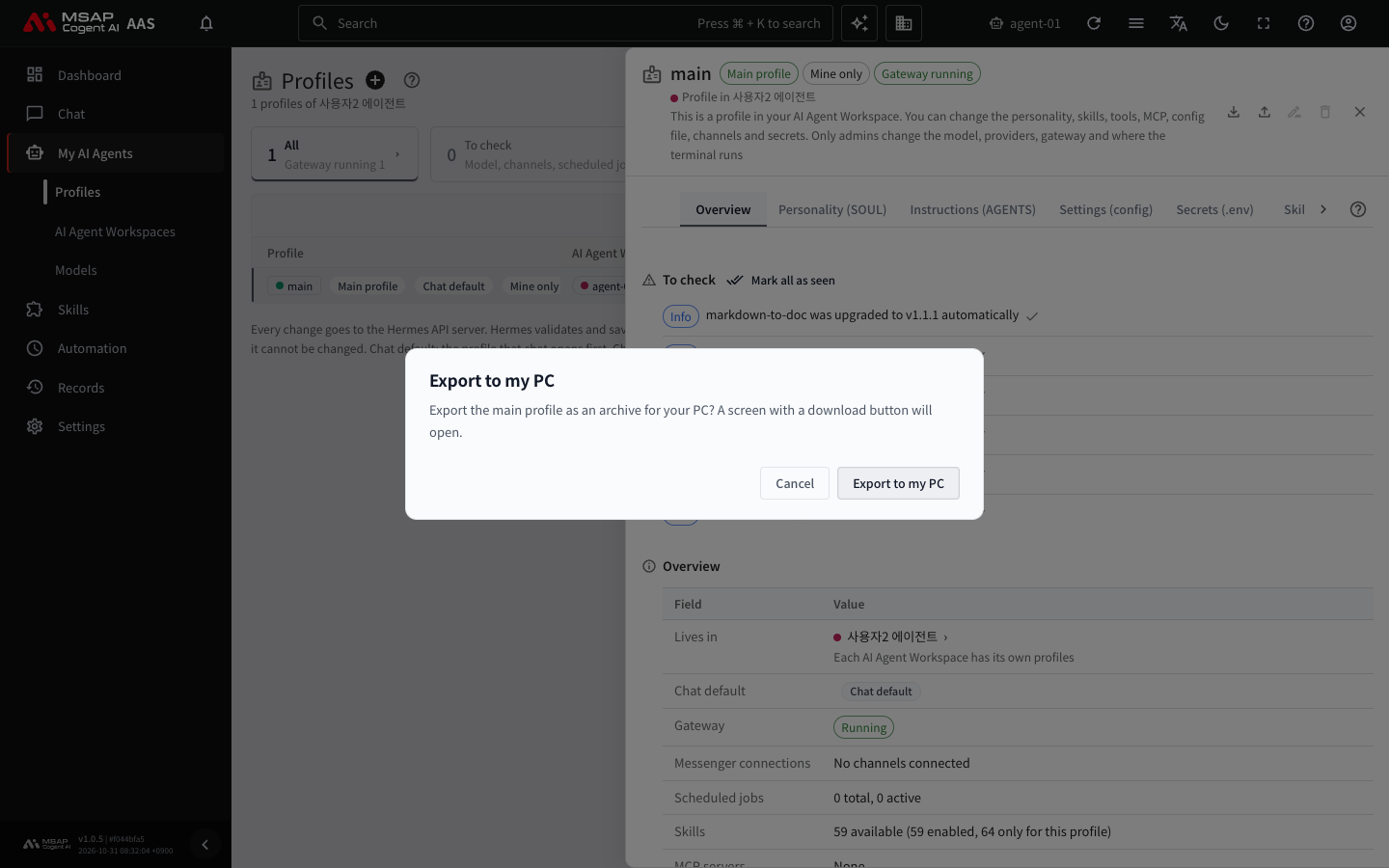
Figure 4.6-4. The "Export to my PC" confirmation window
You can download the archive file only once. If you could not download it, click "Export again". The archive contains the chat history and does not contain secrets. Shared skills are not included in the archive, and the screen tells you when this applies.
The steps for putting the downloaded file onto your PC appear in the drawer with the commands.
- If you exported the main profile (main), the "Put it into default on your PC" steps appear. You stop Hermes on your PC, keep the current default, unpack the archive, check the scheduled jobs, and then restart Hermes.
- If you exported another profile, "Add it to your PC as a new profile" is the default. If a profile with the same name exists on your PC, Hermes rejects it, so use a new name.
- The steps for replacing an existing profile or putting it into default are collapsed under "To replace an existing profile" and "To put it into default".
Caution: Run the backup command marked "Do this first" before anything else. This command makes a copy of your current PC settings. You need the copy to be able to go back on your PC. The archive does not contain secrets, so the secrets files on your PC stay as they are.
If things do not go as the instructions say, tell an administrator the Hermes version on your PC.