5.4. Creating Your Own Skill
Overview
If you write down the steps and cautions for a task you do often, such as writing a weekly report, as a skill, the AI agent follows those steps every time it takes on that task. For what a skill is, see "Terms" in 5.1. Skill List. This chapter explains three ways to create a skill, how to check the skill you made, and how to edit it. Create a skill when you keep repeating the same explanation each time you give the same task, or when you want the AI agent to follow your team's writing style or format.
Permission: Only the owner of the AI agent workspace, team managers, and administrators can create and edit skills. To check whether you are the owner, see "Who can do what" in 5.1. Skill List.
If you do not have permission, "Only admins or the owner of this AI Agent Workspace can change this." appears, or the "Upload zip" tab is not shown. In that case, tell an administrator the name of the skill you want to create and what it does. An example request:
I want to create a
weekly-reportskill for my AI agent (profile name: main). It organizes this week's schedule into a table divided into done, in progress, and next week. I do not have owner permission, so I cannot create it myself.
Choosing How to Create
| Method | Good for |
|---|---|
| Hand off to the AI agent (recommended if this is your first time) | When you do not know what to write, or when the skill needs a program (script) |
| Write it yourself | When you can write the steps and cautions yourself |
| Upload a zip | When an administrator or a colleague gave you a skill file |
You cannot create script files by writing it yourself. If you need a script, use "Hand off to AI Agent".
Handing Off to the AI Agent
This is the easiest method. Write what you want to do in plain words, and the AI agent writes a draft of the skill.
- In the "Skill list" screen, click "Hand off to AI Agent".
- A chat with the AI agent opens with a request template filled in.
- Fill in the square brackets
[ ]in the template. Leave blank the fields you do not know. - Send it.
- Read the draft the AI agent shows you. If it is right, answer "Create it." If something needs changing, reply with what to change.
An example of a filled-in request:
I want to create a new skill.
- Name: weekly-report
- What it does: Organize this week's schedule into a table divided into done, in progress, and next week
- When to use it (trigger): When I say "make the weekly report"
- Tools and APIs it calls: not sure
First show me a draft of SKILL.md and the file layout, and create it only after I confirm.
SKILL.md is the instruction file of a skill. The AI agent first shows you the draft and the file layout, and creates the skill only after you confirm. If you have chosen a profile in the "Skill list", the chat opens with the AI agent of that profile.
If it succeeds, the AI agent says it created the skill, and a new row appears in "My skills" in the "Skill list". If it does not appear, ask the AI agent in the chat where it created the skill.
Writing It Yourself
- Open "Skills › Skill list" in the left menu.
- Click the "New skill" button. A drawer (a detail window that opens on the right side of the screen) opens.
- In "Who uses it", choose the scope.
- Write the "Name". Use only lowercase English letters, digits, and
-, at least 2 characters. Example:weekly-report - Write the "Description".
- Write the "Body (Markdown)".
- Click "Create skill".
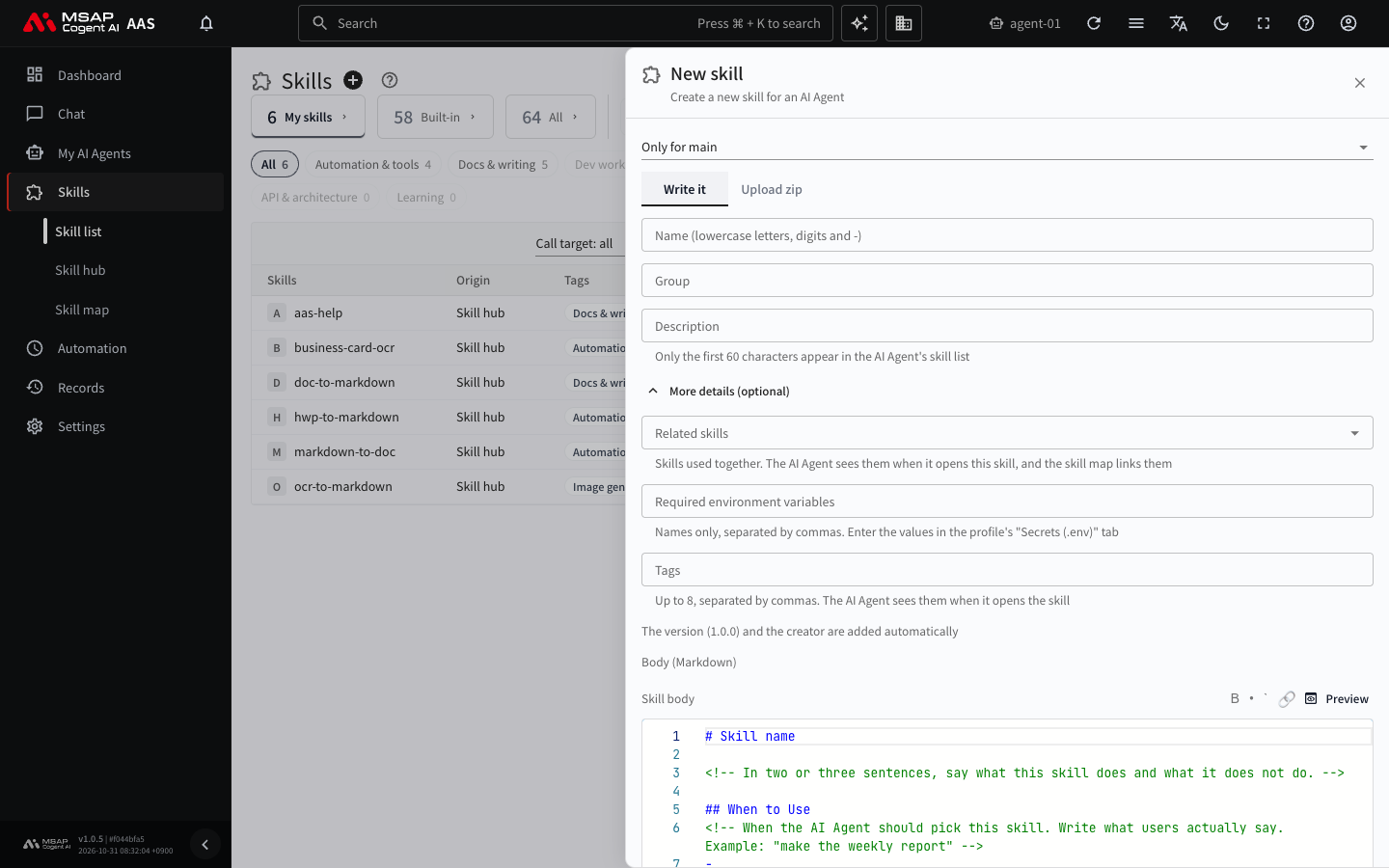
Figure 5.4-1. "Write it" tab
If it succeeds, the drawer closes and "Created skill {name}" appears. The "My skills" view of the "Skill list" opens with this skill's name in the search box. If it fails, the reason appears inside the drawer. Typical reasons are that a skill with the same name already exists, that "When to Use" and "Procedure" in the body are empty, or that you do not have permission. Read the reason and fix it.
Who Uses It
| Choice | Meaning |
|---|---|
| Shared (used by all profiles) | All of your profiles use this skill. |
| Only for {profile name} | Only that profile uses this skill. |
If you are not sure, choose "Only for {profile name}". In some workspaces, choosing "Shared" shows a message that it is hidden and cannot be changed. In that case, choose "Only for {profile name}". If you open the drawer with a profile selected in the "Skill list", that profile is selected from the start.
Writing the Description
The AI agent looks at the description to choose which skill to use. Write what the skill does and when to use it. Only the first 60 characters of the description appear in the AI agent's skill list, so put the key point first. You can write up to 300 characters. To publish to the Skill Hub, it must be at least 20 characters (5.5. Publishing Your Skill to the Hub).
Writing the Body
The body box already contains a template. Delete the guidance sentences in the template and fill in your content.
| Template heading | What to write |
|---|---|
| Skill name and first paragraph | What this skill does and does not do, in two or three sentences |
| When to Use | The conditions under which the AI agent picks this skill. Write what users actually say. |
| Prerequisites | External tools (MCP), environment variables, and permissions it needs. Do not write secrets. Leave empty if none. |
| Procedure | Numbered steps in order. If you do not know the tool names, you do not need to write them. |
| Pitfalls | Common mistakes and things not to do |
| Verification | One way to check that the work finished correctly |
Here is an example of the weekly-report skill filled in.
Description: Creates a weekly report that organizes this week's schedule into a table divided into done, in progress, and next week.
# weekly-report

Organizes this week's schedule into a weekly report. It does not submit the report for you.

## When to Use
- When the user says "make the weekly report"
- When the user asks to organize what they did this week

## Prerequisites
- The user tells you this week's schedule or what they did, or gives it as a file.

## Procedure
1. Collect this week's schedule and what was done. If something is missing, ask the user.
2. Divide it into three groups: "Done", "In progress", and "Next week".
3. Show it as a table with one line per group.

## Pitfalls
- Do not include work the user did not mention.
- If you do not know a date, ask instead of guessing.

## Verification
- Check that all three groups are there and that nothing the user mentioned is missing.
When you write the name, the title at the top of the body changes to that name. The guidance comments in the template and any sections you left empty are removed automatically when the skill is created. The body editor has a toolbar for headings, bold, lists, and so on.
More Details
"More details (optional)" can stay empty. Fill it in only when you need it.
| Field | Content |
|---|---|
| Group | The name of the folder to put the skill in. Example: marketing |
| Related skills | Skills used together. They are linked in the skill map. |
| Required environment variables | Write names only, separated by commas. Enter the values in the profile's "Secrets (.env)" tab (4.4. Secrets and Credential Files). |
| Tags | Separated by commas, up to 8. |
The header (name and description), the version (1.0.0), and the creator are added automatically.
Uploading a Zip
Use this when an administrator or a colleague gave you a skill folder packed as a zip. If both the "Write it" and "Upload zip" tabs appear in the "New skill" drawer, you can upload. If the "Upload zip" tab does not appear, you do not have permission to upload, so ask an administrator.
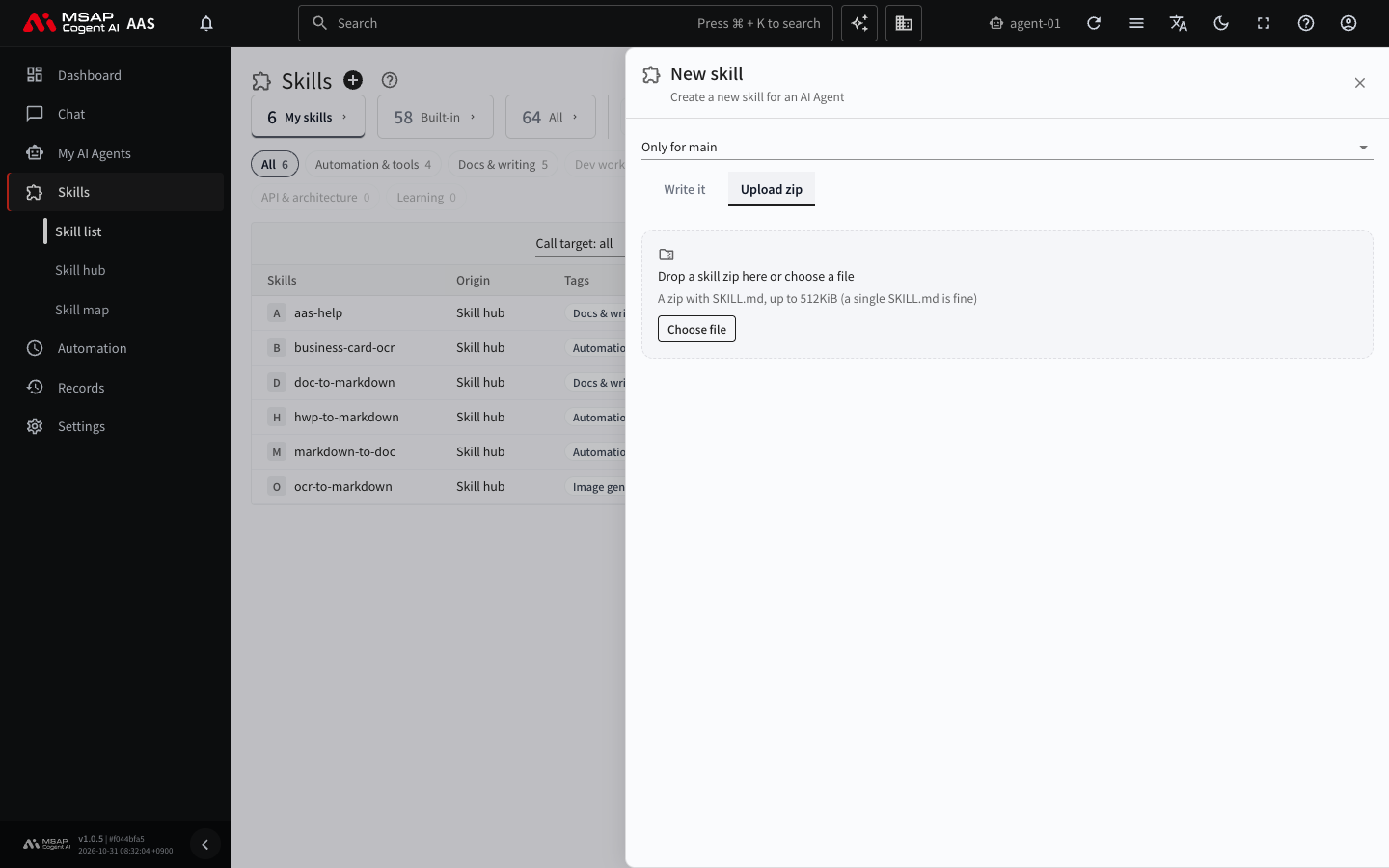
Figure 5.4-2. "Upload zip" tab
- Open the "New skill" drawer and choose "Who uses it".
- Click the "Upload zip" tab.
- Drag a zip file onto the box, or pick one with "Choose file".
- Wait until "Checking" finishes and the preview appears.
- Check the skill name and the file list.
- If there are scripts, read the external addresses they call and turn on "I checked the scripts".
- Click "Upload and apply".
You can upload a zip that contains SKILL.md and is 512KiB or smaller. A single SKILL.md is also fine. If it is over the size limit, an error appears, so shrink the skill folder and zip it again.
Check the following in the preview.
- If a skill with the same name already exists, "A skill with that name already exists. Enter another name." appears. Enter a different name.
- If there are scripts, "This skill can run n script(s). Make sure you trust whoever made it." appears with "External addresses it calls". You cannot click "Upload and apply" until you turn on the confirmation check.
Caution: Do not upload a zip from an unknown source. If it contains scripts, the AI agent can run those programs.
If it succeeds, "Placed in the skill folder" appears and an "Open this skill" button is shown. If "The apply request was sent. It will appear in the list when done" appears, the skill shows up in the "Skill list" shortly. If applying fails, use "Try again" to check the same file again.
Checking the Skill You Made
- In the "My skills" view of the "Skill list", find the skill you made.
- Open the drawer and check the description, the required secrets, and the call information.
- If a required secret shows "Needed", enter the value with "Enter in the Secrets tab".
- Type
/in the chat message box and check that the skill appears in the list. - In chat, give the AI agent one task that the skill should handle. Example: "Make the weekly report."
If it succeeds, the AI agent works by the steps of the skill. If the result is not what you expected, edit the skill as described in the next section.
Editing Your Skill
There are two ways to edit. The easy way comes first.
Method 1. Ask the AI agent to edit it (the easy way)
- In the "Skill list", click the skill row to open the drawer.
- Under "Skill map and chat", click "Request a change".
- When the chat opens, write what you want to change and send it. Example: "Add an owner column to the table."
Method 2. Edit it yourself
- In the drawer, click "View skill map".
- In the diagram, click the skill node (the box with the skill name) and open the "Code" tab.
- Click "Edit" and change the content.
- Write why you made the change in "Save note". You can leave it empty.
- Click "Save".
The content before the edit stays in AAS, so you can restore it from "Previous versions". The only file you can edit is SKILL.md. For the screen details and the cases where you cannot edit, see "Editing the Skill Document" in 5.6. Skill Map.
Downloading and Deleting
- Click "Download (zip)" in the drawer to get the skill folder as a zip. Use it to move the skill to another profile or to back it up.
- Files that contain secrets are not put in the zip. The names of the left-out files appear in the drawer. If files are left out, the skill may not work.
- Delete a skill with "Delete" at the top of the drawer. A deleted skill is moved to the archive, and you can restore it in "Skill hub › Archived". For details, see "Deleting a Skill" in 5.3. Installing from the Skill Hub.
- To share it with other people, see 5.5. Publishing Your Skill to the Hub.