4.5. Connecting External Tools (MCP)
Overview
MCP (Model Context Protocol) is a connection that lets an AI agent use external services (such as calendars, issue trackers, and internal document systems). Once connected, the AI agent can do things like "Tell me today's schedule" or "Add a comment to this issue" for you. Read this chapter when you have decided which service to connect and have received an address or key from the person in charge of that service. This chapter explains how to add an MCP server (one connection), test a connection, sign in, turn a server on and off, delete it, and turn toolsets on and off. A toolset is a group of the tools that the AI agent has by default. You turn the group on or off as a unit.
Permissions: The owner of the AI agent workspace or an administrator adds servers. If you do not have permission, the screen shows "You cannot add MCP servers". In that case, ask an administrator: "Please add an MCP connection to <service name> for <profile name>. The address is <address from the person in charge>."
Caution: A connected server works with the permissions of the key you entered. Even when another person gives this AI agent a task in the Office or a meeting room, the same permissions are used. For that reason, do not use a full-permission key of your personal account. Get a key with reduced permissions, such as a read-only key. Ask the person in charge of the service how.
Opening the "MCP · Toolsets" Tab
- In the left menu, go to "My AI Agents › Profiles" and click your main profile row to open the detail drawer.
- Open the "MCP · Toolsets" tab.
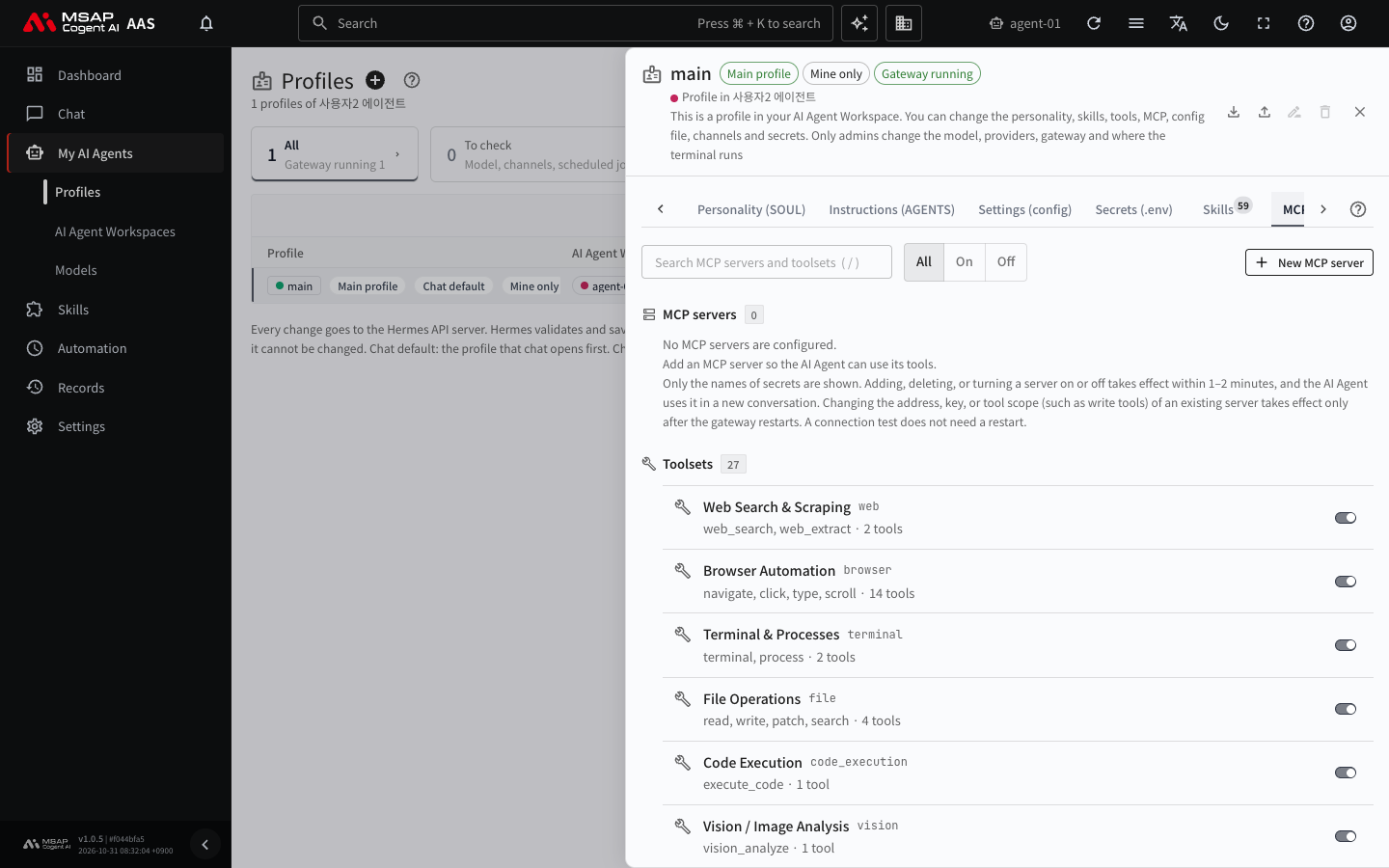
Figure 4.5-1. The "MCP · Toolsets" tab
The tab has an "MCP servers" section and a "Toolsets" section. Use the search field at the top to search by name, and filter with "All", "On", and "Off". The owner of the AI agent workspace or an administrator adds servers. If you do not have permission, the screen shows "You cannot add MCP servers".
Adding an MCP Server
- Click "Add server" next to the "MCP servers" section title.
- Choose a method under "How to add".
- Fill in the fields for that method.
- Click "Add".
There are three ways to add a server. "Catalog" opens first. Use the catalog for services that are in the list. Use "Remote address" and "Run a program" only when you enter values exactly as an administrator or developer gave them to you.
Catalog
- Find the server with "Search catalog".
- Click "Install" on the server row.
- Enter the required values (address, key) and save.
A server that is already installed shows "Installed". If no server can be installed directly in this environment, the screen shows "Add it by remote address instead". Some servers (OAuth servers that run as a program, and servers that need an installation) are hidden because this screen does not support them. For how to connect the internal wiki servers (Docmost, Outline), see 5.7. Company Wiki Skills.
Remote Address and Run a Program
For a service that is not in the catalog, add it with the values that an administrator or developer gave you. If you were not given values, do not use these methods.
| Method | Values to get |
|---|---|
| Remote address | The server address, the authentication method (one of "None", "Token", or "OAuth"), and a token if one is needed |
| Run a program | The executable file name, arguments, and the names and values of the required environment variables |
- Enter a name in "Name" using English letters, digits,
-, and_. Start with an English letter or a digit. - Enter the values you were given in the fields with the same names, exactly as given.
- Click "Add".
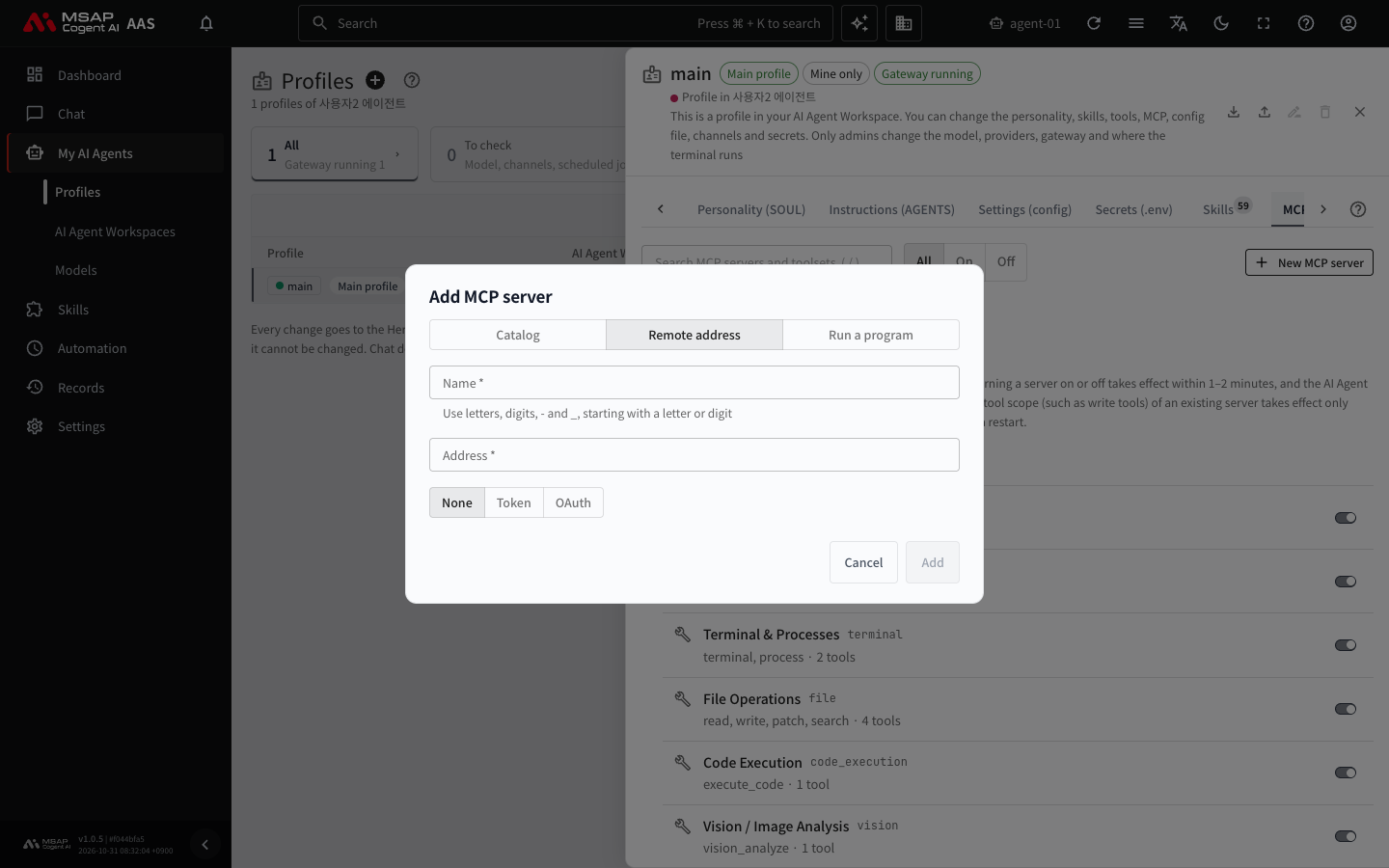
Figure 4.5-2. The "Add MCP server" window (remote address)
If you choose "Token", you cannot view it again after you save it. If you choose "OAuth", click "Sign in" on the server row after you add it and sign in. If a "Callback address" appears on the screen, pass that address to the server's person in charge and ask them to register it. "Run a program" downloads the program the first time it connects, so use only programs that the person in charge has checked. If the address or the arguments contain text that looks like a key, the request is rejected. Enter keys in the environment variable field or in the Secrets tab (4.4. Secrets and Credential Files). There is a limit on the number of "Run a program" servers in the same AI agent workspace.
If an address is not allowed, a warning appears. A user can send a request with "Ask an admin", and after checking, an administrator can click "Add anyway".
If you open AAS from an unencrypted address (http, internal IP), you cannot enter tokens or secrets. In that case, open AAS from an https address.
Testing a Connection
Click "Test connection" on the server row. When the connection works, the screen shows "<name>: connected · n tools". The first connection can take 30 to 40 seconds. If the test does not finish in time, test once more. Even if a test fails, the server may connect in a new chat, so try a request in a new chat. If it fails, the screen shows "Could not connect" and an error message. Follow the message to fix the address or key. If the screen shows "Connected, but the server has no tools", check the settings on the server side.
OAuth Sign-In
For an OAuth server, the AI agent can use its tools only after you sign in. The status on the server row shows one of the following.
| Status | Meaning |
|---|---|
| Sign-in needed | You must sign in to use the tools. |
| Signing in | You are signing in in the pop-up window. |
| Connecting | You have signed in. The AI agent is connecting to the server, which takes up to 1 minute. |
| Connected | The tools are ready. It may also appear as "Connected · n tools". |
| Sign in again | The sign-in has expired. |
| Connection failed | The connection failed. |
- Click "Sign in" on the server row (or "Sign in again" if it has expired).
- Finish signing in to the server in the pop-up window that opens.
- Check that the status changes to "Connected".
The owner of the AI agent workspace must sign in. If you are not the owner, ask the owner to sign in. When a sign-in is needed or has expired, an "MCP sign-in" notice arrives in your inbox, and "Open the MCP tab" takes you there directly.
Turning On and Off, Deleting, and Applying
Use the switch on a server row or a toolset row to turn it on or off. When you turn it off, a confirmation window appears, and the AI agent stops using the tools of that server or toolset. You can turn the switch back on at any time.
Deleting a Server
- Click "Delete <name>" on the server row.
- Read the confirmation window and confirm.
When you delete a server, the skills and scheduled jobs that used it may fail. Secrets that only this server used are also deleted. A deleted server cannot be used again, and there is no way to undo it. To use it again, add the server again and enter the keys again. If you only want to stop using it for a while, turn it off with the switch instead of deleting it.
Applying Changes
When you add, delete, or turn a server on or off, the change takes effect within 1 to 2 minutes, and the AI agent uses the changed tools in a new chat. An open chat does not have the new tools, so start a "New chat". If you changed the address or key of an existing server, or the range of tools it can use (for example, write tools), the gateway (the path through which the AI agent receives messenger messages and scheduled jobs) must be restarted for the change to apply. Click "Apply now (restart gateway)" in the notice above the tab. The owner or administrator who changed the server clicks this button.
Caution: While the gateway restarts, the messenger connections and scheduled jobs of this AI agent workspace pause briefly, and chats in progress may be cut off. Read the confirmation window before you continue. If you do not see the button, ask an administrator.
Toolsets
The "Toolsets" section lists the tools that the AI agent has by default, grouped into toolsets. Each toolset row shows a description and the number of tools. Use the switch to turn a toolset on or off. A toolset marked "Needs setup" can be used only after you enter the required keys. Enter keys in 4.4. Secrets and Credential Files. When you connect an internal wiki server, the browser and external connection toolsets may be turned off. If you need them, turn them back on in this section.