5.3. Handling User Requests
Overview
When users need something they cannot do themselves (for example, changing a model), they send a request to administrators with the "Ask an admin" button on the screen. The request is recorded in AAS and collected in the administrator's inbox (the place where approval requests, user requests, and notices are collected, see the A.3. Glossary). The administrator reads the request, takes the needed action, and then clicks "Mark handled". If the administrator cannot grant the request, they click "Decline". The result goes back to the requester's inbox. Use this chapter when a number appears on the inbox button, or when a user tells you they sent a request.
Permissions: Handling requests is visible only to administrators. "Mark handled" does not do the requested work for you. It is a button that records the result after you have taken the action.
The target of a request is a profile (an AI agent's bundle of settings). A profile lives inside an AI Agent Workspace (the place where an AI agent works, one for each user). Both terms are in the A.3. Glossary. The operator is the person who installs AAS and manages the server. The operator may be a different person from the administrator. In this chapter, the operator is the person to whom the administrator passes requests that the administrator cannot finish alone.
Request Types
Administrators receive four types of requests. Whether the administrator can finish a request alone depends on the type.
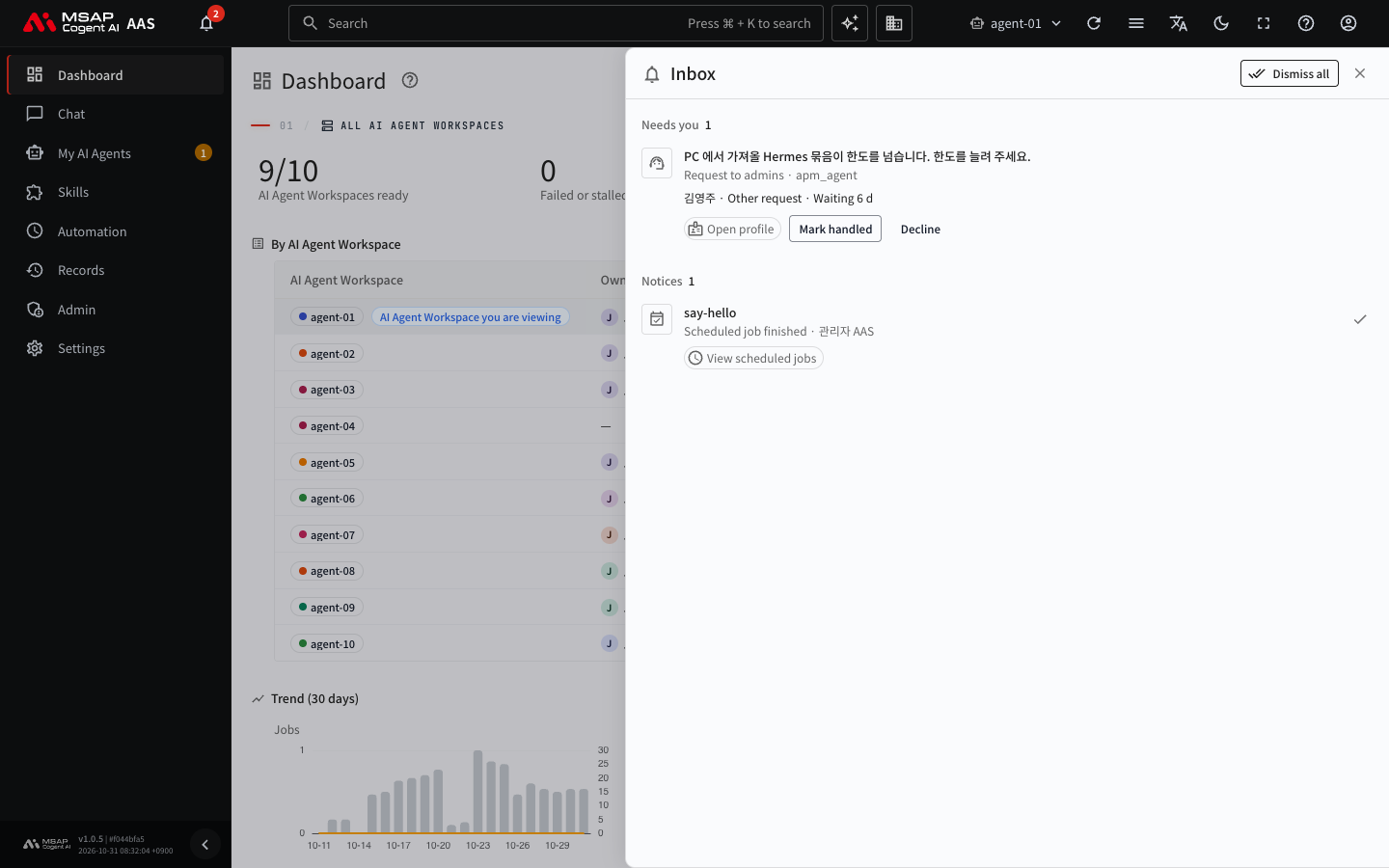
Figure 5.3-1. Administrator inbox
| Request type | Where the user clicks | Can the administrator finish it alone? |
|---|---|---|
| Model change request | "Ask an admin to change the model", next to "Main model" on the profile's "Overview" tab | Yes |
| Profile limit request | "Ask an admin to raise the profile limit", in the profile list | No. The operator must change the installation value. |
| Archive restore request | "Ask an admin", on the result screen after importing a profile from a PC | No. The operator must restore the archive. |
| Other request | "Ask an admin", on the result screen after importing a profile from a PC | Yes |
Users send each type in these situations.
- Model change request: when they want to change a profile's model. Only administrators change models.
- Profile limit request: when the number of profiles in one AI Agent Workspace has reached the limit.
- Archive restore request: when they want to return to the content from before a change (within the retention period).
- Other request: when they ask for a secret or a model connection file that was not imported to be put in. The request text is filled in in advance.
Note: A user cannot send the same type of request for the same profile again while one is waiting to be handled. If the request text contains something that looks like a secret, it is saved with that part masked.
Figure 5.3-2 shows the order from when a request is received until the result goes back.
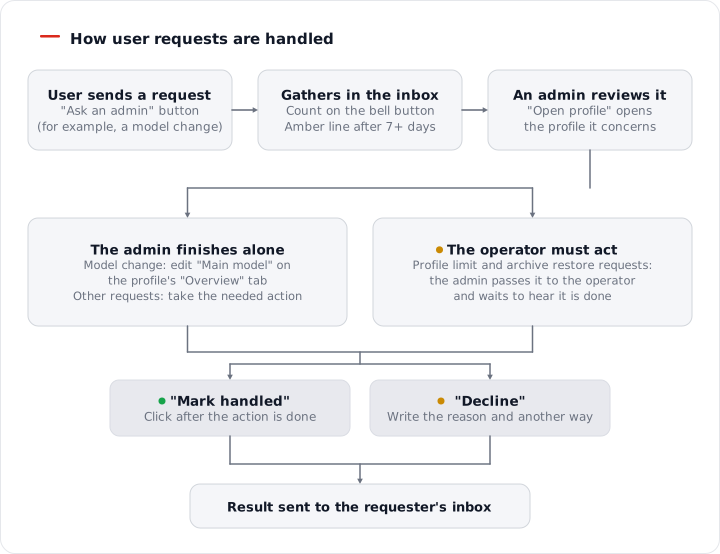
Figure 5.3-2. How a user request is handled
Checking Requests
When a request is waiting to be handled, a number appears in these two places.
- The inbox (bell) button on the top bar
- "{n} requests waiting" under "My AI Agents › Profiles" in the left menu
When you open the inbox, the "Request to admins" items appear, oldest first. Up to 200 are shown. The list also shows other notices, such as scheduled job failures and approval requests.
One item shows the following.
| Place | Content |
|---|---|
| First line | The request text |
| Second line | "Request to admins" and the target AI agent |
| Requester line | "{requester name} · {request type}" and "Waiting {n} d". Hover over the name to see the email in a tooltip. |
| Buttons | "Open profile", "Mark handled", "Decline" |
A request that has waited more than 7 days has an amber line on the left, so it stands out.
Handling a Request
- Open the inbox and read the request item.
- Click "Open profile". The drawer (a detail pane that opens from the right side of the screen) of the profile the request is about opens.
- Take the action that fits the request type. See the two sections below.
- When the action is done, go back to the inbox and click "Mark handled".
If it succeeds, the item disappears from the list, and a result notice goes to the requester's inbox. If "This request was already handled" appears, another administrator handled it first. In that case, do nothing.
Note: If the request is in another person's AI Agent Workspace, in step 2 the dialog "This link is for {name}. Switch to that AI Agent Workspace and open it?" appears. Click "Switch and open".
Requests the Administrator Can Finish Alone
| Request type | What the administrator does |
|---|---|
| Model change | Change the model in "Main model" on the profile's "Overview" tab. See 3.4. Changing a Profile's Model and Settings on Someone's Behalf. |
| Other | Read the request text and take the needed action. If it is a secret, put it in on the profile's "Secrets (.env)" tab. |
After you finish the action, click "Mark handled". If you cannot grant the request, follow "Declining a Request" below.
Requests That Need the Operator's Action
The administrator screens cannot finish profile limit requests and archive restore requests. Follow these steps.
- From the request item, write down the AI Agent Workspace name, the profile name, the requester, the time of the request, and the request text.
- Pass the request to the operator. Sample sentences are below.
- When the operator tells you it is done, tell the result to the user. You can tell them directly by messenger or email.
- Only after the operator's action is done, click "Mark handled" in the inbox.
Caution: Click "Mark handled" only after the operator's action is done. If you click it first, the user gets a notice that the request was resolved, but nothing has actually changed.
If the operator says it cannot be granted, click "Decline", and in the reason, write the reason and another way the user can proceed.
Write the request to the operator like this. Replace the parts in curly braces with the content of the request item.
Profile limit request:
This is {my name}, an AAS administrator. Please raise the profile limit of the AI Agent Workspace
{workspace name} ({user name}) from {current value} to {desired value}.
The user sent this request on {request date} with "Ask an admin to raise the profile limit" in AAS.
Please let me know when it is done.
Archive restore request:
This is {my name}, an AAS administrator. Please restore the profile {profile name} of the AI Agent Workspace
{workspace name} ({user name}) to its content from before it was imported from the PC.
The request date is {request date}, and the request text is "{request text}".
Please also tell me if it cannot be restored because the retention period has passed.
Declining a Request
- Click "Decline" on the item.
- Enter the reason in the "Reason for declining (optional)" field. You can use up to 300 characters.
- Click "Decline" next to the field.
The reason goes to the requester as it is. Write it specifically so the user can understand it, and do not write secrets.
What Happens After You Handle a Request
- A result notice arrives in the requester's inbox. "An admin handled your request" or "An admin declined your request" appears. For a decline, the reason the administrator wrote is shown with it.
- The result notice is shown for 7 days from the day it was handled. It disappears when the user clicks "Dismiss".
- The requester's inbox does not show which administrator handled the request.
- The waiting label "Waiting to be handled (day {n})" disappears, and the user can send the same type of request again.
- The record of a handled or declined request is deleted after 90 days.
If You Leave a Request Unhandled
A request that is not handled stays with no deadline. While you leave it, "Waiting to be handled (day {n})" keeps appearing in the matching place on the user's screen. The user cannot send the same type of request again for the same profile.
So do not leave requests for long. Check the following.
- In the inbox, handle requests with an amber line (more than 7 days old) first.
- For a request waiting for the operator's action, tell the user the progress yourself. Leave the request itself unhandled until the action is done.
- If you cannot grant a request, or the action takes so long that the user should fix the request and send it again, decline it with a reason. After a decline, the user can send a new request or find another way.
- If requests from the same person repeat, ask the user about the situation directly.