3.3. Handing Off Work with Kanban
Overview
Kanban is a screen where you write work as cards and hand it to an AI agent. Unlike Chat, you do not have to stay at the screen waiting for the result. When you create a card, the assigned AI agent starts the work on its own, and the card moves between columns as the work progresses. This chapter explains what the columns mean, how to create a card, how to open a card, review and approval, and how to download result files.
Opening Kanban
Open the "Kanban" tab on the Office screen. A board is a surface that gathers work cards, and an administrator creates it. When you choose a board in the "Board" list at the top of the screen, the cards appear by column. The number of cards is shown next to the board name.
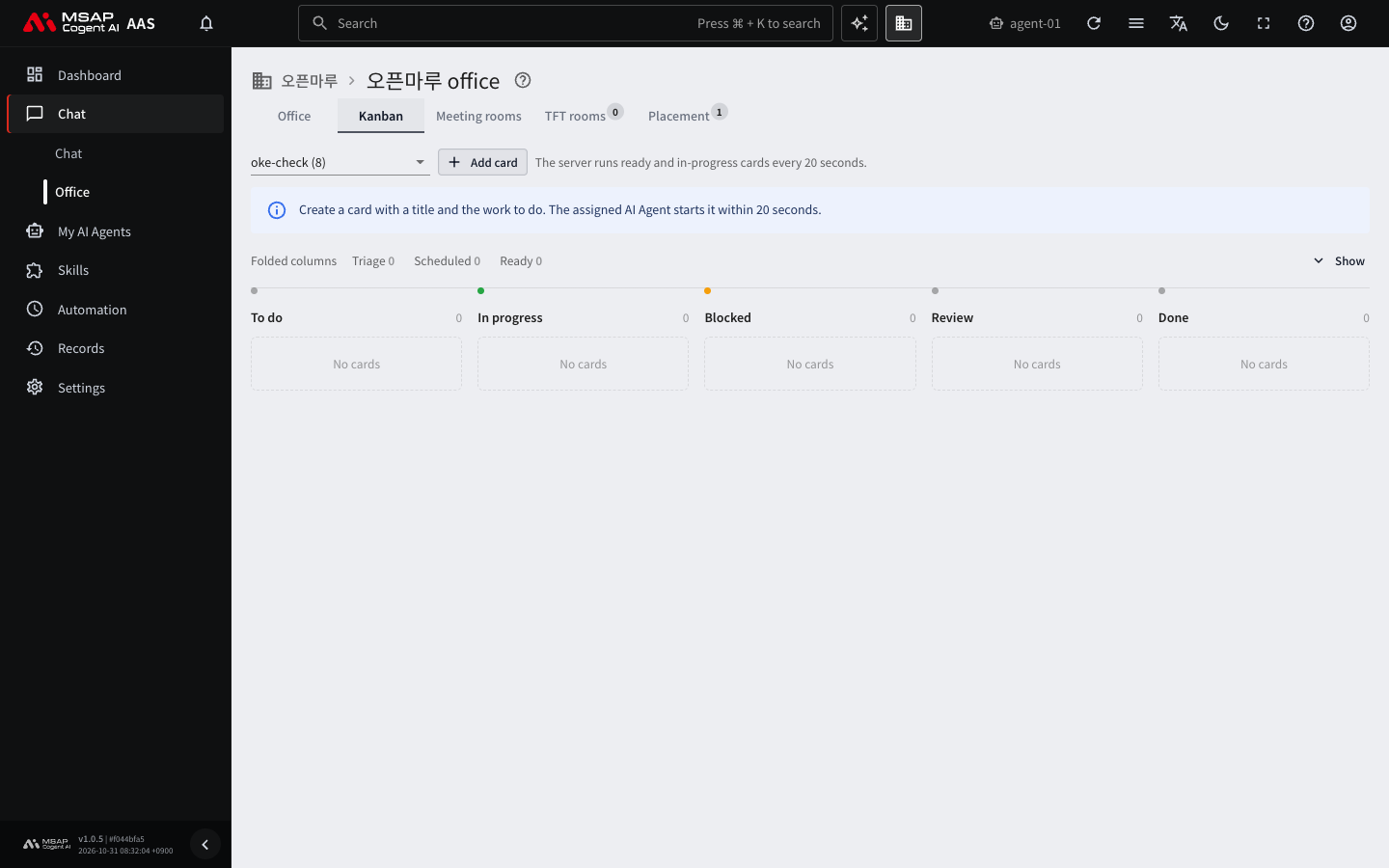
Figure 3.3-1. The Kanban screen
If there is no board at all, "There is no board. Ask an admin to create one." appears. Creating boards and "Run now" are visible only to administrators.
What the Columns Mean
Five columns are shown by default.
| Column | Meaning |
|---|---|
| To do | Cards waiting for earlier cards to finish. Cards created with "Add card" do not go into this column, so it is usually empty. |
| In progress | Cards the assigned AI agent is working on. |
| Blocked | Cards where the assigned AI agent cannot go further and has stopped. The reason it is blocked is written on the card. |
| Review | Cards where the AI agent has finished and is waiting for a person to check. |
| Done | Cards that have been approved. |
Three less-used columns are folded. Click "Show" on the folded line and the "Triage", "Scheduled", and "Ready" columns appear. Click "Fold three columns" to fold them again. The folded line shows the number of cards in the hidden columns, and if "Triage" has cards, it is shown in a warning color. Whether you fold or unfold is remembered in this browser.
| Folded column | Meaning |
|---|---|
| Triage | Cards with no assignee, or cards that were blocked several times and need a person's help. You need to choose an assignee or resolve the reason it is blocked. |
| Scheduled | Cards waiting for a set time. A person has nothing to do. |
| Ready | Cards that have an assignee and are waiting to run. The server checks every 20 seconds and moves them to In progress. |
Figure 3.3-2 shows, with numbers, the order in which a card moves between columns. The meaning of the numbers is inside the figure.
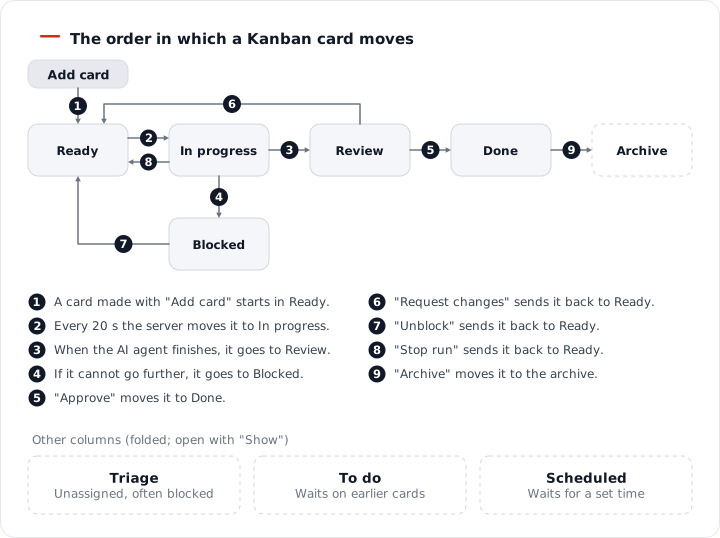
Figure 3.3-2. The order in which Kanban cards move
Creating a Card
- In the "Kanban" tab, click "Add card".
- In "Title", write a short name to show in the list. Example: Weekly incident report
- In "Assignee", choose the AI agent that will take the work. At first, your own AI agent is selected.
- Choose an "Input mode" and write the content.
- If needed, write a "Priority". The larger the number, the higher the card is placed.
- Click "Create".
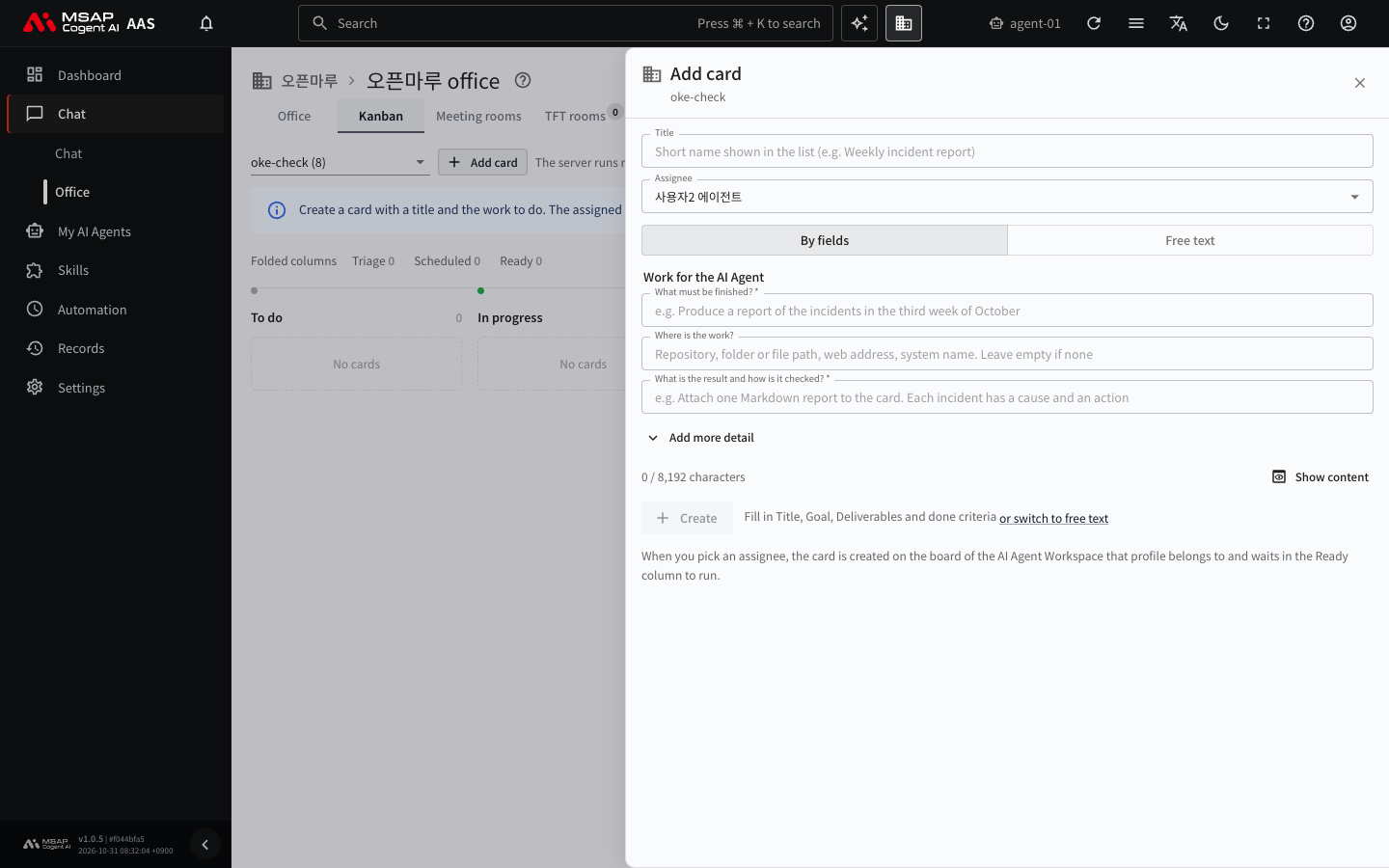
Figure 3.3-3. The "Add card" drawer
When you click "Create", the card is placed in the "Ready" column. The Ready column is folded, so you may not see the card. In that case, this appears: Created card "<title>" (Ready column). Open "Show more" above to see it. Click "Show" on the folded line and the card appears. The assigned AI agent moves the card to In progress within 20 seconds and starts the work. The card is not lost, so do not create the same card again.
Note: Only administrators can create a card with the assignee left empty. If there is no assignee, the card stays in "Triage" and does not run.
Input Modes
Caution: The card's title and content are all the AI agent reads as its work instructions. It does not know about conversations in Chat, so write all the background and conditions it needs on the card. The more you write about what to do, where, and how, the closer the result is to what you expect.
| Mode | Description |
|---|---|
| By fields | You fill in fields that ask questions. This is the default at first. |
| Free text | You write the content as one block. Write where, what, and how to do it, and what result to leave. |
"By fields" has the following fields.
| Field | Required or not |
|---|---|
| Goal: What must be finished? | Required |
| Deliverables and done criteria: What is the result and how is it checked? | Required |
| Location: Where is the work? | Optional. Write the place to work, such as a file path, folder, web address, or system name. Leave it empty if there is none. |
| How we work, Background, Do not, References, If stuck, Notes | Optional. Click "Add more detail" to open them. |
In "If stuck", write what the AI agent should do when it is hard to decide. Example: Block with a reason. Click "Show content" to preview the text that will be sent to the AI agent.
If you write text first in "Free text" and then click "Split into fields with AI", the AI divides the text and fills in the fields. The fields it fills carry a "Filled by AI" mark, so check them before you create the card. When you change modes, you are asked whether to replace what you wrote with text for the other mode.
The AI agent reads only up to 8,192 characters of a card. If you go over, "The AI Agent cannot read past 8,192 characters" appears.
Opening a Card
Click a card and the card drawer opens on the right. The drawer has the following information.
- Status, assignee, priority, and when it was created
- "Comments": Comments left on the card and the AI agent's comments.
- "Run history": The attempts the AI agent ran and their results (completed, blocked, timed out, failed, and so on).
- "Attachments": Result files the AI agent attached to the card. Download them with "Download <file name>".
The card list also shows "Priority n" and "Comments n" marks.
Leaving a Comment
Write in the "Comment" field in the drawer and click "Post". Use this to add explanation to a blocked card or a card under review.
Changing the Assignee
In the drawer, choose another AI agent from the "Change assignee…" list and click "Change". Confirm once more in the confirmation window. You cannot change the assignee of a card that is in progress or a card that has been archived.
What Happens by Card Status
The buttons in the drawer header change depending on the card's status.
| Card status | Button | What it does |
|---|---|---|
| In progress | Stop run | Stops the run and returns the card to the "Ready" column. The server runs cards in the Ready column again, so it may start again soon. |
| Review | Approve (move to Done) | You check the result and move the card to the "Done" column. |
| Review | Request changes | You write what to fix and send the card back to the assigned AI agent. The card runs again. |
| Blocked | Unblock | Makes the card able to run again. Leaving a note is optional. |
| Done | Archive | Removes the card from the board and moves it to the archive. |
| Any status | Delete card | Deletes the card, its comments, and its run history. This cannot be undone. |
Caution: Deleting a card cannot be undone. If you need the result files, download them first.
Note: "Stop run" is not a button that pauses the work. A stopped card is placed in the "Ready" column, and if there is an assigned AI agent, it may run again within 20 seconds. If you do not want it to run again, stop it and then delete the card. Before you delete, download any result files you need.
Downloading Result Files
When an AI agent finishes work, it attaches the result files to the card and writes the result and its location in the completion summary. You download result files from "Attachments" in the card drawer. The AI agent's work folder is deleted when the work completes, so get the results from the card attachments. For a file larger than 25MB, a notice says it cannot be downloaded ("Larger than 25 MB, cannot be downloaded"). If "Try again shortly" appears, download it again after a short while. The reason an attachment cannot be downloaded is shown on the screen. Examples: no permission for the attachment, already deleted, cannot reach the AI agent workspace.
Handing Off Work Well
- Write the title short enough to recognize in the list.
- In "Goal", write what it looks like when the work is finished.
- In "Deliverables and done criteria", write the file format and how to check it.
- Write risky actions in "Do not". Example: Do not send email to customers. Do not delete files.
- If a card goes to "Blocked", read the reason it is blocked, give an answer in a comment, and click "Unblock".