7.5. Connecting Claude Code
Overview
This chapter is for developers who already use Claude Code. You can use AAS without reading it.
Caution: Always copy the connect command with "Copy the connect command" on the screen. The addresses in this chapter's commands are examples, and if you enter them as they are, the connection will not work.
You can connect Claude Code on your PC to CogentAI AAS (AAS). When connected, Claude Code works through AAS in your AI agent workspace (the place where AI agents work, created for each user; see 4.1. AI Agent Workspaces). You can finish the whole job inside Claude Code: create and upload a skill for use in AAS on your PC, test it with a real AI agent, and fix it.
This chapter explains how to connect, the connection scope, the flow of skill development and testing, and how to disconnect.
Permissions: Every signed-in user can see the screen. To connect, you need an AAS account and your own PC with Claude Code installed. Only the owner of the AI agent workspace can use the feature that uploads a skill as a zip file. Work that needs PC administrator rights, such as registering a certificate, is left to an administrator, as in When a Certificate Error Occurs.
Note: Claude Code runs on your PC with your own Claude account. AAS does not receive or keep the credentials of your Claude account. The connection token that connects to AAS is separate from the token of your Claude account.
Terms
The full list is in A.1. Glossary.
| Term | Meaning |
|---|---|
| Claude Code | An AI coding tool from Anthropic that you use in a terminal (a program where you type commands as text). |
| MCP (Model Context Protocol) | The connection channel that AAS opens so that programs such as Claude Code can use AAS features. AAS puts it at the /mcp address. |
| OAuth | A way to give a program permission by clicking "Allow" in a sign-in window. You do not give your password to the program. |
| Connection scope | A set of things that Claude Code can do. You choose it when you connect. |
What to Know Before Connecting
- Claude Code has only the permissions of the person who connected. Even if an administrator connects, it does not use administrator rights. The value of a secret cannot be read in any way.
- The AI agent's answers, received files, and web content that it read go into the Claude Code chat as they are. Claude Code may follow instructions inside them, so at first connect with "Skill development".
- If an AI agent asks for approval of a risky command, Claude Code can answer. If you want to decide yourself, tell Claude Code, "If an approval card comes, ask me and answer for me."
- Do not tell Claude Code the value of a secret. A value you say stays in the Claude Code chat history. Keep the value in a file on your PC and tell Claude Code only the name.
- What Claude Code did is kept in 7.2. Change Log. The "Who" column shows your name with a "Claude Code" tag.
What You Can Do with Claude Code
Depending on the connection scope, you can do the following.
- Chat with the AI agent and receive answers.
- Upload files and receive result files.
- Create, edit, turn on, and turn off skills.
- Enter the secrets and credential files that skills use.
- Answer the AI agent's approval requests and questions.
Choosing the Connection Scope
You choose the scope when you connect. At first, choose "Skill development". Widen the scope only when you need to.
| Scope | What you can do |
|---|---|
| Read only | View chats and receive results. |
| Skill development | Read only, plus chat, uploading files, creating and editing skills, entering secrets, and answering approvals and questions |
| Everything (my AI agents) | Everything you can do on the screen |
The scope is set when you connect and cannot be changed later. To change the scope, disconnect and connect again.
Connecting
Preparation
- You need a PC with Claude Code installed.
- You need an AAS account.
- Your PC must be able to reach the AAS address. An administrator tells you the real address. This chapter uses
https://aas.example.comas an example address.
Connection Steps
- Open "Settings › Claude Code connections" in the left menu.
- On the first line of "Connect command", click "Copy the connect command", paste it into a terminal, and run it. This command only registers AAS in Claude Code. The command below is an example of how it looks. Do not type it yourself.
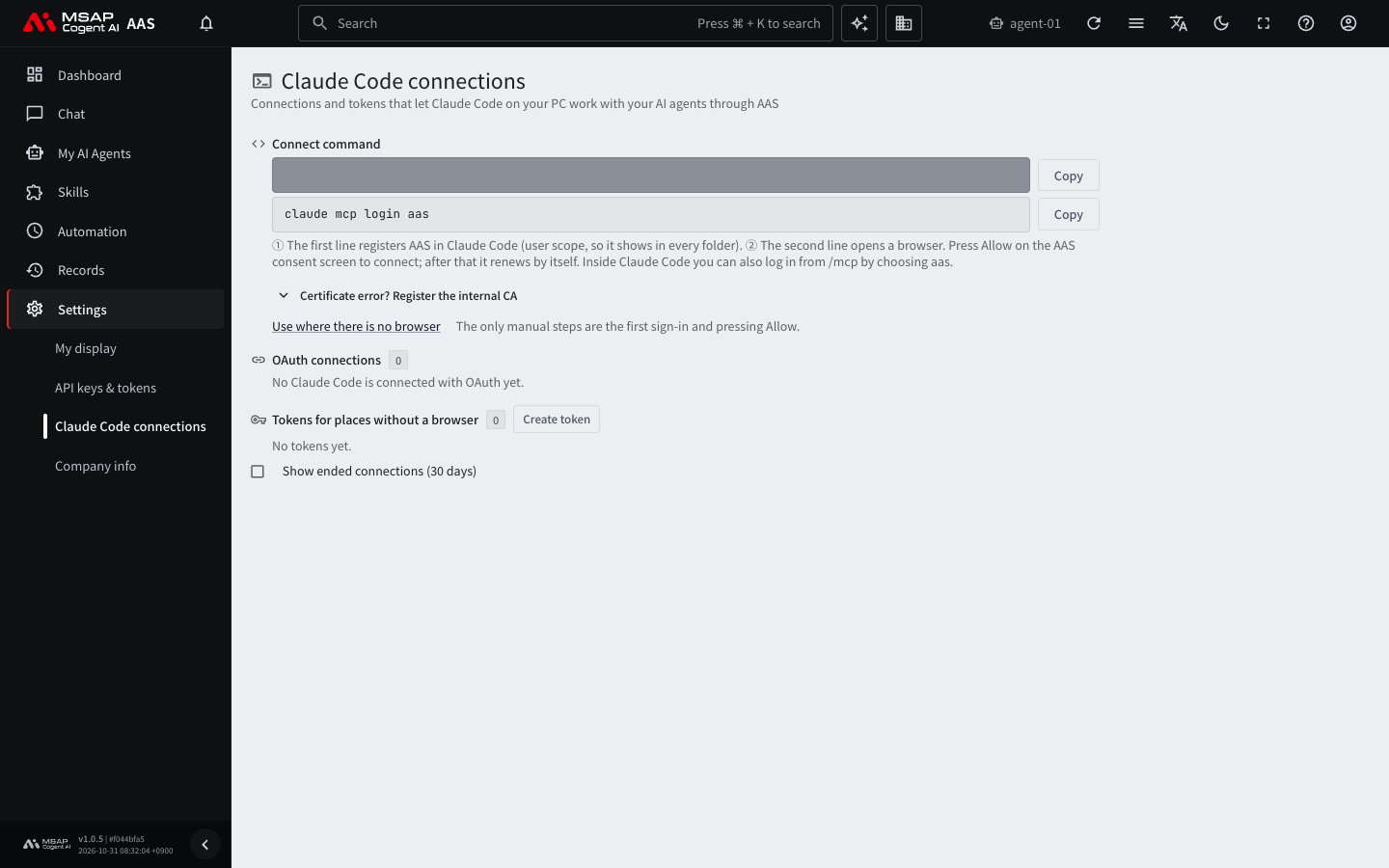
Figure 7.5-1. The "Claude Code connections" screen
claude mcp add --scope user --transport http aas https://aas.example.com/mcp
-
Click "Copy login command" and run the second command. A browser opens.
claude mcp login aas -
When the AAS sign-in screen appears, sign in. If you are already signed in in the browser, this step does not appear.
-
On the consent screen, check the account and choose the connection scope. If this is your first time, choose "Skill development". An "Unverified" mark next to the name is normal.
-
Click "Allow". An authentication complete message appears in the terminal.
If Claude Code is already running, you can also type /mcp at the prompt, choose aas from the list, and sign in.
Figure 7.5-2 shows the six steps of the connection procedure.
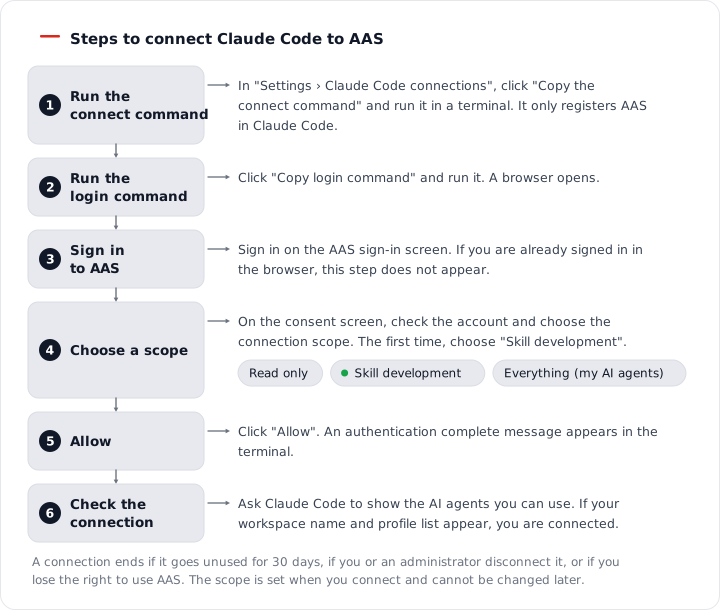
Figure 7.5-2. The steps to connect Claude Code to AAS
Checking the Connection
Ask Claude Code like this.
Use the aas tool to show me the list of AI agents I can use.
If it succeeds, the name of your AI agent workspace and the list of profiles appear. The connection also appears in the "OAuth connections" list on the AAS screen. If the list does not appear, check that you copied the connect command again from the screen and ran it. If it still does not work, see the "Claude Code connections and account" table in A.3. Troubleshooting.
Keeping the Connection
Once connected, you do not need to sign in again. The connection ends if you do not use it for 30 days, if you disconnect it, if an administrator disconnects it, or if you lose your right to use AAS. In that case, Claude Code opens the browser again, and you sign in and click "Allow" once more.
When a Certificate Error Occurs
In an environment that uses a certificate issued by a company certificate authority (CA), the connection may be refused because your PC does not trust that certificate. This is the case when you get the errors "self-signed certificate in certificate chain" or "unable to get local issuer certificate".
If an error occurs, copy the error text as it is and pass it to an administrator. The administrator follows "Certificate error? Register the internal CA" on the "Claude Code connections" screen to register the certificate on your PC. Here is an example request.
I am connecting Claude Code to AAS, and I get the error "self-signed certificate in certificate chain". My PC (macOS, Linux, or Windows) needs the internal certificate registered.
Caution: If you register a CA, every program on this PC trusts the certificates that CA creates. Do this only on a PC managed by your company, with administrator rights. Do not use methods that turn off certificate checks (such as
curl -k).
Creating and Testing Skills
Skills run inside the AI agent workspace. This lets you test with the same tools, paths, and network conditions as the production environment.
- Ask Claude Code to create a skill. Tell it the skill name, the profile to create it in, and what it does.
- For a skill that contains scripts, compress the folder into a zip file and upload it. After uploading, check the scripts and apply it. A skill that contains scripts goes through a confirmation when you apply it.
- Open a new chat, specify the skill name, and send a test message. This chat gets a "Skill tests (Claude Code)" tag and does not appear in the default chat list.
- Check the answer. If it is wrong, fix the skill and test again. After you change a skill, test it in a new chat.
Note: Only the owner of the AI agent workspace can use the feature that uploads a skill as a zip file.
Figure 7.5-3 shows the loop of testing again in a new chat each time you fix a skill.
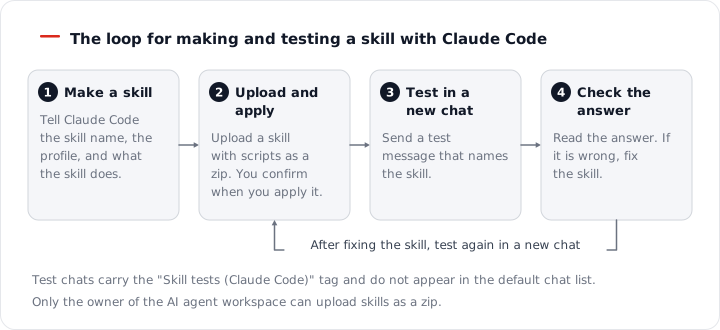
Figure 7.5-3. The loop of creating and testing a skill with Claude Code
For creating skills and their structure, see 5.4. Creating Your Own Skill. For how to publish a skill to the hub, see 5.5. Publishing Your Skill to the Hub.
Approval Requests and Questions
When an AI agent is about to run a risky command, it asks for approval. The same approval card also appears in the inbox on the AAS screen, with the mark "Claude Code can answer". The answer that comes first is applied.
Connecting from a Place Without a Browser
Note: This section is for places where a browser cannot be opened, such as a build server. Developers or administrators read it only when needed. On a PC that a person uses, use the connection steps above.
- In "Tokens for places without a browser" under "Settings › Claude Code connections", click "Create token".
- Choose a name, the scope to allow, and the expiry. You choose the expiry from 7, 30, 60, or 90 days, and the initial value is 30 days. There is no unlimited option.
- Click "Create".
- Copy the token. The token text is shown only once in this window. If you close the window, you cannot see it again.
- Copy the commands shown in the window in order and run them on that server.
Caution: Do not write the token in a settings file or a code repository. If you lose the token, create a new one.
Checking Expiry and Disconnecting
Checking Expiry
In the list on the "Claude Code connections" screen, see the last-used time and the expiry date of each connection. A connection that ends soon gets an "ending soon" mark. In "Details" on the row, you can see the first 8 characters of the token, the last IP address that connected, and the creation date.
From 7 days before a connection ends, a number appears next to "Claude Code connections" in the left menu. This number is the count of manual tokens that end within 7 days. A "Claude Code connection" notification also arrives in your inbox.
To see connections that have ended or been disconnected, turn on "Show ended connections (30 days)". They stay in the list for 30 days.
Disconnecting
- To disconnect one connection, click "Disconnect" (OAuth) or "Revoke token" (manual token) on its row and confirm. The Claude Code that used that connection is disconnected right away. To use it again, connect again.
- To disconnect all connections, click "Disconnect all". To confirm, type your email address. All your AAS sign-in sessions also end, so this browser is signed out too. Sign in again to continue.
Remove the registration on the Claude Code side with the following command.
claude mcp remove aas
You can create up to 10 connections per person. When you reach the limit, disconnect connections you do not use and create again. An administrator can also disconnect a user's connection, and in that case the reason appears in your inbox.