4.3. Personality (SOUL) and Instructions (AGENTS)
Overview
The personality (SOUL) is the basic instruction that the AI agent follows in every chat. You write its role, its tone, and the rules it must keep. SOUL is the English name shown on the screen, so you can simply remember it as the "personality". The instructions (AGENTS) describe the order and format in which the AI agent handles its work. If the personality is "who it is", the instructions are "how it works". Edit these two texts when answers are too long, when the tone does not suit your work, or when you want to give the AI agent a fixed role (for example, sales support or security checks). This chapter explains real examples of both texts, how to edit them, how to start from a role template, and how to go back to an earlier version. For what a profile (the bundle of settings for an AI agent) is, see 4.2. Profile Overview and Model and the A.1. Glossary.
Permissions: You edit your own profile. If you do not have permission, the edit button is disabled and the screen shows "Only admins or the owner of this AI Agent Workspace can edit this". In that case, ask an administrator: "I need to edit the personality of <profile name>. Please check my permissions."
Difference Between Personality and Instructions
| Item | Personality (SOUL) | Instructions (AGENTS) |
|---|---|---|
| What you write | Role, tone, rules to keep | Order of work, report format, what not to do |
| When it applies | From the next chat | From new chats |
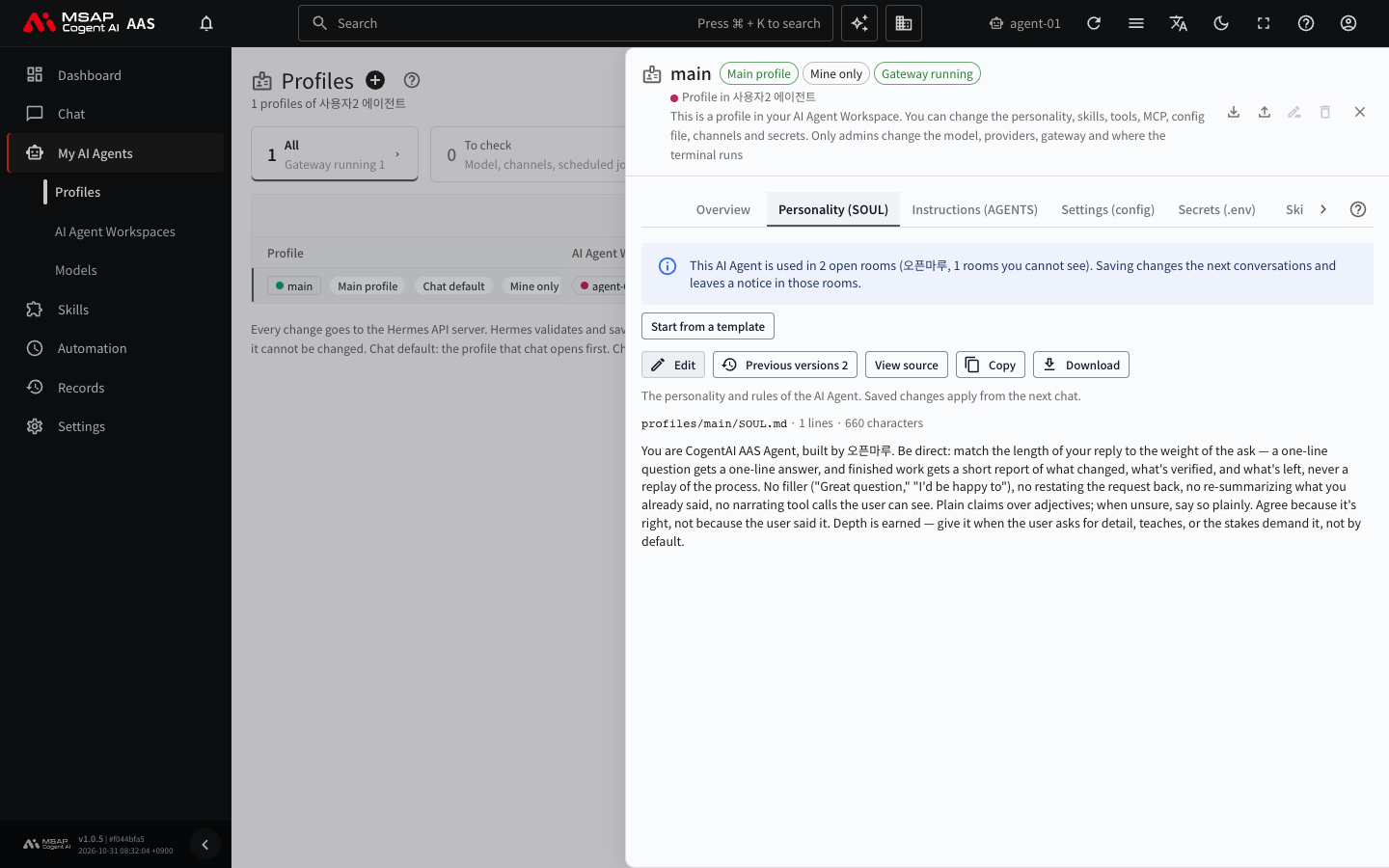
Figure 4.3-1. The "Personality (SOUL)" tab
The two texts are read together. You do not need to write the same content in both places. If the AI agent hands part of its work to a sub-agent during a chat (the screen help calls this "tasks delegated to a sub-agent"), the instructions are passed to that sub-agent as well. The instructions do not apply to scheduled jobs. If a text contains lines that look like secrets, you cannot edit it here.
Viewing Examples
The shorter the texts are, the better they are followed. Below is an example for an AI agent that supports sales. It has the same format as the role template (Sales). You can copy it as it is and change only the names and contents.
Personality (SOUL) Example
## Role
- You are the support AI agent for our sales team.
- You handle customer summaries, quote drafts, and meeting preparation.

## What you do not do
- Do not set or promise discounts or contract terms.
- Do not send email to customers yourself. Write drafts only.
- Do not guess numbers you are not sure of. Answer "Needs confirmation" instead.

## Tone and reporting
- Reply in polite language and start with the conclusion.
- Give the reasons in three lines or fewer.
Instructions (AGENTS) Example
## Role
- Handle quote and meeting preparation requests.

## How to work
- When you get a quote request, first confirm the customer name, items, and quantities.
- If a value is missing, ask again. Do not make one up.

## Report format
- End with one table and one "Next step" line.

## Do not
- Do not write a price that is not in the material you received.
Good and Bad Examples
| Item | Bad example | Good example |
|---|---|---|
| Role | "Help with everything well" | "You support the sales team. You handle quote drafts and meeting preparation." |
| Tone | "Answer in a friendly and professional way" | "Answer briefly and politely. Put the conclusion first." |
| Rules | "Never make mistakes" | "Do not guess numbers you are unsure about. Answer 'This needs to be confirmed.'" |
| Report | "Report well" | "End with one table and one line for the next step." |
| Length | The whole company introduction and work regulations pasted in | Within ten lines of rules to keep |
| Secrets | "The password for the customer's system is *****" | Do not write passwords or keys. Enter them in the "Secrets (.env)" tab |
A bad example is a sentence from which the AI agent cannot tell what it should do. A good example is a sentence from which you can check whether it was followed.
Editing the Personality (SOUL)
- In the left menu, go to "My AI Agents › Profiles" and click your main profile row to open the detail drawer.
- Open the "Personality (SOUL)" tab. The current personality text appears.
- Click "Edit". If the text is empty, "Write" appears instead.
- Edit the text. The toolbar lets you add formatting such as headings, bold, and lists.
- Click "Review changes".
- Check the added and removed lines, then click "Save as shown".
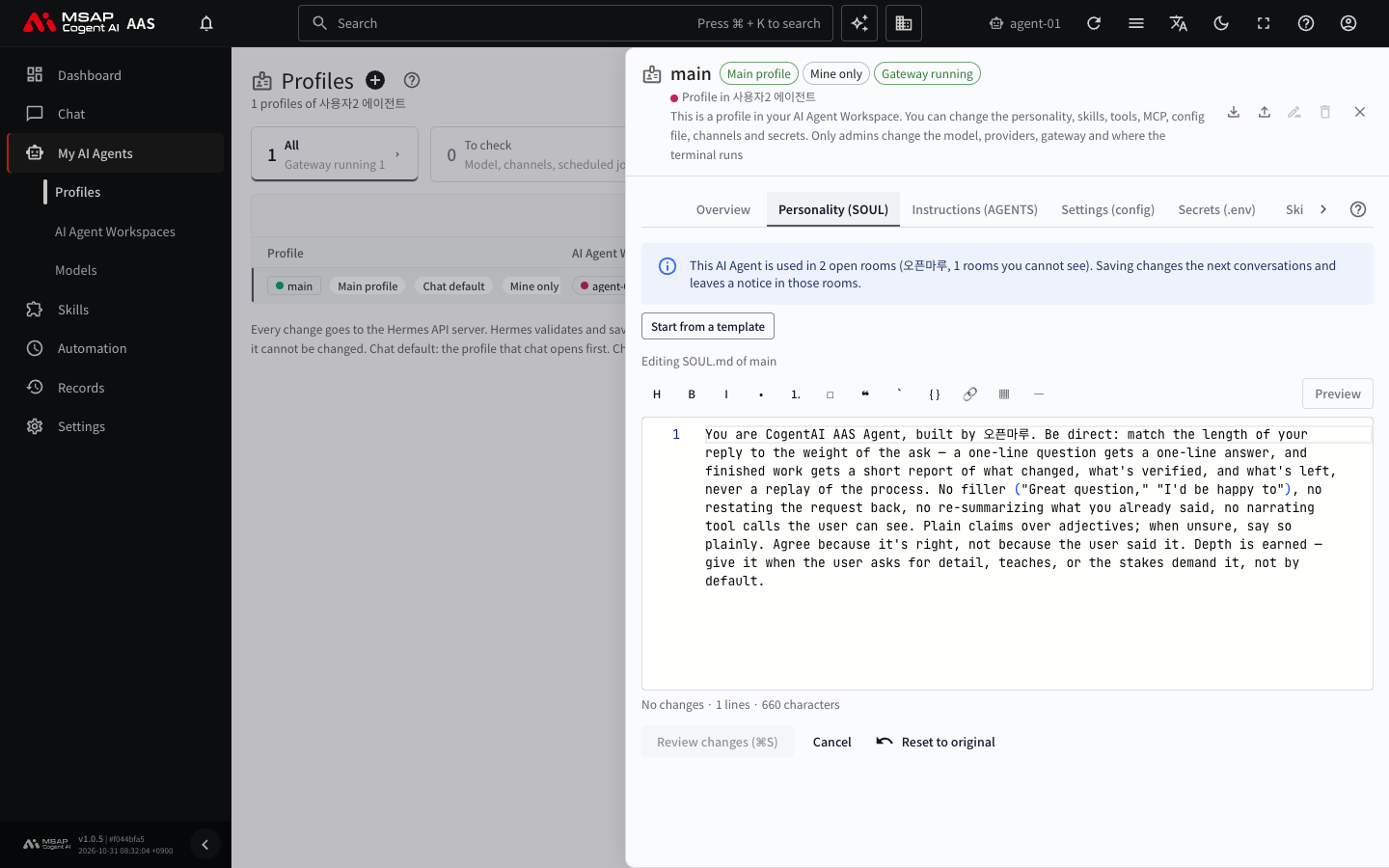
Figure 4.3-2. The "Personality (SOUL)" editor
After you save, the new personality applies from the next chat. Before you save, you can write why you made the change in the "Save note" field. The note can be left empty. If you switch tabs or close the drawer without saving, the screen asks whether to discard your changes. Even if you go to another screen, the text you were editing stays temporarily in this browser. When you open it again, you can click "Continue editing" to keep going. If you do not need it, click "Discard".
Notice to Open Rooms
If the AI agent that uses the edited personality is in an open TFT room or team room (a meeting space, 3.2. Meeting Rooms and TFT Rooms), a notice appears when you save. Example: "This AI agent is used in n open rooms (<room name>). Saving changes the next chats and leaves a notice in those rooms." The save note is shown together with the room notice. In the room, "The personality (SOUL) of <name> changed" appears, and "Show changed lines" shows what changed.
Starting from a Role Template
You can start a personality from a role template prepared by an administrator (marketing, sales, research lab, engineering team, general affairs, accounting, HR, customer support, planning, legal, and others).
- Above the "Personality (SOUL)" tab, click "Start from a template".
- Choose a template from the "Choose a template" list. The language (Korean, English) appears next to the name.
- Click "Open in editor".
- Check the text opened in the editor, edit it if needed, and then click "Review changes" and "Save as shown" as usual.
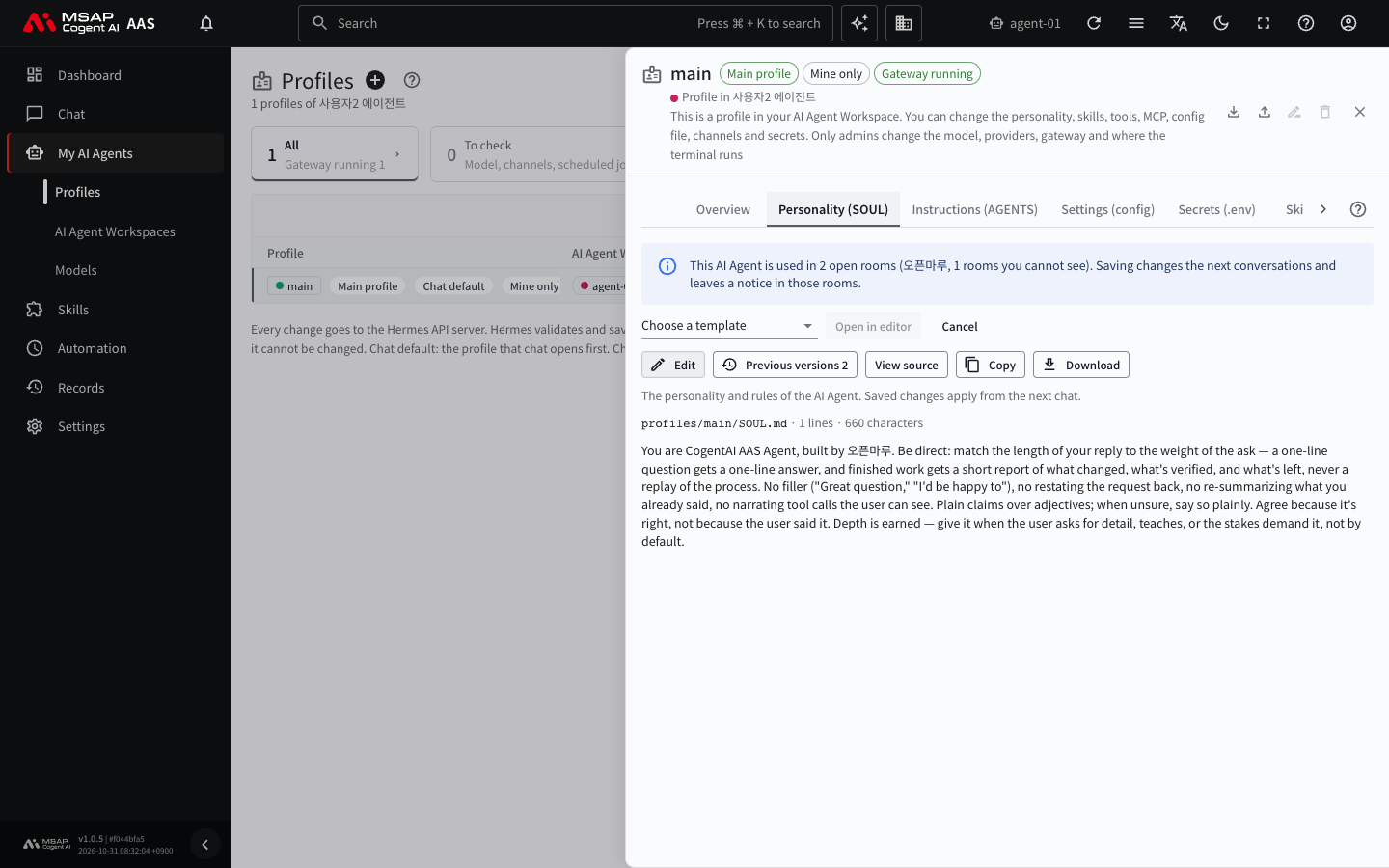
Figure 4.3-3. "Start from a template"
A template is not applied automatically. It changes the personality only after you choose it and save. The template's name and department information are filled in with the profile owner's values.
If a template matches your department and the personality is only the default text, the screen shows "Recommended: <template name>, matching the owner's department (<department>)". Click "Start from this template" and the editor opens in the same way. If the personality was already started from a template, the screen shows "Started from "<template name>" version n". If an administrator later edits the template, a "Template changed" notice appears, and "Apply again" opens the text of the new version in the editor.
Note: The first line of the personality text is an introduction that AAS adds automatically, using the company name. It is better not to delete it.
Editing the Instructions (AGENTS)
- In the detail drawer, open the "Instructions (AGENTS)" tab.
- Click "Edit" and edit the text. If the file does not exist yet, "Start from an example" adds a template.
- Click "Review changes" and save.
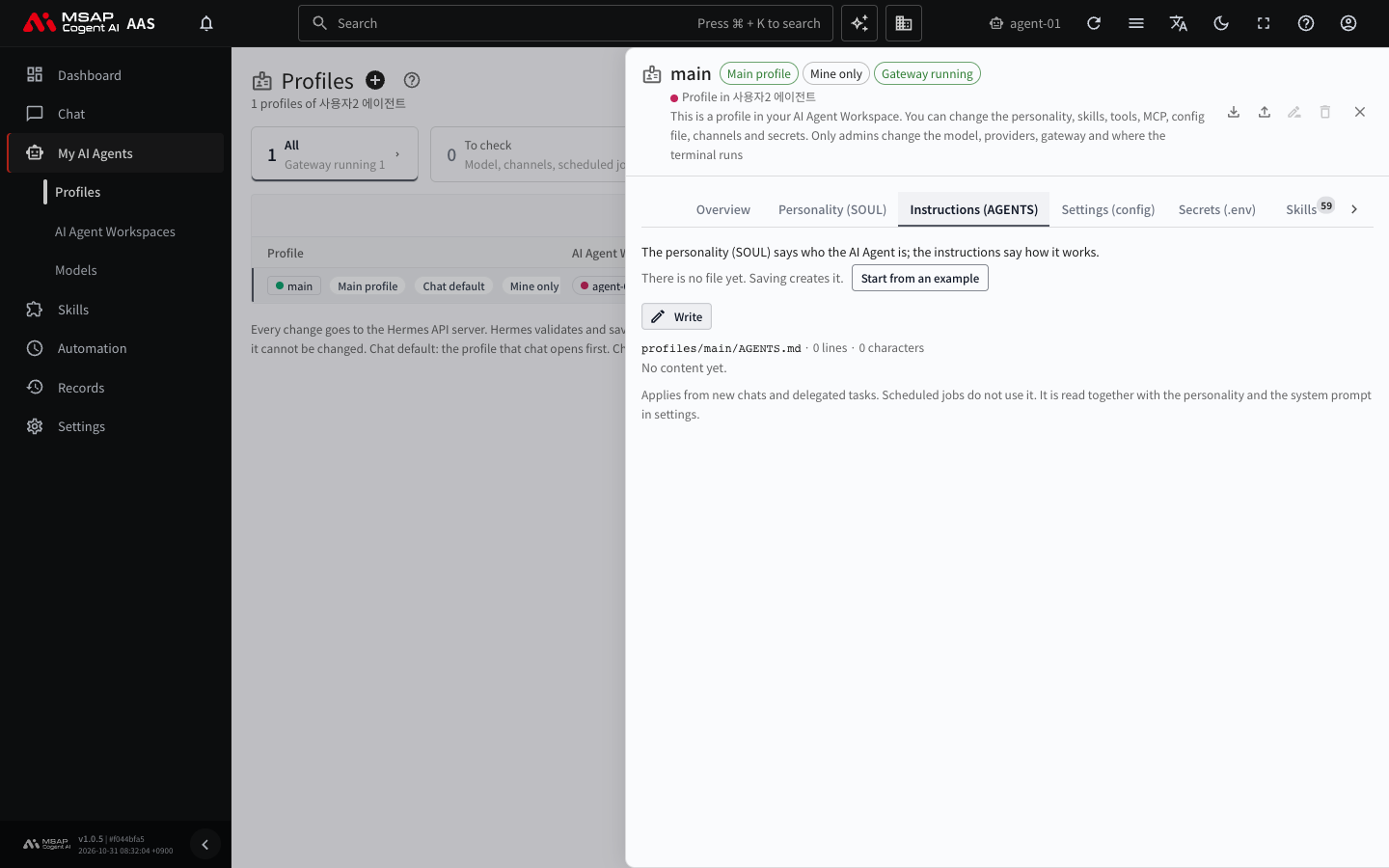
Figure 4.3-4. The "Instructions (AGENTS)" tab
"Start from an example" adds the following template.
## Role
- Write in one line what this AI Agent is responsible for.

## How to work
- Write the order or principles for doing the work.

## Report format
- Write how results should be reported.

## Do not
- Write what the AI Agent must not do.
After you save, the screen shows "Saved. Applies from new chats." Click "Check in a new chat" to open a new chat and try it right away.
If the text is too long, the screen shows "n characters is over the limit of n. The AI agent reads it with the middle cut out". Keep only the essentials to shorten it.
When the Tab Is Read-Only
When you cannot edit, one line above the tab gives the reason. Click "Read again". If it is still not resolved, pass the reason text to an administrator exactly as it appears.
When the AI Agent Changed the File
The AI agent can edit the instructions file itself while it works. When it does, the screen shows "The AI Agent changed this file at <time>" above the tab. Check the content with "Show changed lines", then do one of the following.
- "Acknowledge": Marks the change as checked. The file does not change.
- "Revert to the previous version": Returns to the content of the previous version. The current content is also kept as a version.
If the AI agent deleted the file, the screen shows "The AI Agent deleted this file at <time>", and you can recreate it in the same way. If the AI agent changed the file while you were saving, the screen shows "The AI Agent changed this file in the meantime. Review the changed lines and save again".
Viewing and Restoring Earlier Versions
Saved texts are kept as versions. Up to the latest 40 versions are kept for each text.
- Above the editor, click "Previous versions n".
- Choose a version to see the time it was saved, who saved it, and the number of characters.
- Click "Compare with current" to see the differences from the current text. You can also choose two versions and click "Compare selected versions".
- Click "Restore" on the version you want to return to, and confirm.
When you restore, the content of that version becomes the current text, and the current text from before the restore is also kept as a version. You can give a version a name with "Name".
Checking After You Edit
- Do not change many things at once. Change a few lines and save.
- Open a "New chat" and try a request you often make.
- If the result is not what you expected, check whether the text contains sentences like the bad examples. If it does, rewrite them as sentences that can be checked.
- If you are not satisfied, go back as described in "Viewing and Restoring Earlier Versions".