7.4. API Keys and Tokens
Overview
AI agents use keys and tokens to connect to AI models and outside services. The "API keys & tokens" screen shows which profile (the set of settings for one AI agent in a workspace; see 4.2. Profile Overview and Model) holds which keys and tokens, and in what state. Use it to check whether a key is about to expire or a value is empty. Also use it to see whether a value is already in place before you connect a service that needs it.
Permissions: Everyone can see the screen. The owner of the AI agent workspace, team managers, and administrators enter and change values. Only administrators write the status, owner, and notes in the "Registry record".
The terms are as follows. The full list is in A.1. Glossary.
| Term | Meaning |
|---|---|
| API key | A secret string that a service issues so that it can recognize you. |
| Token (access) | A secret string that carries access rights. Many have an expiry date. They are different from the tokens that count how much text the AI read and wrote (7.1. Usage). |
| LLM | Large Language Model, the AI model that reads and writes text. |
| MCP | Model Context Protocol, a way to attach the features of outside programs to an AI agent. See 4.5. Connecting External Tools (MCP). |
Caution: This screen does not show the values of keys and tokens. It shows only the name, location, whether a value is set, the expiry date, and whether the same value exists in several places.
Opening the Screen
Open "Settings › API keys & tokens" in the left menu. A number next to the menu means there are keys that have expired or will expire soon.
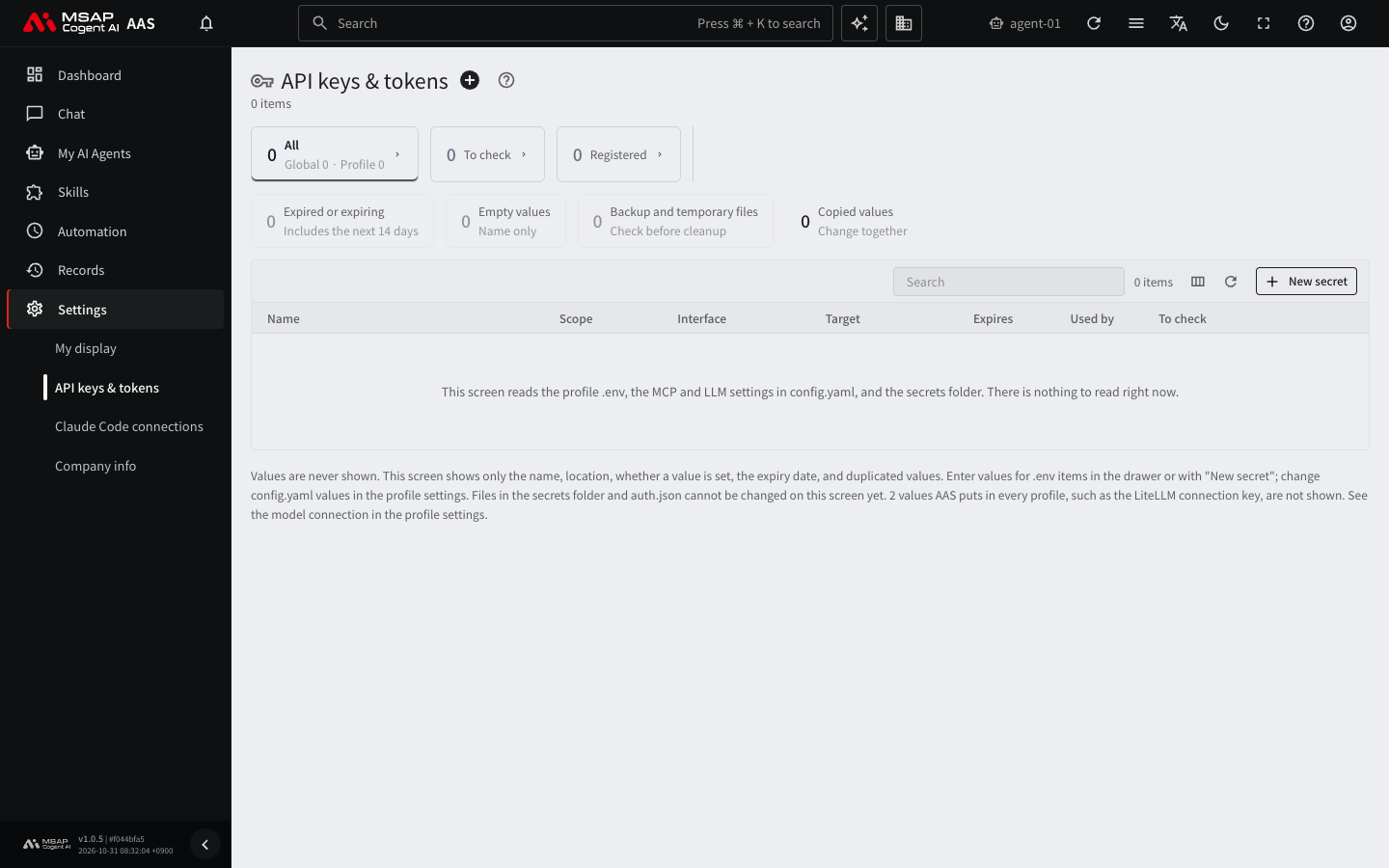
Figure 7.4-1. The "API keys & tokens" screen
In the "Profile" selector at the top of the screen, choose the profile you want to see. If you choose "All profiles", the rows of all profiles appear.
The AI model connection keys that AAS puts in every profile by default are left out of the table. The number left out appears in the note below the table. See the model connection in the profile settings.
Choosing What to Check with the Cards
The cards at the top of the screen show the number of items to check. Click the "Expired or expiring", "Empty values", or "Backup and temporary files" card to see only the rows that match that condition.
| Card | Meaning |
|---|---|
| Expired or expiring | Keys that have already expired or will expire within 14 days |
| Empty values | Keys that have only a name and an empty value |
| Backup and temporary files | Items that look like backup or temporary files. Check whether they can be cleaned up. |
| Copied values | Keys whose same value is copied to several places. When you change one, change all of them together. |
The "To check" view collects only the rows that have the problems above.
Reading the Table
A row in the table is one key or token. Click a row to open the drawer.
| Column | Content |
|---|---|
| Name | The name of the key or token |
| Scope | Whether it is "Global", shared by all profiles, or belongs to a particular profile |
| Interface | What it connects to. Examples: LLM (AI model), MCP (external tools) |
| Stored in | A location such as .env, config.yaml, or the secrets folder |
| Value | "Set" or "Empty" |
| Expires | The expiry date. It appears only when the value carries expiry information. |
In "Used by" in the drawer, see which services or tools use this key. If the mark "Same value in N places" is shown, the places where the same value is copied are listed.
Entering or Changing a Value
Change a key in the "Change the value" section of the drawer. First look at the name shown in the drawer and in the "Stored in" column of the table, and then choose the method on the same line in the table below.
| Stored in | How to change |
|---|---|
.env | Enter or change the value in the "Change the value" section of the drawer. The link "Change it in the secrets of profile {profile}" also opens the secrets tab. |
config.yaml | Use the link "Change in the settings of profile {profile}" to change it in the settings tab. |
secrets folder, auth.json | You cannot change these on this screen. Pass the guidance text in the drawer to an administrator. |
You can also add a new key with "New secret" at the top of the screen. Choose a profile, write the name with uppercase letters, digits, and underscores, and enter the value. The name must start with an uppercase letter and be 2 to 64 characters long. Example: TELEGRAM_BOT_TOKEN. If the name does not follow the rule, "The name must start with an uppercase letter and be 2 to 64 characters of uppercase letters, digits and _" appears and the value is not saved. Fix the name to follow the rule and enter it again.
If you do not have permission, the button for entering values is hidden. In that case, ask the owner or an administrator. You cannot enter secrets from an address that is not a secure connection (https). In that case, connect through an https address.
A changed value is never shown on the screen again. A changed value applies from the next chat. Values for messengers apply only after the gateway (the channel through which an AI agent receives messenger messages and scheduled jobs) restarts, so after changing one, ask an administrator to restart the gateway. A new key showing 0 for "Used by" is normal, because no tool has used that key yet.
If it succeeds, the "Value" column of the table changes to "Set". For "New secret", the notification "Saved ○○ to profile ○○" also appears. If the "Value" column stays "Empty", check that the name is correct and that you have permission. If it is still the same, tell an administrator.
To learn more about entering values and uploading credential files, see 4.4. Secrets and Credential Files.
Checking Expiry
- Look at the number next to "API keys & tokens" in the left menu.
- On the screen, click the "Expired or expiring" card.
- Click a row to check the expiry date and where the key is used.
- After you get a new key from the service that issued it, enter the new value in "Change the value". Get the new key from an administrator or the person in charge of that service.
The expiry of the Claude Code token that connects to AAS is checked not on this screen but in "Settings › Claude Code connections". For details, see 7.5. Connecting Claude Code.
Registry Record
The "Registered" view next to "To check" shows items for which an administrator has written the owner and purpose. General users can only read it.