7.3. My Display Settings
Overview
In "My display", you choose the screen language, the number of rows shown in tables, the time zone for dates, the theme, the Office background music, and the voice that reads answers aloud. Use it when the screen text is hard to read, when you want to switch to or back from the English screen, or when dates differ from your local time.
Permissions: All users can change these settings.
Caution: These settings are saved only in the browser you are using. You must set them again in another browser or on another computer. If you clear the browser's stored data, the settings return to their initial values.
Opening My Display
Open "Settings › My display" in the left menu. This screen is visible to all users. A value you choose applies right away. There is no save button.
Settings
| Setting | Values you can choose | Description |
|---|---|---|
| Language | 한국어, English | The language of the screen text. |
| Table rows | 20, 50, 100 | The number of rows a list table shows on one page. |
| Time zone for dates | "Follow the browser" or a list of time zones | Sets which time zone the dates and times on the screen use. |
| Office background music | A list of tracks | This track plays when you turn on background sound in the 3D Office. |
| Read-aloud voice | A list of voices | Used by "Read aloud" below an answer. |
| Theme | Light, Dark | Shows the main content area in a light or dark color. |
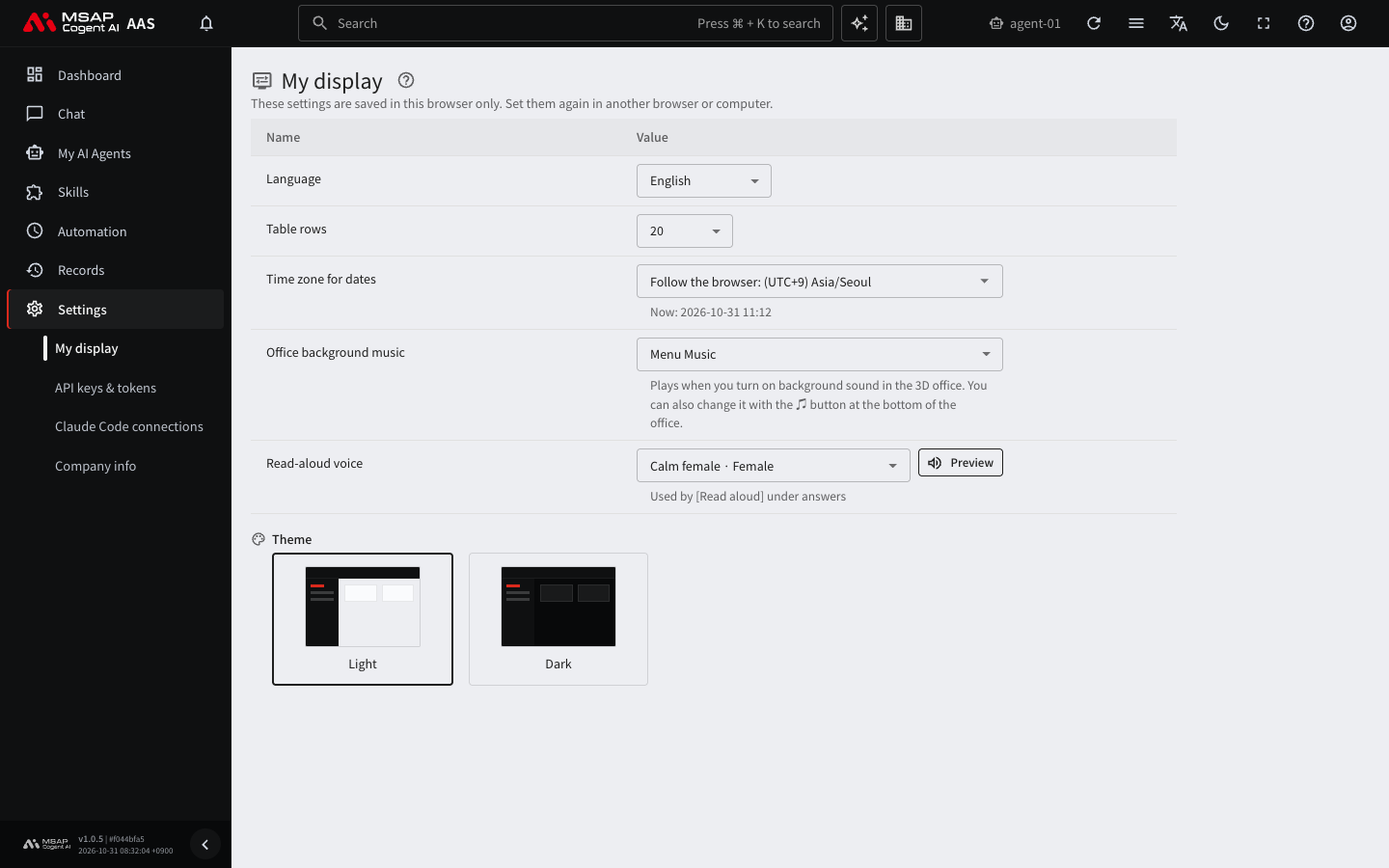
Figure 7.3-1. The "My display" settings screen
Language
In "Language", choose "한국어" or "English". The menus and guidance text change as soon as you choose.
If the screen appears in English, this setting is "English". Choose "한국어" to go back. If the menu names are in English and hard to find, click the translation-shaped icon ("Language") on the top bar and choose "한국어". On a narrow screen, this icon may not be shown.
Time Zone for Dates
If you choose "Follow the browser", your computer's time zone is used. To choose a time zone yourself, enter a region name in the field and choose from the list. "Now" is shown below the field, so check that it matches your time.
If the dates and times on the screen differ from your time, check this field first. If the time zone shown next to "Follow the browser" is different from your region, the time zone setting of your computer is different. Changing this field to a time zone you choose fixes it. If some times are still off after you match the time zone, tell an administrator which screen the time is from.
Office Background Music
This saves only the track. It does not turn the background sound on. You can also change the same track with the music button at the bottom of the Office screen. To turn on the background sound, see 3.1. Touring the 3D Office.
Read-Aloud Voice
This setting appears only in environments where read aloud is turned on. After you choose a voice, click "Preview" to check the sound. Moving through the list with the keyboard makes no sound, so click "Preview" to hear it. If you do not choose one, the first voice in the list is used. For how to use read aloud, see 2.5. Voice Input and Read Aloud.

Figure 7.3-2. The "Read-aloud voice" field
Theme
Click one of the "Light" and "Dark" cards. The left menu and the top bar are dark in both themes, and only the color of the main content changes.