7.2. Change Log
Overview
The "Change history" screen shows who changed the settings of your AI agent workspace (the place where AI agents work, created for each user), when, and what they changed. Use it to find recently changed settings when an AI agent answers differently than before.
Permissions: This screen is visible only to the owner of the AI agent workspace, people who view that workspace as its team manager, and administrators. It does not appear in the left menu of other users.
For AI agent workspaces, see 4.1. AI Agent Workspaces. For other terms, see A.1. Glossary.
Opening the Change Log
Open "Records › Change history" in the left menu. The menu name is the same for everyone, but the screen title differs by who is viewing.
| Viewer | Screen title |
|---|---|
| AI agent workspace owner | My AI Agent Workspace change history |
| Team manager | Team AI Agent Workspace change log |
| Administrator | Change log (the full log; it is explained in the administrator manual) |
Owners and team managers see only the log of the AI agent workspace they have selected. To see the log of another workspace, switch workspaces in the account menu on the top bar.
You can see only the records from the day you became the owner of that workspace. If there are no records, the message "Nothing changed in this AI Agent Workspace in the last N days" appears, followed by the date when records began. If it is the same after you widen the period to "Last 30 days", nothing changed in that period.
On the owner screen, the line "Our team managers: ○○" may appear below the title. These people can give work to your AI agent and change its settings.
Finding What Changed Recently
When an AI agent answers differently than before, look in this order.
- In the period selector at the top of the screen, choose "Last 7 days" or "Last 30 days". The screen first shows the last 30 days.
- In the "Changes" view, look at the "When" column and check from the most recent row.
- Filter by "Kind". If the answers changed, look first at kinds such as "Profiles", "Skills", and "Scheduled jobs".
- Click a suspicious row. In the drawer, see the time, who, what, target, and result in detail.
- If the record is a text edit, see what changed in the "Previous version" of each editor. To roll back, see "Viewing and Restoring Previous Versions" in 4.3. Personality (SOUL) and Instructions (AGENTS).
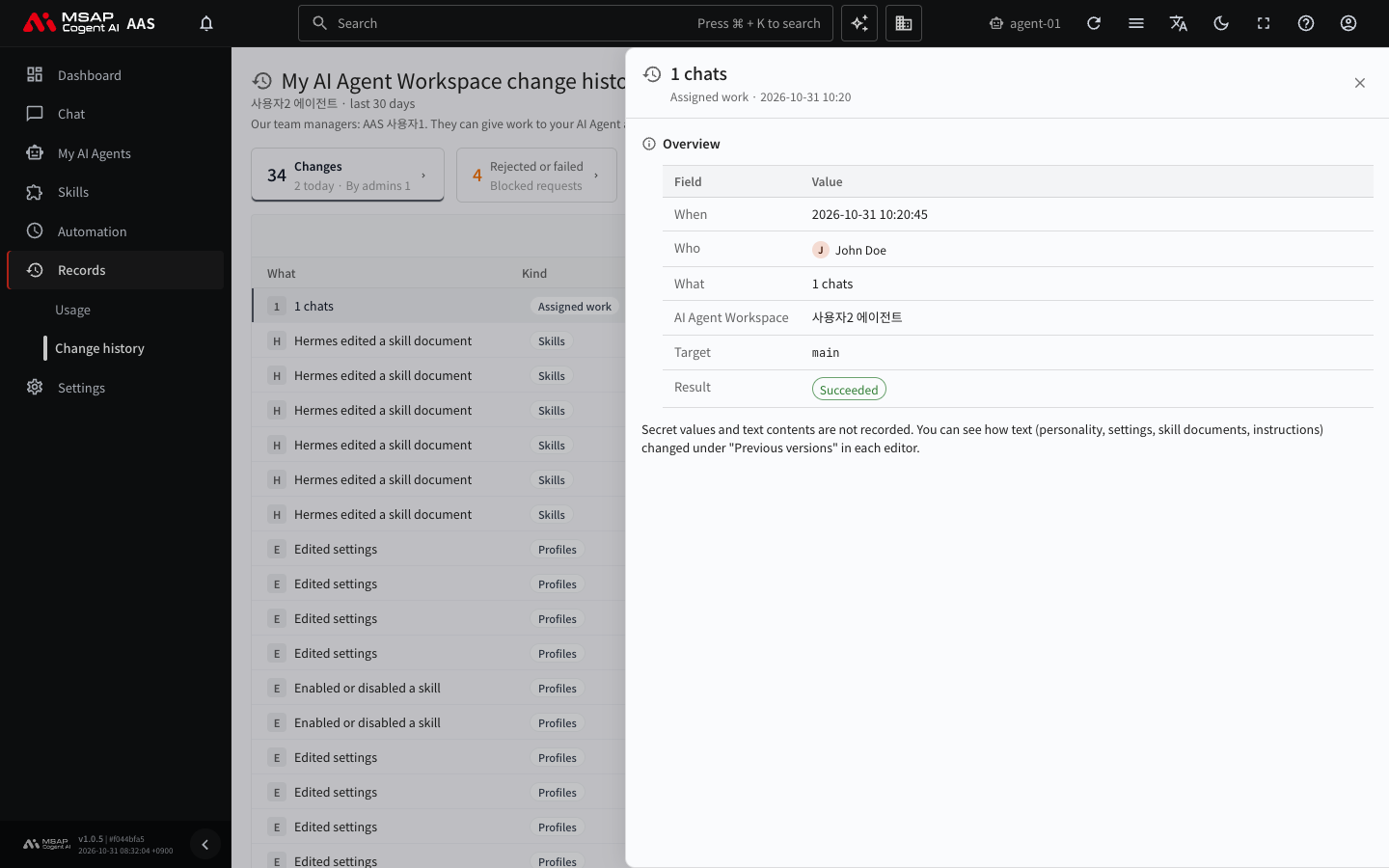
Figure 7.2-1. Change log detail drawer
If it succeeds, you see the time of the change and the person who made it. If the record you want is not there, check the "Rejected or failed" view for requests that were rejected or failed.
Reading the Screen
There are two views.
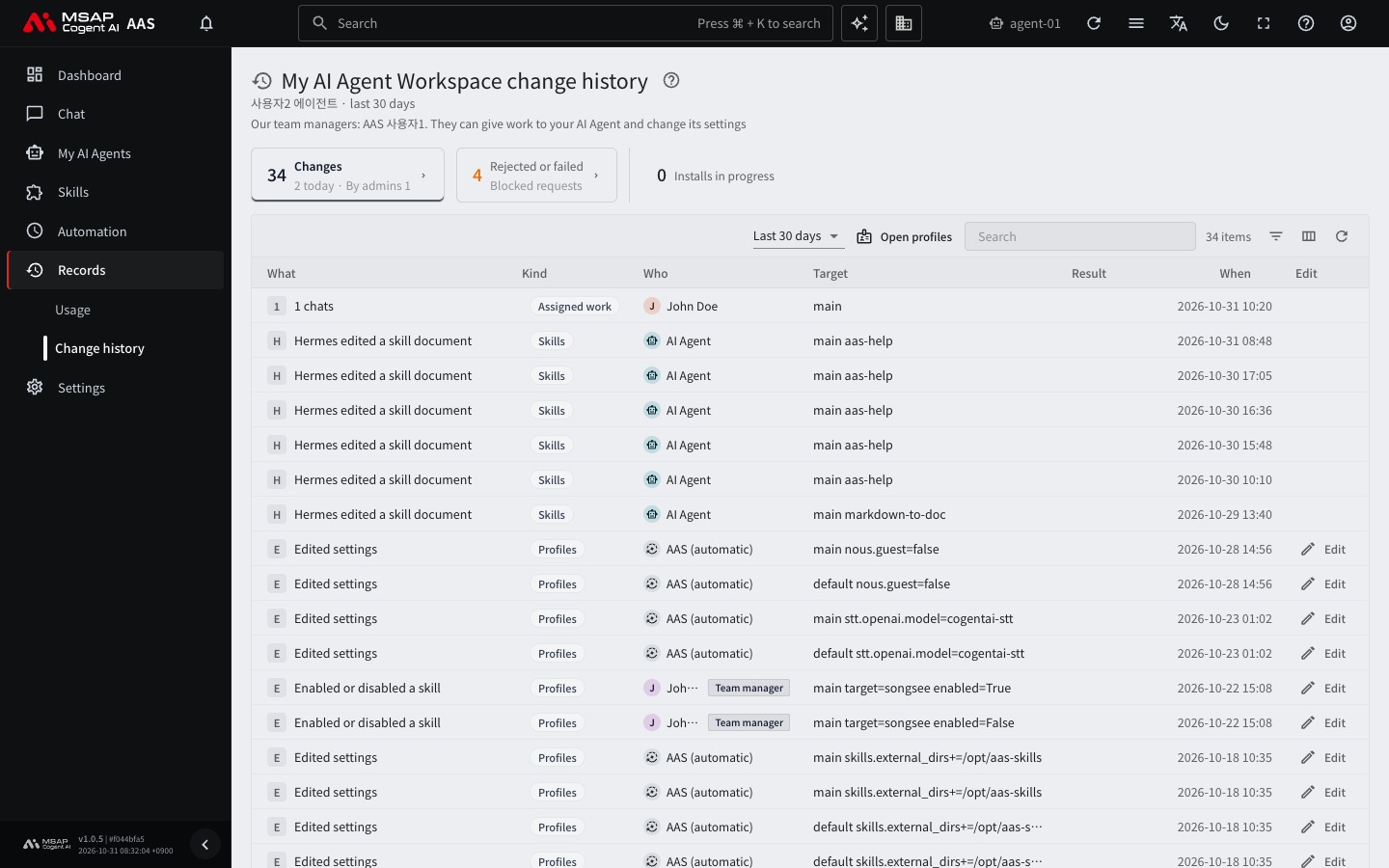
Figure 7.2-2. Change log screen
| View | Records shown |
|---|---|
| Changes | Records of successful changes |
| Rejected or failed | Requests that were rejected or failed |
The "Installs in progress" card is the number of Skill Hub install requests that are waiting or running.
Table Columns
| Column | Content |
|---|---|
| What | What changed. Examples: "Edited the personality", "Changed the main model", "Created a job" |
| Kind | Scheduled jobs, Profiles, Secrets, Skills, Office, Skill Hub, Assigned work, Settings |
| Who | The person who made the change. Tags such as "Changed by admin", "Team manager", "Someone else", and "Claude Code" may appear next to the name. "AAS (automatic)" means AAS did it automatically, not a person, and "AI Agent" means the AI agent did it itself. |
| Target | The name of the profile or job that changed |
| Result | "Succeeded" or "Rejected or failed" |
| When | The time of the change |
The "Assigned work" kind is the record of work given in chat or in the Office. Records from the same person, for the same target, on the same day are grouped into one line, such as "3 chats".
Browsing
- Enter a word in the search field to filter the records.
- Filter by "Kind", "Who", and "Through". "Through" separates what was done on the screen from what was done in Claude Code.
- Click a row to open the drawer and see the time, who, what, target, and result in detail.
What Is Recorded and What Is Not
What is recorded is who changed what. Secret values and text contents are not recorded.
When text was edited, such as the personality (SOUL), settings, skill documents, and prompts, see what changed in the "Previous version" of each editor. If you roll back to a previous version, the text from before the rollback is also kept as a version. For the method, see 4.3. Personality (SOUL) and Instructions (AGENTS).